1
Chapter 8: Maintaining Physical Devices
●
88
Viewing Component Properties
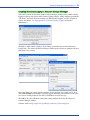
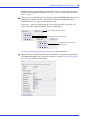
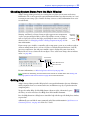
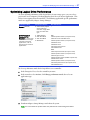
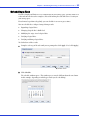
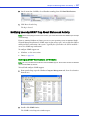
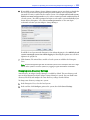
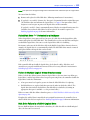
Click on any component in the main window of Adaptec Storage Manager, then
click the Properties button (shown at right) to view version numbers, status,
model numbers, and other information about that component.
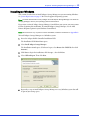
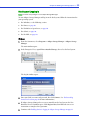
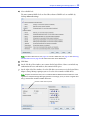
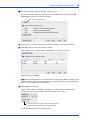
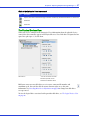
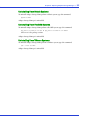
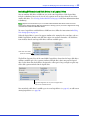
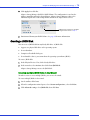
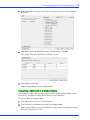
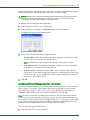
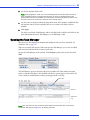
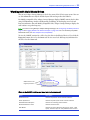
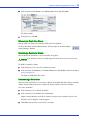
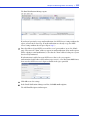
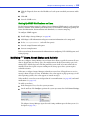
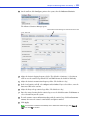
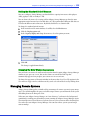
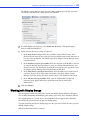
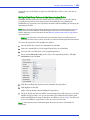
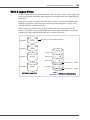
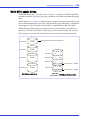
The properties listed vary, depending on which type of component you select. The examples
below show the Disk Drive (left) and Logical Drive (right) Properties windows.
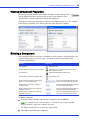
Blinking a Component
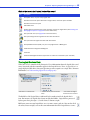
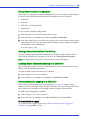
You can blink the LEDs on enclosures, or disk drives inside enclosures, to identify where they
are physically located in your storage space. This table describes how to blink specific
enclosures and disk drives.
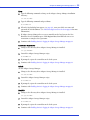
To Blink...
Right-click...
The disk drive
Disk Drive icon
All disk drives connected to that controller
Controller icon (in the Enterprise View or in the
Physical Devices View)
The enclosure
Enclosure Management Device icon
All disk drives included in a logical drive
Logical Drive icon
All disk drives included in all the logical
drives on a selected controller
Text—In the Logical Devices View of a
controller with multiple logical drives
All disk drives connected to selected
controller ports
Text—In the Physical Devices View of a
controller with multiple ports
All disk drives connected to a selected
controller channel
Text—In the Physical Devices View of a
controller with multiple channels
All disk drives connected to a selected
controller connector
Text—In the Physical Devices View of a
controller with multiple connectors
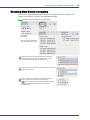
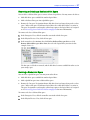
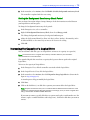
To blink a component:
1
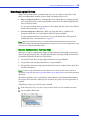
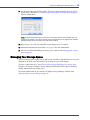
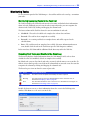
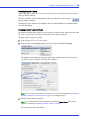
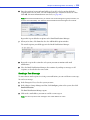
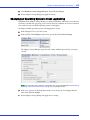
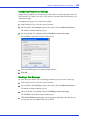
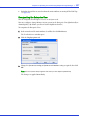
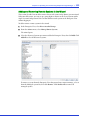
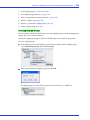
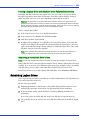
In Adaptec Storage Manager, right-click the component, then click Blink....
Note: If the component you select (for instance, a controller) doesn’t support the blink
function, the Blink... option won’t appear in the menu.
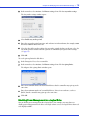
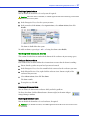
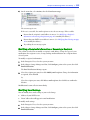
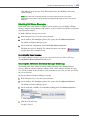
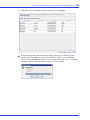
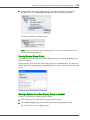
The LEDs on the disk drives or enclosures begin to flash.
2
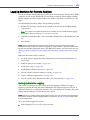
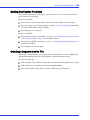
Click OK to stop blinking the component.