1
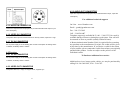
2.1 CONNECTORS OF GRAND ULTIMATE WIRELESS
!
POSITION : Press up, down, left and right button to adjust the position of the
converted computer display. These four buttons also are used to make
!
SCAN CNVTR : Connects H cable to PC, Grand ULTIMATE WIRELESS and
adjustments to the settings in the MENU.
monitor.
!
!
AUDIO IN:
Connects to sound device or audio output of DVD/ VCD /VCR.
2.3 CHANNEL SETTING
RGB OUT:
Connects to your display device supporting the European
!
SCART Standard with RGB to SCART cable, or other display
SW1
device with RGB input.
!
VIDEO OUT:
DIP SWITCH:
SW2
SW3
SW4
SW5
SW6
DOWN (ON)
CHANNEL 1
DOWN(ON)
Connects Grand ULTIMATE WIRELESS to the Video input of
DESCRIPTION
CHANNEL 2
DOWN(ON)
CHANNEL 3
the TV. (Optional for wired connections)
!
DOWN(ON)
S-OUT :
Connects Grand ULTIMATE WIRELESS to your TV supporting
DOWN(ON)
the S-VIDEO input. (Recommend for wired connections)
!
DC IN :
Connects with supplied AC power adapter.
!
VIDEO IN:
Connects to your video device such DVD/VCR/Camera for
2.2 BUTTONS & SWITCHES OF GRAND ULTIMATE
WIRELESS
!
POWER : Toggle between power on & off.
!
VIDEO SOURCE : Toggles between displaying the converted computer
YUV OUTPUT
DOWN(ON)
RGB OUTPUT
NOTE: RGB OUTPUT and YUV OUTPUT can not be enabled at the same time
!
video pass-through.
CHANNEL 4
2.4GHz Receiver Channel seting:
SWITCH 1
SWITCH 2
SWITCH 3
SWITCH 4
CHANNEL 1
CHANNEL 2
CHANNEL 3
CHANNEL 4
2.4 INSTALLATION
display and the video pass-through source.
The Grand ULTIMATE WIRELESS is a “Plug and Display” video converter. The only
!
SAVE: Press this button to save current display and position settings.
!
FINE TUNE : Press this to fine-tune the video image.
!
ZOOM : Toggle between Zoom and Normal display for converted computer
requirement to get the output of the computer on the TV is to make the proper
connections and ensure that your computer display is set within the supported
parameters. Please read the following sections carefully for the installation of the
hardware. Please refer to Fig.2 for and overview of the process.
display.
!
MENU : Press button to cycle through the functions. The functions are: Freeze,
HSIZE, VSIZE, Brightness, Contrast, Hue, Saturation, Video Standard, Flicker
and OSD color, Reset.
5
6