1
BitDefender Total Security 2010
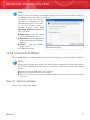
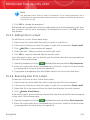
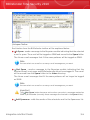
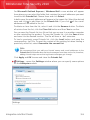
● Select the vault from the table and click
Lock vault.
● Right-click the vault in the table and select Lock.
● Right-click the corresponding virtual disk drive from My Computer, point to
BitDefender File Vault and select Lock.
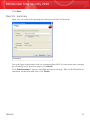
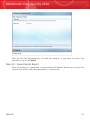
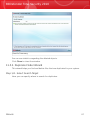
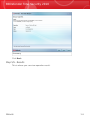
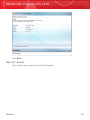
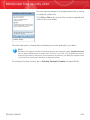
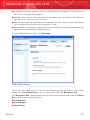
BitDefender will immediately inform you about the result of the operation. If an error
has occurred, use the error message to troubleshoot the error. Click OK to close
the window.
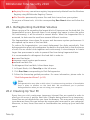
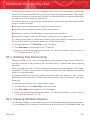
25.2.4. Changing Vault Password
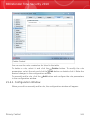
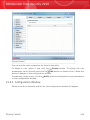
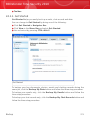
The vault must be locked before you can change its password. To change the
password of a vault, use any of these methods:
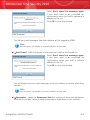
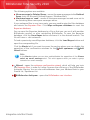
● Select the vault from the table and click
Change password.
● Right-click the vault in the table and select Change password.
● Right-click the vault file on your computer, point to BitDefender File Vault and
select Change vault password.
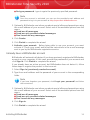
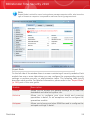
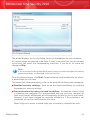
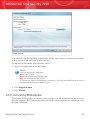
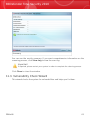
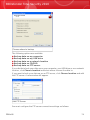
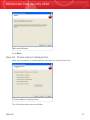
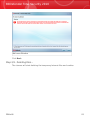
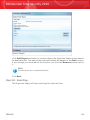
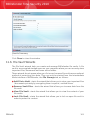
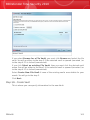
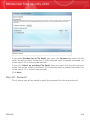
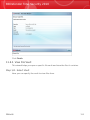
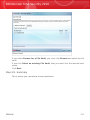
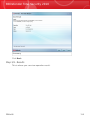
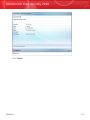
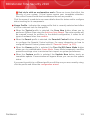
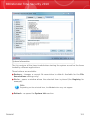
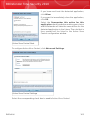
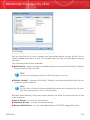
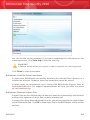
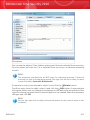
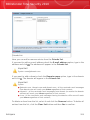
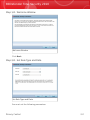
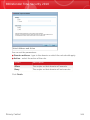
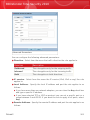
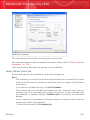
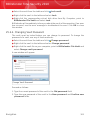
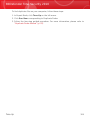
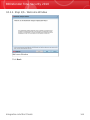
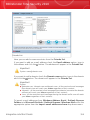
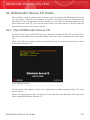
A new window will appear.
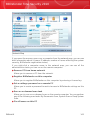
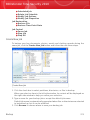
Change Vault Password
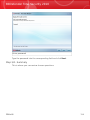
Proceed as follows:
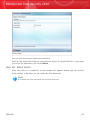
1. Type the current password of the vault in the Old password field.
2. Type the new password of the vault in the New password and Confirm new
password fields.
Encryption
302