1
MODE 3.1 Installation Instructions
Page 23
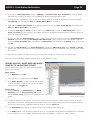
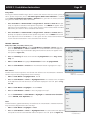
8. Under Sub Source Input, if no additional source is going to be added, use the default setting: None. If adding an
additional source, left click the pull-down arrow and select: Base Aux In or Adapter Aux In. Base Aux In allows stereo audio to be connected from a source at the Base location. That is, if the Base is in a remote zone, a device such as a
Video Game, XM or SIRIUS Tuner, Cable Box, etc. can be added so the audio can be played through the MZC amplifier
and zone speakers. Adapter Aux In provides the same flexibility for a source connected to the Adapter. There can only
be one Aux In connected per source, but this allows the input capability of the MZC-66 to expand to 12 sources and the
MZC-88 to 14!
IMPORTANT NOTE: The sources connected to the Base and Adapter Aux Inputs are only selectable via
MODE 3.1 Keypads. They are not available to EZ-Pads and cannot be selected by IR remote commands.
For the purpose of the example, the cable box that was connected to Source 5 on the MZC has now been replaced
by an iPod, making the iPod available to all zones. The cable box is actually dedicated to the Family Room, where
coincidentally, the MODE 3.1 is being installed. The cable box will be configured as the Source 5 Sub Source
Input in EZ-Tools (Figure 17) and connected to the Base Aux In in the Family Room. All zones will have access
and control of the iPod (Source 5). Only zones with MODE 3.1 Keypads will have access and control of the
cable box (Source 5a) which will appear in the MODE 3.1 Main Menu as a regular Source. Further, as an option,
the cable box can be unchecked in Zone Setup, for any zones other than the Family Room that get MODE 3.1
Keypads, to keep the cable box dedicated to the Family Room. In addition to dedicated control, this will allow the
cable box audio to feed through the MZC amp and zone speakers for the Family Room. See section: Connections for
additional information.
9. In the Name block, type in the source name for the device being connected to the Aux In. This name will appear in the
Source List on the MODE Display, so be sure to use a name that will not confuse the user. If there is a Cable Box already
available as a source through the MZC, name the cable box connected to the Aux In: Cable 2.
10. If no other changes are to be made, left click Apply in the MZC Setup Window. This will ‘save’ the new configuration. If
additional Bases and Adapters are being added, repeat steps 5-9 above for each new Base/Adapter pair. Left click Apply
to ‘save’ each.
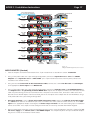
Figure 17
Changing Source Setup
11. A Warning Window will appear advising: ‘The Cable Source has been changed to a IPOD Source...Do you still
want to continue?’ Left click YES. If multiple source changes have been implemented, a warning for each change will
come up. Review each of these as it is possible that an undesirable change has been made.
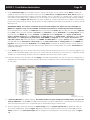
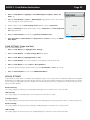
12. After the Warning(s) have been cleared, the Source Setup under the Project Content Tab will update to show the
new source configuration. (Refer to Figure 18) Source 5 will have changed to iPod and a new source, 5a will show
Cable. Source 5a is the Sub Source Input (Base or Adapter Aux In) configured in the previous steps. (Refer to Figure
17)