1
PPT 8800 with Windows Mobile 2003 Software for Pocket PCs Product Reference Guide
15-Key Configuration
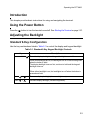
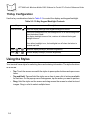
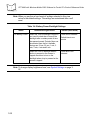
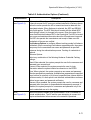
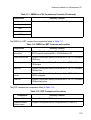
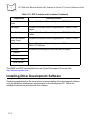
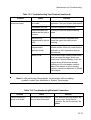
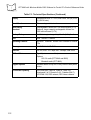
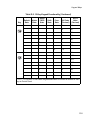
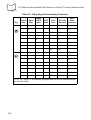
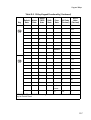
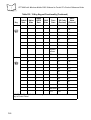
Use the key combinations listed in Table 2-2 to control the display and keypad backlight.
Table 2-2. 15-Key Keypad Backlight Controls
Keys
Press and hold
Description
Turns the display backlight and keypad backlight on and off.
When both backlights are off, the backlights turn on in the following order
when the button is held:
The display backlight turns on first, continue to hold and the keypad
backlight turns on.
When either backlight is on, the backlights turn off when the button is
pressed and held.
Press
+
Decrease display backlight (decrease brightness).
Press
+
Increase display backlight (increase brightness).
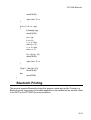
Using the Stylus
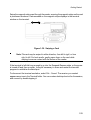
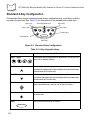
Your terminal has a stylus for selecting items and entering information. The stylus functions
as a mouse.
•
Tap: Touch the screen once with the stylus to press option buttons and open menu
items.
•
Tap and Hold: Tap and hold the stylus on an item to see a list of actions available
for that item. On the pop-up menu that appears, tap the action you want to perform.
•
Drag: Hold the stylus on the screen and drag across the screen to select text and
images. Drag in a list to select multiple items.
2-4