1
Exercise Four: Linear Profiling
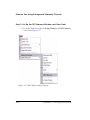
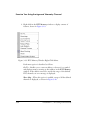
Step 3: Collect and Examine the Linear Profile Data
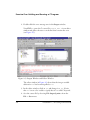
To collect and examine the linear profile data:
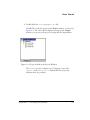
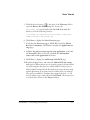
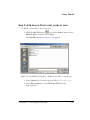
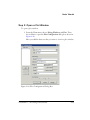
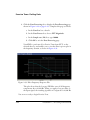
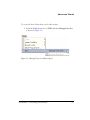
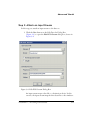
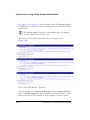
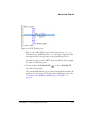
1. Press F5 or click
to run to the end of the program.
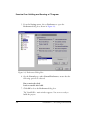
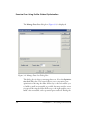
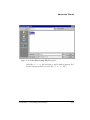
When the program halts, the results of the linear profile appear in
the Linear Profiling window.
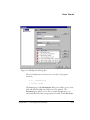
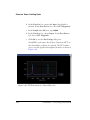
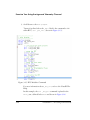
2. Examine the results of your linear profiling session.
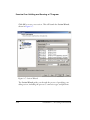
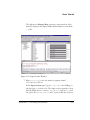
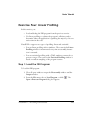
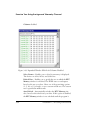
The Linear Profiling window is divided into two three-column
panes.
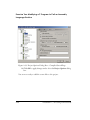
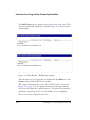
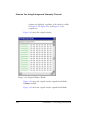
The left pane shows the results of the profile data. You can see the
percentages of total execution time consumed, by function and by
address.
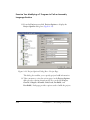
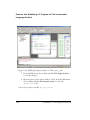
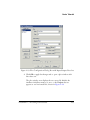
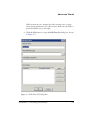
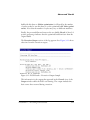
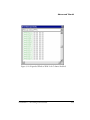
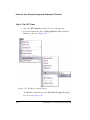
Double-clicking a line with a function enables you to display the
source file that contains that function. For example, double-click
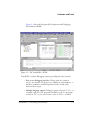
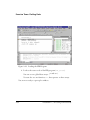
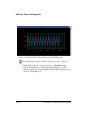
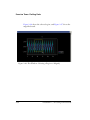
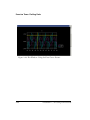
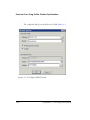
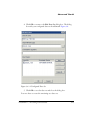
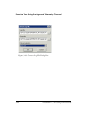
the fir function (and respond to the prompt) to display the assembly source file (fir.asm) in the right pane, as shown in
Figure 2-35.
Figure 2-35. Linear Profiling Results, FIR Program Performance Analysis
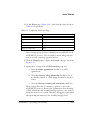
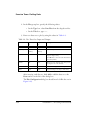
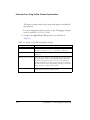
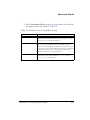
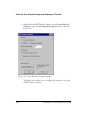
The field values in the left pane are defined as follows.
2-48
VisualDSP++ 5.0 Getting Started Guide