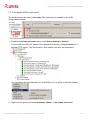
1
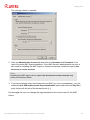
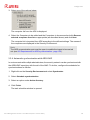
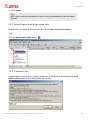
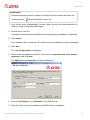
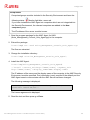
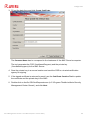
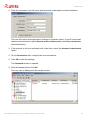
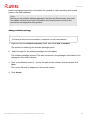
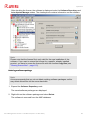
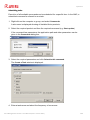
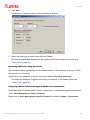
Updating the Software Repository and installed products After validation, the test files can be committed (Released products), to serve as update source to the other groups. 3. Right-click on Test products, and select Commit products. The test files can also be committed automatically: Under Server Settings > General, enable the option Commit test files automatically and enter the required time (in minutes). Note The selected interval must be at least 5 minutes less than the interval set for updating the products. The files will be moved after this period of time has elapsed. 4. Click Yes to confirm the change. The AUM servers are first reinitialized. Warning If the server was offline at the time of the planned commit operation, the test files are released as soon as the server booted up again. This is to say that if the automatic commit is scheduled for 9:30 p.m. and the server is offline at that time, but will be booted up again at 10 p.m., the automatic commit will take place at 10 p.m. If problems occur during the test, the moving of the test files can be terminated. Right-click on the Test products node and select Drop upcoming commit. Alternately, you can type the following command in the command line: --drop_automatic_commit This means that the automatic commit command remains active, but currently queued files are deleted. New files are not saved in the queue until the next update. Manual commit, which allows files to be committed individually at any time is still available via the context menu of the Test products node. Note If you want to perform an update via the AUM in test mode, you first have to click on Released products in the context menu. Otherwise you will not be able to update the AMC Server and AMC Frontend at a later time. Avira Management Console - User Manual (Status: 17 Nov 2011) 123