1
Vendoma
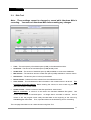
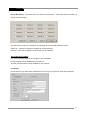
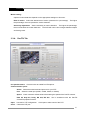
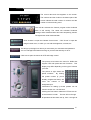
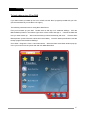
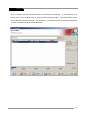
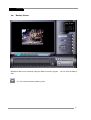
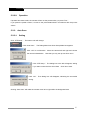
The current date and time appears on the screen.
The numbers and the circles on the bottom part of the
screen indicate the total number of volumes and the
number of volumes being used.
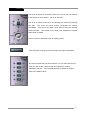
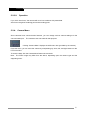
The left tab activates the Search program while Vendoma
Main is still running. The center tab activates Vendoma
Settings while Vendoma Main has been temporarily paused.
The right button exits Vendoma Main.
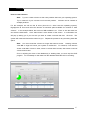
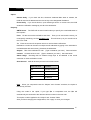
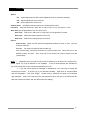
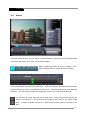
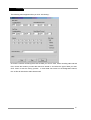
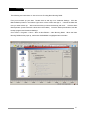
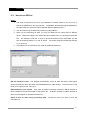
Click "CAMERA" to open the Camera Control menu. Click "IMAGE" to open the
Image Control menu, in which you can edit the brightness, contrast, etc.
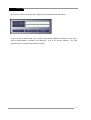
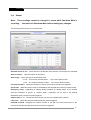
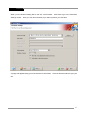
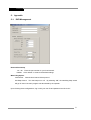
This brings up the login box where you must enter your username and password.
You can manage DVR features as long as you have the authority to do so.
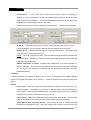
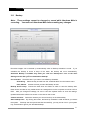
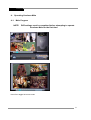
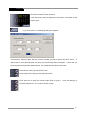
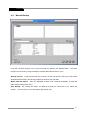
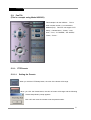
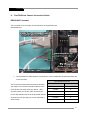
Click here to open the menus for PTZ and image control.
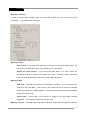
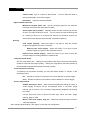
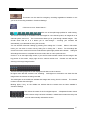
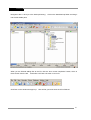
The picture at left shows the menu for DVRs that
support PTZs with preset and tour functions. This
display may differ depending on the type of camera
you have.
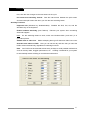
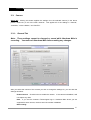
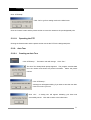
The picture at right shows the
preset numbers.
By clicking
the preset number (if you’ve
already programmed them) will
move
the
camera
to
the
designated spot.
Instructions for setting up these presets can be
found in section 3-3-4 of this book.
Clicking the Tour button makes the PTZ move to all
of the locations in order. The tour will run through
all presets that have been set up, from 1 through 20.
36