1
RATIO
Technical Manual
Trademarks
Adobe®, Acrobat®, Postscript® and Postscript®3TM are registered trademarks of
Adobe Systems Inc.
AutoCAD ®, DWF, DWG, DXF are registered trademarks of Autodesk Inc.
®
LibCAD is based on AutoCAD OEM and may only be used in conjunction with
PLOTBASE
Apple, Macintosh, Mac, Mac OS and TrueType are registered trademarks of Apple
Inc.
Microsoft®, Outlook®, Windows®, Windows ServerTM, Internet Explorer®, WMF are
registered trademarks of Microsoft Corp. in the United States and/or other countries
Firefox is a registered trademark of Mozilla Foundation
PLOTBASE®, PLOTCLIENT® are registered trademarks of RATIO Entwicklungen
GmbH
Calcomp is a registered trademark of Calcomp Inc.
CALS is a registered trademark of U.S. Department of Defense
CGM is a registered trademark of Henderson Software Inc.
CIT is a registered trademark of Intergraph GmbH
HPGL, HPGL/2, HP-RTL are registered trademarks of Hewlett-Packard Corp.
PCX is a registered trademark of Zsoft/Microsoft Corp.
Other product names used herein are for identification purposes only and might be
trademarks of their respective companies. We disclaim any and all rights in those
marks.
The proper names of the Windows operating systems are as follows:
®
®
Microsoft Windows 2000 Professional
®
®
Microsoft Windows 2003 Server
®
®
Microsoft Windows 2008 Server
®
®
Microsoft Windows XP Professional
®
®
Microsoft Windows Vista
CONTENTS
Contents
Technical manual ...............................................................5
System requirements ..........................................................6
PC specifications .................................................................8
Extend licenses .................................................................10
Users and groups created in Windows.............................11
DWG and DXF...................................................................12
Printing DWG/DXF and DWG files.............................................12
Cutom paper sizes in LibCAD....................................................13
Network installations .......................................................14
Dealing with firewalls................................................................14
Requirement of DNS service ......................................................15
Changing computer names.......................................................15
Using remote spool folders .......................................................15
Plotters..............................................................................16
Hewlett-Packard .......................................................................16
Canon .....................................................................................16
PLOTBASE .........................................................................17
Limitations................................................................................17
PLOTCLIENT HDI ...............................................................18
General notes ..........................................................................18
Installation of HPGL plotter .......................................................18
Installation in AutoCAD 13 ...................................................18
Installation in AutoCAD 14 ...................................................19
Configuration ...........................................................................20
Configuration for AutoCAD 13/14 via configuration tool .......20
Settings for AutoCAD 13/14 in print dialog ...........................21
Settings for AutoCAD 200x in print dialog .............................21
WINPRINT .........................................................................24
Installation of INF file................................................................24
Installation on the PLOTBASE server PC.................................25
Installation on a separate client PC .......................................27
Communication with PLOTBASE on Vista ...................................28
RATIO Technical Manual
3
CONTENTS
Limitations................................................................................28
PLOTCLIENT LPR and FTP..................................................29
PLOTCLIENT LPR ......................................................................29
Configuration on server PC with Windows.............................29
Print jobs with lpr on Windows..............................................30
Configuration on UNIX ........................................................30
Print jobs on UNIX using lpr .................................................31
PLOTCLIENT FTP ......................................................................31
Configuration on server PC with Windows.............................32
Print jobs on Windows using ftp ............................................32
Configuration on UNIX ........................................................33
Print jobs on UNIX using ftp..................................................33
PLOTCLIENT MAC ..............................................................35
PPD file on Macintosh OS 9 ......................................................35
Limitations................................................................................36
Frequently asked questions .............................................37
File formats.......................................................................41
Creating SSL files ..............................................................46
Structured commands ...............................................................46
SSL commands .........................................................................48
Creating CFG files .............................................................66
HPGL/2 commands and pens ...........................................70
Calcomp commands and pens..........................................73
Index.................................................................................76
RATIO Technical Manual
4
TECHNICAL MANUAL
Technical manual
This technical manual gives further technical descriptions, explains some problem solutions and provides you with technical
data and background information for the RATIO plot management system.
RATIO Technical Manual
5
SYSTEM REQUIREMENTS
System requirements
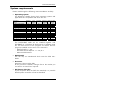
Please read through the following recommendations carefully:
• Operating system
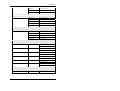
The following schedule shows which operating systems and
applications are compatible and which are not:
Operating
System
Windows Vista 32 bit
Windows Vista 64 bit
Plotbase
yes
no
Scan Plotclient Winprint PPD PC Web
Option
& INF file
Server
yes
yes
yes
no
yes
no
yes
yes
no
no
Windows XP Prof. 32 bit
Windows XP Prof. 64 bit
yes
no
yes
no
yes
yes
yes & INF no
yes & INF no
yes
no
Windows 2000 Prof.
no
no
yes
yes & INF no
no
Windows 2008 Server
Windows 2003 Server
no
no
no
no
yes
yes
yes
no
yes & INF no
no
no
MAC OS 9.x
MAC OS 10.2/.3/.4/.5
no
no
no
no
no
no
no
no
yes
yes
no
no
The PLOTCLIENT WEB will be installed together with
PLOTBASE on a Windows XP Professional or Windows Vista
PC. You have access to the program via various browser
programs installed on the server or the client PCs:
- Mozilla Firefox >= 2.0
- Microsoft Internet Explorer >= 6.0, SP 1
- Macintosh PC Browser
• Mainboards
You can only use mainboards which meet the PCIe standards.
• Processor
Minimum Celeron with 2 GHz
As the processor hardware changes fast in the market you
can ask for an actual list if required.
• PCI Express slot (X1)
If your computer does not fulfill this standard, it is possible
that the plotter controller will not be identified.
RATIO Technical Manual
6
SYSTEM REQUIREMENTS
• Front Side Bus
Minimum Celeron with min. 400 MHz
• System memory
At least 2GB RAM is required
• Hard drive
The hard disk should have at least 100 GB free memory
• Network interface/Configuration
10/100 Base T Ethernet (TCP/IP configuration necessary)
or Novell Netware 6.5 SP6 with Novell Client 4.91 SP3
• DVD drive
• Monitor
At least 1024 x 768 pixels resolution
1280 x 1024 recommended
RATIO Technical Manual
7
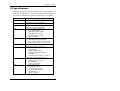
PC SPECIFICATIONS
PC specifications
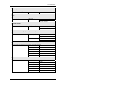
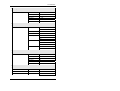
Following sample PC systems comply with the requirements. As
hardware changes fast in the market following specifications
can only be regarded as a guideline, valid as per June 2009:
Manufacturer
Model
Hewlett Packard
HP xw 4600 Workstation
[2,66 GHz, Core 2 Duo E6850]
Asus P5B Board with Core 2 Quad
No-name
Dell
Dell
Dell
Acer
Acer
Acer
Asus
Vostro 400
[with Intel Core 2 Quad Q6600]
Dell Vostro 200 MT [D042010]
Core 2 Duo E4500
2048 MB 667MHz, DDR2
320 GB HDD Serial-ATA
Integrated graphic media
accelerator X3100
Same as above, but also equipped with
128 MB ATI Radeon HD 2400
Extra graphic adapter avoids "shared
memory" and gives better performance
Extensa E210
[Athlon 64 X2 5000+ Dual Core]
Pentium-4 CPU 3200
250 GB HDD
NVIDEA Quadro PCI-e
Broadcom NetXtreme Gigabit
4 GB RAM
Onboard graphic adapter memory
changed from 256 MB to 32 MB
Motherboard M2V
X1200 graphic on board
200 GB HDD
Athlon 64 X2 4200+
Motherboard A7V
ATI Rage XL graphic
3COM 3C905 network
VIA Apollo KT133 chipset
200 GB HDD
Athlon 64 3500+
RATIO Technical Manual
8
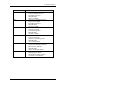
PC SPECIFICATIONS
Manufacturer
Model
Asus
-
Asus
Asus
Asus
Asus
Asus
Motherboard A8N-SLI
Chipset NVIDEA nForce4
ATI X300 SE graphic
200 GB HDD
Athlon 64 3200+
Motherboard P5AD2-E Deluxe
Chipset Intel 925XE
ATI X300 SE graphic
200 GB HDD
Pentium D 3200+
Motherboard P5WD2
Chipset Intel 995X
ATI X300 SE graphic
200 GB HDD
Pentium D 3200+
Motherboard P5B
Chipset Intel P965
Gainward 7600GS graphic
200 GB HDD
Core 2 Duo E6600
Motherboard M2V
Chipset VIA K8T890/VT8237A
Point of View 7600GS
200 GB HDD
Athlon 64 X2 AM2 5000+
Motherboard A7V600-X
AMD Sempron 3000+
Asus Radeon A7000 graphic
Via Rhine II Fast Ethernet
RATIO Technical Manual
9
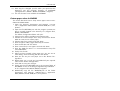
EXTEND LICENSES
Extend licenses
You can extend the functions of your system. To do this, you
must install a new license file, which you can obtain from your
dealer or the manufacturer. To install the file you require local
administrator rights for the PLOTBASE computer:
1. First open a dialog with the menu command "Help - License
Manager" or via "Start - Programs - RATIO - RATIO - RSP
Manager".
The currently installed licenses are first listed in the window.
2. If you now wish to install a new license file, click on "Update
licenses".
3. You can see a small search symbol at the top of the window.
Click on this symbol to open a file selection. Then select the
new license file (*.rsp), which you have saved on you computer and confirm the selection with "Open".
4. You can check whether all the required options are contained in the file. Then click on "Install" in the lower section of
the window. You will then be asked whether you really want
to install the license file and overwrite the old file. Confirm
accordingly.
5. Restart PLOTBASE so that you can use the new options.
RATIO Technical Manual
10
USERS AND GROUPS CREATED IN WINDOWS
Users and groups created in Windows
Following users will be created for the system:
• RATIO Plotservice user
• RATIO Webclient user
• RATIO Webserver
Attention: This chapter is primarily for information
and it is not expected that any administrator modifies
these users and their rights anyway! If you nevertheless
need to modify them, excellent administrative skills are
recommended to guarantee an error free use of your
system!
RATIO Plotservice user
This user is a special account with administrative rights. You
cannot and you may not log in with that account. Its password is
intentionally unknown to everyone as it is created randomly during installation of your sytem!
This user account is used by the "plot service" and the "webserver". The "plot service" makes the connection between
PLOTBASE user interface and the connected output devices. The
"webserver" allows you to monitor the job processing via internet
browser; this corresponds to the "Web watch" function in your
software.
RATIO Webclient user
This user is a special account with administrative rights. You
cannot and you may not log in with that account. Its password is
intentionally unknown to everyone as it is created randomly during installation of your sytem!
This user account is used by the PLOTCLIENT WEB to provide
your Client PC browsers with the PLOTCLIENT WEB user interface.
RATIO Technical Manual
11
DWG AND DXF
DWG and DXF
Printing DWG/DXF and DWG files
A full version from AutoCAD series 2000 to 2009 or the LibCAD
must be installed on the server computer as a prerequisite for
printing DWG, DXF and DWF formats.
To print DWG, DXF and DWF files in a new paper format which
does not correspond to the normal standard sizes, the following
settings have to be adjusted in your AutoCAD program:
1. Open the plotter manager under "File - Plotter Manager".
2. Choose a *.pc3 file. The name can differ slightly depending
on the AutoCAD version:
AutoCAD 2000:
RATIOD6.pc3
AutoCAD 2000i, 2002:
RATIOD7.pc3
AutoCAD 2004 - 2006:
RATIOD8.pc3
AutoCAD 2007 - 2009:
RATIOD9.pc3
Open the file belonging to your AutoCAD version with a
double click.
3. Change to the "Device and Document settings" tab. Choose
the setting "Custom Paper Sizes (Printable Area)" under
"User-defined Paper Sizes & Calibration".
4. Click on "Add".
5. A small help program now shows you the individual steps for
configuring a new paper size. In the first window, just click
on the "Next".
6. Now enter the width and height of the new format. You can
also select the units of measurement: inches or millimeters.
Click on "Next" to confirm all entries.
7. Now enter the printable area on the defined sheet. Enter
values for all four edges: "Top", "Bottom", "Left" and "Right".
Click on "Next" to confirm all entries.
8. Enter a name for the new format. This name will be offered
later in the format selection. Then click on "Next".
9. Now enter a name for the .pmp file which saves the format
attributes. Then click on "Next".
10. You do not need to make any adjustments in the last window. Just click on "Next".
11. The "Plotter Configuration Editor" is still open. Click on "OK"
to close it.
RATIO Technical Manual
12
DWG AND DXF
12. Now copy the changed .pc3 file which you opened at the
beginning into the program directory of PLOTBASE
(\\Program Files \ RATIO \ RATIO\ PLOTBASE \ Program).
13. This new format is now available in PLOTBASE.
Cutom paper sizes in LibCAD
This section describes how to setup custom paper sizes in AutoCAD and LibCAD 2008.
1. Open the directory "Documents and Settings\ <current
user>\ Application Data\ RATIO\ LibCad 2008\ R11\ enu\
plotters".
2. Open the file "RATIOD9.pc3" with the program "pc3exe.exe"
that is normally located in the directory "C:\ Program files\
RATIO\ LibCad2008".
The "Plotter Configuration Editor" will open.
3. Change to the "Device and Document Settings" tab.
4. Choose the "Custom Paper Sizes" entry and click the button
"Add" to create a new custom paper.
5. Choose "Start from scratch" and click "Next".
6. Enter the paper width, height and finally click "Next".
7. Enter the borders and click "Next".
8. Enter a name for the new paper size and click "Next".
9. Enter the "PMP file name". It is recommended to keep file
name "RATIOD9".
10. Finally click "Finish".
11. When you have created a long paper size, you can see an
extra dialog. Close the dialog with the "OK" button.
12. Now you can see your new paper size in the "Plotter Configuration".
13. Repeat steps 5 to 11 until you have added all your required
sizes into this "Plotter Configuration".
14. Click "OK" to save your changes.
15. Finally copy the file "RATIOD9.pc3" to the program folder of
PLOTBASE - as far as not being changed during installation to "C:\ Program Files\ RATIO\ RATIO\ Program".
16. Additionally copy the file "RATIOD9.pc3" to the folder
"Documents and Settings\ <RATIO_User>\ Application
Data\ RATIO\ LibCad 2008\ R11\ enu\ plotters".
RATIO Technical Manual
13
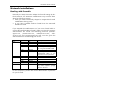
NETWORK INSTALLATIONS
Network installations
Dealing with firewalls
Normally the Setup Launcher adapts the firewall settings by default. However, the automatic modifications may not have been
done for following reasons:
• either you have intentionally skipped or stopped the firewall
modifications during setup
• or you have installed another firewall than the Microsoft
Windows firewall
If you stopped the modifications or if you use a firewall which is
not the Microsoft Windows firewall, make sure that all necessary
authorisations are issued. The following processes 'plotmanagerru.exe', 'plotserviceru.exe', 'adcapserverru.exe', 'webserverru.exe' and 'accountingserviceru.exe' must be given the
authorisations for the following port access:
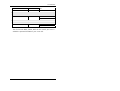
Protocol
TCP
Port
21
80
8080
808x
Service
FTP
HTTP
HTTP
HTTP
Description
first free port following '8080'
for using PLOTCLIENT WEB
only required when using
PLOTCLIENT MAC or 'lpr'
command to send plot files
1108
515
ADCAP
LPR
UDP
161
162
1108
SNMP
SNMP Trap
ADCAP
-
ICMP
-
-
at least incoming and outgoing "echo requests" (pings)
must be allowed
In case of queries, please refer to the administrator responsible
for your firewall.
RATIO Technical Manual
14
NETWORK INSTALLATIONS
Requirement of DNS service
Some components of PLOTBASE use network services, as for example LibCAD. If you are connecting the PLOTBASE computer
to a network, a DNS (Domain Name Service) should be available in your network.
If you are using a simple network such as Workgroup network
and there is no DNS available, enter "127.0.0.1" as DNS server
for "Internet Protocol (TCP/IP)" in the network properties.
Changing computer names
If you want to change any computer names we recommend to
do so before you actually install the software. If you nevertheless
want to do that after the installation make sure that any DNS
servers are completely updated and that all DNS caches on all
client computers do reflect this change; in many cases a complete reboot will be necessary. To get more information ask your
network administrator or refer to http://support.microsoft.com.
In any case make sure that after your modifications all client
computers can actually retrieve the correct IP address of the
server and vice versa. This is specially true, if you allow your
DNS architecture to use double DNS PTR entries, which is not
recommended as it requires are very fine setup and tuning of
your network architecture.
Using remote spool folders
You have created a spool-folder on a remote computer. For security reasons in most network environments the access to such
folders by system processes is not allowed. We recommend to
use spool folders on your PLOTBASE computer. If you nevertheless wish to use spool folders on a remote computer, please
make sure that "RATIO_USER" has sufficient rights to access that
folder. For further questions please contact your network administrator or refer to engineers with a special training on system
integration in networks.
RATIO Technical Manual
15
PLOTTERS
Plotters
Hewlett-Packard
If you use an HP plotter you should make the following settings
at the plotter panel to ensure a smooth processing of the plot
jobs:
- in the Network settings, set the I/O timeout to its maximum
value
- in the Job management settings, activate the job queue
Canon
Some Canon plotters suffer from a limitation in the ethernet
connection. As a result the plotter is not automatically found. If
this limitation occurs we recommend to connect the Canon device via USB connection.
RATIO Technical Manual
16
PLOTBASE
PLOTBASE
Limitations
Maximum copy count of plot jobs
The maximum count of sheets of a plot job is limited to 6000.
This is because the internal organisation of a job including it's
error recovery feature requires a certain amount of memory resources. The maximum value is the total count of sheets that
shall be ouputted by the job.
Example:
If a set contains three entries (E1, E2, E3) and if the entries are
multipage files with ten, eleven and twelve pages, respectively,
then the total count of sheets would be 10+11+12 = 33.
If this complete set shall be printed seven times the total sheet
count would be 7 x 33 = 231, which is below to limit of 6000
sheets.
If, however, the complete set shall be printed 182 times, then
the total sheet count would be 182 x 33 = 6006, which exceeds
the maximum sheet count of 6000.
If the total number of sheets of your job exceeds 6000 then you
should reduce the copy counts or remove entries from the job.
You can also disable entries in the job.
RATIO Technical Manual
17
PLOTCLIENT HDI
PLOTCLIENT HDI
General notes
"Modify" option during setup
During the setup of PLOTCLIENT HDI a "Modify" option can be
available. This should be used, if you updated your AutoCAD
version and want to continue to use your PLOTCLIENT HDI with
your new AutoCAD version. The function will make necessary
adaptations such that you can use PLOTCLIENT HDI with your
new AutoCAD version.
Make sure that your current PLOTCLIENT HDI supports your
new AutoCAD version, otherwise you might better ask for an
update of PLOTCLIENT HDI.
Installation of HPGL plotter
Before using PLOTCLIENT HDI with AutoCAD 13/14, an
HPGL/2 plotter [HP DesignJet 1055 CM] has to be installed.
This installation is described in the two sections below.
Note: For technical reasons AutoCAD and LibCAD
may not be installed simultaneously on the same PC.
This applies to the server PC and each client PC.
Installation in AutoCAD 13
1. Start AutoCAD 13 and open the configuration dialogue
under the menu point "Options - Configure".
2. Press "Return" once.
3. Choose option 5 "Configure Plotter" and press "Return" to
confirm.
4. Choose option 1 "Add A Plotter Configuration" and press
"Return" to confirm.
5. Choose option 11 "HP-GL/2 Device" and press "Return" to
confirm.
6. Choose option 1 "HP DesignJet 1055 CM" and press "Return" to confirm.
RATIO Technical Manual
18
PLOTCLIENT HDI
7. Press "Return" once.
8. Choose the option "Parallel Port" and press "Return" to confirm.
9. Press "Return" to confirm the port name.
10. Confirm your changes in the next step with "Yes".
11. Answer the question about changing the parameters with
"No".
12. Answer the question about calibrating the printer with "No".
13. Answer the question "Write The Plot In A File" with "Yes".
14. Choose the required unit of measurement and press "Return" to confirm.
15. Press "Return" to confirm the defaults in the next step.
16. Press "Return" to confirm the defaults again in the next step.
17. Leave the rotation setting at "0" and press "Return" to confirm.
18. Answer the question "Remove Hidden Lines" with "No".
19. Choose the option "Fit" [on paper] and press "Return" to
confirm.
20. Leave the plotter name as the default and press "Return" to
confirm.
21. Choose the option "0" to leave the configuration.
22. Choose option "0" again to finish the dialogue completely.
23. Then choose option "Yes" to save the changes you have
made, and press "Return" to confirm.
24. Close AutoCAD 13 and continue with the next chapter
"Configuration".
Installation in AutoCAD 14
1. Start AutoCAD 14 and open the window "Preferences" under the menu point "File - Printer Setup".
2. Open the window "Add A Printer" by clicking on "New"
once.
3. Choose option "HP-GL/2 Device" and press "OK" to confirm.
4. Choose option 4 "HP DesignJet 1055 CM" and press "Return" to confirm.
5. Press "Return" once.
6. Choose the option "Parallel Port" and press "Return" to confirm.
RATIO Technical Manual
19
PLOTCLIENT HDI
7. Perform steps 9. - 19. as described above in the section for
AutoCAD 13.
8. Choose the new printer "HP DesignJet 1055 CM" and click
on "Set Current".
9. Finish the dialogue with "OK".
Configuration
To configure PLOTCLIENT HDI you must carry out two further
configurations. First via the program’s own configuration tool
and then in the print dialog of AutoCAD.
Note: For technical reasons AutoCAD and LibCAD
may not be installed simultaneously on the same PC.
This applies to the server PC and each client PC.
Configuration for AutoCAD 13/14 via configuration
tool
If you have deactivated during installation the check box for the
start of the configuration tool in step 9, start the configuration
tool now via "Start - Programs - RATIO - RATIO - PLOTCLIENT
HDI ADI - Config" and enter the following settings:
• Select Program
Select PLOTCLIENT, from which you wish to send your print jobs
to PLOTBASE for printing. If you use the [HDI/]ADI Client, your
presets always only apply for the current print job. If you take
PLOTCLIENT, you can add several other print jobs to your current print job and have the same presets for all.
• Select AutoCAD version
If you work with one of the two AutoCAD versions R13 or R14,
inform PLOTCLIENT which Version you use.
• Configuration
If AutoCAD 13 has not been installed with the standard paths,
inform PLOTCLIENT the two paths in which the configuration file
RATIO Technical Manual
20
PLOTCLIENT HDI
"ACADNT.cfg" and initialization file "ACAD.ini" are. For AutoCAD 14 no settings are required.
After you have entered the settings in the configuration tool, you
now only have to set up your new printer driver and enter the final presets in the print dialog of AutoCAD. You can then start
printing.
Settings for AutoCAD 13/14 in print dialog
To set up the printer with the print dialog in AutoCAD 13 or 14
proceed as follows:
1. Start your AutoCAD program.
2. Open a drawing.
3. Use "File - Plot" to go to the print dialogue "Plot Configuration".
4. Click on the button "Device and Default Selection" and then
make your choice from the list of HP-GL/2 printers (e.g. HP
DesignJet 1055). Press "OK" to confirm.
5. Back in the window "Plot Configuration", in the section "Additional Parameters" activate the option "Plot To File". In the
AutoCAD 14 dialogue, also activate "Autospool". Press "OK"
to confirm.
6. When you start the printing procedure, the window "Select
Printer" appears.
7. Press "OK" to confirm the default printer.
8. In the next window "Enter Plotserver IP", enter the name or
IP address of the PC where PLOTBASE is running and press
"OK" to confirm.
9. In the window "Enter Spool Directory", enter the required
spool directory and press "OK" to confirm".
10. This brings you to the window with print parameter settings
for PLOTCLIENT HDI.
Settings for AutoCAD 200x in print dialog
To set up the printer with the print dialog in AutoCAD 200x proceed as follows:
1. Start your AutoCAD program.
2. Open a drawing.
3. Use "File - Print" to open the window "Plotter Manager".
RATIO Technical Manual
21
PLOTCLIENT HDI
4. Open the dialogue "Add A Plotter Wizard" and click on
"Next".
5. To select a printer, click on "My Computer" and click on
"Next".
6. Select printer "PLOTCLIENT HDI" from the manufacturer list
"RATIO" and click on "Next".
If you cannot find the printer in the manufacturer's list, proceed with step 7. If the printer is listed, continue with step
10.
7. If the printer is not listed, select the option "Have disk".
8. Go to the "drv" directory of the PLOTCLIENT HDI program
directory.
9. Enter the driver file you need for your AutoCAD and confirm with "Open":
AutoCAD 2000: "DrvACAD2000.hif"
AutoCAD 2000i, 2002: "DrvACAD2000i-2.hif"
AutoCAD 2004 - 2006: "DrvACAD2004.hif"
AutoCAD 2007 - 2009: "DrvACAD2007.hif"
10.
11.
12.
13.
14.
Now you can select the printer "PLOTCLIENT HDI" and click
on "Next".
In the next window click on "Next" without importing a "PCP
or PC2 file"!
In the next window, click on the option "Plot to File" and
click on "Next".
Confirm the plotter name "PLOTCLIENT HDI".
Adjust the plotter configurations by clicking once on "Edit
Plotter Configuration".
Open "Custom Properties" to adjust specific driver settings
as well as the settings for medium and resolution:
• Server name: PLOTCLIENT HDI can be used for printing on several plotters. Here please enter the name of
the plotter to be used for printing. When you enter the
name, usually the corresponding spool directory will
appear automatically, then press "Return" to confirm. It
is then entered directly in the box "Spool Directory".
• Spool directory: If the right spool directory was not already offered automatically for you to choose, you can
enter it here manually.
• Raster gamma correction: With the gamma correcRATIO Technical Manual
22
PLOTCLIENT HDI
tion, to put it simply, you set the brightness of the print.
The gamma correction can be used in all plotters,
which work with raster data. You can set a value between 1 and 5, whereby 5 means the greatest brightness.
• Choose program mode: Here you can choose
whether you always want to print your print jobs from
AutoCAD as individual print jobs or whether you need
to process several drawings in one drawing set together. If you want to process several drawings simultaneously for printing, activate "generate set with
PLOTCLIENT". If you always only want to send individual jobs from AutoCAD to print and always want to use
the same plot parameter settings, tell the program "do
not display" this dialog. If you want to decide before
each print and enter new print parameters, simply let
this dialog be "Display" each time".
• Plot color merge control: You have two options to
choose. By activating "Colors merge" all levels of your
drawing will be merged. At parts, where two or more
colors lie on top of each other, colors will be merged. If
activating the option "Colors overwrite each other"
higher levels overwrite completely levels below. Translucent parts do not overwrite any colour.
15. Quit the plotter settings by clicking on "OK" twice.
RATIO Technical Manual
23
WINPRINT
WINPRINT
Installation of INF file
By default the windows printer driver WINPRINT is installed on
your computer together with your PLOTBASE software. Client
computers can connect to this WINPRINT by Microsoft "point
and print" technology.
An INF based WINPRINT is available on request or may be
added to your product DVD.
It is usually used for following purposes:
• The customer wants to install WINPRINT onto a separate
server computer [not the PLOTBASE computer]. Then the clients utilize the WINPRINT by "point and print" technology
from this server. This is typically the case if a unique and
centralized printer server is used in a company or if the user
wants to avoid the 10-user limit of Windows XP and Windows Vista Business.
• The client wants to create sets with WINPRINT by printing
single documents, which are automatically added to a set in
PLOTCLIENT (DDE connection of WINPRINT into
PLOTCLIENT).
• Others as for example in special project environments the
INF based WINPRINT may be required.
The development of operating systems is continuously proceeding. Currently the following operating systems are supported:
WINPRINT INF can be installed on server:
• Windows 2000
• Windows XP SP2 x32
• Windows XP x64
• Windows 2003 Server
Users can share WINPRINT via point & print from server:
• Windows 2000
• Windows XP SP2 x32
• Windows XP x64
• Windows 2003 Server
• Windows Vista Business, Ultimate, Enterprise
RATIO Technical Manual
24
WINPRINT
• Windows 2008 Server
The two possibilities for installation on the PLOTBASE server PC
and on a separate client PC are described here.
Installation on the PLOTBASE server PC
Installation of the INF file entails the following partial steps:
• Install port monitor
• Add port
• Configure port
• Install print driver
• Configure print driver
• Adjust device configuration [plotter, folder]
Install port monitor
1. Open "Print Server Properties" via "Start - Printers and Faxes File - Server Properties".
2. Change to the "Ports" tab and click on "Add Port" to add the
port monitor driver.
3. Click on "New Port Type".
4. Click on "Browse" and change to the DVD to get the port
monitor’s INF file.
5. Change to the folder "\Support\WIN_INF\Monitor" and open
the correct folder with "monitor.inf" file depending on your
[client] operating system.
6. Select the correct "monitor.inf" and click the "Open" button.
7. If the correct path appears in the "Installing Port Monitor"
dialog click "OK" to continue.
8. If a "Windows logo testing" message appears click on "Continue Anyway".
Add port
9. To add the port now select "RATIO Monitor" and click the
"New Port" button.
10.In the next dialog appears the name for the new port. Click
"OK" to confirm the default port name "PbPort". If you change
the port name, write down the new name for later use.
11.If the default spool path "C:\spool\cfg" does not yet exist on
your computer an error message appears. Click on "OK" to
be guided to the port configuration.
RATIO Technical Manual
25
WINPRINT
Configure port
12.To configure the port select "PbPort" in the "Print Server
Properties" dialog and click on "Configure Port".
13.In the port configuration dialog enter an existing PLOTBASE
spool directory (no UNC path) and click on "OK".
If PLOTBASE does not run on the same computer you have to
share this directory additionally!
14.Finally close the "Print Server Properties" dialog with "Close".
Install printer driver
15.Open "Start - Printers and Faxes".
16.Click "Add Printer" to open the "Add Printer Wizard" dialog.
17.In the "Welcome" page of the "Add Printer Wizard" click on
"Next".
18.On the following page select "Local printer attached to this
computer" and uncheck the "Automatically detect and install
my Plug and Play printer" check box.
19.Click on "Next" to continue.
20.Select "Use the following port" and choose "PbPort" as port.
21.Click on "Next" to continue.
22.Click on "Have Disk" to install the printer driver.
23.In the "Install From Disk" dialog click on "Browse" and
change to the DVD to get to the printer driver’s INF file.
24.Change to the folder "\Support\WIN_INF\Printer" and open
the correct folder with the "oemsetup.inf" file depending on
your [client-] operating system.
25.Select the correct "oemsetup.inf" file and click on "Open".
26.If the correct path appears in the "Install From Disk" dialog,
click on "OK" to continue.
27.In the "Add Printer Wizard" dialog select the WINPRINT and
click on "Next".
28.If required you can assign a [new] name to the printer on the
next page. Click on "Next" to continue.
29.In the next dialog select "Share name" and keep the default.
Click on "Next" to continue.
30.Fill in the "Location" and "Comment" field as you like it and
click on "Next" to continue.
31.If you want to print a test page select "Yes" on the configuration page and click on "Next" to continue.
32.Finally conclude the installation with "Finish".
RATIO Technical Manual
26
WINPRINT
33.If a "Windows logo testing" message appears, click on "Continue Anyway".
Configure WINPRINT
34.Open "Start - Printers and Faxes".
35.Click once on WINPRINT icon and open context menu item
"Properties".
36.In the "WINPRINT Properties" window change to the "Device
Settings" tab.
37.If you want WINPRINT to receive the plotter capabilities from
PLOTBASE you have to select "Yes" in the "Receive Capabilities" field. If you do not want WINPRINT to receive the plotter
capabilities enter "No" and continue with step 40.
38.If PLOTBASE is installed on the same computer as
WINPRINT, leave the "Plotserver Name" field empty. If
PLOTBASE is not installed on the same computer as
WINPRINT, enter the name of the computer where
PLOTBASE is installed.
39.Click on "OK" to finish the configuration. Only continue with
step 40 when you chose "No" in step 37.
40.Set the number of trays of the connected plotter.
41.If a folder is connected to the plotter enter the value "128" in
the next field, if no folder is connected enter "0".
42.Set the number of trays of the connected folder.
43.Click on "OK" to finish the configuration.
Installation on a separate client PC
If you want to run WINPRINT and PLOTBASE on different PCs
and WINPRINT also runs on a different operating system [= client PC] then additional drivers have to be installed.
Installation of Windows XP 64 bit driver
1. Open "Start - Printers and Faxes".
2. Click once on WINPRINT icon and open context menu item
"Properties".
3. In the "WINPRINT Properties" window change to the "Sharing"
tab and click on "Additional Drivers".
4. In the "Additional Drivers" dialog select the "Windows XP" option and click on "OK".
5. In the next dialog click on "Browse" and change to the DVD.
RATIO Technical Manual
27
WINPRINT
6. Change to the corresponding Windows XP folder in
"\Support\WIN_INF\Printer" and select the "oemsetup.inf" file.
7. Click on "Open" and confirm the displayed path to that file
with "OK".
8. If a "Windows logo testing" message appears click on "Continue Anyway".
9. Conclude the Windows XP printer driver installation with
"Close".
Communication with PLOTBASE on Vista
WINPRINT is an intelligent Windows printer driver. It communicates with the PLOTBASE server and displays current available
settings like media, paper sizes, accounting fields etc. If you run
WINPRINT for the first time, the Windows Firewall - on VISTA
only - will note that and inform you about this bi-directional
communication.
You should confirm the warning and allow WINPRINT to communicate with PLOTBASE. If you do not wish to see that dialog
you can disable the firewall on your PC or you might ask your
system administrator to disable the warning in the sytem policies. However, we do not recommend that.
Limitations
Microsoft Excel 2007
The function of WINPRINT depends on the correct function of
your application software. If your application is erroneous then
WINPRINT cannot produce correct results. For example it is
known that some printouts contain empty pages when using Microsoft Excel 2007.
RATIO Technical Manual
28
PLOTCLIENT LPR AND FTP
PLOTCLIENT LPR and FTP
If you wish to print from UNIX, Macintosh, Sun or other non
Windows platforms once in a while you can easily use the
PLOTCLIENT WEB.
If you wish to combine your, for example, CAD application running under UNIX in a more elegant way for frequent usage, you
might consider to include lpr or ftp commands into your printing
scripts. This is described in the following chapters.
PLOTCLIENT LPR
With the lpr protocol or command, you can send print jobs to
PLOTBASE via the WINPRINT without having to use an application program. It also only requires a few presets and one command line. This printing option is especially intended for UNIX
users.
Configuration on server PC with Windows
1. Start your Windows computer with PLOTBASE as the administrator.
2. [XP/2000] Open "Start - Settings - Control Panel Add/Remove Programs - Add/Remove Windows Components" and activate "Other Network File and Print Services".
[Vista] Open "Start - Control Panel - Programs and Features"
and click on "Turn Windows Features on or off".
3. Activate with the option "print services" the associated
subitem "LPD print service".
4. Confirm that WINPRINT is installed.
5. Check that the printer driver WINPRINT has been shared to
the network, enabled and check the spool folder as follows.
6. Confirm that the printer name is "WINPRINT".
The driver will direct all incoming jobs into spool folder
C:\spool.
7. Confirm that the spool folder is correctly set up in PLOTBASE.
Note: If you want to see the full file name of your print
RATIO Technical Manual
29
PLOTCLIENT LPR AND FTP
jobs in the PLOTBASE jobs list, deactivate the "Use
Short File Names" option.
Print jobs with lpr on Windows
If you have entered all the settings described above, you can
use the lpr command as follows to send print jobs to PLOTBASE
via the WINPRINT:
1. Open the Prompt on the Windows computer of PLOTBASE.
2. Change to the folder containing the files to be printed.
3. Enter the following command:
lpr -S %computer name% -P "WINPRINT" -o l <filename>
= lpr -S PlotbaseComputer -P "WINRPINT" -o l plotfile.plt
-S =
-P =
-o l =
server name
name of the enabled plotter
binary mode
If you send a file without print parameters to PLOTBASE, the
PLOTBASE basic settings are used. If you want to send your own
print parameters with the plot, you have to first send the CFG
file, which must have the same name as the graphic file, and
then send the graphic file itself!
Attention: Always send the CFG or SSL file with your
print parameters first, then send the graphic file. Otherwise there is a risk that PLOTBASE begins to print
your file before it has received your own print parameters for the print (CFG or SSL file).
Configuration on UNIX
1. Install the "General Network Services" - TCP/IP.
2. Then install the "BSD Print Spooling System". For SuSE>=
V6.4 "LPROLD from Network Support"; TCP/IP, UUCP, Mail,
News. If you use another UNIX operating system please refer to the corresponding manual!
RATIO Technical Manual
30
PLOTCLIENT LPR AND FTP
3. Go to the folder "C:\ Program Files\ RATIO\ RATIO\
PLOTBASE\ TOOLS\ PLOTCLIENT_LPR" on the Windows
computer of PLOTBASE and copy the file "printcap_sample"
to UNIX as the file "/etc/printcap".
4. Adjust this file "/etc/printcap" to your network environment.
The end of the file should include more or less the following:
lp | remote printer on <IP_Of_ServerPC>:\
:sd=/var/spool/lpd/lp:\
:rm=<IP_Of_ServerPC>:\
:rm=<IP_Of_Shared_Winprint>:\
:bk:sh:mx#0:
5. Restart the print service. For SuSE>= V6.4 "rclpd restart".
Print jobs on UNIX using lpr
If you have entered all the settings described above, you can
use the lpr command as follows to send print jobs to the
PLOTBASE via WINPRINT:
1. Open the prompt on the UNIX computer.
2. Enter the following command:
lpr -P <printeralias_from_printcap> -l <filename>
Note: There is a vast number of UNIX derivates and
the syntax of the lpr command might differ from the
above example. Please refer to the manual of your
UNIX system and lpr command - usually invoked by
"man lpr or lpr --help".
PLOTCLIENT FTP
You can use the ftp protocol or command to send print jobs to
PLOTBASE without having to use an application program. It also
only requires a few presets and one command line. This printing
option is especially intended for UNIX users.
RATIO Technical Manual
31
PLOTCLIENT LPR AND FTP
Configuration on server PC with Windows
1. Start your Windows computer with PLOTBASE as the administrator.
2. Use "Start - Settings - Control Panel - Add/Remove Programs - Add/Remove Windows Components - Networking
Services" to ensure that the TCP/IP-protocol is installed.
Print jobs on Windows using ftp
If you have entered all the settings described above, you can
use the ftp command as follows to send print jobs to PLOTBASE
via the WINPRINT:
1. Open the Prompt on the Windows computer of PLOTBASE.
2. Change to the folder containing the files to be printed.
3. Enter the command "ftp [computer name or computer-IP]".
The system changes to the ftp subsystem and sets up a network link to the required computer.
4. You are now asked for the name of the user. Enter "anonymous" and confirm with the return key.
5. Confirm the password query by simply not entering a
password.
6. Now enter the "binary" command for transmission in binary
mode and confirm with the return key.
7. Enter the following command if you want to print one file. If
you want to print several files, proceed with Item 8. For one
file, the command is:
put <filename>
= put graphics.tif
8. If you want to print several files at once, enter the following
command:
mput <filename> <filename> ...
= mput graphics.tif city.plt
9. If a file comes from another folder than the current folder,
enter the path as well as the file name, as shown in the fol-
RATIO Technical Manual
32
PLOTCLIENT LPR AND FTP
lowing:
mput <filename> <path>\<filename>
= mput graphics.tif tmp\city.plt
If you send a file without print parameters to PLOTBASE, the
PLOTBASE basic settings are used. If you want to send your own
print parameters with the plot, you have to first send the CFG
file, which must have the same name as the graphic file, and
then send the graphic file itself!
Attention: Always send the CFG or SSL file with your
print parameters first, then send the graphic file. Otherwise there is a risk that PLOTBASE begins to print
your file before it has received your own print parameters for the print (CFG or SSL file):
mput graphics.cfg graphics.tif
Configuration on UNIX
1. Install the "General Network Services" - TCP/IP.
2. Then install the "BSD Print Spooling System". For SuSE>=
V6.4 "LPROLD from Network Support"; TCP/IP, UUCP,
Mail, News.
Print jobs on UNIX using ftp
If you have entered all the settings described above, you can
use the ftp command as follows to send print jobs to the
PLOTBASE via WINPRINT:
1. Open the prompt on the UNIX computer.
2. Change to the folder containing the files to be printed.
3. Enter the command "ftp [computer name or computer-IP]".
The system changes to the ftp subsystem and sets up a network link to the required computer.
4. You are now asked for the name of the user. Enter "anonymous" and confirm with the return key.
RATIO Technical Manual
33
PLOTCLIENT LPR AND FTP
5. Confirm the password query by simply not entering a
password.
6. Now enter the "binary" command for transmission in binary
mode and confirm with the return key.
7. Enter the following command if you want to print a file. If
you want to print several files, proceed with Item 8. For one
file, the command is:
put <filename>
= put graphics.tif
8.
If you want to print several files at once, enter the following
command:
mput <filename> <filename> ...
= mput graphics.tif city.plt
9.
If a file comes from another folder than the current folder,
enter the path as well as the file name, as shown in the following:
mput <filename> <path>\<filename>
= mput graphics.tif tmp\city.plt
If you send a file without print parameters to PLOTBASE, the
PLOTBASE basic settings are used. If you want to send your own
print parameters with the plot, you have to first send the CFG
file, which must have the same name as the graphic file, and
then send the graphic file itself!
Attention: Always send the CFG or SSL file with your
print parameters first, then send the graphic file. Otherwise there is a risk that PLOTBASE begins to print
your file before it has received your own print parameters for the print (CFG or SSL file):
mput graphics.cfg graphics.tif
RATIO Technical Manual
34
PLOTCLIENT MAC
PLOTCLIENT MAC
PPD file on Macintosh OS 9
MAC OS 9 has several limitations, especially for the user interface corresponding to a PPD file. For this reasons there is a special PPD file, which should be used by users, who are still using
MAC OS 9.
Since MAC OS 9 is outdated since many years, the PPD file is
not part of the standard installation. If you want to use it you will
find it in the "Support" folder of your installation DVD.
Users working with MAC OS X or higher should use the PPD file,
which is available in the "Clients" folder of your installation DVD
or which is included in the "Tools" share as created by setup.exe.
To install the PPD file on Macintosh 9.x proceed as follows:
1. Save the PPD file on your Macintosh desktop. You find the
file in the "Support\PLOTCLIENT MAC\OS9" folder on your
installation DVD.
2. Select "New" from the "Desktop Printer Utility".
3. Select "LaserWriter 8".
4. Select "Printer (LPR)" and click "OK".
5. Use the "Change" button to change the PPD file to the PPD
file, that you just saved in step 1 to your desktop.
6. In the same window, specify the host name or the IP address
of the computer on which RW-7410 PLOTBASE is running.
7. For "Queue", enter the printer name that is assigned to
WINPRINT on your PLOTBASE computer, typically this is
"WINPRINT".
8. Finally, click "Create" and "Save" to create the printer icon on
the desktop.
9. Then select "Quit" from the "File" menu.
Note: If you use this procedure to update your driver,
then delete the old PPD file from the Macintosh system
folder first!
RATIO Technical Manual
35
PLOTCLIENT MAC
Limitations
This chapter will list some limitations that will have little effect in
the market but for some users is good to know:
Black/white TIFF files
If you experience unsufficient quality when printing and scaling
up black/white TIFF files by PLOTCLIENT MAC, you might use
PLOTCLIENT WEB to print it.
Non foldable media (on Macintosh OS 9)
You should not specify non foldable media when you also select
a fold program. If you nevertheless do so, the job will fail at
PLOTBASE.
RATIO Technical Manual
36
FREQUENTLY ASKED QUESTIONS
Frequently asked questions
This chapter contains an overview of which commonly asked
questions can arise when working with PLOTBASE and how you
can solve them. See also the explanations about "error messages" in the PLOTBASE manual.
The topics are arranged in groups under terms, which are
sorted alphabetically:
• Jobs are not printed, indication "Please wait" in the
status window
On the display of the plotter the interrupt button was activated. The plotter is in the offline mode and can’t receive
jobs from PLOTBASE. If you want to recreate the online
mode, press the interrupt button.
• Plotter is warming up
The plotter can be activated from any sleep mode by the
program.
• A file has not been included in the job list
1. Check the status bar, to see whether the interpreter is
switched on. If this is not the case, you can activate it in
the "Configuration" menu.
2. Check whether the correct spool path is set in the corresponding PLOTCLIENT.
• A file has not been plotted, the job status in the job
list displays a "Problem" (Color red)
The reasons could be due to the following errors:
1. General errors
a. Check the messages in the PLOTBASE status window
or select the job with a double click. The plotter must
display the status "Pending".
b. Ensure that the "Print" button is activated and not the
"Pause" button.
c. If you want to work in automatic print mode, ensure
that the "Autoplot" mode is activated.
d. Carry out a "Test plot", to check correct function of
the plotter. For that select "Test Page" from context
menu of the plotter.
e. Check whether the "Interrupt" switch at the scanner
RATIO Technical Manual
37
FREQUENTLY ASKED QUESTIONS
display has been activated. Deactivate it.
Check the connection cable between the scanner
and server.
2. File error
a. If a certain file type (PDF, CGM, or similar) cannot
be printed, you must first acquire the relevant licenses for these optional file formats and install a license file.
b. The file is possibly damaged. Send the file to
PLOTBASE again or transfer the file to the server in
another file format.
c. A printed stamp is defined larger than the drawing
format.
3. Others
a. Check whether the required type of media is available.
b. Check the width of the available plotter rolls.
f.
• A file has not been plotted, the job in the job list has
the status "manual" (Color light blue)
The following reasons are possible:
1. The job is password protected (Locked Print).
The printout can only be started manually by the user after a password has been entered.
2. Test print is activated.
The printout has to be started manually, so that a test
print can be plotted first.
• Color drawings
Colors are represented in PLOTBASE by a raster density. You
can set the "colors" in two different ways. Open the "Additional" tab in the job editor and click on the "Pen settings"
button, if the entry is a HPGL/2 or Calcomp format. Here
you can set each individual color for the respective format.
Either you enter the gray scale for each individual color in
percent or you set pens the pens to "Gray" and enter the required percentage value. See also chapters about "HPGL/2"
and "Calcomp" in PLOTBASE manual.
RATIO Technical Manual
38
FREQUENTLY ASKED QUESTIONS
• Lines are not visible
If the file to be plotted is in a HPGL or Calcomp format, the
color can be set too light or the pen widths are too small.
See chapter about "HPGL/2" in PLOTBASE manual.
• Printout plotted on an unexpected medium
The plotter can sometimes print on another roll that you expected, although you entered the default values correctly.
This can be caused by the following:
1. PLOTBASE has a plot logic, which is instructed to "waste"
as little paper as possible when selecting the roll, to print
as quickly as possible (preferred print direction in landscape format).
2. As the roll sizes in PLOTBASE must be fixed without variances, it is necessary to print on a larger roll even if a
drawing is only 0.1 mm larger than the roll selected by
you. This can e.g. be the case if unfavorable pen widths
or scaling have been selected. There are three possible
ways to solve the problem:
a) Scale the drawing to e.g. 99 %,
b) Increase the setting for the number of "step
sizes/cm": e.g. from 400 to 401. The drawing would
be reduced to 99.75 %.
c) Use a thinner pen width for the drawing frame.
• Roll width settings of the plotter do not match with
original roll width
Differences between the plotter roll settings and the original
roll width may cause wrong roll selection by the program.
Please compare the values and change the roll width settings
at the plotter if necessary.
• Quality loss
Especially in photos and drawings with lots of gray scales,
scaling can lead to a loss of quality. This is because the CIS
element [Contact Image Sensor] in the scanner only divides
all gray scale values into black and white due to the blackwhite threshold value and gray scale values can therefore
not be scales with the drawing.
RATIO Technical Manual
39
FREQUENTLY ASKED QUESTIONS
• Scaling
The following points must always be borne in mind when
scaling drawings:
1. Photos and drawings can result in a loss of quality. C.f.
Quality loss.
2. Note the minimum pen widths when scaling. C.f. Pen
widths.
• Pen widths
Ensure that you observe the minimum pen widths for vector
images. Scaling a drawing smaller and scaling the pen
widths too can lead to loss quality and information in the
printout.
RATIO Technical Manual
40
FILE FORMATS
File formats
In the following chart all file formats are listed, that are supported by the PM system:
File formats
Color depth
Compression
TIFF - Tagged Image File Format
Adobe Developers Association / June 3, 1992, Revision 6.0
1 Bit B/W
Uncompressed
CCITT/3 1D
FAX CCITT Group 3
FAX CCITT Group 4
Packbits
Tiled FAX CCITT Group 4
LZW
4 Bit Gray
Uncompressed
Packbits
LZW
4 Bit Palette
Uncompressed
Packbits
LZW
8 Bit Gray
Uncompressed
Packbits
LZW
8 Bit Palette
Uncompressed
Packbits
LZW
24 Bit RGB
Uncompressed
Packbits
LZW
32 Bit CMYK
Uncompressed
LZW
BMP - Windows Bitmap Format
Size limits apply
1 Bit B/W
Uncompressed
4 Bit Palette
Uncompressed
RATIO Technical Manual
41
FILE FORMATS
8 Bit Gray
Uncompressed
8 Bit Palette
Uncompressed
24 Bit RGB
Uncompressed
BMP OS/2 - Windows Bitmap Format
Version 1.1 - 1.3 and 2.0 / Size limits apply
1 Bit B/W
Uncompressed
4 Bit Palette
Uncompressed
8 Bit Gray
Uncompressed
8 Bit Palette
Uncompressed
24 Bit RGB
Uncompressed
PCX
ZSoft Paintbrush File Format, Version 2.x to 5.x / Size limits apply
1 Bit B/W
Run length
4 Bit Palette
Run length
8 Bit Gray
Run length
8 Bit Palette
Run length
24 Bit RGB
Run length
PNG
ISO/IEC JTC 1 SC 24 - ISO/IEC International Standard 15948
1 Bit SW
Interlaced
Non interlaced
4 Bit Grau
Interlaced
Non interlaced
4 Bit Palette
Interlaced
Non interlaced
8 Bit Grau
Interlaced
Non interlaced
8 Bit Palette
Interlaced
Non interlaced
24 Bit RGB
Interlaced
Non interlaced
T6X
RATIO Entwicklungen GmbH
1 Bit B/W
FAX CCITT Group 4
RATIO Technical Manual
42
FILE FORMATS
Calcomp
Calcomp Technology Inc.
4 Bit Palette
-
CALS - Computer Aided Acquisition and Logistics Support Raster Format
DODISS (Department of Defense Index of Specifications and Standards)
1 Bit B/W
MIL-STD 28002A
MIL-STD 1840B
CIT Intergraph
Version 3.2.0 / SDN 84-007 Intergraph Corporation
1 Bit B/W
FAX CCITT Group 4
FAX CCITT Tiled Group 4
JPEG – Joint Photographic Expert Group
CCITT – The International Telegraph and Telephone Consultative committee
8 Bit Gray
Baseline
Progressive
24 Bit RGB
Baseline
Progressive
HPGL, HPGL/2
Hewlett-Packard Graphics Language / Hewlett Packard
1 Bit B/W
HPGL
4 Bit Gray
HPGL
4 Bit Palette
HPGL
8 Bit Gray
HPGL
8 Bit Palette
HPGL
24 Bit RGB
HPGL
HP-RTL - Hewlett-Packard RTL
Hewlett-Packard Raster Transfer Language / Hewlett Packard
1 Bit B/W
HP-RTL
4 Bit Gray
HP-RTL
4 Bit Palette
HP-RTL
8 Bit Gray
HP-RTL
8 Bit Palette
HP-RTL
24 Bit RGB
HP-RTL
RATIO Technical Manual
43
FILE FORMATS
Postscript
Adobe Systems
1 Bit B/W
PS , EPS
4 Bit Gray
PS , EPS
4 Bit Palette
PS , EPS
8 Bit Gray
PS , EPS
8 Bit Palette
PS , EPS
24 Bit RGB
PS , EPS
PDF - Portable Document Format
Adobe Systems, Version up to 1.6
1 Bit B/W
FAX CCITT Group 4
4 Bit Gray
Packbits
Packbits
4 Bit Palette
Packbits
8 Bit Gray
Packbits
ZIP
LZW
8 Bit Palette
Packbits
ZIP
LZW
24 Bit RGB
ZIP
LZW
VIC
OCÉ
1 Bit B/W
VIC
4 Bit Gray
VIC
4 Bit Palette
VIC
8 Bit Gray
VIC
8 Bit Palette
VIC
24 Bit RGB
VIC
1 Bit S/W
DWF
DWF
Autodesk DWF toolkit / no 3D
4 Bit Grau
DWF
4 Bit Palette
DWF
RATIO Technical Manual
44
FILE FORMATS
8 Bit Grau
DWF
8 Bit Palette
DWF
8 Bit Palette
ASCII
DWG
Autodesk
Binary
DXF
Autodesk
8 Bit Palette
ASCII
Binary
The file formats DWF, DWG, DXF can be used if you have installed the optional LibCAD on your server PC.
RATIO Technical Manual
45
CREATING SSL FILES
Creating SSL files
The structure and commands of the SSL files are described in
this chapter. You can use the SSL commands to configure the
print job yourself. There are three classes of SSL commands:
Structured commands, SSL commands and parameters.
This description explains the structured commands first, then follows an alphabetical list of the SSL commands with the corresponding parameters.
Structured commands
A job begins with BeginJob <name> and ends with EndJob.
The defaults for the plot files are defined immediately below BeginJob, and are based on commands related to the set and plot
file. The block with commands for the plot file starts with BeginOutput and ends with EndOutput.
Structured
command:
BeginJob
EndJob
BeginOutput
EndOutput
Syntax:
Example:
BeginJob <name>
EndJob
BeginOutput
EndOutput
BeginJob Project 1
-
Example 1:
BeginJob Project 6
Comment: EntryA
BeginOutput
OutputSize A4
Name "file2.plt"
Directory "C:\spool\ssl\Project 1"
EndOutput
Comment: EntryB
BeginOutput
OutputSize A2
Copies 2
Name "file3.plt"
Directory "C:\spool\ssl\Floorplan 3"
RATIO Technical Manual
46
CREATING SSL FILES
EndOutput
EndJob
Example 2:
BeginJob
Copyright
CreationAppl
Comment
JobName
UserName
Account
Notes
Distribution
Copies
JobCollate
JobFlagSheet
...
Floorplan
"2008 Master"
"BSP R1.01"
Job Settings
"TEST_1"
"RED"
"MAGIC"
"TEST EXAMPLE"
"To: ABC, XYZ "
2
on
Job
; Input Defaults
OrigDirectory
HpglPens
FileEmulation
....
"C:\Test"
off
auto
; Output Defaults
Stamp
+
Zoom
Rotate
...
text "COMPANY STAMP"
position bottomleft coordinate 100 100
100. 100.
270
BeginOutput
Stamp
Zoom
Rotate
MediaType
Name
EndOutput
off
100. 100.
auto
paper
"PLOT.000"
RATIO Technical Manual
47
CREATING SSL FILES
BeginOutput
...
Stamp
Name
...
off
"PLOT.001"
EndOutput
EndJob
SSL commands
For each SSL command you will find descriptions, which are labeled with the abbreviations SC, C, SY, D. They mean the following:
• SC (Scope):
This describes where the command can be placed. JOB is in
the area between BeginJob and the first BeginOutput. Here
there are commands, which always affect a set as a whole,
e.g. Customer or e-mail, and the defaults for the SSL commands, which concern the entries. For some SSL commands
there are no meaningful defaults, e.g. Name, these are only
in the ENTRY area. The ENTRY area is located between a
BeginOutput and the corresponding EndOutput. This is
where the commands are, which exactly concern a plot file,
namely those, which are clearly labeled with Name and Directory. A command in this area has the highest priority, it
overlays other instructions from the defaults area (JOB). If a
command is not listed here, the corresponding entry from
the JOB applies.
• C (comment):
This contains a description of the meaning of the command
as well as the range limitations, which do not result from the
syntax.
• SY (Syntax):
This is where the command syntax is written in the form of an
EBNF (Extended Backus-Naur Form).
Notes on EBNF:
RATIO Technical Manual
48
CREATING SSL FILES
-
A production is represented by =.
An exclusive Or by |
Nonterminal symbols are labeled with pointed brackets:
<String>
Any number of symbols (including none) by round
brackets with asterisk: ( <Digit> )*
More than one symbol with round brackets with Plus : (
<Digit> )+
One or no symbols with round brackets with question
mark: ( <Whitespace> )? A
normal
arithmetic
bracket is also round: ( a | b )
• D (Default):
This is where the program defaults are if there is no SSL (and
no default.ssl).
The SSL commands are listed in the following. There are three
different types of SSL commands, which are labeled in different
ways:
+
Currently supported commands
edit
Commands, that you can edit
No mark
Commands, which are not supported
in this product
Account
+ / edit
SC = JOB
C
= Any text, which is output in the account. Any alphanumeric string is valid.
SY
= Account <string>
D
=-
AddStrip
SC = JOB, ENTRY
C
= replaced by → Margin top or → Margin bottom
SY
= AddStrip <addstrip>
<addstrip> = leading <real> ( <unit> ) ? trailing <real> (
RATIO Technical Manual
49
CREATING SSL FILES
<unit> )?
D
=-
ArchiveReference
+
SC = JOB, ENTRY
C
= any text, which is stored in the archive, to label the drawing. Any alphanumeric string is valid.
SY
= ArchiveReference <string>
D
=-
CalComp
+ / edit
SC = JOB, ENTRY
C
= settings for Calcomp files
SY
= CalComp ( <calcomp> )+
<calcomp> =
( filepensize ( on | off ) ) | ( penscale ( on |
off ) ) | ( minwidth <real> ) | ( maxwidth <real> ) | ( stepsize
<int> ) | ( patterntype ( random | circle | ordereddither ) ) | (
ignorepensize ( on | off ) ) | ( autodetect ( on | off ) ) | ( checksum ( on | off ) ) | ( doublesync ( on | off ) ) | ( eom <int> ) | (
sync <int> )
D
= auto, auto, 800, auto, auto ( not current)
CalcompColorEmulation
+
SC = JOB, ENTRY
C
= Determines the corresponding gray scale values for the
pen colours, only for CalcompPens from the SSL.
SY = CalcompColorEmulation ( color <color> saturation
<int>)+ <color> = black | white | green | red | yellow | blue
| magenta | cyan | darkyellow |darkgreen | darkred | darkblue | darkmagenta | darkcyan | gray
D
=-
RATIO Technical Manual
50
CREATING SSL FILES
CalcompPens
+ / edit
SC = JOB, ENTRY
C
= Pen settings for Calcomp files
SY
= CalcompPens ( off | <custompen> )
<custompen> = ( number ( <int> | <int> - <int> | all )
<pensettings> )+ <pensettings> = width <real> color <int>
saturation <percent> ( pattern <patterntype> )?
<patterntype> = circle | random
D
= off
Comment or ‘;’
+ / edit
SC = JOB, ENTRY
C
= any comment up to the end of the row is ignored and is
lost when processed by the program. See also Note.
SY
= Comment <any> or ; <any>
D
=-
Confirmation
SC = JOB
C
= When switched on, stops the processing after the first
plot. Replaced by TrialPrint
SY
= Confirmation ( off | on )
D
= off
Copies
+ / edit
SC = JOB, ENTRY
C
= Number of copies, in JOB only default for the ENTRIES.
SY
= Copies <int>
D
=1
RATIO Technical Manual
51
CREATING SSL FILES
Copyright
+
SC = JOB
C
= Text, which identifies the Copyright. Can be used in the
stamp.
SY
= Copyright <string>
D
=-
CostCenter
+
SC = JOB
C
= Text, which identifies the account. Interesting for an accounting module.
SY
= CostCenter <string>
D
=-
CreationAppl
+
SC = JOB
C
= Text, which identifies the generating applications.
SY
= CreationAppl <string>
D
=-
Customer
+ / edit
SC = JOB
C
= Text, which identifies the job’s customers.
SY
= Customer <string>
D
=-
CutMethod
+ / edit
SC = JOB, ENTRY
C
= standard: Standard formats are cut. synchro: The cuts
match the plot.
RATIO Technical Manual
52
CREATING SSL FILES
SY
= CutMethod ( standard | synchro )
D
= synchro
DeleteAfterPlot
+
SC = JOB
C
= The whole job is deleted after plotting and does not remain in the history.
SY
= DeleteAfterPlot ( on | off )
D
= off
Directory
+
SC = ENTRY
C
= The directory, in which the plot file is, absolute paths are
not currently possible, therefore, SSLs can not be simply
copied with your image directories.
SY
= Directory <string>
D
=-
Distribution
+ / edit
SC = JOB
C
= Distribution, which can be printed on the JobFlagSheet.
SY
= Distribution <string>
D
=-
EarliestPlotTime
SC = JOB
C
= Earliest time at which the set is to be printed.
SY
= EarliestPlotTime "YYYY:MM:DD:hh:mm"
D
=-
E-Mail
+ / edit
SC = JOB
RATIO Technical Manual
53
CREATING SSL FILES
C
= E-mail address to which a message is sent, when the
plot job has been completed.
SY
= Email ( off | all <string> )
D
= off
FileEmulation
+
SC = JOB, ENTRY
C
= Gives the file format of the plot file, if auto, the plot
software decides which format is available.
SY
= FileEmulation ( auto | Calcomp | CALS | HPGL |
HPGL2 | PCX | TIFF | MTF )
D
= auto
HeaderPosition
+ / edit
SC = JOB, ENTRY
C
= Gives where the drawing header is located. Important
for folding, so that the header is visible on the top of the
folded package
SY
= HeaderPosition ( ul | upperleft | ur | upperright | ll |
lowerleft | lr | lowerright | unknown )
D
= lr
Hpgl
+
SC = JOB, ENTRY
C
= filepensize on: Pen sizes from the plot file; off: Pen
widths from the ENTRY filepencolor on: Pen colors from
the plot file; off: Pen colors from the ENTRY penscale
on: Pen widths are scaled too; off: Pen widths are preserved clipping on: Drawing size is taken from the file;
off: Drawing size is calculated from the vectors minwidth: minimum pen width after scaling (see penscale )
maxwidth: maximum pen widths after scaling ( see penscale ) stepsize: Steps per centimeter patterntype : Fill
pattern for the gray implementation ignorepensize on:
RATIO Technical Manual
54
CREATING SSL FILES
Pen widths are ignored when calculating the sizes; off:
Pen thicknesses are taken into consideration when calculating the sizes, can lead to changes in the plot size
when changing the pen widths. bicolorrgb: Only for
two-color plotters, represents one color channel on the
second page. 0 = red, 1 = green, 2 = blue dithermode: for HPGL / RTL
SY
= Hpgl ( <HpglStatement> )
<HpglStatement> = ( filepensize ( on | off ) ) | ( filepcolor ( on
| off ) ) | ( penscale ( on | off ) ) | ( minwidth <real> )
| ( maxwidth <real> ) | ( stepsize <int> ) | ( patterntype ( random | circle | loadablepattern | ordereddither
) ) | ( ignorepensize ( on | off ) ) | ( bicolorrgb ( 0 | 1 |
2 ) ) | ( dithermode ( ordereddither | errordiffusion ) )
D
= filepensize on, filepencolor on, penscale off, minwidth 0
(mm), maxwidth 10 (mm), stepsize 400, patterntype
loadablepattern, ignorepensize off, bicolorrgb 0,
dithermode ordereddither
HpglColorEmulation
+
SC = JOB, ENTRY
C
= Determines the gray scale values corresponding to the
pen colours, only for HpglPens from the SSL.
SY
= HpglColorEmulation ( color <color> saturation <int> (
page ( 0 | 1 ) )? )+
<color> = see CalcompColorEmulation
D
=-
HpglPens
+
SC = JOB, ENTRY
C
= Pen settings HPGL Plots, saturation 0 -100 (whiteblack), pens 0 - 255. Are only effective, if filepensize
and filepencolor in Hpgl are set to off.
SY
= HpglPens ( off | <custompen> )
RATIO Technical Manual
55
CREATING SSL FILES
<custompen> = see CalcompPens
D
= off
Invert
+ / edit
SC = JOB, ENTRY
C
= inverts the plot
SY
= Invert ( on | off )
D
= off
JobCollate
+ / edit
SC = JOB
C
= on: Sorts the plots in sets ( 123123); off: Prints the same
plots
one
after
the
other
(
112233
)
only effective if SetCopies > 1:
SY
= JobCollate ( on | off )
D
= on
JobFlagsheet
+ / edit
SC = JOB
C
= The flagsheet is an information sheet, which can be
printed off for unsorted issue per set or for sorted issue
per set copy. As a standard, it contains the stamp and
the file names, further control commands are possible:
job / set = One sheet per set / set copy; text = Free text
with macros; header / trailer = in front of or behind the
set; tray <int> = roll from which the info sheet is to be
printed; size = paper size, if not given: A4; account =
with account text; distribution = with distribution text,
prg = a folding program, so that the flag sheet also lies
on the folded stack of images.
SY
= JobFlagsheet ( off | <Infosize> )
<Infosize> = ( job | set ) ( text <string> )? ( header | trailer )
RATIO Technical Manual
56
CREATING SSL FILES
tray <int> size <papersize> ( account )? ( distribution )? ( prg <int> )?
D
= off
JobName
+ / edit
SC = JOB
C
= Name of the set ( = File name without extension )
SY
= JobName <string>
D
=-
JobPlotter
+
SC = JOB
C
= Controls the printout on a certain plotter, if several plotters are connected to the plot server ( PLOTSERVER )
SY
= JobPlotter ( auto | <string> )
D
= auto
JobPriority
+
SC = JOB
C
= Priority of the jobs in the queue
SY
= JobPriority ( high | normal | low | wait | immediate )
D
= normal
Margin
+ / edit
SC = JOB, ENTRY
C
= Adds a white margin to the drawing.
SY
= Margin ( off | all <real> <unit> | ( <margins> )+ )
<margins> = ( right <real> ( <unit> )? ) | ( left <real> (
<unit> )? ) | ( top <real> ( <unit> )? ) | ( bottom <real> ( <unit> )? )
D
= off, values not given: 0.
RATIO Technical Manual
57
CREATING SSL FILES
MediaFeed
+
SC = JOB, ENTRY
C
= Behavior if the desired paper format is not available:
larger = on larger format; smaller = on smaller format; exact = printout only on the matching format;
manual = the operator must insert the paper manually
SY
= MediaFeed ( larger | smaller | exact | manual )
D
= exact
MediaPosition
+
SC = JOB, ENTRY
C
= Position of the plot on the paper.
SY
= MediaPosition ( auto | <position> )
<position> = ul | upperleft | uc | uppercenter | ur | upperright | lc | leftcenter | cc | centercenter | rc |
rightcenter | bl | bottomleft | bc | bottomcenter |
br | bottomright
D
= ul
MediaType
+ / edit
SC = JOB, ENTRY
C
= Medium, on which the plot is printed.
SY
= MediaType ( ( bond | paper ) | recycled paper | ( vellum
| transparent ) | ( film | polyester ) | dontcare )
D
= dontcare
Mirror
+ / edit
SC = JOB, ENTRY
C
= Mirror about the x- or y-axis
SY
= Mirror ( off | x | y | xy )
D
= off
RATIO Technical Manual
58
CREATING SSL FILES
Name
+ / edit
SC = ENTRY
C
= Name of the plot file
SY
= Name <string>
D
=-
Notes
+ / edit
SC = JOB, ENTRY
C
= Comment on job / Plot, is retained during processing
SY
= Notes <string>
D
=-
OnError
SC = JOB
C
= Reaction to errors; abort = abort set and continue with
the next set; continue = continue with the next entry;
query = display message and hold the plot until operator intercedes.
SY
= OnError ( abort | continue | query )
D
= continue
OperatorMode
SC = JOB
C
= on: The plot software calls the operator when plotting
the job.
SY
= OperatorMode ( on | off )
D
=-
OrigDirectory
+
SC = ENTRY
C
= Path, in which the original file is
RATIO Technical Manual
59
CREATING SSL FILES
SY
= OrigDirectory <string>
D
=-
OrigName
+
SC = ENTRY
C
= Name of the original file
SY
= OrigName <string>
D
=-
OutputBin
+ / edit
This is for the Input tray.
SC = JOB, ENTRY
C
= Roll to be plotted from.
SY
= OutputBin ( auto | manual | Bin <int> )
D
= auto
OutputSize
+ / edit
SC = JOB, ENTRY
C
= choice of the paper format. window: customer-specific
format, image is distorted. proportional: customerspecific format, image proportions are retained.
auto: the zoom setting determines the size of the printout.
SY = OutputSize ( auto | manual | <papersize> | <window> | <proportional> )
<papersize> = <DIN> | <ANSI> | <ARC>
<DIN>
= ( DIN )? ( A | B | C )( 0 | 1 | 2 | 3 | 4 | 5 )
<ANSI>
= ANSI ( A | B | C | D | E )
<ARC>
= ARC ( A | B | C | D | E )
< window > = window <real> <real> ( <unit> )?
<proportional> = proportional <real> <real> ( <unit> )?
D
= auto
RATIO Technical Manual
60
CREATING SSL FILES
OutputTray
+
SC = JOB
C
= For plotters with two trays ( front/ rear)
auto: If the set is to be folded, the whole set is sent to
the folder side. If no folding, the set comes out of the
facedown tray default: A default can be set at the plot
server, if e.g. only one tray is accessible.
front / rear: the specific output
SY
= OutputTray ( auto | default | front | rear )
D
= auto
Pens
SC = JOB, ENTRY
C
= now → HpglPens
Placement
SC = JOB, ENTRY
C
= Position of the plot on the paper: in x and y coordinates, or as a simple position
SY
= Placement ( <real> <real> <unit> | <position> )
<position> = ul | upperleft | uc | uppercenter | ur | upperright | lc | leftcenter | cc | centercenter | rc | rightcenter | bl | bottomleft | bc | bottomcenter | br |
bottomright
D
= ul
Profile
SC = JOB
C
= Identifier for a profile
SY
= Profile <string>
D
=-
RATIO Technical Manual
61
CREATING SSL FILES
RemoveStrip
SC = JOB, ENTRY
C
= Cut the image now → Margin
SY
= RemoveStrip <removestrip>
<removestrip> = leading <real> ( <unit> )? trailing <real> (
<unit> )?
D
=-
Rotate
+
SC = JOB, ENTRY
C
= Rotate the image
SY
= Rotate ( auto | 0 | 90 | 180 | 270 )
D
= auto
SecurityPrint
+
This is for "Locked Print".
SC = JOB
C
= The set remains in the queue and is not plotted, until a
password is entered. After the password is entered the
set is given the priority immediate and DeleteAfterPlot.
The set cannot be edited without a password.
SY
= SecurityPrint ( off | on | "<code>" )
<code> = 32 Hex Digits == MD5SUM( <Password>)
D
= off
SetCopies
+ / edit
SC = JOB
C
= Number of set copies only in JOB.
SY
= SetCopies <int>
D
=1
RATIO Technical Manual
62
CREATING SSL FILES
Stamp
+ / edit
SC = JOB, ENTRY
C
= The plot is stamped with one or several defaults. Parameter: name : freely definable name of the stamp.
text : The text, which is stamped on. position : Where
the image is stamped. font, size, -attribute : Typeface,
size and style. bmp : an image can also be stamped on.
Name and path of the image. bmporientation : where
is the image with relation to the stamp text. bmpdistance : Distance between stamp text - stamp image.
framesize : Thickness of the frame surrounding the
stamp. frametextdistance : Distance of the frame from
the text. mirror, rotate : Mirror and rotate ( 0 - 359°) the
stamp. color : Gray scale value. overlay : type of cover
if the stamp covers drawing contents. numbering : Start
number for numbering the plots for Copies > 1.
SY
= Stamp ( off | <customstamp> )
<customstamp> = <stampid> ( <stampoption> )*
<stampid> = name <string> text <string>
<stampoption> = ( position <stpposition> ( coordinate
<real> <real> )? ) | ( font <systemfont> ) | ( fontsize
<int> ) | ( fontattribute ( normal | bold | italic | underline | strikeout ) ) | ( bmp <string> ) | ( bmporientation
<bmpposition> ) | ( bmpdistance <real> ( <real> )? )
| ( framesize <real> ) | ( frametextdistance <real> ) |
( mirror ( off | x | y | xy ) ) | ( rotate <int> ) | ( color (
black | darkgray | gray | lightgrey | level <percent> )
) | ( overlay ( off | invert | transparent | opaque ) ) | (
numbering ( off | <int> ) )
<bmpposition> = ul | upperleft | uc | uppercenter | ur | upperright | lc | leftcenter | cc | centercenter | rc | rightcenter | bl | bottomleft | bc | bottomcenter | br |
bottomright
<stpposition> = ul | upperleft | uc | uppercenter | ur | upperright | lu | leftupper | lc | leftcenter | lb | leftbottom |
RATIO Technical Manual
63
CREATING SSL FILES
cc | centercenter | ru | rightupper | rc | rightcenter | rb
| rightbottom | bl | bottomleft | bc | bottomcenter | br
| bottomright
D
= off
TrialPrint
+
This is for "Sample Print".
SC = JOB
C
= The first copy of the set is plotted, then an operator input
is waited for, to say whether the other copies are also to
be printed.
SY
= TrialPrint ( on | off )
D
= off
Units
+
SC = JOB
C
= Unit of the job size information.
SY
= Unit ( cm | mm | inch | ( points | pt | pixel ) )
D
= mm
UserName
+ / edit
SC = JOB
C
= User name to be able to assign the jobs.
SY
= UserName <string>
D
=-
Zoom
+ / edit
SC = JOB, ENTRY
C
= Scaling factor. Determines the size of the drawing on the
selected paper ( OutputSize ). auto : adjusts the drawing
to the paper size. papersize : scales the drawing to a
certain format. Two whole numbers scale the drawing in
proportion to its original size.
RATIO Technical Manual
64
CREATING SSL FILES
SY
= Zoom ( auto auto | <papersize> | <float> <float> )
RATIO Technical Manual
65
CREATING CFG FILES
Creating CFG files
This chapter explains the CFG file structure and commands.
CFG files are usually produced normally automatically and are
sent with the corresponding drawing files to the PLOTBASE. They
contain the settings for the print off.
You can use the CFG commands explained in this chapter to
produce your own CFG file. To do this, you only need a simple
text editor. Save the file when ready as <Filename>.cfg.
The CFG file and the drawing file must have the same name.
Example files: tiger.cfg, tiger.tif. Copy this CFG file together with
the drawing file in the spool directory (e.g. C:\spool\cfg) of the
PLOTBASE. Always send the CFG files first, then the drawing
files. Otherwise there is a risk that the drawing file is automatically processed and plotted, before the actual print settings in
the CFG file are available.
A CFG file could be constructed as follows:
COPYCOUNT = 1
ROTATE = 270
MIRROR = OFF
FOLD = OFF
BORDERACTIVE = ON
BORDERSAME = OFF
BORDERTOP = 5
BORDERBOTTOM = 5
BORDERLEFT = 20
BORDERRIGHT = 5
MEDIUM = PAPER
SCALEMODE = PERCENT
SCALEAUX1 = 10000
FILEPENS = ON
PEN001 = 0.25,BLACK
PEN002 = 0.35,BLACK
PEN003 = 0.5,BLACK
PEN004 = 0.7,BLACK
PEN005 = 0.1,BLACK
PEN006 = 0.5,GRAY,10
PEN007 = 0.5,GRAY,40
PEN008 = 0.5,GRAY,60
STEPSPERCM = 400
RATIO Technical Manual
66
CREATING CFG FILES
A CFG file contains the following entries:
Entry
INPUTBIN
CUT
COPYCOUNT
ROTATE
INVERT
MIRROR
FOLD
SCALEMODE
SCALEAUX1
SCALEAUX2
MEDIUM
PRIORITY
Values
AUTO
1..n
ON
OFF
Example
AUTO
Explanation
Input tray
ON
1..999
AUTO
0
90
180
270
ON
OFF
OFF
X
Y
XY
OFF
1..xx
1
AUTO
Cut immediately
after the plot is finished (synchronous
cut)
Number of copies
Rotation of the document (anticlockwise)
ORIGINAL
PERCENT
FORMAT
WINDOW
ORIGINAL:
not used
PERCENT
Percent times 100
FORMAT:
DIN A0..DIN A6
WINDOW:
Width in 1/1200
inches
WINDOW:
Height in 1/1200
inches
FILM
TRANSPARENT
PAPER
DONT CARE
NORMAL
[HIGH]
[LOW]
[WAIT]
ORIGINAL
OFF
Inverts the document
Mirror the document about a certain axis
OFF
OFF
Folding program of
the connected
folder
Scaling mode to be
used
-
Defines additional
scaling details.
-
Only used in "Window" scaling mode
PAPER
NORMAL
RATIO Technical Manual
67
CREATING CFG FILES
Entry
USER
ORIGINALFILE
CALCOMP
PEN01
CALCOMP
PEN02..PEN16
STEPSPERCM
CCCHECK
Values
...
Example
JOHN
SMITH
...
C:\DEMO\
LAND.PLT
Pen width of the pen 250
01 in 1/1000 mm
0..32Pixel
250
800
OFF
CCSYNC01
1..9999
ON
OFF
<Characters>
2
CCSYNC02
<Characters>
0
CCENDCHAR
<Characters>
3
HPGL / HPGL2
PEN000
0..9.99 mm,
<COLOR>
0.36,WHITE
HPGL / HPGL2
PEN001
HPGL / HPGL2
PEN002..PEN255
RED
0..9.99 mm,
<COLOR>
0..9.99 mm,
<COLOR>
BLACK
WHITE
GRAY
dto
dto
dto
dto
dto
dto
dto
dto
dto
dto
dto
ON
OFF
0.36,GRAY,
50
0.36,BLACK
GREEN
YELLOW
BLUE
MAGENTA
CYAN
DARKRED
DARKGREEN
DARKYELLOW
DARKBLUE
DARKMAGENTA
DARKCYAN
BORDERACTIVE
Explanation
The resulting value
must not exceed 32
pixels
as above
Steps per cm
Check sum in Calcomp file
Calcomp: ASCIICode of the first
sync character
as above for second
sync character
Calcomp: ASCIICode for end character
Pen thicknesses in
mm for HPGL pens
Tip: HPGL pen
numbers have three
digits.
as above
GRAY, 50
Red pins are printed
off in certain colors
BLACK
BLACK
BLACK
BLACK
BLACK
BLACK
BLACK
BLACK
BLACK
BLACK
BLACK
OFF
as above
as above
as above
as above
as above
as above
as above
as above
as above
as above
as above
Activates border
around the plot
RATIO Technical Manual
68
CREATING CFG FILES
Entry
BORDERSAME
Values
ON
OFF
BORDERTOP
0..xxxx
BORDERBOTTOM 0..xxxx
BORDERLEFT
0..xxxx
BORDERRIGHT
0..xxxx
Example
ON
0
0
0
0
Explanation
All borders are the
same as BorderTop
Borders in mm
as above
as above
as above
RATIO Technical Manual
69
HPGL/2 COMMANDS AND PENS
HPGL/2 commands and pens
In this chapter we have listed all the HPGL/2 commands that the
program fully or partially supports:
+ = command is fully supported
~ = command is partially supported
• Configuration and status group:
DF
IN
IP
IR
IW
PG
RO
SC
=
=
=
=
=
=
=
=
+
+
+
+
+
+
+
+
• Vector Group:
AA
AR
AT
CI
PA
PD
PE
PR
PU
RT
=
=
=
=
=
=
=
=
=
=
+
+
+
+
+
+
+
+
+
+
• Polygon Group:
EA
EP
ER
EW
FP
PM
RA
=
=
=
=
=
=
=
+
+
+
+
+
+
+
Technical Manual
70
HPGL/2 COMMANDS AND PENS
RR
WG
=
=
+
+
• Line and Fill Attributes Group:
AC
FT
LA
LT
PW
RF
SM
SP
UL
WU
=
=
=
=
=
=
=
=
=
=
+
+
~
+
+
+
+
+
+
+
• Character Group:
AD
CP
DI
DR
DT
DV
ES
LB
LO
SA
SD
SI
SL
SR
SS
TD
=
=
=
=
=
=
=
=
=
=
=
=
=
=
=
=
~
+
+
+
+
+
+
+
+
+
~
+
+
+
+
+
• Technical Graphics Extensions:
BP
CT
DL
MC
PS
=
=
=
=
=
+
+
+
+
+
RATIO Technical Manual
71
HPGL/2 COMMANDS AND PENS
• Palette Extension:
CR
NP
PC
SV
TR
=
=
=
=
=
+
+
+
+
+
• Dual-Context Extension:
No commands are supported
• Digitizing Extension:
No commands are supported
• Default values for HPGL pens:
All 256 HPGL pens have the pen thickness 0.35 mm as their default value.
They have the following default values as colors:
Pen
Color
0
white
1
black
2
red
3
green
4
yellow
5
blue
6
magenta
7
cyan
8-255
black
RATIO Technical Manual
72
CALCOMP COMMANDS AND PENS
Calcomp commands and pens
In this chapter we have listed all the Calcomp commands and
their implementation status in PLOTBASE. The standard pen
widths for the 16 Calcomp pens are given at the end of the
chapter.
+ = command is fully supported
− = command is not supported
• 951 Commands:
paper cutter
top of form
async
start of plot
force plot
plot copies
plotter select
negate
pattern fill
hatch
setpat
setpen
−
−
−
−
−
+
−
−
−
−
−
+
• Electrostatic Extensions:
newpen
color sequence
extended pattern fill
area fill
color modify
extended setpen
xsetpen
extended setpat
diskIO
setlevel
newlevel
raster fill
pixel
plot status
−
−
−
black/white
−
−
black/white
−
−
−
−
−
−
−
RATIO Technical Manual
73
CALCOMP COMMANDS AND PENS
• Symbols Commands:
font selection
symbol string count
plotter symbol scaling
controller symbol scaling
symbol characteristics
extended characters
select symbol set 0-4
plotting symbol from selected symbol set
user defined symbol
erase user symbol set
+ [not all symbols]
+
+
+
+
+
+
+
+
+
• Circles Commands:
chordal tolerance
circle command for circles
circle command for arcs
+
+
+
• Dashlines Commands:
dash bypass
dashline
+
+
• Additional Commands:
no operation
pass through 8 bits direct to plotter
no operation
newplot
manual
pause
operator message
operator message with pause
+
+
−
−
−
−
−
• Calcomp pen default values:
Calcomp pens, currently 16 of them, have the following default
values for the pen width:
Pen
Pen width in mm
Pen width in pixels
1
0.06
1
2
0.13
2
3
0.19
3
RATIO Technical Manual
74
CALCOMP COMMANDS AND PENS
Pen
Pen width in mm
Pen width in pixels
4
0.25
4
5
0.32
5
6
0.38
6
7
0.44
7
8
0.51
8
9
0.57
9
10
0.64
10
11
0.70
11
12
0.76
12
13
0.83
13
14
0.89
14
15
0.95
15
16
1.02
16
RATIO Technical Manual
75
INDEX
Index
C
Calcomp commands........ 73
Calcomp pens ................. 74
CFG files......................... 66
F
FAQ................................ 37
File formats ..................... 41
Firewalls.......................... 14
H
HPGL/2 commands ......... 70
HPGL/2 pens................... 72
Windows print...............32
PLOTCLIENT HDI
AutoCAD 13/14 ...........20
AutoCAD 200x .............21
Configuration ...............20
HPGL/2 plotter .............18
PLOTCLIENT LPR
Print jobs ......................31
Unix .............................30
Windows ......................29
R
RSP ..................................10
L
LibCAD ........................... 13
Licenses .......................... 10
S
SSL files ...........................46
System requirements...........6
P
PC specifications................ 8
PLOTCLIENT FTP
Unix config .................. 33
Unix print..................... 33
Windows config ........... 32
U
Users and groups .............11
W
WINPRINT INF file ............25
RATIO Technical Manual
76