1
Enabling Unicast Network Communication
Section 12
Enabling Unicast Network Communication
Important: All network configuration must be performed by the network
administrator!
AXIS CAPT Print Monitor uses broadcast communication, so that status
information from the print server can be shared between several users
without elevating network traffic.
Broadcast communication is used by default in the print server.
In some networks where broadcast communication isn’t preferred, unicast
communication can be used, which will also increase the network load.
To enable unicast communication, some settings must be configured in
the AXIS 1650 and in the AXIS CAPT Print Monitor during the software
installation.
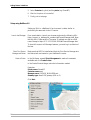
Enable Unicast via the
Web Interface
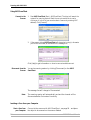
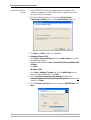
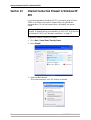
Using firmware 2.00 or later you can use your browser to enable unicast
network communication. Open the Web interface of the print server.
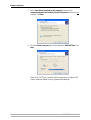
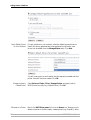
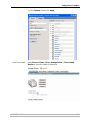
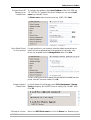
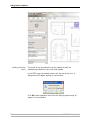
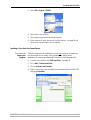
Select Admin | Network Settings | Detailed View. The TCP/IP tab will
open. Under CAPT Port Settings, set Unicast Communications Mode to
Yes. Click OK to save the setting.
Go on to Install the AXIS CAPT Print Monitor on page 66.
Enable Unicast using
FTP
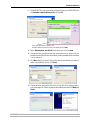
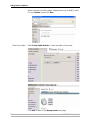
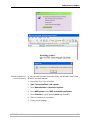
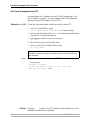
Follow these steps to enable unicast network communication using FTP:
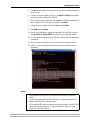
1. Open a command prompt and change to a directory where you can store
the configuration file by typing C:/<any directory> and press Enter.
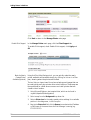
2. Log in to the AXIS 1650 with the command:
ftp <IP address>
where <IP address> is the IP address of your AXIS 1650.
3. You will be prompted for a user id:
default user id = root (if the default password has been changed then it must
also be entered)
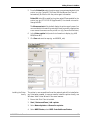
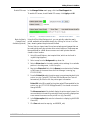
4. To access the configuration file, type: get config
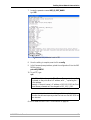
5. Next go to the C: directory on your computer and locate the file named
config.
6. Open the config file using any text editor.
64
AXIS 1650 User’s Manual