1
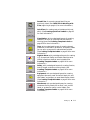
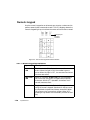
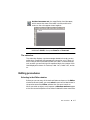
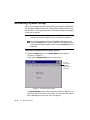
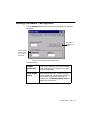
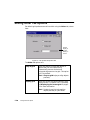
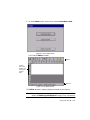
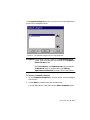
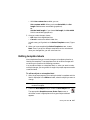
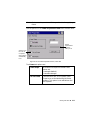
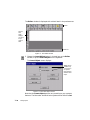
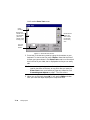
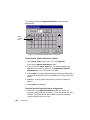
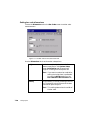
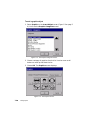
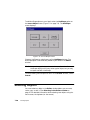
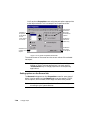
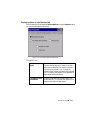
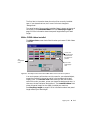
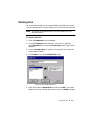
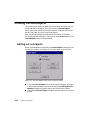
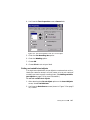
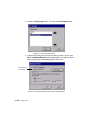
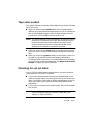
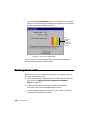
The Bar Code screen has five tabs. When you add a bar code, you’ll use
the Content and Dimension tabs. The remaining tabs -- General, Size
and Location, and Font -- are mainly used to change default settings for
bar codes (see Editing bar codes on page 7-21).
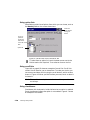
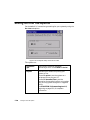
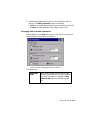
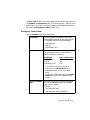
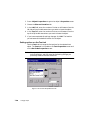
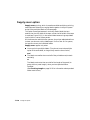
Setting bar code content
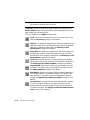
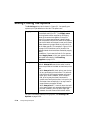
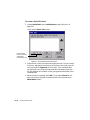
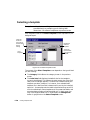
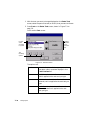
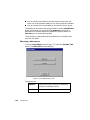
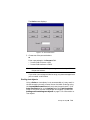
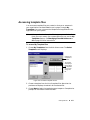
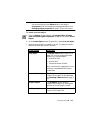
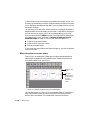
Use the Content tab to set these options:
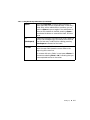
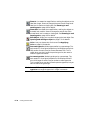
Symbology
Select a symbology code from this list box.
Symbologies are universal bar code formats.
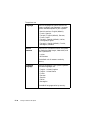
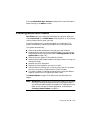
This system supports these symbologies:
• Code 128 Auto
• Code 39
• Interleaved 2-of-5
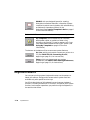
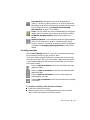
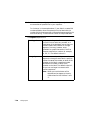
Data value
Specify a data value for the bar code here.
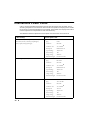
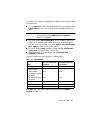
The symbology codes limit the data to a
specific number of characters:
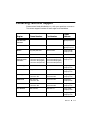
Symbology
Code 128 Auto
Code 39
Interleaved 2-of-5
Max. # Characters
2-50
2-50
2-50
• If you enter an incorrect number of
characters in the Data value field, a
message prompts you for a corrected
value.
• If you enter invalid characters in the Data
value field, you’ll see a message telling
you so.
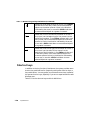
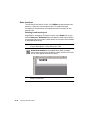
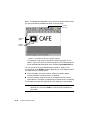
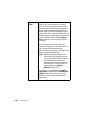
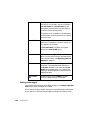
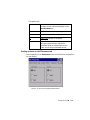
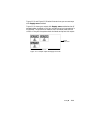
Human-readable
text
Select the placement of the text that people
can read (as opposed to machine-readable
code). You can choose:
• No text
• Text above bar code
• Text below bar code (the default)
Working with Objects
¡
7-19