1
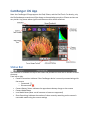
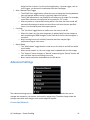
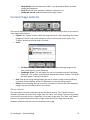
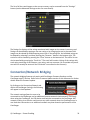
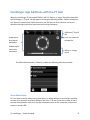
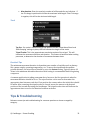
Recent Thumbnails • • • • • • As images are captured, the thumbnails are automatically downloaded and displayed along the top of the screen. The thumbnails may be scrolled left and right when more are downloaded than can fit. A thumbnail may be selected to view the corresponding image for viewing. The image is downloaded and displayed in the main image view. The currently selected thumbnail is indicated with a yellow outline. When both a JPG and RAW file format is captured, only the JPG thumbnail is displayed. JPG and RAW files can be viewed. Nikon TIFF files will display the thumbnail but the associated image cannot be viewed. It should be noted that the Nikon RAW files simply shows a compressed JPG version. However, if the image is saved it will save the full NEF file. A small red “R” icon on the lower right of the thumbnail indicates that it is a RAW image. A small green “T” indicates TIFF, while no icon is used to indicate JPG formatted images. Note: only thumbnails for images captured within the current CamRanger session will be displayed. iPhone Thumbnails The thumbnails on the iPhones or iPod Touches with the original size display (not the iPhone5 size display) are displayed in a different manner. After a picture is taken, the main image view will slide down to reveal a list of thumbnails. Selecting a thumbnail will slide the main image view back in place with the downloaded image. The thumbnail and main image views can be swapped at any time by swiping the screen up or down. App Start-‐up and Loading Previous Session If one quits and re-‐launches the CamRanger app, the following popup will appear and the user will have the option to load the previous session or star a new session. By selecting “load session,” the thumbnails from the previous session will appear on the recent thumbnail bar while “New Session” will start a new session with no thumbnails present. © CamRanger – Patent Pending 9