1
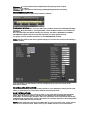
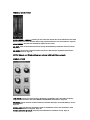
EDIT CATE GORIES: When selected you can double click or right click on any category to
rename it. (Be sure to exit this tab or you will not be able to view your presets)
Category labels make it easier to organize or search for sounds by type.
To assign a preset to a category, click on a preset and select the category from the pull down
menu.
SHA RE P RESE TS: Uploads the selected preset(s) to moogconnect.net and places a link in
your default email client. For manually sharing individual presets or banks directly to other
Sub Phatty owners, right-click on a preset and click REVEAL to reveal its location on your
computer. The preset or bank sysex (*.syx) file can be copied, emailed directly as an
attachment, or uploaded to a file sharing site.
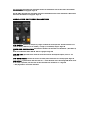
SUB P H ATTY PRES ETS: Clicking on any preset loads that preset's parameters into the
Editor. The preset currently active in the editor will show in yellow.
On the right side of the screen is the Sub Phatty Presets window. You can drag and drop
presets from the center window to any of the 16 Sub Phatty Preset locations.
NOTE: Presets will be displayed in italics until they are sent to the Sub Phatty.
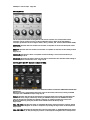
EXPOR T: Clicking on the export button compiles the Sub Phatty's current internal preset
bank as a sysex file (*.syx) and opens a "save bank as" window. Choose the location to save
the file.
IMPORT: Opens a window for loading a preset bank to the Sub Phatty Presets window. If
auto send is on, the bank will be sent to the Sub Phatty. If auto send is off, click the send
button to transfer the bank to the Sub Phatty.
GET: retrieves all current presets stored on your Sub Phatty and places them in the Editor's
Sub Phatty Presets buffer. To save the presets, click on the export button.
SEN D: Sends all 16 presets in the Sub Phatty Presets window to your connected Sub Phatty.
AU TO SE ND : Automatically transfers any presets placed in the Sub Phatty Presets
window to the specified preset slot.