1
Introduction
60
X
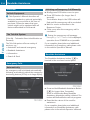
To set: Display menu system if applicable
(Y page 54).
X Select Navi£Highway Information.
Depending on the previous status, the
function will be switched offcor on Ç.
X
To activate: Display menu system if
applicable (Y page 54).
X Select Navi£Audio Fadeout.
Depending on the previous status, the
function will be switched offcor on Ç.
Navigation
Block Area
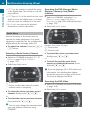
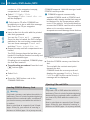
You can define an area within the map display
that is not to be used by the system in
calculating a route, if possible.
i The calculated route may include a
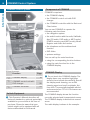
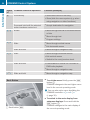
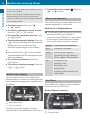
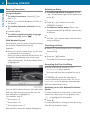
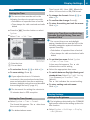
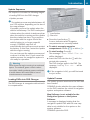
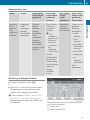
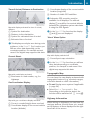
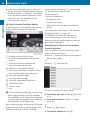
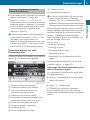
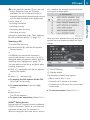
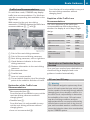
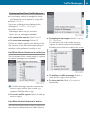
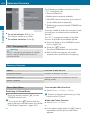
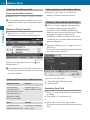
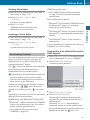
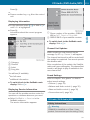
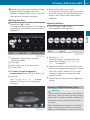
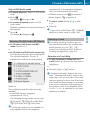
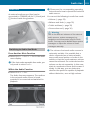
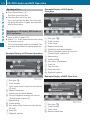
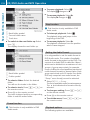
Example display: Function on
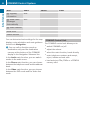
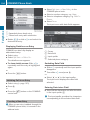
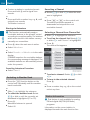
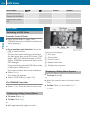
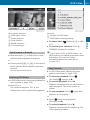
1 Available points of interest
2 Name of rest area or exit number
3 Distance from the current vehicle location
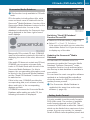
Read Traffic Messages Automatically
You can choose whether the traffic messages
relevant for the route are read automatically
or whether you have to start the reading
manually using the Traffic submenu.
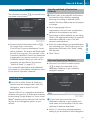
X To set: Display menu system if applicable
(Y page 54).
X Select Navi£Read Traffic Messages
Automatically.
Depending on the previous status, the
function will be switched offcor on Ç.
blocked area if the destination is within a
blocked area or if the destination can only
be reached using roads that lead through a
blocked area. Highways cannot be blocked.
X
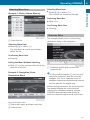
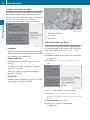
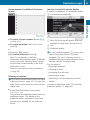
To set, change or delete: Display menu
system if applicable (Y page 54).
X Select Navi £Block Area.
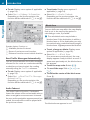
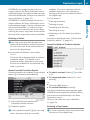
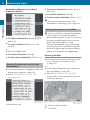
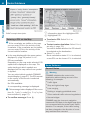
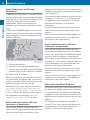
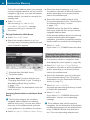
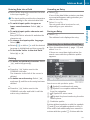
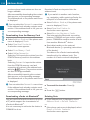
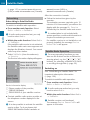
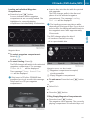
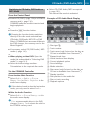
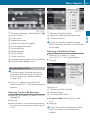
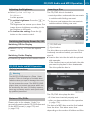
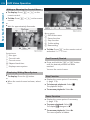
If no areas were previously set, the map
display appears ready to select an area. If
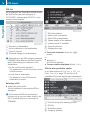
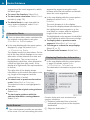
areas were previously set, the blocked area
list appears.
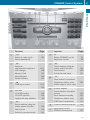
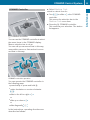
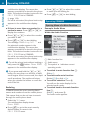
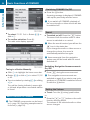
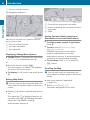
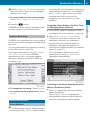
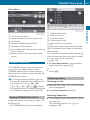
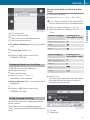
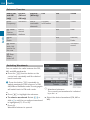
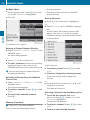
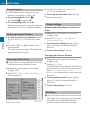
X To set the map scale: Rotate ymz.
X To scroll the map: Slide qmr, omp or
wmx.
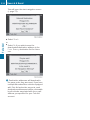
X To define the center of the block area:
Press n.
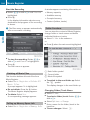
Audio Fadeout
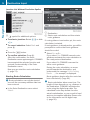
The Audio Fadeout function, if activated,
lowers the volume of the current audio source
when a navigation announcement is issued.
As soon as the navigation announcement has
ended, the audio source will be played with
the previous volume.
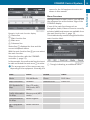
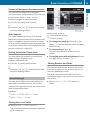
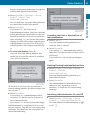
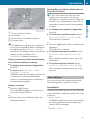
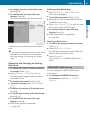
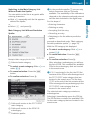
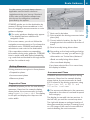
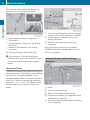
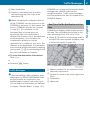
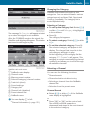
The blocked area appears in red.