1
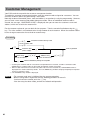
9 Reading (X) and Resetting (Z)
of Sales Totals
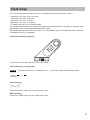
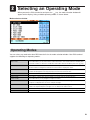
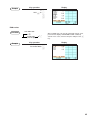
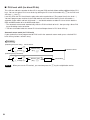
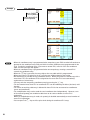
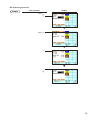
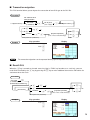
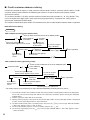
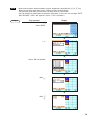
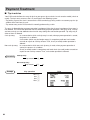
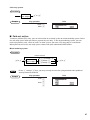
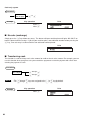
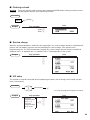
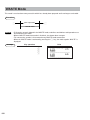
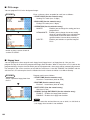
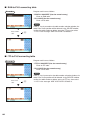
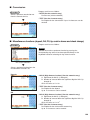
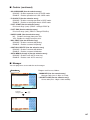
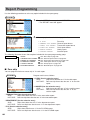
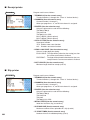
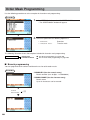
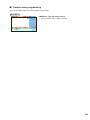
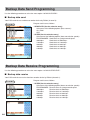
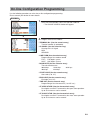
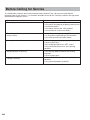
X1/Z1 MODE
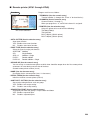
X2/Z2 MODE
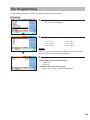
OPXZ MODE
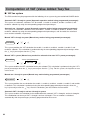
• Use the reading function (X) when you need to take the reading of sales information entered
after the last resetting. You can take this reading any number of times. It does not affect the
POS terminal’s memory.
• Use the resetting function (Z) when you need to clear the POS terminal’s memory. Resetting
prints all sales information and clears the entire memory except for the GT1 through GT3, reset
count, and consecutive number.
• X1 and Z1 reports show daily sales information. You can take these reports in the X1/Z1
mode.
• X2 and Z2 reports show periodic (monthly) consolidation information. You can take these
reports in the X2/Z2 mode.
• In the OPXZ mode, a clerk and/or cashier can take his or her report.
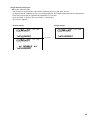
• If you want to stop the printing report, press the C key. Even if the printing is stopped, the
consecutive number (and Z counter if you are printing a Z report) is increased by one.
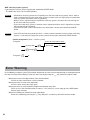
NOTE
Only when “clerk + cashier system” is applied to your machine, you can take both of Clerk and
Cashier reports.
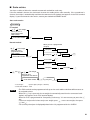
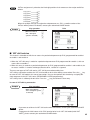
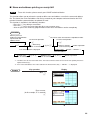
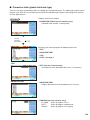
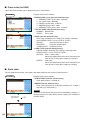
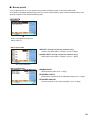
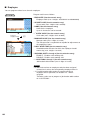
■ How to take an X1/Z1 or X2/Z2 report
[To take an X1 or X2 report:]
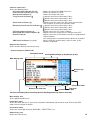
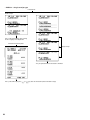
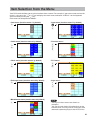
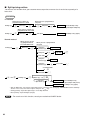
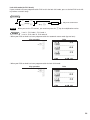
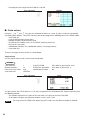
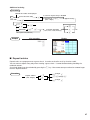
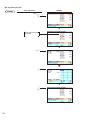
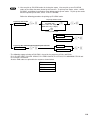
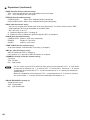
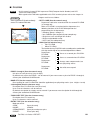
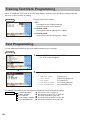
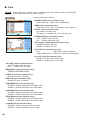
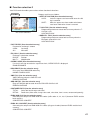
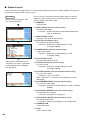
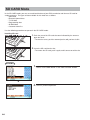
1. Select “1 READING” in the X1/Z1 or X2/Z2 mode menu window to display the items list.
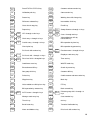
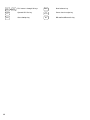
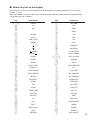
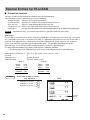
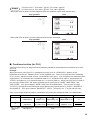
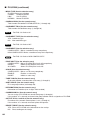
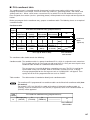
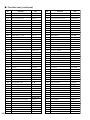
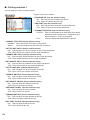
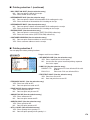
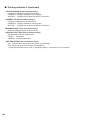
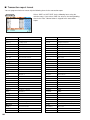
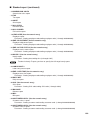
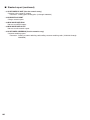
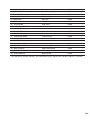
2. Select a report title listed in the table shown later. When you select an item with parentheses on the
opening screen, you can jump to the pertinent report title(s).
3. If needed, enter corresponding values described in the “Data to be entered” column on the table
shown later.
4. Select a device (“DISPLAY” or “REPORT PRINTER”) to receive the output.
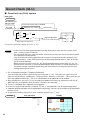
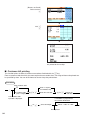
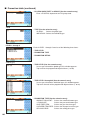
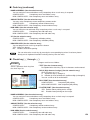
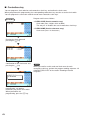
[To take a Z1 or Z2 report:]
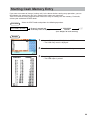
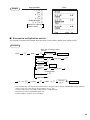
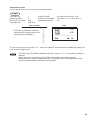
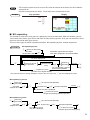
1. Select “2 RESETTING” in the X1/Z1 or X2/Z2 mode menu window to display the items list.
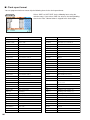
2. Select a report title listed in the table shown later.
3. If needed, enter corresponding values described in the “Data to be entered” column on the table
shown later.
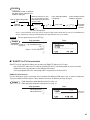
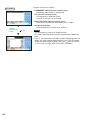
4. After the report has been taken, the message “RESET OK?” will appear.
Select one of the following actions:
• Select “YES” to reset the sales information.
• Select “NO” to save the sales information.
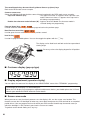
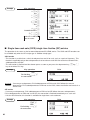
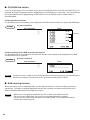
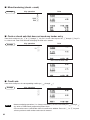
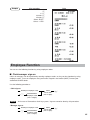
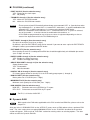
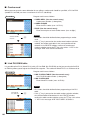
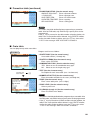
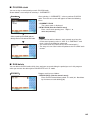
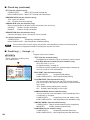
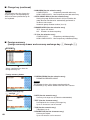
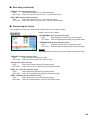
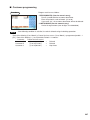
■ Flash report
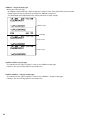
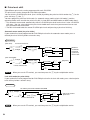
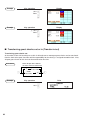
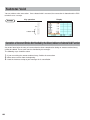
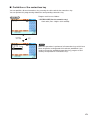
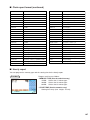
You can take flash reports (display only) in the X1 mode for department sales, cash in drawer (CID) and
sales total at the point you take the report
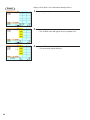
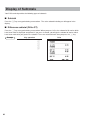
1. Select “3 FLASH MODE” in the X1/Z1 mode menu window to display the items list.
2. Select “DEPT. SALES” to take a flash report of department sales, “CID” to take a flash report of cash
in drawer, or “SALES TOTAL” to take a flash report of sales total.
116