1
ALTERNATIVE OPERATION FOR STOCKTAKE (Use when library is open during stocktake)
This is a deliberately chosen memory. It can store up to 8000 barcodes but smaller batches are better). Barcodes are
stored in the memory until they are deliberately uploaded and then deliberately cleared.
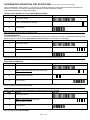
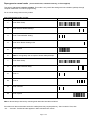
Scan following barcodes in order (using trigger)
Change from “Normal” to “User Choice Memory Mode”
Step
Action
Barcode
1
Scan Enter Setup
2
Scan
3
Scan Update
Memory Mode - Enable
Now commence your first batch of the stock take.
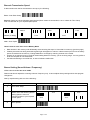
Transfer Data to PC
You should be back in range with your stocktake module open on the computer. It is worth considering transferring first to
Microsoft Word to test the speed (particularly Thin Client users). If too fast then see next page.
Step
Action
Barcode
1
Scan Enter Setup
2
Wait for prolonged beep then scan Send Data
3
Scan Update
Data will now transfer to the PC but will stay in the memory of the scanner until cleared.
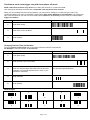
Clear data from Memory
Step
Action
Barcode
1
Scan Enter Setup
2
Wait for prolonged beep then scan Clear Data
3
Scan Confirm Clear Data
4
Scan Update
Continue with the next batch of stock take.
Return to Normal Mode after stocktake and the data has been cleared
Step
Action
1
Scan Enter Setup
2
Wait for prolonged beep then scan
Barcode
Memory Mode - Disable
3
Scan Update
You are now back in Normal Mode.
Page 3 of 3