1
MODEL
AR-M355N
AR-M455N
LASER PRINTER
OPERATION MANUAL
(for general information and copier operation)
Page
PART 1: GENERAL INFORMATION
• BEFORE USING
THE PRODUCT
• MANAGING THE MACHINE
• PERIPHERAL DEVICES
1-1
2-1
3-1
PART 2: COPIER OPERATION
• MAKING COPIES
• CONVENIENT COPY
FUNCTIONS
• MACHINE MAINTENANCE
(FOR COPYING)
• DOCUMENT FILING
FUNCTION
• SPECIFICATIONS
4-1
5-1
6-1
7-1
8-1
Be sure to become thoroughly familiar with this manual to
gain the maximum benefit from the product. Before
installing this product, be sure to read the installation
requirements
and
cautions
sections.
Be sure to keep all operation manuals handy for reference
including this manual, the "Operation manual (for general
information and copier operation)" and operation manuals
for any optional equipment which has been installed.
The power switch positions are marked " I " to indicate power "ON" and "
Caution:
" to indicate stand-by.
For complete electrical disconnection, pull out the main plug.
The socket-outlet should be installed near the equipment and should be easily accessible.
FOR YOUR RECORDS ...
To protect against loss or theft, record and retain for reference the
machine's serial number located on the back of the unit.
Model Number
Serial Number
Date of Purchase
Place of Purchase
Authorized Sharp Copier
Service Department Number
For users in the USA
This device complies with Part 15 of the FCC rules. Operation is
subject to the following two conditions: (1) This device may not cause
harmful interference, and (2) this device must accept any interference
received, including interference that may cause undesired operation.
WARNING:
FCC Regulations state that any unauthorized changes or modifications to
this equipment not expressly approved by the manufacturer could void the
user's authority to operate this equipment.
Note:
This equipment has been tested and found to comply with the limits for a Class
A digital device, pursuant to part 15 of the FCC Rules. These limits are designed
to provide reasonable protection against harmful interference when the
equipment is operated in a commercial environment. This equipment generates, uses, and can radiate radio frequency energy and, if not installed and
used in accordance with the operation manual, may cause harmful interference to radio communications. Operation of this equipment in a residential area is
likely to cause harmful interference in which case the user will be required to
correct the interference at his own expense.
Shielded cables must be used with this equipment to maintain compliance
with standard.
This operation manual is also used for the AR-355 / AR-455 / AR-355 J /
AR-455 J / AR-M355N J / AR-M455N J.
Part 1: General Information
NOTES
● Considerable care has been taken in preparing this manual. If you have any comments or concerns about the
manual, please contact your nearest SHARP Service Department.
● This product has undergone strict quality control and inspection procedures. In the unlikely event that a defect
or other problem is discovered, please contact your dealer or nearest SHARP Service Department.
● Aside from instances provided for by law, SHARP is not responsible for failures occurring during use of the
product or its options, or failures due to incorrect operation of the product and its options, or other failures, or for
any damage that occurs due to use of the product.
The display screens, messages, and key names shown in the manual may differ from those on the actual machine
due to product improvements and modifications.
PRODUCT CONFIGURATIONS
The table below shows the product models covered by this manual.
(As of October 2004)
Model
Product configuration
AR-M355N/AR-M455N
Laser printer
OPERATION MANUALS
The following operation manuals are provided for the machine. Please read the appropriate manuals as needed for
the features you wish to learn about.
● Operation manual (for general information and copier operation) (this manual):
The first half of this manual provides general information about the machine, including safety information, loading
paper, removing misfeeds, and regular maintenance.
The second half of the manual explains how to use the copy and document filing functions.
● Key operator's guide:
This primarily explains key operator programs for machine management and copier related functions. Key
operator programs for the fax, printer and network scanner functions are explained in the manuals for those
functions.
Key operator programs are used by key operators to configure function settings to meet the needs of the
customer.
● Operation manual (for facsimile)
This manual explains the procedures for using the machine as a facsimile. To use the fax function, the facsimile
expansion kit must be installed.
● Software setup guide (for printer)
This explains how to connect the machine to your computer, install the printer driver for Windows, and configure
the printer driver settings.
● Operation manual (for printer)*
This manual explains the procedures for using the machine as a printer.
● Operation manual (for network scanner)*
This manual explains the procedures for using the machine as a network scanner when connected to a computer.
To use the network scanner function, the AR-NS3 network scanner expansion kit must be installed.
* The Operation manual (for network scanner) is provided as PDF file in the CD-ROM.
This manual is not provided as printed manual.
0-1
INSTALLATION REQUIREMENTS
Improper installation may damage this product. Please note the following during initial installation and whenever the
machine is moved.
1.The machine should be installed near an
accessible power outlet for easy connection.
2.Be sure to connect the power cord only to a
power outlet that meets the specified voltage and
current requirements. Also make certain the
outlet is properly grounded.
●For the power supply requirements, see the
name plate on the back of the main unit.
3.Do not install your machine in areas that are:
●damp, humid, or very dusty
●exposed to direct sunlight
●poorly ventilated
●subject to extreme temperature or humidity
changes, e.g., near an air conditioner or
heater.
4.Be sure to allow the required space around the
machine for servicing and proper ventilation.
11-13/16" (30cm)
31-1/2"
(80cm)
23-5/8"
(60cm)
23-5/8" (60cm)
A small amount of ozone is produced within the machine during operation. The emission level is insufficient to
cause any health hazard.
NOTE:
The present recommended long term exposure limit for ozone is 0.1 ppm (0.2 mg/m3) calculated as an 8 hr. timeweighted average concentration.
However, since the small amount that is emitted may have an objectionable odor, it is advisable to place the copier
in a ventilated area.
0-2
CAUTIONS
1.Do not touch the photoconductive drum. Scratches or smudges on the
drum will cause dirty prints.
2.The fusing unit is extremely hot. Exercise care in this area.
3.Do not look directly at the light source. Doing so may damage your
eyes.
Fusing unit
4.Five adjusters are provided on all optional stand/paper drawer units.
These adjusters should be lowered until they contact the floor.
When moving the machine with the optional stand/paper drawer, be
sure to raise the adjusters. Also, unlock the two casters at the front of
the optional stand/paper drawer. After moving the machine, lower the
four adjusters until they reach the floor and lock the two casters.
5.Do not make any modifications to this machine. Doing so may result in
personal injury or damage to the machine.
6.Since this machine is heavy, it is recommended that it be moved by
more than one person to prevent injury.
Adjuster
7.When connecting this machine to a computer, be sure to first turn both
the computer and the machine off.
8.Do not make copies of anything which is prohibited from copying by
law. The following items are normally prohibited from printing by
national law. Other items may be prohibited by local law.
● Money ● Stamps ● Bonds ● Stocks
● Bank drafts ● Checks ● Passports ● Driver's licenses
Lock
Release
The part indicated in the illustration is only to be handled by a service technician.
Absolutely do not touch this part.
The machine includes the document filing function, which stores document image data on the machine's hard disk.
Stored documents can be called up and printed or transmitted as needed. If a hard disk failure occurs, it will no
longer be possible to call up the stored document data. To prevent the loss of important documents in the unlikely
event of a hard disk failure, keep the originals of important documents or store the original data elsewhere.
With the exception of instances provided for by law, Sharp Corporation bears no responsibility for any damages
or loss due to the loss of stored document data.
"BATTERY DISPOSAL"
THIS PRODUCT CONTAINS A LITHIUM PRIMARY MEMORY BACK-UP BATTERY THAT MUST BE
DISPOSED OF PROPERLY. PLEASE CONTACT YOUR LOCAL SHARP DEALER OR AUTHORIZED SERVICE
REPRESENTATIVE FOR ASSISTANCE IN DISPOSING OF THIS BATTERY.
This product utilizes tin-lead solder, and a fluorescent lamp containing a small amount of mercury.
Disposal of these materials may be regulated due to environmental considerations.
For disposal or recycling information, please contact your local authorities or the Electronics Industries Alliance:
www.eia.org
0-3
CAUTIONS
Laser Information
Wave length
Pulse times
Output power
785 nm
+10 nm
-15 nm
North America:
35 cpm model: (4.1 µs ± 4.1 ns)/7 mm
45 cpm model: (5.7 µs ± 5.7 ns)/7 mm
Europe:
35 cpm model: (3.8 µs ± 3.8 ns)/7 mm
45 cpm model: (4.4 µs ± 4.4 ns)/7 mm
0.2 mW - 0.4 mW
At the production line, the output power of the scanner unit is adjusted to 0.4 MILLIWATT PLUS 8 % and is maintained
constant by the operation of the Automatic Power Control (APC).
Caution
Use of controls or adjustments or performance of procedures other than those specified herein may result in hazardous
radiation exposure.
For North America:
SAFETY PRECAUTIONS
This Digital Equipment is rated Class 1 and complies with 21 CFR 1040.10 and 1040.11 of the CDRH standards. This
means that the equipment does not produce hazardous laser radiation. For your safety, observe the precautions below.
● Do not remove the cabinet, operation panel or any other covers.
● The equipment's exterior covers contain several safety interlock switches. Do not bypass any safety interlock by
inserting wedges or other items into switch slots.
For Europe:
CLASS 1 LASER PRODUCT
LASER KLASSE 1
VAROITUS!
LAITTEEN KÄYTTÄMINEN
MUULLA KUIN TÄSSÄ
KÄYTTÖOHJEESSA
MAINITULLA TAVALLA SAATTAA
ALTISTAA KÄYTTÄJÄN
TURVALLISUUSLUOKAN 1
YLITTÄVÄLLE
NÄKYMÄTTÖMÄLLE
LASERSÄTEILYLLE.
CAUTION
INVISIBLE LASER RADIATION
WHEN OPEN INTERLOCKS
DEFEATED. AVOID EXPOSURE
TO BEAM.
VORSICHT
UNSICHTBARE
LASERSTRAHLUNG WENN
ABDECKUNG GEÖFFNET UND
SICHERHEITSVERRIEGELUNG
ÜBERBRÜCKT. NICHT DEM
STRAHL AUSSETZEN.
LUOKAN 1 LASERLAITE
VARNING
OM APPARATEN ANVÄNDS PÅ
ANNAT SÄTT ÄN I DENNA
BRUKSANVISNING
SPECIFICERATS, KAN
ANVÄNDAREN UTSÄTTAS FÖR
OSYNLIG LASERSTRÅLNING,
SOM ÖVERSKRIDER GRÄNSEN
FÖR LASERKLASS 1.
ADVARSEL
USYNLIG LASERSTRÅLNING
VED ÅBNING, NÅR
SIKKERHEDSBRYDERE ER
UDE AF FUNKTION. UNDGÅ
UDSAETTELSE FOR
STRÅLNING.
KLASS 1 LASERAPPARAT
CLASS 1
LASER PRODUCT
LASER KLASSE 1
0-4
CAUTION
VORSICHT
ADVARSEL
ADVERSEL
VARNING
VARO!
INVISIBLE LASER RADIATION WHEN OPEN AND INTERLOCKS DEFEATED.
AVOID EXPOSURE TO BEAM.
Laserstrahl
UNSICHTBARE LASERSTRAHLUNG WENN ABDECKUNG GEÖFFNET UND
SICHERHEITSVERRIEGELUNG ÜBERERÜCKT. NICHT DEM STRAHL AUSSETZEN.
USYNLIG LASERSTRÅLING VED ÅBNING, NÅR SIKKERHEDSAFBRYDERE ER
UDE AF FUNKTION. UNDGÅ UDSAETTELSE FOR STRÅLNING.
USYNLIG LASERSTRÅLING NÅR DEKSEL ÅPNES OG SIKKERHEDSLÅS BRYTES.
UNNGÅ EKSPONERING FOR STRÅLEN.
OSYNLIG LASERSTRÅLNING NÄR DENNA DEL ÄR ÖPPNAD OCH SPÄRRAR ÄR
URKOPPLADE. STRÅLEN ÄR FARLIG. BETRAKTA EJ STRÅLEN.
AVATTAESSA JA SUOJALUKITUS OHITETTAESSA OLET ALTTIINA NÄKYMÄTÖNTÄ
LASERSÄTEILYLLE. ÄLÄ KATSO SÄTEESEEN.
CONTENTS
Page
PRODUCT CONFIGURATIONS.................................. 0-1
OPERATION MANUALS.............................................. 0-1
INSTALLATION REQUIREMENTS.............................. 0-2
CAUTIONS................................................................... 0-3
● Laser Information ................................................. 0-4
CONTENTS ................................................................. 0-5
CHAPTER 1
BEFORE USING THE PRODUCT
INTRODUCTION.......................................................... 1-2
MAIN FEATURES ........................................................ 1-3
PART NAMES AND FUNCTIONS ............................... 1-9
● Exterior ................................................................. 1-9
● Interior .................................................................. 1-10
● Part names and functions of peripheral devices .. 1-11
● Operation panel.................................................... 1-13
● Touch panel ......................................................... 1-14
TURNING THE POWER ON AND OFF....................... 1-17
AUDITING MODE ........................................................ 1-18
● Using the machine when the auditing mode is
enabled ................................................................ 1-18
CHAPTER 2
MANAGING THE MACHINE
LOADING PAPER........................................................ 2-2
● Loading paper in paper tray 1 .............................. 2-2
● Changing the paper size in paper tray 1 .............. 2-2
● Specifications of paper trays ................................ 2-3
● Setting the paper type and paper size ................. 2-5
● Setting the paper size when a special size is
loaded .................................................................. 2-6
● Programming and editing paper types ................. 2-7
● Loading paper in the multi purpose drawer .......... 2-8
● Specifications (multi purpose drawer) .................. 2-10
● Loading paper in the stand/3 x 500 sheet paper
drawer .................................................................. 2-10
● Specifications (stand/3 x 500 sheet paper
drawer) ................................................................. 2-10
● Loading paper in the stand/MPD & 2000 sheet
paper drawer ........................................................ 2-11
● Specifications (stand/MPD & 2000 sheet paper
drawer) ................................................................. 2-11
CUSTOM SETTINGS................................................... 2-12
● General procedure for custom settings ................ 2-12
● About the settings ................................................ 2-14
REPLACING THE TONER CARTRIDGE .................... 2-15
STORAGE OF SUPPLIES ........................................... 2-16
MISFEED REMOVAL................................................... 2-17
● Misfeed removal guidance ................................... 2-17
● Misfeed in the transport area, fusing area, and
exit area ............................................................... 2-18
● Misfeed in the duplex module .............................. 2-19
● Misfeed in the paper feed area ............................ 2-20
REMOVING AN ORIGINAL MISFEED ........................ 2-22
● Removing a misfed original from the automatic
document feeder .................................................. 2-22
TROUBLESHOOTING ................................................. 2-23
CHAPTER 3
PERIPHERAL DEVICES
DUPLEX MODULE.......................................................3-2
● Part names ...........................................................3-2
● Specifications .......................................................3-2
● Loading paper in the bypass tray .........................3-3
● Troubleshooting (concerning the duplex module) ..3-4
MAIL-BIN STACKER ....................................................3-5
● Part names ...........................................................3-5
● Specifications .......................................................3-5
● Misfeed in the mail-bin stacker .............................3-6
FINISHER.....................................................................3-7
● Part names ...........................................................3-7
● Specifications .......................................................3-7
● Finisher functions .................................................3-8
● Using the finisher functions ..................................3-9
● Staple cartridge replacement................................3-10
● Misfeed in the finisher...........................................3-12
● Troubleshooting finisher problems .......................3-13
SADDLE STITCH FINISHER .......................................3-14
● Part names ...........................................................3-14
● Specifications .......................................................3-14
● Saddle stitch finisher functions .............................3-15
● Using the saddle stitch finisher.............................3-18
● Staple cartridge replacement and staple jam
removal.................................................................3-19
● Misfeed in the saddle stitch finisher......................3-22
● Troubleshooting (concerning the saddle stitch
finisher).................................................................3-24
CHAPTER 4
MAKING COPIES
AUTOMATIC DOCUMENT FEEDER ...........................4-2
● Acceptable originals .............................................4-2
PLACING ORIGINALS .................................................4-3
CHECKING THE SIZE OF A PLACED ORIGINAL ......4-5
● Manually setting the scanning size.......................4-5
STORING, DELETING, AND USING ORIGINAL
SIZES ...........................................................................4-6
● Storing or deleting an original size .......................4-6
NORMAL COPYING.....................................................4-7
● Making copies with the automatic document
feeder ...................................................................4-7
● Automatic two-sided copying using the automatic
document feeder...................................................4-10
● Copying from the document glass ........................4-11
● Automatic two-sided copying from the document
glass .....................................................................4-13
ADJUSTING THE EXPOSURE ....................................4-14
REDUCTION/ENLARGEMENT/ZOOM ........................4-15
● Automatic selection (auto image) .........................4-15
● Manual selection (preset copy ratios/zoom) .........4-16
● XY ZOOM .............................................................4-18
SPECIAL PAPERS.......................................................4-20
0-5
CONTENTS
CHAPTER 5
CONVENIENT COPY FUNCTIONS
CHAPTER 8
SPECIFICATIONS
SPECIAL MODES ........................................................5-2
● General procedure for using special functions .....5-2
● Margin shift ...........................................................5-3
● Erase ....................................................................5-4
● Dual page copy.....................................................5-5
● Pamphlet copy......................................................5-6
● Job build ...............................................................5-8
● Tandem copy........................................................5-9
● Covers/inserts.......................................................5-11
● Transparency film with insert sheets ....................5-22
● Multi shot ..............................................................5-23
● Book copy.............................................................5-25
● Card shot ................................................................. 5-26
● Mirror image .........................................................5-28
● B/W reverse..........................................................5-28
● Print menu ............................................................5-29
STORING,
USING
AND
DELETING
JOB
PROGRAMS ................................................................5-41
● Storing a job program ...........................................5-41
● Calling up a job program ......................................5-42
● Deleting a stored job program ..............................5-42
INTERRUPTING A COPY RUN ...................................5-43
SPECIFICATIONS ....................................................... 8-2
LIST OF COMBINATION OF PERIPHERAL DEVICES .. 8-4
INDEX.......................................................................... 8-5
CHAPTER 6
MACHINE MAINTENANCE (FOR
COPYING)
USER MAINTENANCE ................................................6-2
● Cleaning the document glass and the automatic
document feeder...................................................6-2
● Cleaning
the
main
charger
of
the
photoconductive drum ..........................................6-2
TROUBLESHOOTING .................................................6-3
CHAPTER 7
DOCUMENT FILING FUNCTION
OVERVIEW ..................................................................7-2
● Document filing function .......................................7-2
TO USE THE DOCUMENT FILING FUNCTION ..........7-4
● A look at the operation panel................................7-4
● Saving files ...........................................................7-4
● Main screen of document filing.............................7-5
● Document filing icons ...........................................7-5
SAVING A DOCUMENT IMAGE FILE..........................7-6
● Quick File..............................................................7-6
● Filing .....................................................................7-7
● Print jobs...............................................................7-9
● Scan Save ............................................................7-10
CALLING UP AND USING A FILE ...............................7-13
● Searching for and calling up a saved file .............. 7-13
● Calling up and using a saved file..........................7-15
CUSTOM SETTINGS ...................................................7-21
● Creating, editing, and deleting user names and
folders...................................................................7-21
ENTERING CHARACTERS .........................................7-26
TROUBLESHOOTING .................................................7-28
0-6
CHAPTER 1
BEFORE USING THE
PRODUCT
This chapter contains basic information that should be read before using
the product.
Page
INTRODUCTION .................................................................................... 1-2
MAIN FEATURES ................................................................................... 1-3
PART NAMES AND FUNCTIONS .......................................................... 1-9
● Exterior............................................................................................ 1-9
● Interior ............................................................................................. 1-10
● Part names and functions of peripheral devices ............................. 1-11
● Operation panel............................................................................... 1-13
● Touch panel .................................................................................... 1-14
TURNING THE POWER ON AND OFF.................................................. 1-17
AUDITING MODE ................................................................................... 1-18
● Using the machine when the auditing mode is enabled.................. 1-18
1-1
INTRODUCTION
Thank you for purchasing a SHARP digital multifunction copier.
Please read this manual before using the machine. In particular, be sure to read "INSTALLATION REQUIREMENTS"
before using the machine.
Please keep this manual close at hand for reference whenever necessary.
This manual provides general information on using the machine, such as routine maintenance and how to load paper
and remove misfeeds. It also explains how to use the copier and document filing functions.
Separate manuals have been provided for the fax function, printer function, and network scanner function.
■ Original and paper sizes
This machine allows use of standard sizes in both the inch and AB systems.
These are shown in the tables below.
Sizes in the inch system
Sizes in the AB system
11" x 17" (LEDGER)
A3
8-1/2" x 14" (LEGAL)
B4
8-1/2" x 13" (FOOLSCAP)
A4
8-1/2" x 11" (LETTER)
B5
7-1/4" x 10-1/2" (EXECUTIVE)
A5
5-1/2" x 8-1/2" (INVOICE)
■ The meaning of "R" in original and paper size indications
Some original and paper sizes can be placed in either the portrait or landscape orientations. To differentiate
between landscape and portrait, the landscape orientation size indication will contain an "R". These are indicated
as 8-1/2" x 11"R, 5-1/2" x 8-1/2"R, A4R, B5R, etc. Sizes that can be placed only in the landscape orientation (11"
x 17", 8-1/2" x 14", 8-1/2" x 13", A3, B4) do not contain the "R" in their size indication.
Size indication
with "R"
1-2
Landscape
orientation
Size indication
without "R"
Portrait orientation
MAIN FEATURES
The digital multifunction copier is capable of performing a variety of functions. This page shows features related to
the copy function.
● Job programs
See page 1-6
● Sort mode
See page 1-3
● Mirror Image
See page 1-6
● Group mode
See page 1-3
● B/W Reverse
See page 1-6
● 2-sided Copy
See page 1-3
● Date
See page 1-6
(When the duplex module is installed.)
● Stamp
See page 1-6
● Exposure Adjustments
See page 1-3
● Page numbering
See page 1-7
● Reduction/Enlargement
See page 1-4
● Text
See page 1-7
● XY Zoom
See page 1-4
● Interrupting a copy run
See page 1-7
● Margin Shift
See page 1-4
● Offset mode
See page 1-7
● Erase
See page 1-4
● Dual Page Copy
See page 1-4
(When the Finisher or Saddle stitch finisher is installed.)
● Pamphlet Copy
See page 1-4
● Staple sort mode
See page 1-7
● Job Build
See page 1-5
(When the Finisher or Saddle stitch finisher is installed.)
● Tandem Copy
See page 1-5
● Saddle stitch
See page 1-7
● Covers/inserts
See page 1-5
(When the Saddle stitch finisher is installed.)
● Transparency Insert
See page 1-5
● Hole punching
See page 1-8
● Multi Shot
See page 1-5
(When the Saddle stitch finisher and Punch
● Book Copy
See page 1-5
Module are installed.)
● Card Shot
See page 1-6
● Document filing function
See page 1-8
Sort mode
See page 4-9
Copies can be collated.
Original
2-sided Copy
See pages 4-10, 4-13
Copy onto both sides of the paper using the document
glass or the automatic document feeder.
Copy
Original
Copy
* When the duplex module is installed.
Group mode
See page 4-9
Copies can be grouped by page.
Exposure Adjustments
The desired image type for the original can be
selected.
Text
Original
See page 4-14
Text/Photo
Photo
Copy
Resolution
ABCDE
ABCDE
Lighter
Darker
Exposure
1-3
1
MAIN FEATURES
Reduction / Enlargement
See page 4-15
Copies can be enlarged or reduced to the desired
size.
Erase
See page 5-4
Shadows that appear around the edges of copies of
books or thick originals can be erased.
Original
Original
Copy
Copy
Edge erase
Center erase
Enlargement
Reduction
Edge+Center
erase
XY Zoom
See page 4-18
Separate ratio settings can be selected for the
length and width of a copy.
Original
Dual Page Copy
Copy
Margin Shift
See page 5-3
Margins can be added to copies.
See page 5-5
The left and right pages of a book can be
successively copied onto separate sheets.
Book original
Copy
Pamphlet Copy
See page 5-6
One-sided or two-sided pamphlet style copies can
be made.
One-sided copying Image shifted Image shifted
Original
to the right
to the left
Originals (one-sided)
Finished copies are
folded in two.
Left binding
1
2
3
Margin
Two-sided copying
Original
4
Margin
5
6
8
Image shifted Image shifted
to the right
to the left
Originals (two-sided)
2
1
Or
Margin
1-4
First page
7
Margin
4
6
8
Right binding
3
5
7
First page
MAIN FEATURES
Job Build
See page 5-8
When you have a very large number of originals, the
pages can be scanned in sets.
Transparency Insert
See page 5-22
Inserts can be automatically inserted between
transparencies.
Originals (1-sided)
Copy
1
Originals (2-sided)
100 sheets
50 sheets
Tandem Copy
50 sheets
See page 5-9
Two machines can be used to run a large copy job
in parallel.
Insert sheets
Multi Shot
Originals
(1-sided)
100 sets of
copies
Covers/inserts
50 sets of
copies
See page 5-23
Multiple original pages can be copied onto a
single sheet of paper in a uniform layout.
Originals
(2-sided)
Copy
50 sets of
copies
See page 5-11
Front covers, back covers, and inserts can be
added. These can also be copied on.
Book Copy
See page 5-25
Books and other bound originals can be copied
pamphlet style.
Original
Originals
Copy
Left binding
Back cover
First page
First page
Front cover
Insert sheets
Right binding
First page
First page
1-5
MAIN FEATURES
Card Shot
See page 5-26
The front and back of a card can be copied onto
one sheet of paper.
This function is convenient for making copies for
certification purposes and helps save paper.
Original
B/W Reverse
White and black can be inverted on a copy to
produce a negative image.
Original
Copy
CARD
See page 5-28
Copy
CARD
Front of
card
CARD
Back of
card
Example:
Landscape
8-1/2" x 11" (A4)
size
Example:
Portrait
8-1/2" x 11" (A4)
size
Job programs
See page 5-41
Various steps of a copy operation can be stored
as a program, and up to 10 programs can be
stored. Saving frequently used sets of settings in
a program saves you the trouble of selecting
those settings each time you wish to use them.
Date
See page 5-32
The date can be added to copies.
JOB PROGRAMS
2004/OCT/1
PRESS PROGRAM NUMBER.
RECALL
Mirror Image
See page 5-28
A mirror image copy can be made.
Original
Stamp
See page 5-33
Reverse text can be added to copies ("stamp").
Copy
CONFIDENTIAL
1-6
MAIN FEATURES
Page numbering
See page 5-34
Page numbers can be added to copies.
Offset mode
See page 3-8
Each set of output can be offset slightly from other
sets for easy separation.
Offset mode
1
Non-Offset mode
*When the Finisher or Saddle stitch finisher is
installed.
Text
See page 5-38
Entered text can be added to copies.
Staple sort mode
See page 3-8, 3-16
Sets of copies can be automatically stapled.
Original
Copy
October, 2004 Meeting
*When the Finisher or Saddle stitch finisher is
installed.
Interrupting a copy run
See page 5-43
A copy job in progress can be interrupted for a
rush job.
Saddle stitch
See page 3-14
When a saddle stitch finisher is installed, copies
can be automatically folded in half and stapled at
the fold. (Use with the pamphlet function (see
page 5-6) or book copy function (see page 5-25).)
Saddle stitch binding
INTERRUPT
ORIGINAL
81/2x11
AUTO
ORIGINA
AUTO
EXPOSUR
AUTO
6
7
A4
*When the Saddle stitch finisher is installed.
1-7
MAIN FEATURES
Hole punching
See page 3-17
Copies can be punched to add holes.
Original
Document filing function
See CHAPTER 7
A document image can be stored on the hard disk.
A stored file can easily be called up and printed or
transmitted.
Punch positions
Printed
Document
Image
HDD
Save to
machine's
hard disk
Call up a
saved file to
reuse
Transmitted
* When the saddle stitch finisher and punch
module are installed.
As an ENERGY STAR® Partner, SHARP has determined that this product meets the
ENERGY STAR® guidelines for energy efficiency.
Energy saving features
This product has the following two power reducing modes to help conserve natural resources and reduce
environmental pollution.
Preheat mode
When the machine remains in the standby state for the amount of time set in the key operator programs, preheat
mode automatically reduces the temperature of the fusing unit to save power while the machine is on standby.
When a fax or print job is received, or keys are pressed on the operation panel, or an original is placed for
a copy, fax, or network scanner job, preheat mode automatically turns off.
Auto power shut-off mode
The auto power shut-off mode is the second level of power reduction. In this mode power is shut off to the
fusing unit and the touch panel. In this state more energy is saved than in the preheat mode but the time
to recover to the ready condition will be longer. The preset time to enter this mode can be set by a key
operator program.
When this product is used as a printer, and either of the above modes is active, the mode will be deactivated
automatically by an incoming job and the machine will automatically warm up and start to print when it has
reached the ready temperature.
When this product is configured for multi-function operation, and either of the above modes is active, the mode
will be deactivated as above by an incoming print job. Either mode will also be deactivated by operation of
DOCUMENT FILING, IMAGE SEND or COPY mode key.
1-8
PART NAMES AND FUNCTIONS
Exterior
(1)
(2)
(3)
(4)
(5)
(6)
(7)
(8)
(9)
(10)
(12)
1
(11)
(1) Bypass tray*
(7) Operation panel
(2) Exit tray*
(8) Front cover
(13)
Open to add toner.
(3) Automatic document feeder (See page 4-2.)
This automatically feeds and scans multiple sheet
originals. Both sides of two-sided originals can be
scanned at once.
(9) Power switch
Press to turn power on and off.
(10) Paper tray 1
(4) Duplex module*
Module for two-sided printing
(5) Upper paper output area (Center tray)
Finished sheets are deposited here.
(6) Upper exit tray extension*
(11) Stand/3 x 500 sheet paper drawer*
(12) Stand/MPD & 2000 sheet paper drawer* (See
page 2-11.)
(13) Multi purpose drawer* (See page 2-8.)
Provides support for large size paper.
*
(1), (2), (4), (6), (11), (12) and (13) are peripheral devices. For description of these devices, see page 1-11.
1-9
PART NAMES AND FUNCTIONS
Interior
(14)
(15)
(16)
(18)
(14) Duplex module side cover
Open when a misfeed has occurred in the duplex
module.
(15) Side cover latch
Push up to open the side cover when a misfeed
has occurred in the main unit.
(16) Fusing unit
Lift up to open the side cover when a misfeed has
occurred in the main unit.
(17)
(19)
(17) Toner cartridge (drum/toner cartridge)
The toner cartridge must be replaced when
indicated on the operation panel. (See page 2-15)
(18) Photoconductive drum
Images are formed on the photoconductive drum.
NOTE
Do not touch or damage the photoconductive drum.
(19) Cartridge lock lever
CAUTION
The fusing unit is hot. Take care in removing misfed
paper.
1-10
When replacing the drum, toner or developer
cartridge, turn down this lever and pull it out.
PART NAMES AND FUNCTIONS
Part names and functions of peripheral devices
(1)
(2)
(11)
(10)
1
(3)
(9)
(4)
(8)
(5)
(7)
(6)
(1) Upper exit tray extension (AR-TE4)
Mount this unit to the upper paper exit tray. This
extension is needed to support large size paper.
(2) Finisher (AR-FN6)
Output sheets can either be sorted in page order
or grouped by page. Sorted sets or groups are
offset stacked for easy separation when removed.
Sorted sets can be delivered either stapled or
unstapled.
(3) Right output tray (AR-TE5)
Attaches to the output outlet on the right side of
the machine.
(4) Mail-bin stacker (AR-MS1)
This unit is an output sorter that has seven
receiving bins.
The bin to receive printed output can be selected
in the printer driver. Each bin can be assigned to
receive printed output by an individual person or
by groups of people so that their prints are
separated from other users making them easy to
retrieve.
When this unit is installed, any copies or facsimile
prints will be sent to the top tray and not into the
mail bins.
(5) Stand/MPD & 2000 sheet paper drawer (AR-D28)
This paper feed unit contains an upper multipurpose drawer (see item (6)) and a lower drawer
which can hold a maximum of 2000 sheets of 20
lbs. (80 g/m2) paper.
(6) Multi purpose drawer (AR-MU2)
Up to 500 sheets of 20 lbs. (80 g/m2) paper can be
loaded. Also special papers such as envelopes
(standard sizes only) and postcards can be set.
(7) Stand/3 x 500 sheet paper drawer (AR-D27)
This paper feed unit contains an upper multipurpose drawer (see item (6)) and two lower
drawers each of which can hold a maximum of
500 sheets of 20 lbs. (80 g/m2) paper.
(8) Saddle stitch finisher (AR-FN7)
The saddle stitch finisher can automatically place
two staples for centerline binding of paper and
fold them along the centerline.
An optional punch module is available for
installation into the finisher.
(9) Duplex module (AR-DU3)
An optional duplex module must be installed for
automatic two-sided printing.
(10) Duplex module/bypass tray (AR-DU4)
This module is basically the same as (9) above
with the addition of a manual bypass paper feed
unit.
(11) Exit tray (AR-TE3)
Mounted to the paper output port of a duplex
module.
1-11
PART NAMES AND FUNCTIONS
■ Other optional equipment
● Barcode font kit (AR-PF1)
This kit adds bar code fonts to the machine.
● Facsimile expansion kit (AR-FX12)
This kit is required to add fax function.
● Data security kit (AR-FR21, AR-FR21U)
This kit is used to erase electronic data from the
hard disk and memory immediately after a
document is printed or transmitted.
● Additional fax memory (8MB) (AR-MM9)
● Network scanner expansion kit (AR-NS3)
This kit is required to add the network scanning
feature.
● PS3 expansion kit (AR-PK6)
This kit provides compatibility of PostScript level 3
to the printer.
Some peripheral devices cannot be installed together while others may require the installation of one or more others
to be functional. See page 8-4, "LIST OF COMBINATION OF PERIPHERAL DEVICES".
Peripheral devices are basically optional, but some are provided as standard equipment for some models.
1-12
PART NAMES AND FUNCTIONS
Operation panel
(1)
(2)
(3)
1
(4)
(1) Touch panel
The machine status, messages and touch keys are
displayed on the panel. The document filing, copy,
network scanner*1, and fax*2 functions are used by
switching to the screen for the desired function.
See the following page.
(2) Mode select keys and indicators
Use to change modes and the corresponding
display on the touch panel.
[DOCUMENT FILING] key
Press to select the document filing mode. (See
page 7-5.)
(5)
(6)
(7) (8)
(6) Numeric keys
Use to enter numeric values for various settings.
(7) [ ] key ([ACC.#-C] key)
This key is used in copy mode, document filing
mode, network scanner mode*1, and fax mode*2.
(8) [#/P] key
[COPY] key
Press to select the copy mode.
(10) [START] key
Print data can be received when this indicator is
lit.
DATA indicator
Lights up or blinks when print data is being
received. Also lights up or blinks when printing is
being performed.
(4) [JOB STATUS] key
(11)
This is used to store, edit, and delete user names
and folder names for the document filing function,
and to configure the key operator programs and
printer configuration settings. (See page 7-21)
(9) [C] key (Clear key)
READY indicator
(10)
(5) [CUSTOM SETTINGS] key
[IMAGE SEND] key/LINE indicator/DATA
indicator
Press to change the display to network scanner
mode*1 or fax mode*2. (See the "Operation
manual (for network scanner)") and "Operation
manual (for facsimile)".)
(3) PRINT mode indicators
(9)
This is used as a program key when using the copy
function, and to dial when using the fax function*2.
This key is used in copy mode, document filing
mode, network scanner mode*1, and fax mode*2.
Use this key to start copying in copy mode, scan a
document in network scanner mode*1, or scan a
document for transmission in fax mode*2.
(11) [CA] key (Clear all key)
This key is used in copy mode, document filing
mode, network scanner mode*1, and fax mode*2.
Use the key to cancel settings and perform an
operation from the initial machine state.
Press to display the current job status. (See page
1-15.)
*1 When the network scanner option is installed.
*2 When the fax option is installed.
1-13
PART NAMES AND FUNCTIONS
Touch panel
The touch panel screens shown in this manual are
printed images, and may appear different from the
actual screens.
■ Selecting a function
[Example 1]
PER.
0
■ Using the touch panel
OK
[Example 1]
CANCEL
Items on the touch panel
are easily selectable by
003 / 000
COPY
touching the key associ003 / 000 ated with the item with a
Suzuki
010 / 000 finger. Selection of an
0666211221
item
will
be
Beep
accompanied with a
tone
beep tone* to confirm
the item was selected.
Also, the key area for the item will be highlighted
for visual confirmation.
JOB QUEUE
LEFT
BINDING
OK
RIGHT
BINDING
COVER
SETTING
SETS / PROG
If a key is highlighted in a
setting screen at the
time the screen appears,
the [OK] key can be
pressed to store the
selection without further
operation.
[Example 2]
A function in the special
functions
screen
is
selected by touching the
key so that it is
highlighted. To cancel
the selection, touch the
highlighted key once
again.
DUAL PAGE
COPY
TANDEM
COPY
* If a grayed out key is touched, double beeps will
sound.
[Example 2]
1/13
COMPLETE
Keys which are grayed
out on any screen are
not selectable.
The confirmation beeps can be disabled by a key
operator program. (See page 10 of the key
operator's guide.)
Copier feature
●
●
●
●
●
Dual page copy
Job build
Tandem copy
Mirror image
B/W Reverse
[Example 3]
A corresponding icon
representing the feature
will appear on the touch
2-SIDED COPY
panel and on the main
OUTPUT
8 x11
screen of the mode
FILE
8 x11
8 x14
selected. If this icon is
11x17
QUICK FILE
touched, the setting
screen of the function (or
a menu screen) will
appear, allowing the settings to be checked or
adjusted and the function to be canceled easily.
READY TO SCAN FOR COPY.
SPECIAL MODES
1/2
1/2
1/2
1-14
PART NAMES AND FUNCTIONS
■ Job status screen (common to print, copy, fax, network scan and Internet fax)
This screen is displayed when the [JOB STATUS] key on the operation panel is pressed.
This screen can be used to display the "JOB QUEUE" (showing stored jobs and the current job) or the
"COMPLETE" job list (showing finished jobs). This screen can be used to check jobs, interrupt a job in progress
to perform another job, and cancel a job.
(1)
*1
(2)
"JOB QUEUE" screen
JOB QUEUE
SETS / PROGRESS
STATUS
1/1
COPY
020 / 001
COPYING
COPY
020 / 000
PAPER EMPTY
Suzuki
020 / 000
WAITING
066211221
002 / 000
WAITING
PRINT JOB
E-MAIL/FTP
(3)
(4)
(1) Job list
The displayed jobs in the job list are themselves
operation keys. To cancel printing or to give a job
the highest print priority, touch the relevant job key
to select the job and execute the desired
operation using the keys described in (8) and (9).
This shows the current job and the jobs waiting to
be run. The icons to the left of the jobs in the
queue show the job mode. The document filing
reprint job icon is highlighted.
Note that the icon does not become highlighted
during retransmission of a fax/image transmission
job.
1
"COMPLETE"
job screen
JOB QUEUE
JOB QUEUE
COMPLETE
COMPLETE
DETAIL
DETAIL
PRIORITY
STOP/DELETE
INTERNET-FAX
INTERNET-FAX
FAX JOB
(5)
CALL
(6)
(7)
(8) (9)(10)
(11)
*1 "PAPER EMPTY" in the job status display
When a job status display indicates "PAPER
EMPTY", the specified paper size for the job is not
loaded in any of the trays.
In this case, the job will be suspended until the
required paper is loaded. Other stored jobs will be
printed (if possible) until the required paper is loaded.
(Other jobs will not be printed if the paper runs out
during printing.) If you need to change the paper size
because the specified paper size is not available,
touch the current job key to select it and then touch
the [DETAIL] key described in (10).
(2) Mode select key
Print mode
Copy mode
E-MAIL/FTP mode
Scan to e-mail job
Scan to FTP job
This switches the job list display between "JOB
QUEUE" and "COMPLETE".
"JOB QUEUE": Shows stored jobs and the job in
progress.
"COMPLETE": Shows finished jobs.
Scan to Desktop job
Fax mode
Fax send job
Fax reception job
PC-Fax send job
Internet Fax mode
i-Fax send job
Files saved using the "FILE" and "QUICK FILE"
functions and finished broadcast transmission
jobs appear as keys in the finished job screen.
The "FILE" or "QUICK FILE" job keys in the
finished job screen can be touched, followed by
the [CALL] key, to call up a finished job and print
or transmit it. A finished broadcast transmission
job key can be touched followed by the [DETAIL]
key to check the result of the transmission.
i-Fax reception job
PC-Internet Fax send job
1-15
PART NAMES AND FUNCTIONS
(3) [PRINT JOB] key
This displays the print job list of print mode
(copying, printing, fax reception, Internet fax
reception, and self printing).
(4) [E-MAIL/FTP] key
This displays the transmission status and finished
jobs of scan mode (Scan to e-mail, Scan to FTP,
and Scan to Desktop) when the network scanner
option is installed.
(5) [FAX JOB] key
This displays the transmission/reception status
and finished jobs of fax mode (fax and PC-Fax)
when the fax option is installed.
(6) Display switching keys
Use to switch the page of the displayed job list.
(7) [INTERNET-FAX] key
This displays the transmission/reception status
and finished jobs of Internet fax mode and PC
Internet fax mode when the network scanner
option is installed.
(8) [STOP/DELETE] key
Use to cancel or delete the current job or delete
the stored job. Note that printing of received faxes
and received Internet faxes cannot be canceled or
deleted.
1-16
(9) [PRIORITY] key
Touch this key after selecting a stored job in this
[JOB QUEUE] list to print the job ahead of the
other jobs.
Note that a job in progress cannot be interrupted if
it is an interrupt copy job or if it is a list print job.
(10) [DETAIL] key
This shows detailed information on the selected
job. Files saved using the "FILE" and "QUICK
FILE"
functions
and
finished
broadcast
transmission jobs appear as keys in the finished
job screen. A Quick File in the finished job screen
or the [Filing] key can be touched, followed by the
[CALL] key, to call up a finished job and print or
transmit it. A finished broadcast transmission job
key can be touched followed by the [DETAIL] key
to check the result of the transmission.
(11) [CALL] key
When this key is touched after selecting a job in
the COMPLETE job status screen (a job stored
using the FILE or QUICK FILE keys of the
document filing function), the "JOB SETTINGS"
menu screen appears to let you resend or reprint
the finished job. (See "Document filing function"
on page 7-2.)
TURNING THE POWER ON AND OFF
Use the power switch on the front of the machine to turn the power on or off.
"ON" position
"OFF" position
Power switch
CAUTION
Before turning off the main power switch, make sure
that the communication and data indicators are not
blinking on the operation panel. Turning off the main
power switch or unplugging the power cord while the
lights are blinking may damage the hard disk and
cause the data being stored or received to be lost.
NOTES
● Turn both switches off and unplug the power cord if you suspect a machine failure, if there is a bad thunderstorm
nearby, or when you are moving the machine.
● If the fax function has been added, always keep the fax power switch turned on. Faxes cannot be received if the
fax power switch is turned off. (Faxes can be received when the main power switch is turned off.)
1-17
1
AUDITING MODE
Auditing mode can be enabled to keep track of the number of pages printed and transmitted (scanned) by each account
(up to 500 accounts can be established). The page counts can be viewed and totaled as needed.
<This mode is enabled in the key operator programs separately for the copy, printer, fax, Internet fax, network scanner,
document filing functions. (Page 7 of the key operator's guide)>
Using the machine when the auditing mode is enabled
The procedure for making copies when auditing mode has been enabled for the copy function is explained below.
NOTES
● When auditing mode is enabled for document filing and fax/image transmission, a message will appear asking you
to enter your account number each time you switch to the main screen of one of those functions in the touch panel.
Enter your account number in the same way as for copy mode, and then begin the scanning procedure.
● When the account counter is turned on for the printer function, you must enter your account number in the setting screen
of the printer driver on your computer in order to print.
When the auditing mode is turned on, the right
message appears on the touch panel.
ENTER YOUR ACCOUNT NUMBER.
When the above screen appears, enter your 5-digit account number and then begin the copying procedure.
your account number (5 digits) with
1 Enter
the numeric keys.
As you enter your
account number, the
hyphens (-) change to
asterisks ( ). If you
enter an incorrect digit,
press the [C] (Clear) key
and re-enter the correct
digit.
When a correct account number is entered, the
following message will appear.
ACCOUNT STATUS
COPIES
:MADE
/REMAINING
:00,123,000/00,012,456
OK
If a limit has been set by a key operator program for
the number of copies that can be made by the
account, the remaining number that can be made is
displayed.
Check the number in the display and touch the
[OK] key.
NOTE
If "ACCOUNT NUMBER SECURITY" is enabled in
the key operator programs and an incorrect account
number is entered three times in a row, "PLEASE
SEE YOUR KEY OPERATOR FOR ASSISTANCE."
will appear. (Page 8 of the key operator's guide.)
Operation is not possible while this message
appears (about one minute).
1-18
the appropriate steps to perform
2 Follow
the copy job.
When copying is begun, the following message
will appear.
READY TO SCAN FOR COPY.
PRESS [ACC.#-C] WHEN FINISHED.
To perform an interrupt copy job (page 5-43),
touch the [INTERRUPT] key and then enter your
account number as explained in step 1. The
following message will appear.
COPY INTERRUPT MODE.
READY TO SCAN FOR COPY.
the copy job is finished, press the
3 When
[ ] key ([ACC.#-C] key)
CHAPTER 2
MANAGING THE MACHINE
This chapter explains how to load paper, replace the toner cartridge,
and remove paper misfeeds. It also contains information about supplies.
Page
LOADING PAPER................................................................................... 2-2
● Loading paper in paper tray 1 ......................................................... 2-2
● Changing the paper size in paper tray 1 ......................................... 2-2
● Specifications of paper trays ........................................................... 2-3
● Setting the paper type and paper size ............................................ 2-5
● Setting the paper size when a special size is loaded...................... 2-6
● Programming and editing paper types ............................................ 2-7
● Loading paper in the multi purpose drawer..................................... 2-8
● Specifications (multi purpose drawer) ............................................. 2-10
● Loading paper in the stand/3 x 500 sheet paper drawer................. 2-10
● Specifications (stand/3 x 500 sheet paper drawer) ......................... 2-10
● Loading paper in the stand/MPD & 2000 sheet paper drawer ........ 2-11
● Specifications (stand/MPD & 2000 sheet paper drawer) ................ 2-11
CUSTOM SETTINGS ............................................................................. 2-12
● General procedure for custom settings ........................................... 2-12
● About the settings ........................................................................... 2-14
REPLACING THE TONER CARTRIDGE ............................................... 2-15
STORAGE OF SUPPLIES ...................................................................... 2-16
MISFEED REMOVAL ............................................................................. 2-17
● Misfeed removal guidance .............................................................. 2-17
● Misfeed in the transport area, fusing area, and exit area................ 2-18
● Misfeed in the duplex module ......................................................... 2-19
● Misfeed in the paper feed area ....................................................... 2-20
REMOVING AN ORIGINAL MISFEED ................................................... 2-22
● Removing a misfed original from the automatic document feeder .. 2-22
TROUBLESHOOTING ............................................................................ 2-23
2-1
LOADING PAPER
If the paper runs out during printing, a message will appear in the display.
Follow the procedure below to load paper.
NOTES
● Do not use curled or folded paper. Doing so may cause a misfeed.
● For best results use paper supplied by SHARP. (See page 2-4.)
● When you change the paper type and size in paper tray 1, set the paper type and size referring to "Setting the
paper type and paper size" (page 2-5).
● Do not place heavy objects or press hard on any tray which is pulled out.
● Load paper with the print side face up. However, when the paper type is set to "PRE-PRINTED",
"PRE-PUNCHED" or "LETTER HEAD", load the paper face down*.
* If the two-sided function is disabled using "DISABLING OF DUPLEX" in the key operator programs (page 11
of the key operator's guide), load the paper face up.
Loading paper in paper tray 1
1 Pull out paper tray 1.
3 Gently push tray 1 into the machine.
Gently pull the tray out
until it stops.
Push the tray firmly all the way into the machine.
4 Set the paper type.
If you change the paper type setting if the paper
type is changed in either paper tray, refer to
"Setting the paper type and paper size" (page 2-5).
2
Load paper into the tray.
paper
5 Loading
complete.
in paper tray 1 is now
Do not load paper above
the maximum height line
(approximately
500
sheets of 20 lbs. (80
g/m2) paper).
Changing the paper size in paper tray 1
For paper tray 1, 8-1/2" x 11", A4 or B5 size paper can be set. Use the following procedure to change the size as
needed.
1 Pull out paper tray 1.
4 Gently push tray 1 into the machine.
If paper remains in the tray, remove it.
the guide plates A and B in the tray
2 Adjust
to the length and width of the paper.
The guide plates A and
B are slidable. Adjust
them to the paper size to
be
loaded
while
squeezing their lock
levers.
3 Load paper into the tray.
2-2
Push the tray firmly all the way into the machine.
5 Set the paper size.
Be sure to set the paper size and paper type
referring to "Setting the paper type and paper size"
(page 2-5).
If this is not done, paper misfeeds will occur.
paper size in paper tray 1 is now
6 Changing
complete.
LOADING PAPER
Specifications of paper trays
The specifications for types and sizes of paper that can be used in each tray are shown below.
Tray
Tray No.
(tray name)
Applicable paper types
Applicable paper sizes
Paper
weight
Paper tray 1
Tray 1
Plain paper (Refer to the next page ● 8-1/2" x 11", A4, B5
for applicable plain papers.)
Multi purpose
drawer
/bypass tray
Tray 2
/bypass
tray
Plain paper (Refer to the next page ● If "AUTO-INCH" is selected in setting the 16 to 34 lbs. or
for applicable plain papers.)
paper type and paper size (page 2-5), 60 to 128 g/m2
the following paper sizes can be used
with the automatic detection function:
11" x 17", 8-1/2" x 14", 8-1/2" x 11", 8-1/2"
x 11"R, 7-1/4" x 10-1/2", 5-1/2" x 8-1/2"R
● If "AUTO-AB" is selected in setting the
paper type and paper size (page 2-5),
the following paper sizes can be used
with the automatic detection function:
A3, B4, A4, A4R, B5, B5R, A5R, 8-1/2 x 13"
● Non-standard sizes
Special paper ● Thick paper
(Refer to the ● Labels,
transparency film
next page for
applicable
special
papers.)
Postcard
● If "AUTO-INCH" is selected in setting the
paper type and paper size (page 2-5), the
following paper sizes can be used with
the automatic detection function:
8-1/2" x 11", 8-1/2" x 11"R
● If "AUTO-AB" is selected in setting the
paper type and paper size (page 2-5), the
following paper sizes can be used with
the automatic detection function:
A4, A4R, B5, B5R
● Non-standard sizes
16 to 28 lbs. or
60 to 105 g/m2
See
the
remarks for
special
paper on the
next page.
● Japanese official postcard
Envelopes can only ● Applicable standard size envelopes:
be fed from the
COM-10, Monarch, DL, C5, ISO B5
multi-purpose drawer.
CHOKEI 3
Applicable
stock ● Non-standard size
weight for envelopes
is 20 to 23 lbs. or 75
to 90 g/m2.
Stand
Upper Tray 2
/3 x500 sheet
paper drawer Middle Tray 3
Same as multi purpose drawer
Plain paper (Refer to the next page ● If "AUTO-INCH" is selected in setting the 16 to 28 lbs. or
for applicable plain papers.)
paper type and paper size (page 2-5), 60 to 105g/m2
the following paper sizes can be used
with the automatic detection function:
11" x 17", 8-1/2" x 14", 8-1/2" x 11", 8-1/2"
x 11"R, 7-1/4" x 10-1/2"
● If "AUTO-AB" is selected in setting the
paper type and paper size (page 2-5),
the following paper sizes can be used
with the automatic detection function:
A3, B4, A4, A4R, B5, B5R, 8-1/2" x 13"
Lower
Tray 4
Stand
Upper
/MPD & 2000
sheet paper Lower
drawer
Tray 2
Same as multi purpose drawer
Tray 3
Plain paper (Refer to the next page ● 8-1/2" x 11", A4
for applicable plain papers.)
16 to 28 lbs.or
60 to 105g/m2
2-3
2
LOADING PAPER
■ Applicable plain paper
For satisfactory results, plain paper must conform to the following requirements.
Paper in AB system
Paper in inch system
A5 to A3
Plain paper
5-1/2" x 8-1/2" to 11"x17"
16 to 28 lbs. or 60 to 105
g/m2
Recycled, colored, pre-punched, pre-printed and letterhead papers must conform to the same conditions as above.
■ Applicable special paper
For satisfactory results, special paper must conform to the following requirements.
Special paper
Type
Remarks
Thick paper
● For 5-1/2" x 8-1/2" to 8-1/2" x 11" or A5 to A4 sizes, thick paper ranging
from 16 to 34 lbs. or 60 to 128 g/m2 can be used.
● For sizes larger than 8-1/2" x 11" or A4, thick paper ranging from 16 to 28
lbs. or 60 to 105 g/m2 can be used.
● Other thick papers Index stock (65 lbs. or 176 g/m2) can be used.
Cover stock (110 lbs. or 200 to 205 g/m2) can be used but only for 8-1/2
x 11, A4 paper in the portrait orientation.
● For 5-1/2" x 8-1/2" or A5 paper, the orientation must be landscape.
Transparency film, labels,
and tracing paper
● Use SHARP recommended paper. Do not use labels other than SHARP
recommended labels. Doing so may leave adhesive residue in the
machine, causing paper misfeeds, smudges on prints or other machine
trouble.
Postcards
● Japanese official postcards can be used.
Envelopes
● Applicable standard envelopes: COM-10, Monarch, DL, C5, ISO B5,
CHOKEI 3
● Envelopes can only be fed from the tray 2.
Applicable paper stock weight for envelopes is 20 to 23 lbs. or 75 to 90 g/m2.
■ Paper that can be used for automatic two-sided printing
Paper used for automatic two-sided printing (paper that can be fed through the duplex module) must meet the
following conditions:
Paper type
Paper size
:Plain paper as specified above.
:Must be one of the following standard sizes: 11" x 17", 8-1/2" x 14", 8-1/2" x 13", 8-1/2" x 11", 8-1/2"
x 11"R or 5-1/2" x 8-1/2"R (A3, B4, A4, A4R, B5, B5R or A5R)
Paper weight :16 to 28 lbs. (64 to 105 g/m2)
NOTES
● Special papers (explained above) cannot be used for automatic two-sided printing.
● Various types of plain paper and special paper are sold. Some of these cannot be used in the machine. Please
consult your retailer or your dealer when buying paper.
● The image quality and toner fusibility of special papers may change due to ambient conditions, operating
conditions, and paper characteristics, resulting in image quality inferior to that of SHARP standard paper.
2-4
LOADING PAPER
Setting the paper type and paper size
Follow these steps to change the paper type setting if the paper type is changed in either paper tray. For the paper
types that can be used in each tray, see page 2-3.
1 Press the [CUSTOM SETTINGS] key.
The custom setting
menu
screen
will
appear.
5 Touch the [TYPE / SIZE] key.
PER TRAY SETTINGS
TYPE / SIZE
TRAY 2
PRINT
2 Touch the [PAPER TRAY SETTINGS] key.
The paper tray selection
screen will appear.
PAPER TRAY
SETTINGS
RINT
PLAIN / 81/2x11
COPY
FAX
DOC.
FILING
I-FAX
2
the type of paper that was loaded in
6 Select
the tray.
Example: The paper type of tray 2 is selected
CUSTOM SETTINGS
TA
ORWARD
CANCEL
TRAY 2 TYPE/SIZE SETTING
PRINTER
CONDITION
SELECT THE PAPER TYPE.
1/2
3 Touch the [TRAY SETTINGS] key.
PLAIN
LETTER HEAD
PRE-PRINTED
PRE-PUNCHED
LABELS
RECYCLED
COLOR
TRANSPARENCY
HEAVY PAPER
ENVELOPE
1/2
Touch the desired paper type to select it. The
paper size setting screen will appear.
CUSTOM SETTINGS
PAPER TRAY SETTINGS
NOTE
Heavy paper, label sheets and transparency film
cannot be used in trays 1, 3, and 4. Envelopes can
only be placed in tray 2.
TRAY SETTINGS
the setting screen of the desired
4 Display
paper tray.
CUSTOM SETTINGS
OK
PAPER TRAY SETTINGS
TYPE / SIZE
TRAY 1
FIXED PAPER SIDE 1/4
PLAIN / 81/2x11
DISABLE DUPLEX
PRINT
COPY
FAX
I-FAX
DOC.
FILING
DISABLE STAPLE
■ User type
Set a user type when a paper type is not available
as an option. To select a user type, touch the
key in the screen of step 6 to display the user type
selection screen. To store or edit a user type name
or set tray attributes, see "Programming and
editing paper types" on page 2-7.
DISABLE PUNCH
CUSTOM SETTINGS
Touch the
key or
key to display the
setting screen of the desired paper tray.
NOTE
To automatically switch to a tray with the same size
and type of paper (if there is one) in the event that the
paper tray runs out of paper, display the last screen
with the
key and select [AUTO TRAY
SWITCHING].
CANCEL
TRAY 2 TYPE/SIZE SETTING
SELECT THE PAPER TYPE
2/2
USER TYPE 1
USER TYPE 2
USER TYPE 3
USER TYPE 5
USER TYPE 6
USER TYPE 7
USER TYPE 4
1/2
2-5
LOADING PAPER
the size of paper that was loaded in
7 Select
the tray.
the [OK] key in the size setting
8 Touch
screen.
Touch the appropriate keys (checkboxes).
You will return to the tray setting screen of step 4.
CUSTOM SETTINGS
TYPE
TRAY 2 TYPE/SIZE SETTING
SIZE
TYPE
AUTO-INCH
PLAIN
AUTO-AB
SIZE INPUT
output functions that can be used
9 Select
with the selected tray.
OK
POST
11X17,81/2 X14,81/2 X11
81/2 X11R,71/4X101/2,51/2X81/2R
A3,A4,A4R,A5R,B4,B5
B5R,216X330(81/2X13)
X17
Y11
NON STANDARD
SIZE
PRINT
DOC.
FILING
I-FAX
FAX
2/2
[AUTO-INCH] key
: Select when you have loaded
an inch-based size of paper.
[AUTO-AB] key
: Select when you have
loaded an AB size of paper.
Touch the checkboxes
under the desired items
to select them.
Checkboxes that can be
selected
will
vary
depending on the options
that are installed.
paper settings for each tray and
10Configure
then touch the [OK] key to exit.
[SIZE INPUT] key : Select to directly enter a
paper size (see page 2-6).
[NON STANDARD: Select when you have
SIZE] checkbox
loaded a non-standard size
of paper (see page 2-6).
[POST] key
COPY
NOTE
The type and size of paper loaded in the bypass tray
can also be set from the paper selection screen.
Touch the [PAPER SELECT] key at the top of the
base screen to display the paper selection screen,
touch the [PAPER SELECT] key for the bypass tray,
and then go to step 6.
: Select this when you have
loaded postcards.
NOTE
Sizes that can be selected vary depending on the
selected paper type.
Setting the paper size when a special size is loaded
NOTE
Special sizes of paper cannot be loaded in trays 1, 3 and 4.
Tray 2 and the bypass tray
steps 1 through 6 of "Setting the
1 Perform
paper type and paper size" (see page 2-5).
4 Touch the [OK] key.
X
OK
Touch the [SIZE INPUT] key and then
touch the [INCH] tab.
2
OK
Y
X
Y
17
(5 1/2 17)
11
(5 1/2 11 5/8)
The size entry palette
appears.
17
(5 1/2 17)
Y
11
(5 1/2 11 5/8)
You will return to the size
setting screen of step 2.
inch
inch
INCH
inch
INCH
paper is a non-standard size, select
5 Ifthethe[NON
STANDARD SIZE] checkbox.
the
key or the
key to enter
3 Touch
the X (width) and Y (length) dimensions of
the paper.
11X17,81/2X14,81/2X11
81/2X11R,71/4X101/2,51/2X81/2R
A3,A4,A4R,A5R,B4,B5
B5R,216x330(81/2x13)
X17
X
OK
Y
X
17
(5 1/2 17)
Y
11
(5 1/2 11 5/8)
2-6
X
AB
inch
AB
AB
Y
inch
inch
INCH
Entry of the X dimension
(width)
is
initially
selected. Touch the [Y]
key and enter the Y
dimension (length) in the
same way as the X
dimension.
Y115/8
NON STANDARD
SIZE
steps 8 through 10 of "Setting the
6 Perform
paper type and paper size" (See page 2-6).
LOADING PAPER
Programming and editing paper types
To program or edit the name of a paper type or set paper attributes, follow the steps below.
steps 1 and 2 of "Setting the paper
1 Follow
type and paper size" (page 2-5)
the [PAPER TYPE REGISTRATION]
2 Touch
key.
"FIXED PAPER SIDE" : Select when paper is to be
loaded print side down in the
tray. Make sure a checkmark
does not appear when paper is
to be loaded print side up.
• If the two-sided function is
prohibited in "DISABLING OF
DUPLEX" in the key operator
programs (page 11 of the Key
operator’s guide), do not use
this setting.
OK
PAPER TYPE REGISTRATION
"DISABLE DUPLEX" : Prohibits two-sided printing.
Enable when the back side of
the paper cannot be printed on.
the paper type that you wish to
3 Select
program or edit.
"DISABLE STAPLE" : Prohibits stapling. Enable
when using special papers
such as transparency film and
label sheets.
CUSTOM SETTINGS
"DISABLE PUNCH" : Prohibits punching. Enable
when using special papers
such as transparency film and
label sheets.
TRAY 2 TYPE/SIZE SETTING
SELECT THE PAPER TYPE
USER TYPE 1
USER TYPE 2
USE
USER TYPE 5
USER TYPE 6
USE
NOTE
4 Touch the [TYPE NAME] key.
PAPER TYPE REGISTRATION
No.01
TYPE NAME
USER TYPE 1
FIXED PAPER SIDE
DISAB
DISABLE STAPLE
DISAB
A character entry screen
appears.
Enter a type name
(maximum
of
14
characters). (See page
7-26 to enter characters.)
"FIXED PAPER SIDE" and "DISABLE DUPLEX"
cannot be simultaneously enabled.
the [EXIT] key to exit
6 Touch
programming/editing procedure.
CANCEL
the
EXIT
DISABLE DUPLEX
DISABLE PUNCH
5 Set the attributes of the paper tray.
Touch the checkboxes
to the left of the items to
select them.
PAPER TYPE REGISTRATION
No.01
TYPE NAME
USER TYPE 1
FIXED PAPER SIDE
DISAB
DISABLE STAPLE
DISAB
2-7
2
LOADING PAPER
Loading paper in the multi purpose drawer
The method of loading paper into the multipurpose drawer is the same as for paper tray 1 described on page 2-2.
For specifications of paper, see page 2-3. When loading envelopes, postcards or transparency film, follow the
descriptions below.
● Two maximum height lines are indicated: one for plain paper and one for special paper.
Maximum height line for plain paper
Do not exceed this line when loading plain paper.
Maximum height line special paper (red line)
Do not exceed this line when loading special paper.
■ How to change the paper size
To change the paper size or paper type when paper is loaded into the multi purpose drawer, refer to page 2-5 for
details.
■ Setting envelopes or postcards
When setting envelopes or postcards in the multi purpose drawer, set them in the orientation shown below.
Loading postcards
Loading envelopes
Load postcards print side up to the rear left of the tray
as shown.
Envelopes can only be printed on the address side. Be
sure to place envelopes with the address side up and
the top of the envelope to the rear.
Printing onto envelopes or postcards
● Attempting to print onto both sides of envelopes or postcards may result in misfeeds or poor prints.
● Do not use paper that has already been printed on by a thermal transfer or inkjet printer. In particular, paper
that has been printed on by a thermal transfer printer (such as a word processor that uses a cassette) may
cause missing characters and smudges.
● To avoid wrinkling, misfeeds or poor printing, make sure the postcard or envelopes stock is not curled.
2-8
LOADING PAPER
Printing onto envelopes
● Do not use envelopes that have metal clasps, plastic snaps, string closures, windows, linings, self-adhesive
patches or synthetic materials. Attempting to print on these may cause misfeeds, inadequate toner adherence or
other trouble.
● Creases or smudging may occur. This is especially true of embossed surfaces and other irregular surfaces.
● Under high humidity and temperature conditions the glue flaps on some envelopes may become sticky and be
sealed closed when printed.
● Use only envelopes which are flat and crisply folded. Curled or poorly formed envelopes may be poorly printed or
may cause misfeeds.
2
Fusing unit pressure adjusting levers
When feeding envelopes from the multi purpose drawer, damage to the envelopes or smudges on prints may occur
even if envelopes within specification are used. In this case, the problem may be reduced by shifting the fusing unit
pressure adjusting levers from the normal position to the lower pressure position. Follow the procedure below.
NOTE
Be sure to return the lever to the normal position when finished feeding envelopes. If not, inadequate toner
adherence, paper misfeeds or other trouble may occur.
the duplex module and slide it to
1 Unlatch
the left.
Unlatch the module and
gently move the module
away from the machine.
If the machine is not
equipped with a duplex
module, open the side
cover similarly.
3 Gently close the duplex module.
If the machine is not
equipped with a duplex
module, close the side
cover.
the two fusing unit pressure
2 Lower
adjusting levers marked A and B in the
illustration.
Normal position
Lower pressure position
A: Rear side of
fusing unit
B: Front side of
fusing unit
2-9
LOADING PAPER
■ Loading transparency film
Be sure to load the transparency film with the white label side up. Make sure no image will be printed on the label.
Printing on the label may cause smudges on prints. Transparency film must be set in the portrait orientation.
Specifications (multi purpose drawer)
Name
Multi purpose drawer
Paper size/weight
See specifications of paper trays on page 2-3.
Paper capacity
500 sheets (20 lbs. (80 g/m2 )) of paper, 40 envelopes, 40 postcards, 40 sheets
of transparency film
Dimensions
25-3/4" (W) x 22-21/64" (D) x 5-43/64" (H)
(654 mm (W) x 567 mm (D) x 144 mm (H))
Weight
Approximately 24.3 lbs. or 11 kg
Specifications are subject to change for improvement without notice.
Loading paper in the stand/3 x 500 sheet paper drawer
Upper paper tray:
The upper tray is the same as the multi-purpose drawer. Use the upper tray according to the instructions for the
multi-purpose drawer on page 2-8.
Middle and lower paper trays:
Up to 500 sheets of SHARP recommended plain paper can be loaded in these trays. The method of loading paper
is the same as for paper tray 1 in the main unit. See the description (page 2-2).
NOTE
If the paper size or paper type is changed in either paper tray, the tray settings must be changed in custom settings.
Refer to "Setting the paper type and paper size" on page 2-5.
Specifications (stand/3 x 500 sheet paper drawer)
Name
Stand/3 x 500 sheet paper drawer
Paper size/weight
See specifications of paper trays on page 2-3.
Paper capacity
(ordinary paper)
500 sheets (20 lbs. (80 g/m2 ) each
Dimensions
24-3/8" (W) x 26-5/32" (D) x 15-29/32" (H)
(619 mm (W) x 664 mm (D) x 404 mm (H))
Weight
Approximately 70.6 lbs. or 32.9 kg
2-10
LOADING PAPER
Loading paper in the stand/MPD & 2000 sheet paper drawer
Upper paper tray:
The upper paper tray is equivalent to the multi purpose drawer. The method of loading paper and the paper that can
be used are the same as for the multi purpose drawer. Refer to the description of the multi purpose drawer (see page
2-8).
Lower paper tray:
The lower paper tray is a large capacity tray that holds 2,000 sheets of 8-1/2" x 11" or A4 paper (20 lbs. (80 g/m2)).
Use the following procedure to load paper in the large capacity tray.
2
NOTE
If the paper size or paper type is changed in either paper tray, the tray settings must be changed in custom settings.
Refer to "Setting the paper type and paper size" on page 2-5.
1 Pull out the large capacity tray.
push the large capacity paper tray
3 Gently
into the machine.
Gently pull the tray out
until it stops.
Push the tray firmly all
the
way
into
the
machine.
paper onto the right and left paper
2 Load
feed tables.
Load paper onto the
right paper feed table.
The right table holds
approximately
1,200
sheets.
Raise the paper guide
and load paper onto the
left paper feed table.
The left table holds
approximately
800
sheets. After loading
paper, be sure to return
the paper guide.
4 Set the paper type.
If you have changed the paper size from the AB
system to the inch system or vice versa, select the
relevant type referring to "Setting the paper type
and paper size" on page 2-5.
paper in the stand/MPD & 2000
5 Loading
sheet paper drawer is now complete.
Specifications (stand/MPD & 2000 sheet paper drawer)
Name
Stand/MPD & 2000 sheet paper drawer
Paper size/weight
See specifications of paper trays on page 2-3.
Paper capacity
(ordinary paper)
Upper tray: 500 sheets (20 lbs. (80 g/m2)), Lower tray: 2,000 sheets (20 lbs. (80
g/m2))
Dimensions
24-3/8" (W) x 26-5/32" (D) x 15-29/32" (H)
(619 mm (W) x 664 mm (D) x 404 mm (H))
Weight
Approximately 75 lbs. or 34 kg
2-11
CUSTOM SETTINGS
The items that can be set with the custom settings are shown below.
● Total count . . . . . . . . . . . . . . . . . . The number of pages processed by the machine and optional equipment
can be displayed. (See page 2-14)
● Default settings . . . . . . . . . . . . . . Used to configure the screen contrast, date and time, and keyboard
selection*1 settings. (See page 2-14)
● List print . . . . . . . . . . . . . . . . . . . . Used to print lists of settings and fonts. (See page 2-14)
● Paper tray settings . . . . . . . . . . . . The paper type, paper size and automatic tray switching can be set for each
tray. Automatic tray switching allows feeding to switch between trays
loaded with the same type and size of paper. If one tray runs out of paper
during printing, printing will continue from the other tray. (See page 2-14)
For the detailed descriptions and use of the settings listed below, see the fax, network scanner, and
printer manuals.
● Address control*1 . . . . . . . . . . . . . Used to store information for various functions.
● Sender control*2 . . . . . . . . . . . . . . Used to program the sender's information that appears on your Scan to Email transmissions at the destination.
● Fax data*1 receive/forward . . . . . . Faxes received to memory and received Internet faxes can be forwarded to
another destination.
● Printer condition . . . . . . . . . . . . . . Used to configure default settings for the printer function (see the Operation
manual (for printer)).
● Document filing control . . . . . . . . . . Used to configure default settings for the document filing function. (pages 7-21
to 7-25)
● Key operator programs . . . . . . . . These are programs that are used by the key operator (administrator of the
machine) to configure machine settings. A key appears for these settings in
the custom settings menu screen. For information on these settings, see
the key operator's guide.
*1 These settings can be configured in a system where the facsimile or network scanner function is available.
*2 These settings can be configured in a system where the network scanner function is available.
General procedure for custom settings
1 Press the [CUSTOM SETTINGS] key.
The custom settings
menu
screen
will
appear.
3 Touch the [CLOCK] key.
Touch the [CLOCK] key and then the following
screen appears.
CUSTOM SETTINGS
CLOCK ADJUST
2
Touch the key of the desired item to
display its setting screen.
The example of selecting the [DEFAULT
SETTINGS] key and then the [CLOCK] key is
explained below.
CUSTOM SETTINGS
EXIT
TOTAL COUNT
DEFAULT
SETTINGS
LIST PRINT
PAPER TRAY
SETTINGS
ADDRESS CONTROL
SENDER CONTROL
FAX DATA
RECEIVE/FORWARD
PRINTER
CONDITION
DOCUMENT FILING
CONTROL
KEY OPERATOR PROGRAMS
Detailed descriptions for program settings start on
the next page.
2-12
OK
YEAR
MONTH
DAY
HOUR
MINUTE
2004
10
20
14
27
DAYLIGHT SAVING TIME SETTING
DATE FORMAT
the year, month, day, hour or
4 Touch
minute key, and then use the
or
key
to adjust the setting.
●If you select a non-existent date (for example,
Feb. 30), the [OK] key will gray out to prevent
entry of the date.
●Select [DAYLIGHT SAVING TIME SETTING]
checkbox to have the time automatically
change at the beginning and end of daylight
saving time.
CUSTOM SETTINGS
5 Touch the [DATE FORMAT] key.
The following screen appears.
CUSTOM SETTINGS
OK
DATE FORMAT
2004/10/20/MON 14:27
MM/DD/YYYY
DAY-NAME
POSITION
FIRST
12-HOUR
DD/MM/YYYY
LAST
24-HOUR
YYYY/MM/DD
More information on setting procedures
In the following type of screen, a setting is selected
by touching the key so that a checkmark ( )
appears. The settings below are configured to
allow use of tray 1 in print, copy, and fax modes. To
display the next screen, touch the
or
keys.
CUSTOM SETTINGS
OK
PAPER TRAY SETTINGS
TYPE / SIZE
TRAY1
FIXED PAPER SIDE
1/4
PLAIN / 81/2X11
DISABLE DUPLEX
wish to change the format of the date
6 Ifandyoutime,
touch the desired format keys.
PRINT
COPY
FAX
I-FAX
DOC.
FILING
2
DISABLE STAPLE
DISABLE PUNCH
Touched keys are highlighted.
The selected format is applied to lists printed out in
"LIST PRINT".
7 Touch the [OK] key.
You will return to the
date and time setting
screen.
OK
ME
ON
T
12-HOUR
8 Touch the [OK] key.
9 To exit the settings, touch the [EXIT] key.
CUSTOM SETTINGS
EXIT
TOTAL COUNT
DEFAULT
SETTINGS
LIST PRINT
PAPER TRAY
SETTINGS
ADDRESS CONTROL
SENDER CONTROL
FAX DATA
RECEIVE/FORWARD
PRINTER
CONDITION
DOCUMENT FILING
CONTROL
KEY OPERATOR PROGRAMS
2-13
CUSTOM SETTINGS
About the settings
■ Total count
■ List print
This displays the following sheet counts (the
counts that can be displayed vary depending on
the options installed):
This is used to print lists of machine settings and a
test page to check resident fonts.
The following lists and pages are available:
(1) Number of pages output by the machine.
(2) Number of original pages transmitted by the
machine.
(3) Number of times the automatic document
feeder was used to feed original pages and
number of times the stapler was used (if
installed).
(4) Number of pages stored by document filing.
In the case of (1) only,
●11" x 17" (A3) size paper is counted as two
sheets.
●Each sheet of paper used for automatic twosided copying is counted as two sheets (11" x
17" (A3) paper is counted as four sheets).
●Paper with an entered size of 15-1/8" (384 mm)
or larger is counted as two sheets (four sheets
during automatic two-sided copying).
●All custom setting list
Shows the hardware status, software status,
printer configuration settings, tray settings, and
counts.
●Printer test page
Shows the PCL symbol set list, fonts, network
interface (NIC interface) settings, and settings
used for the NIC card.
●Sending address list
One touch destination list, group list, program
list, and memory box list.
●Document filing user / folder list
Shows the user names and folder names for
document filing.
●Sender control list
Shows the senders that have been stored.
NOTE
■ Default settings
The following settings can be configured:
●Display contrast
Screen contrast adjustment is used to make the
LCD touch panel easier to view under various
lighting conditions. Touch the [LIGHTER] key to
make the screen lighter, or the [DARKER] key
to make the screen darker.
●Clock
Use this to set the date and time in the
machine's built-in clock. This clock is used by
functions that require date and time information.
●Keyboard select
The layout of the keyboard that appears in letter
entry screens can be changed.
Select the arrangement of the letter keys that
you find easiest to use.
The
following
three
alphabet
configurations are available:
keyboard
● Keyboard 1 (QWERT... configuration)*
● Keyboard 2 (AZERTY...configuration)
● Keyboard 3 (ABCDEF...configuration)
* The default setting is "Keyboard 1".
(Example: Character entry
Keyboard 3 is selected)
screen
ABC
2-14
when
abc
A test page cannot be printed if "PROHIBIT TEST
PAGE PRINTING" (See the "Operation manual (for
printer)".) has been set to "prohibited" in the key
operator programs.
■ Paper tray settings
The paper type, paper size, enabled modes and
automatic tray switching can set for each tray. See
page 2-5 to 2-7 for details on setting the paper type
and paper size. Automatic switching to another
paper tray is used to automatically switch to
another tray with the same size and type of paper
in the event that the paper runs out during
continuous printing. This requires that the trays be
loaded with the same size of paper. The paper tray
settings can be enabled or disabled for each tray,
and for printer mode, copy mode, fax mode,
Internet fax mode, and document filing mode. To
enable any function, touch the check box key so
that a checkmark ( ) appears.
REPLACING THE TONER CARTRIDGE
When toner runs low, a message will appear to inform you that the toner cartridge must be replaced.
NOTE
To view the approximate amount of toner remaining, hold down the [COPY] key during printing or when the
machine is on standby. The percentage of toner remaining will appear in the display while you hold down the key.
When the percentage falls to "25-0%" , obtain a new toner cartridge and keep it ready for replacement.
Follow the steps below to replace the toner cartridge.
1 Open the front cover.
5 Insert a new toner cartridge.
Push the cartridge in
until it locks securely into
place.
2 Lower the cartridge lock lever.
remove the sealing tape from the
6 Gently
cartridge.
Once the seal is pulled
out, the toner in the toner
cartridge is supplied to
the developer cartridge.
depressing the lock release button,
3 While
pull out the toner cartridge and remove it.
a new toner cartridge from the
4 Remove
package and shake it horizontally five or
six times.
7 Return the cartridge lock lever.
8 Close the front cover.
NOTE
Shake
the
toner
cartridge
well
to
ensure that the toner
flows well and will not
stick to the inside of
the cartridge.
CAUTION
● Do not throw the toner cartridge into a fire. Toner may fly and cause burns.
● Store toner cartridges out of the reach of small children.
NOTE
Place the used toner cartridge in the plastic bag and store it. When placing the toner cartridge in the bag, insert it
horizontally, not vertically. If the cartridge is stood on end, the collected used toner may spill out and soil the floor
or your clothes.
2-15
2
STORAGE OF SUPPLIES
Standard supplies for this product that can replaced by the user include paper, toner cartridges, and staple cartridges
for the finisher.
For best copying results, be sure to use only Sharp Genuine Supplies which are designed,
engineered, and tested to maximize the life and performance of Sharp products. Look for
the Genuine Supplies label on the toner package.
GENUINE SUPPLIES
■ Proper storage
1. Store the supplies in a location that is:
● clean and dry,
● at a stable temperature,
● not exposed to direct sunlight.
2. Store paper in the wrapper and lying flat.
3. Paper stored in packages standing up or out of
the wrapper may curl or become damp, resulting
in paper misfeeds.
4. Store a new toner cartridge box horizontally. Do
not store it standing on end. If stored standing on
end, the toner may not distribute well even after
shaking the cartridge vigorously, and will remain
inside the cartridge without flowing out.
Supply and Consumables
The supply of spare parts for a repair of the appliance is guaranteed for at least 7 years following the termination
of production. Spare parts are those parts of the apparatus which may break down within the scope of the ordinary
use of the product - whereas those parts which normally exceed the life of the product are not to be considered
as spare parts. Consumables too, are available for 7 years following the termination of production.
2-16
MISFEED REMOVAL
When a misfeed has occurred during printing, the message "A MISFEED HAS OCCURRED". will appear in the touch
panel display of the operation panel and printing including copying and facsimile output will stop. The approximate
misfeed locations are indicated with " " shown in the illustration below. The page numbers for detailed information
on misfeed removal are also shown.
Misfeed in the document feeder (page 2-22)
Misfeed in the finisher (page 3-12)
Misfeed in the mail-bin
stacker (page 3-6)
Misfeed in the transport area, fusing
area, and exit area (page 2-18)
Misfeed in the duplex module
(page 2-19)
Misfeed in the bypass tray (page 2-19)
Misfeed in paper tray 1 (page 2-20)
Misfeed in the multi purpose drawer
(page 2-21)
Misfeed in the stand/3 x 500 sheet
paper drawer (page 2-21)
Misfeed in the saddle
stitch finisher (page
3-22)
Misfeed in the
multi purpose
drawer (page
2-21)
Misfeed in the stand/MPD & 2000
sheet paper drawer (page 2-21)
NOTE
Printing is not possible when a misfeed occurs, and thus any faxes or Internet faxes received at this time will be
temporarily held in memory. The faxes will print out automatically as soon as the misfeed is cleared.
NOTES
● Do not damage or touch the photoconductive
drum. (See page 2-18.)
● Be careful not to tear the misfed paper during
removal.
● lf paper is accidentally torn during removal, be
sure to remove all pieces.
CAUTION
The fusing unit is hot. Take
care in removing paper.
Fusing unit
Misfeed removal guidance
Misfeed removal guidance can be displayed by touching the [INFORMATION] key on the touch panel after a misfeed
has occurred.
INFORMATION
2-17
2
MISFEED REMOVAL
Misfeed in the transport area, fusing area, and exit area
o
CAUTION
The fusing unit is hot. Take care in removing paper.
(Do not touch the metal parts.)
the duplex module and slide it to
1 Unlatch
the left.
Unlatch the module and
gently move the module
away from the machine.
If the machine is not
equipped with a duplex
module, open the side
cover similarly.
Roller rotating knob B
CAUTION
The fusing unit is hot. Take care in removing paper.
(Do not touch any metal parts.)
the misfed paper as shown in the
2 Remove
illustrations below.
Roller rotating knob A
If paper is misfed in the
transport area, turn roller
rotating knob A in the
direction of the arrow to
remove
the
misfed
paper.
If paper is misfed in the
fusing area, turn roller
rotating knob B in the
direction of the arrow to
remove
the
misfed
paper.
Fusing unit open tab
If the misfed paper is
inside the fusing area,
turn down the fusing unit
open tab to open the
fusing unit and remove
the misfed paper.
If paper is misfed in the
exit area, remove it as
shown while taking care
not to tear the paper.
NOTE
Do not touch or
damage the transfer
roller.
Transfer roller
Do not touch or
damage
the
photoconductive
drum.
Photoconductive drum
2-18
If the duplex module is
equipped with an exit
tray and paper is misfed
in the exit area, remove
the misfed paper as
shown in the illustration.
3 Gently close the duplex module.
If the machine is not
equipped with a duplex
module, close the side
cover.
After closing, confirm
that
the
misfeed
message is cleared and
the
normal
display
appears.
MISFEED REMOVAL
Misfeed in the duplex module
the duplex module and slide it to
1 Unlatch
the left.
Unlatch the unit and
gently move the module
away from the machine.
the duplex module has an exit tray,
2 Ifrotate
it up out of the way and open the
cover of the duplex module.
If no exit tray is attached,
just open the cover of
the duplex module and
ignore any reference to
the tray in the following
steps.
5 Gently close the duplex module.
After closing the duplex
module, confirm that the
misfeed message is
cleared and the normal
display appears.
2
■ Misfeed in the bypass tray
the duplex module and slide it to
1 Unlatch
the left.
Unlatch the unit and
gently move the module
away from the machine.
holding the exit tray up, remove the
3 While
misfed paper as shown in the illustrations
below.
If paper is misfed at the
upper part of the duplex
module, gently remove it
while taking care not to
tear the paper.
2 Remove the misfed from the bypass tray.
Be careful not to tear the
misfed paper during
removal.
If paper is misfed at the
lower part of the duplex
module, gently remove it
while taking care not to
tear the paper.
the cover of the duplex module and
4 Close
lower the exit tray.
3 Gently close the duplex module.
After closing the duplex
module, confirm that the
misfeed message is
cleared and that the
normal display appears.
2-19
MISFEED REMOVAL
Misfeed in the paper feed area
NOTE
Be sure to follow the misfeed removal sequence. Do not pull the tray out immediately as the misfeed may have
occurred with paper partially fed out of the tray. Open the left cover and see if there is misfed paper first (steps 1
and 2). If you open the tray without checking, the partially fed paper may tear and leave torn pieces in the machine,
increasing the difficulty of removal.
■ Misfeed in paper tray 1
the duplex module and slide it to
1 Unlatch
the left.
5 Gently close the duplex module.
If the machine is not
equipped with a duplex
module, close the side
cover.
After closing, confirm
that
the
misfeed
message is cleared and
the
normal
display
appears.
Unlatch the module and
gently move the module
away from the machine.
If the machine is not
equipped with a duplex
module, open the side
cover similarly.
2 Remove the misfed paper.
Be careful not to tear the
misfed paper during
removal.
NOTE
The paper may not be extending out far from inside
the machine but must be removed if it is possible to
grasp it. If it is not possible to grasp it, go to the next
step.
paper is not found in step 2, pull
3 Ifoutmisfed
paper tray 1 and remove the misfed
paper.
Be careful not to tear the
misfed paper during
removal.
NOTE
If paper drops beyond the rear side of the paper tray
that has been pulled out, remove the paper tray and
then remove the paper. (For removal of the paper
tray, see the illustration below.)
After pulling out the
paper tray until it
stops, gently lift and
pull the tray to remove
it. To reinstall the
paper tray, insert it at
an angle and then
push it into the
machine.
To remove a paper tray from a stand/paper drawer,
pull the tray out until it stops then rotate it to the left
to disengage it from the stand. When reinstalling it,
place the left rear or the drawer into the slot and
rotate the drawer to the right and into the stand.
Installation of trays in the stand/3x500 sheet
paper drawer
4 Gently close the paper tray.
Push the paper tray
back into the machine.
2-20
The middle and lower trays cannot be installed in the
upper tray position and the upper tray cannot be
installed to the middle and lower tray positions.
(These cannot be pushed into the machine.)
Take care not to install a tray to an improper position
after removing the tray.
MISFEED REMOVAL
■ Misfeed in the multi purpose drawer
Unlatch the duplex module and slide it to
the left.
1
Unlatch the module and
gently move the module
away from the machine.
If the machine is not
equipped with a duplex
module, open the side
cover similarly.
the
2 Open
drawer.
left cover of the stand/paper
Hold the knob and gently
open the cover.
If the machine is not
equipped with a stand/
paper drawer, open the
left cover of the multi
purpose drawer.
3
Remove the misfed paper.
Be careful not to tear the
misfed paper during
removal.
■ Misfeed in the stand/3 x 500 sheet paper
drawer
For misfeed removal in the upper tray, follow the
procedure of "Misfeed in the multi purpose drawer"
shown to the left to remove the misfed paper.
■ Misfeed in the stand/MPD & 2000 sheet
paper drawer
For misfeed removal in the upper tray, follow the
procedure of "Misfeed in the multi purpose drawer"
shown to the left to remove the misfed paper. For
misfeed removal in the lower large capacity tray,
follow the procedure below.
Follow steps 1 to 4 of "Misfeed in the multi
purpose drawer" shown to the left.
1
paper is not found in step 1, refer
2 Iftomisfed
"Misfeed in paper tray 1" on the
previous page.
paper is not found in steps 1 and
3 If2,misfed
pull out the large capacity tray (lower
tray) and remove the misfed paper as
shown in the illustrations below.
NOTE
The paper may not be extending out far from inside
the machine but must be removed if it is possible to
grasp it. If it is not possible to grasp it, go to the next
step.
the left cover of the stand/paper
4 Close
drawer.
Raise the paper guide and
remove the misfed paper.
After
removing
the
misfed paper, be sure to
return the paper guide.
5 Gently close the duplex unit.
If the machine is not
equipped with a duplex
module, close the side
cover.
After closing, confirm that
the misfeed message has
been cleared and the
normal display appears.
6
If misfed paper is not found in step 3, refer to
"Misfeed in paper tray 1" (steps 1 to 5 on the
previous page) to remove the misfed paper.
4 Gently close the large capacity tray.
Push the paper tray all
the
way
into
the
machine.
close the duplex module.
5 Gently
If the machine is not equipped with a duplex
module, close the side cover.
After closing, confirm that the misfeed message
has been cleared and the normal display appears.
2-21
2
REMOVING AN ORIGINAL MISFEED
Removing a misfed original from the automatic document feeder
If an original misfeed occurs in the automatic document feeder, follow the steps below to remove the misfed original.
NOTES
● For misfeed removal in the main unit and other peripheral devices, see page 2-17
● When a misfeed occurs, touch the [INFORMATION] key to display detailed information for misfeed removal.
Check locations A and B in the diagram at left to
remove the original.
1 Removing misfeeds from each location.
● Check location A
Document feeding area
cover
Open
the
document
feeding area cover and
gently remove the misfed
original without tearing it.
Close the cover securely
so that cover clicks into
place.
● Check location B
● Misfeed in the transfer unit
Open the document
feeder and turn the
green rotating knob in
the direction of the arrow
to remove any misfed
originals.
2-22
2 Open and close the document feeder.
Opening and closing the
cover clears the misfeed
display. Copying cannot
be resumed until this
step is performed.
However, this step is not
necessary
after
a
misfeed is removed from location B.
A message may appear indicating the number of
originals which must be returned to the document
feeder tray. Return the originals to the document
feeder tray and press the [START] key.
TROUBLESHOOTING
Check the following troubleshooting list before requesting service as many problems can be fixed by the user. If you
are unable to solve the problem by checking the list, turn off the power switch, unplug the power cord.
Problems related to general use of the machine are described below. For problems related to the copy function, see
page 6-3. For problems related to document filing, see page 7-28. For fax, printer, and network scanner problems,
see the manuals for those functions. For peripheral device problems, see the explanation of the device.
If the message "CALL FOR SERVICE. CODE:**-**"(Note) appears in the touch panel, turn off the power switch, wait
about 10 seconds, and then turn the power switch back on. If the message still appears after turning the power
switch off and on several times, it is likely that a failure has occurred that requires service. In this event, stop using
the machine, unplug the power cord, and contact your Sharp dealer.
Note: Letters and numbers appear in "**-**". When you contact your Sharp dealer, please tell your dealer what
letters and numbers appear.
Problem
The machine does
not operate.
Check
Solution or cause
Machine plugged in?
Plug the machine into a grounded outlet.
The power switch are not turned on?
Turn on the power switch. (Page 1-17)
READY indicator off?
The machine is warming up. (Warm-up time is
approximately 120 seconds.) Wait until the
READY indicator lights up.
Message indicating need to load paper
Load paper. (Page 2-2)
displayed?
Message indicating need to replace the
toner cartridge displayed?
Replace the toner cartridge. (Page 2-15)
Message indicating a paper misfeed
Remove misfed paper. (Page 2-17)
displayed?
Copying/printing is
not possible
A message appears saying that this type
of paper cannot be used for two-sided
copying.
Two-sided printing is not possible on special
paper. Use paper that can be used for automatic
two-sided printing. (Page 2-4)
2-23
2
TROUBLESHOOTING
Problem
Printing
stops
before the job is
finished
Check
Solution or cause
If too many pages collect on the output
tray, the tray full sensor activates and Remove the paper from the output tray.
stops printing.
You have run out of paper.
Load paper. (Page 2-2)
Smudges on printed Does a message appear indicating the
sheets
need for maintenance?
Please contact the your dealer as soon as
possible.
The
displayed
paper size or paper The correct paper size or paper type is
type does not match not set in the paper tray settings of the
the loaded paper custom settings.
size or paper type.
When loading paper, if you change the paper
size from an inch size to an AB size, or from an
AB size to an inch size, or change the paper
type, be sure to set the new paper type as
explained in "Setting the paper type and paper
size" (see page 2-5).
When printing on a
special
size
of The paper size setting is not set
paper, part of the correctly in the paper tray settings of the
printed image is custom settings.
missing.
When using a special size of paper, set the
correct paper size as explained in "Setting the
paper type and paper size" on page 2-5. If the
paper size setting is not correct, part of the image
may be cut off or the image may not print.
Is
paper
other
than
SHARPUse SHARP-recommended paper. (Page 2-16)
recommended paper being used?
Do not use curled or crimped paper. If you will
not use the paper for a long time, remove the
paper from the tray and store it in the wrapper in
a cool and dark location so that it will not absorb
moisture.
Paper curled or damp?
Paper
misfeeds
frequently.
Paper may be curled when output depending on
Is the paper curled and does it
the paper type and quality.
frequently misfeed in the finisher or
In some cases turning the paper over in the tray
saddle stitch finisher?
will reduce misfeeding due to curling.
Multiple
sheets
simultaneously?
of
paper
fed
Remove the paper
from the paper
tray or the bypass
tray, fan the paper
as shown in the
illustration,
and
then load it again.
Make sure that the paper in the paper tray is
The paper in the tray is not stacked
stacked evenly. If the stack is not even, paper
evenly.
misfeeds will occur.
2-24
TROUBLESHOOTING
Problem
Check
Solution or cause
Is
paper
other
than
SHARPUse SHARP-recommended paper. (Page 2-16)
recommended paper being used?
Is paper size or weight out of the
allowable range?
Use paper in the allowable range.
Paper damp?
Be sure to store paper in the wrapper in a dry
location and do not store paper in a location that is
●humid
●at a high temperature or an extremely low
temperature
●exposed to direct sunlight
●dusty.
The contrast on the
touch panel is too Is LCD contrast properly adjusted?
high or too low.
Adjust the screen contrast using "DISPLAY
CONTRAST" in "Default settings" of the custom
settings. (Page 2-14)
Printed paper is
wrinkled or the
image
rubs
off
easily.
Load paper in the tray with the print side face up.
However, if the paper type is "PRE-PRINTED",
The paper is loaded in the tray with the
"PRE-PUNCHED" or "LETTER HEAD", load the
Printing takes place print side face down*.
paper with the print side face down*.
on the wrong side of * Face up if the paper type is "PRE* If the two-sided function has been prohibited
PRINTED", "PRE-PUNCHED" or
the paper.
using "DISABLING OF DUPLEX" in the key
"LETTER HEAD".
operator programs (page 11 of the Key
operator's guide), load the paper face up.
Marks appear at
regular intervals on Paper with punch holes is being used.
printed pages.
If the original image overlaps the punch holes,
marks will appear at the position of the holes on
the back of the paper after one-sided printing, or
on the front and back of the paper after twosided printing. Make sure that the original image
does not overlap the punch holes.
2-25
2
CHAPTER 3
PERIPHERAL DEVICES
This chapter describes operating instructions for the Mail-Bin Stacker,
the Finisher, the Saddle Stitch Finisher, and the Duplex Module.
Page
DUPLEX MODULE ................................................................................. 3-2
● Part names...................................................................................... 3-2
● Specifications .................................................................................. 3-2
● Loading paper in the bypass tray .................................................... 3-3
● Troubleshooting (concerning the duplex module) ........................... 3-4
MAIL-BIN STACKER .............................................................................. 3-5
● Part names...................................................................................... 3-5
● Specifications .................................................................................. 3-5
● Misfeed in the mail-bin stacker........................................................ 3-6
FINISHER ............................................................................................... 3-7
● Part names...................................................................................... 3-7
● Specifications .................................................................................. 3-7
● Finisher functions ............................................................................ 3-8
● Using the finisher functions ............................................................. 3-9
● Staple cartridge replacement .......................................................... 3-10
● Misfeed in the finisher ..................................................................... 3-12
● Troubleshooting finisher problems .................................................. 3-13
SADDLE STITCH FINISHER .................................................................. 3-14
● Part names...................................................................................... 3-14
● Specifications .................................................................................. 3-14
● Saddle stitch finisher functions........................................................ 3-15
● Using the saddle stitch finisher ....................................................... 3-18
● Staple cartridge replacement and staple jam removal .................... 3-19
● Misfeed in the saddle stitch finisher ................................................ 3-22
● Troubleshooting (concerning the saddle stitch finisher).................. 3-24
3-1
DUPLEX MODULE
If a duplex module is installed, printing onto both sides of paper can be performed.
Two types of duplex modules are available: duplex module/bypass tray and duplex module. The descriptions in this
manual are for the duplex module/bypass tray. For information on misfeed removal for these modules, see page
2-19.
Part names
Exit tray
The tray is extendable to support
large size paper. Extend the tray
when 11" x 17", 8-1/2" x 14",
8-1/2" x 13", A3 or B4 paper is
being used. For a duplex module
(not duplex module/bypass tray),
the exit tray is optional.
Duplex module
Automatic copying on both sides of the
paper is possible.
NOTE
Bypass tray
This tray can also be used for special
papers including transparency film.
(See next page and page 2-3.)
Automatic two-sided printing can
be done only onto plain paper.
Special papers cannot be used
for two-sided printing. (See page
2-4 for explanation on special
paper.)
NOTES
● Do not press down on the bypass tray or the exit tray.
● The duplex module requires the installation of other peripheral devices in order to be functional and cannot be
installed together with some other devices. The table on page 8-4 shows the configurations which are
compatible.
Specifications
Name
Duplex module (AR-DU3) or Duplex module/bypass tray (AR-DU4)
Paper size (for duplex copy)*1
11" x 17", 8-1/2" x 14", 8-1/2" x 13", 8-1/2" x 11", 8-1/2 "x 11"R, 5-1/2" x 8-1/2" R,
A3, B4, A4, A4R, B5, B5R, A5R
Paper weight (for duplex copy)*1
16 to 28 lbs. or 60 to 105 g/m2
Reference paper position
Center
Bypass tray paper capacity*
100 sheets (8-1/2" x 11" or A4 size, 20 lbs. or 80 g/m2 )
Dimensions
Duplex module: 4-17/32" (W) x 16-15/64" (D) x 16-25/64" (H) (115 mm
(W) x 412 mm (D) x 416 mm (H))
Duplex module/bypass tray*3: 17-49/64" (W) x 17-19/64" (D) x 16-25/64"
(H) (451 mm (W) x 439 mm (D) x 416 mm (H))
Weight
Duplex module: Approx. 11.1 lbs. (5 kg)
Duplex module/bypass tray: Approx. 16.6 lbs. (7.5 kg)
2
*1 For paper size and paper weight for the bypass tray, see "Specifications of paper trays (types and sizes of
applicable papers for trays)" on page 2-3.
2
* Duplex module/bypass tray only.
*3 When the bypass tray extension is extended.
Name
Exit tray (AR-TE3)
Paper output
Print face down
Paper capacity
100 sheets (8-1/2" x 11" or A4 size, 20 lbs. or 80 g/m2 )
Paper size
Max. 11" x 17" or A3, Min. 5-1/2" x 8-1/2"R or A5R
Paper type and weight to be output
Plain paper, 16 to 28 lbs. or 60 to 105 g/m2
Heavy paper, 29 to 110 lbs. or 106 to 205 g/m2
Specifications are subject to change for improvement without notice.
3-2
DUPLEX MODULE
Loading paper in the bypass tray
The bypass tray can be used for plain paper and special paper including labels. Up to 100 sheets of standard paper
can be set. For paper types that can be used in the bypass tray, refer to page 2-3.
NOTE
If the paper type or size is changed, be sure to enter the paper type and size as in step 4.
1 Open the bypass tray.
Bypass tray extension
When setting 11"x 17",
8-1/2" x 14", 8-1/2" x 13,
A3 or B4 paper, be sure
to extend the bypass
tray extension.
If the bypass tray
extension is not pulled
all the way out the size of
the loaded paper will not
be correctly displayed.
the bypass tray paper guides to the
2 Set
width of the paper to be used.
the paper all the way into the bypass
3 Insert
tray.
Set the paper face
down. If there is a
clearance between the
paper and the paper
guides, the paper may
not be fed correctly.
Adjust the guides so that
they contact the edges
of the paper.
NOTES
● When using 5-1/2" x 8-1/2" paper, A5 paper or
postcards, be sure to load them with their shorter edge
into the feed slot as shown in the illustration.
● When loading plain paper other than SHARP standard paper,
special media other than postcards, SHARP-recommended
transparency film, or paper to be printed on the back, the
paper must be loaded one sheet at a time. Loading more than
one sheet at a time will cause misfeeds.
● When adding paper, remove any paper remaining in
the tray, combine it with the paper to be added, and
reload as a single stack.
● Do not use paper that has already been printed on by
a plain paper fax machine or a laser printer. This may
cause printed images to become dirty.
● Do not use paper that has already been printed on by
a thermal transfer or inkjet printer. In particular, paper
that has been printed on by a thermal transfer printer
(such as a word processor that uses a cassette) may
cause missing characters and smudges.
● When printing on transparency film, be sure to remove
each sheet as it exits the machine. Allowing sheets to
stack in the output tray may cause curling.
● Please use SHARP-recommended transparency film.
Place the film in the bypass tray so that it is oriented
vertically with the label side face up. If the label side is
placed face down, smudging may result.
Label facing up
● When loading multiple sheets of transparency film in the bypass
tray, be sure to fan the sheets several times before loading.
the type and size of the loaded paper.
4 Set
When the paper system is changed from the inch
system to the AB system or vise versa or when the
paper type is changed, the paper type must be
designated. For setting the paper type and paper
size, see page 2-5.
paper in the bypass tray is now
5 Loading
complete.
3-3
3
DUPLEX MODULE
Troubleshooting (concerning the duplex module)
Check the list below before calling for service.
Problem
Check
Solution or cause
Message indicating the paper type Special paper cannot be used for two-sided
cannot be used for two-sided printing printing. Use a paper type adequate for
displayed?
two-sided printing. (See pages 2-4 and 3-2.)
The machine will not
print duplex prints.
Printed images onto
paper from the
bypass tray are
skewed.
A paper misfeed
occurs in the bypass
tray.
When printing on a
special
size
of
paper, part of the
printed image is
missing.
3-4
Message indicating the paper size
Use a paper size adequate for two-sided
cannot be used for two-sided printing
printing. (See pages 2-4 and 3-2.)
displayed?
Bypass tray extension not extended?
When using 11" x 17", 8-1/2" x 14", 8-1/2 "x 13",
A3 or B4 paper, the bypass tray extension must
be extended.
Does the number of sheets exceed the
limit?
Set paper within the allowable range.
Paper guides properly set?
Set the paper guides properly to the paper size.
Paper size and type set properly?
When using non-standard size paper or special
paper, be sure to set the paper size and type.
(See pages 2-3 to 2-5.)
Does the number of sheets exceed the
limit?
Set paper within the allowable range.
Paper guides properly set?
Set the paper guides properly to the paper size.
When using a special size of paper, set the
The paper size setting is not set correct paper size as explained in "Setting the
correctly in the paper tray settings of the paper type and paper size" on page 2-5. If the
custom settings.
paper size setting is not correct, part of the image
may be cut off or the image may not print.
MAIL-BIN STACKER
The mail-bin stacker has 7 mail bins which can each be designated to receive printed output from a user or a group
of users .
Output paper in the copy mode and the fax mode will be delivered to the top tray of the stacker separated from printed
output. (Printed output can also be delivered to the top tray.)
Part names
Top cover
Open for misfeed removal.
Front cover
Open for misfeed removal.
Top tray
Output paper from the printer,
copier, and facsimile features
can be delivered here.
Mail bins
Each bin can be designated
to receive printed output for
assigned users. These bins
cannot be used for copier or
facsimile output.
NOTES
● Do not put pressure on the mail-bin stacker, particularly on the top tray and mail bins.
● Do not place anything on the top cover. Doing so will interfere with the machine’s paper handling during duplex
printing.
● The top tray and each mail bin are extendable. To print onto large paper (11" x 17", 8-1/2" x 14", 8-1/2" x 13",
A3 or B4), extend the tray.
● The mail-bin stacker requires the installation of other peripheral devices in order to be functional and cannot be
installed together with some other devices. The table on page 8-4 shows the configurations which are
compatible.
Specifications
Name
Number of trays
Paper output
Tray type
Tray capacity
Paper sizes
Paper weight
Paper types
Tray full detection
Power supply
Dimensions
Weight
Mail-bin stacker (AR-MS1)
8 (Top tray and seven mail bins)
Print face down
Top tray: normal tray, Mail bins: mail bin tray
Top tray: 250 sheets (8-1/2" x 11" or A4 size, 20 lbs. or 80 g/m2)
Mail bins: 100 sheets each (8-1/2" x 11" or A4 size, 20 lbs. or 80 g/m2)
Top tray: same as the specifications of paper for feeding in the main unit
Mail bins: 11" x 17", 8-1/2" x 14", 8-1/2" x 13", 8-1/2" x 11", 8-1/2" x 11"R,
7-1/4" x 10-1/2", A3, B4, A4, A4R, B5, B5R
Top tray: same as the specifications of paper for feeding in the main unit
Mail bins: 15 to 34 lbs. or 60 to 105 g/m2
Top tray: same as the specifications of paper for feeding in the main unit
Mail bins: plain paper only
Provided in both the top tray and the mail bins
Supplied from machine
18-5/16" (W) x 20-7/8" (D) x 20" (H) (465 mm (W) x 530 mm (D) x 508 mm (H))
Approx. 41.9 lbs. (19 kg)
Specifications are subject to change for improvement without notice.
3-5
3
MAIL-BIN STACKER
Misfeed in the mail-bin stacker
If a misfeed has occurred in the mail-bin stacker during printing, remove the misfed paper following the procedure
below.
1 Open the top cover.
Top cover
6 Remove the misfed paper.
Move the tab in the
direction of the arrow as
shown in the illustration
to open the top cover.
2 Remove the misfed paper.
Be careful not to tear the
misfed paper during
removal.
After
removing
the
paper, press down on
the top cover to close it.
the misfed paper is not found in step 2,
3 Ifopen
the front cover.
the roller
4 Turn
direction of the
rotating knob in the
arrow to remove the
misfed paper.
5 Open the paper guide.
Unlatch the paper guide
and open it in the
direction of the arrow.
3-6
Be careful not to tear the
misfed paper during
removal.
7 Close the paper guide.
Close the paper guide
securely.
8 Close the front cover.
FINISHER
The finisher can deliver collated sets either stapled or unstapled. Unstapled sets can be offset stacked from the
previous set for easy separation of the sets.
Part names
Latch
Top tray
Printer, copier and fax
output can be delivered
here.
To print onto large paper
(11" x 17", 8-1/2" x 14",
8-1/2" x 13", A3 or B4),
extend the tray.
Release the latch to open the
finisher for misfeed removal.
Top cover
Open for
removal.
misfeed
Staple box
Pull the box out to
replace the staple
cartridge
or
to
remove
jammed
staples.
Offset tray
Stapled sets or sets to be
offset will be delivered
here.
NOTES
● Do not put pressure on the finisher (particularly each tray).
● Do not place anything on the top cover. Doing so will interfere with the machine’s paper handling during duplex
printing.
● The tray moves up and down during operation. Be careful not to impede its movement.
● The finisher requires the installation of other peripheral devices in order to be functional and cannot be installed
together with some other devices. The table on page 8-4 shows the configurations which are compatible.
Specifications
Name
Number of trays
Paper output
Tray type
Tray capacity
Paper sizes
Paper weight
Paper types
Tray full detection
Offset function
Paper sizes for stapling
Stapling capacity
Staples
Power supply
Dimensions
Weight
Finisher (AR-FN6)
2
Print face down
Top tray: normal tray, Lower tray: offset tray
Top tray: 500 sheets (8-1/2" x 11" or A4 size, 20 lbs. or 80 g/m2)
Lower tray: 750 sheets (8-1/2" x 11" or A4 size, 20 lbs. or 80 g/m2)
Top tray: same as the specifications of paper for feeding in the main unit
Lower tray: Max. 8-1/2" x 11" or A4, Min. B5
Top tray: same as the specifications of paper for feeding in the main unit
Lower tray: 16 to 34 lbs. or 60 to 128 g/m2
Top tray: same as the specifications of paper for feeding in the main unit Lower tray:
plain paper only
Provided in both the top tray and the lower tray
Provided for the lower tray only. The offset amount is approx. 1 inch (25 mm)
8-1/2" x 11", A4, and B5
30 sheets* (8-1/2" x 11" or A4 or smaller 20 lbs. or 80 g/m2)
*Up two sheets of cover stock (34 lbs. or 128 g/m2) can be included.
Single staple can be placed in the top left or lower left corners or two staples can be
centered on the left side
Supplied from machine
18-1/8" (W) x 20-7/8" (D) x 20" (H) (460 mm (W) x 530 mm (D) x 508 mm (H))
Approx. 46.3 lbs. (21 kg)
Specifications are subject to change for improvement without notice.
Supplies
AR-SC1 staple cartridges must be used for this finisher. The cartridge
package contains three cartridges approx. 3000 staples each.
3-7
3
FINISHER
Finisher functions
■ Group mode
■ Sort mode
Sorted sets will be delivered.
Original
Groups of prints or copies of the same page will be
delivered.
Printouts
Printouts
Original
■ Offset mode
Offset mode
Non-offset mode
Sets will move from side to side so that each set or
group will be offset from the previous set or group
for easy separation. The offset function can only be
used in the offset tray.
Stapled sets will not be offset.
■ Staple sort mode
Collated sets will be stapled and delivered to the offset tray. The stapling positions, orientation, paper size for
stapling, and stapling capacity are shown below.
Stapling positions
Portrait orientation
Top left corner of
printouts
Available paper sizes: 8-1/2"
x 11", A4 and B5
Stapling capacity: Up to 30
sheets for any available sizes
Center left two
positions of printouts
Same as above
Lower left corner
of printouts
Same as above
Landscape orientation
Stapling cannot be made.
NOTES
● Stapling can only be done when the offset tray has been selected.
● If mixed paper sizes are selected for stapling jobs, stapling will be automatically canceled.
NOTE
Transparency film heavy paper, punched paper, labels , envelopes and postcards cannot be stapled.
3-8
FINISHER
Using the finisher functions
When the [OUTPUT] key on the main screen of copy mode is touched, a screen for selecting the sort/group/staple
sort functions and selecting an exit tray will appear. As a selection is made, the touch key for the selection will be
highlighted.
OUTPUT
OK
SORT
(8)
TOP TRAY
(7)
STAPLE
SORT
OFFSET
TRAY
(6)
GROUP
OFFSET
(1) (2) (3)
(1) [GROUP] key (See page 3-8.)
When Group is selected, all copies of the same
original will be grouped.
(2) [STAPLE SORT] key (See page 3-8.)
When Staple Sort is selected, sorted sets will be
stapled and delivered to the offset tray. (They will
not be offset stacked.)
(4) (5)
(5) [OFFSET] key (See page 3-8.)
If Offset is checked, offset is enabled. If not
checked, offset will not function. If staple sort is
selected, the check mark of offset will be
automatically canceled. If the staple sort function is
selected, the checkmark in the offset checkbox is
automatically removed.
(6) [OFFSET TRAY] key (See page 3-8.)
(3) [SORT] key (See page 3-8.)
When Sort is selected, sets of copies will be
sequentially delivered.
When the offset tray is selected, copies will be
delivered to the offset tray. When staple sort is
selected, the offset tray will be automatically
selected.
(4) Icon display
An icon representing a selected function (sort,
staple sort or group) is displayed.
(7) [TOP TRAY] key
When top tray is selected, copies will be delivered
to the top tray.
(8) [OK] key
Press to close the output screen and to return to
the main screen.
3-9
3
FINISHER
Staple cartridge replacement
When the staple cartridge becomes empty, the message "Add staples." will appear in the message display of the
operation panel.
Follow the procedure below to replace the staple cartridge.
1 Open the front cover.
NOTES
● Do not remove the tape from the cartridge before
inserting the staple cartridge into the box.
● When reinstalling the staple box, push it in until it
clicks into place.
the tape from the staple cartridge
6 Remove
by pulling it straight.
2 Turn the staple unit to face up.
7 Reinstall the staple box.
Push the staple box in
until it clicks into place.
the release lever for the staple box
3 Pull
and remove the box.
pushing the staple unit release lever
8 While
to the left, rotate the staple unit to face
the empty staple cartridge from
4 Remove
the staple box.
5
Insert a new staple cartridge into the
staple box aligning the arrow of the staple
cartridge with that of the staple box.
When reinstalling the
staple box, push it in
until it clicks into place.
3-10
down.
9 Close the front cover.
NOTE
Make a test print or copy in the staple sort mode to
ensure that stapling is performed properly.
FINISHER
■ Checking the staple unit
If the message "CHECK THE STAPLER UNIT" or "CHECK STAPLER POSITION OR STAPLER JAM" appears,
follow the procedure below.
1 Open the finisher compiler.
Release the latch to
open
the
finisher
compiler.
the misfed paper from the stapler
2 Remove
compiler.
Be careful not to tear the
misfed paper during
removal.
3 Close the finisher compiler.
7 Raise the lever at the end of the staple box.
Remove the top staple if
it is bent. If bent staples
remain, a staple jam will
occur again.
8 Return the lever to its original position.
9
3
Reinstall the staple box.
Push the staple box in
until it clicks into place.
4 Open the finisher front cover.
pushing the staple unit release lever to
10 While
the left, rotate the staple unit to face down.
When reinstalling the
staple box, push it in
until it clicks into place.
5 Turn the staple unit to face up.
11 Close the front cover.
the release lever for the staple box
6 Pull
and remove the box.
NOTE
Make a test print or copy in the staple sort mode to
ensure that stapling is performed properly.
3-11
FINISHER
Misfeed in the finisher
When a misfeed occurs in the finisher, remove the misfed paper following the procedure below.
the misfed paper from the output
1 Remove
area.
the paper
5 Raise
misfed paper.
Be careful not to tear the
misfed paper during
removal.
guide and remove the
Be careful not to tear the
misfed paper during
removal.
Paper
guide
2 Open the finisher top cover.
Top cover
Move the tab in the
direction of the arrow as
shown in the illustration
to open the top cover.
3 Remove the misfed paper.
Be careful not to tear the
misfed paper during
removal.
After
removing
the
paper, press down on
the top cover to close it.
4 Open the finisher compiler.
Release the latch to
open
the
finisher
compiler.
3-12
6 Close the finisher compiler.
FINISHER
Troubleshooting finisher problems
Check the list below before calling for service.
Problem
Check
Solution or cause
Are any finisher covers open?
The finisher does
not operate.
Stapling cannot be
performed.
Message indicating need to remove
paper from the stapler compiler
displayed?
Close all covers.
Open the finisher
as described in
step 4 on page
3-12 and remove
all paper from the
stapler compiler.
Is a "CHECK THE STAPLER UNIT" or
"CHECK STAPLER POSITION OR
STAPLER JAM" message displayed?
Check the staple unit. (See page 3-11.)
Is a message
displayed?
Replace the staple cartridge. (See page 3-10.)
"ADD
STAPLES"
Different size paper included?
Stapled sets are not
stacked correctly or
Paper heavily curled?
some sheets in a set
are not stapled.
Stapling cannot be performed onto different size
paper.
Paper may be curled heavily depending on the
paper type and quality. Remove paper from the
paper tray or the bypass tray, turn it upside
down, and load it again.
3-13
3
SADDLE STITCH FINISHER
The saddle stitch finisher can automatically place two staples for centerline binding of prints or copies and fold them
along the centerline.
An optional hole punching unit is available for installation into the finisher.
Part names
Stapler compiler
Paper to be stapled is stacked
temporarily.
Top cover
Open for misfeed removal.
Stapler section
Open the front cover and
pull out this section to
replace
the
staple
cartridge or to remove
jammed staples.
Offset tray
Output which is stapled or offset will
be delivered to this tray.
Saddle stitch tray
Saddle stitched output is delivered
here.
Front cover
Open the front cover and pull out this
section for staple cartridge replacement
or to remove jammed staples.
NOTES
● Do not press on the saddle stitch finisher (particularly the offset tray).
● Be careful about the offset tray during printing because the tray moves up and down.
● The saddle stitch finisher requires the installation of other peripheral devices in order to be functional and cannot
be installed together with some other devices. The table on page 8-4 shows the configurations which are
compatible.
Specifications
Name
Saddle stitch finisher (AR-FN7)
Number of trays
2
Paper output
Print face down
Tray system
Upper tray: offset tray, Lower tray: saddle stitch tray
Tray capacity
Upper tray:
Non-stapling: Max. 1,000 sheets for 8-1/2" x 11" or A4 or smaller sizes (20 lbs. or 80
g/m2), max. 500 sheets for 8-1/2" x 13" or B4 or larger sizes (20 lbs. or 80 g/m2)
Stapling: Max. 30 stapled sets and max. 1,000 sheets for 8-1/2" x 11" or A4 or smaller
sizes (20 lbs. or 80 g/m2), max. 30 stapled sets and max. 500 sheets for 8-1/2" x 13"
or B4 or larger sizes (20 lbs. or 80 g/m2)
Lower tray: Stapled print capacity is (6 - 10) sheets x 10 sets or (1 - 5) sheets x 20
sets.
Paper size
Upper tray: 11" x 17", 8-1/2" x 14", 8-1/2" x 13", 8-1/2" x 11", 8-1/2" x 11"R, 7-1/4" x
10-1/2", 5-1/2" x 8-1/2"R, A3, B4, A4, A4R, B5, B5R, A5R
Lower tray: max. 11" x 17", 8-1/2" x 11"R, A3, B4, A4R
Paper weight
Upper tray: 16 to 54 lbs. or 60 to 205 g/m2
Lower tray: 17 to 34 lbs. or 64 to 80 g/m2
Paper types
Upper tray: plain paper, thick paper
Lower tray: plain paper only
Tray full detection
Provided in both trays
Offset function
Upper tray only
Paper sizes for stapling
Upper tray: 11" x 17", 8-1/2" x 14", 8-1/2" x 13", 8-1/2" x 11", 8-1/2" x 11"R, A3,
B4, A4, A4R, and B5
Lower tray: 11" x 17", 8-1/2" x 11"R, A3, B4, and A4R
(Continued on next page)
3-14
SADDLE STITCH FINISHER
Stapling capacity
8-1/2" x 11" or A4 or smaller size: 50 sheets*(20 lbs. or 80 g/m2)
8-1/2" x 14" or B4 or larger size: 25 sheets*(20 lbs. or 80 g/m2)
*Up to two sheets of 34 lbs. or 128 g/m2 paper can be included as covers.
Staples
Upper tray: Single staple can be placed in the top left or lower left corners or two
staples can be centered on the left side.
Lower tray: 4-47/64" (120 mm) pitch from the center of paper
Power supply
Supplied from machine
Dimensions
28-9/32"* (W) x 23-3/4" (D) x 39-3/8" (H) (718 mm* (W) x 603 mm (D) x 1000 mm (H))
*When the top tray is extended.
Weight
Approx. 86 lbs. (39 kg)
Name
Punch module
Paper sizes
punching
for
hole 3 holes: 11" x 17", 8-1/2" x 11", A3, A4
2 holes: 8-1/2" x 14", 8-1/2" x 11"R
Specifications are subject to change for improvement without notice.
Supplies
AR-SC2 staple cartridges must be used for this finisher. The cartridge package
contains three cartridges approx. 5000 staples each.
3
Saddle stitch finisher functions
■ Group mode
■ Sort mode
Sorted sets will be delivered.
Original
Groups of copies of the same page will be
delivered.
Printouts
Original
Printouts
■ Offset mode
Offset mode
Non-offset mode
Sets will move from side to side so that each set or
group will be offset from the previous set or group
for easy separation. The offset function can only be
used in the offset tray.
Stapled sets will not be offset.
3-15
SADDLE STITCH FINISHER
■ Staple sort mode
Collated sets of prints or copies will be stapled and delivered to the offset tray. When saddle stitching is selected,
the prints or copies will be stapled at the center and delivered to the saddle stitch tray. The stapling positions,
orientation, paper size for stapling, and stapling capacity are shown below.
Stapling positions
Portrait orientation
Landscape orientation
Top left corner of
printouts
Available paper sizes: 8-1/2"
x 11", A4 and B5
Stapling capacity: Up to 50
sheets for any sizes
Available paper sizes: 11" x 17",
8-1/2" x 14", 8-1/2" x 13", 8-1/2"
x 11" R, A3, B4, and A4R
Stapling capacity: Up to 50
sheets for 8-1/2" x 11"R, A4R
and B5R, and up to 25 sheets
for other sizes
Center left two
positions of
printouts
Same as above
Available paper sizes: 11" x 17",
8-1/2" x 14", 8-1/2" x 13", A3,
and B4
Stapling capacity: Up to 25
sheets for any sizes
Lower left corner
of printouts
Same as above
Available paper sizes: 11" x 17",
8-1/2" x 14", 8-1/2" x 13", 8-1/2"
x 11" R, A3, B4, and A4R
Stapling capacity: Up to 50
sheets for 8-1/2" x 11"R, A4R
and B5R, and up to 25 sheets
for other sizes
Saddle stitch on
centerfold line.
Paper in the portrait direction
cannot be saddle stitched.
Available paper sizes: 11" x
17", 8-1/2" x 11"R, A3, B4,
and A4R
Stapling capacity: Up to 10
sheets for any sizes
■ Original orientation when using the staple sort or punch function
When using the staple sort or punch function, the original must be placed in the following orientations to enable
stapling or punching in the desired position on the paper.
Staple sort
Document feeder
3-16
Punch
Document glass
Document feeder
Document glass
SADDLE STITCH FINISHER
■ Saddle stitch function
The saddle stitch finisher can automatically place two
staples for centerline binding of prints or copies and fold
them along the centerline.
6
4
2
■ Hole punching (only if a punch module is
installed)
If the saddle stitch finisher is equipped with a hole punch
module, printed paper can be hole punched and delivered
to the offset tray. Saddle stitching and hole punching
cannot be selected at the same time. The automatic image
rotation will not function when the hole punching function
is used.
Two or three holes can be punched depending on the
paper size. (See paper sizes for hole punching on page
4-4.)
If the punching function is enabled for a paper size that
cannot be punched, the paper will be output without being
punched. (For paper sizes that can be punched, see the
specifications on page 3-15.) When using the punching
function in copy mode, place the original with the top edge
toward the back of the machine. If the original is not placed
in this orientation, punching will not take place at the
correct positions.
7
9
11
<Example>
{Original 1}
{Punch positions}
{Original 2}
{Punch positions}
3-17
3
SADDLE STITCH FINISHER
Using the saddle stitch finisher
When [OUTPUT] is selected on the main screen of copy mode, a screen for making selections for sort, group, staple
sort, saddle stitch, punch and exit tray will appear.
(1)(2)(3)
(4)(5)
(6)
(7)
OUTPUT
OK
OFFSET
TRAY
SORT
CENTER
TRAY
STAPLE
SORT
GROUP
SADDLE
STITCH
PUNCH
(9)
(10)
OFFSET
(8)
(1) [GROUP] key (See page 3-15.)
When Group is selected, all copies of the same
original will be grouped.
(2) [STAPLE SORT] key (See page 3-16.)
When Staple Sort is selected, sorted sets will be
stapled and delivered to the offset tray. (They will
not be offset stacked.)
(6) [CENTER TRAY] key
If the center tray is selected, output paper will be
delivered to the exit tray.
(7) [OK] key
Press to close the [OUTPUT] screen and to return
to the main screen.
(8) [OFFSET] key (See page 3-15.)
(3) [SORT] key (See page 3-15.)
When Sort is selected, sets of copies will be
sequentially delivered.
When the offset tray is selected, copies will be
delivered to the offset tray. When staple sort is
selected, the offset tray will be automatically
canceled.
(4) Icon display
An icon representing a selected function (sort,
staple sort or group saddle stitch) is displayed.
(5) [OFFSET TRAY] key
If Offset is checked, the offset will be enabled. If not
checked, the offset will not function. If the staple
sort is selected, the check mark of offset will be
automatically selected.
(9) [SADDLE STITCH] key (See page 3-17.)
When saddle stitching is selected, the copies will
be stapled at the center and delivered to the saddle
stitch tray.
(10) [PUNCH] key (See page 3-17.)
If the saddle stitch finisher is equipped with a punch
module, printed paper can be hole punched and
delivered to the offset tray.
* As a selection is made, the touch key for the
selection will be highlighted.
3-18
SADDLE STITCH FINISHER
Staple cartridge replacement and staple jam removal
When the staple cartridge becomes empty or staples become jammed, a message will appear in the message
display of the operation panel.
Follow the procedure below to replace the staple cartridge or remove jammed staples.
■ Staple cartridge replacement
1 Open the front cover.
a new
6 Insert
staple box.
staple cartridge into the
After inserting the staple
cartridge, press down on
the staple box cover to
lock the cartridge in
place.
2 Pull out the stapler section.
NOTES
● Do not remove the tape from the cartridge before
inserting the staple cartridge into the box.
● Make sure that the staple cartridge is secured
firmly.
● When reinstalling the staple box, push it in until it
clicks into place.
roller rotating knob A in the direction
3 Turn
of the arrow to move the staple unit to the
front.
the tape from the staple cartridge
7 Remove
by pulling it straight.
Turn the roller rotating
knob until the triangle
mark is aligned with the
index.
Roller rotating
knob A
Staple unit
4 Remove the empty staple box.
5 Remove the empty staple cartridge.
Press the lock button to
unlock the staple box
cover and remove the
staple cartridge.
8 Insert the staple box.
Push the staple box in
until it clicks into place.
the
9 Push
finisher.
stapler section back into the
10 Close the front cover.
NOTE
NOTE
If staples remain, the staple cartridge cannot be
removed.
Make a test print or copy in the staple sort mode to
ensure that stapling is performed properly.
3-19
3
SADDLE STITCH FINISHER
■ Staple jam removal
the saddle stitch finisher and slide
1 Unlatch
it away from the machine.
saddle stitch was selected, open the
5 Ifsaddle
stitch section cover.
2 Open the front cover.
6 Remove the misfed paper.
Be careful not to tear the
misfed paper during
removal.
roller rotating knob C as shown in the
3 Turn
illustration until the blue indication is
7 Close the saddle stitch section cover.
seen.
Roller rotating
knob C
Blue
the
4 Remove
compiler.
3-20
paper from the stapler
the front
8 Open
stapler unit.
cover and pull out the
SADDLE STITCH FINISHER
roller rotating knob A in the direction
9 Turn
of the arrow to move the staple unit to the
12 Return the lever to its original position.
front.
Turn the roller rotating
knob until the triangle
mark is aligned with the
index.
Roller rotating
knob A
Staple unit
13 Reinstall the staple box.
10 Remove the staple box.
Push the staple box in
until it clicks into place.
11 Raise the lever at the end of the staple box.
Remove the top staple if
it is bent. If bent staples
remain, a staple jam will
occur again.
14 Push the stapler section back into the finisher.
15 Close the front cover.
the saddle stitch finisher back against the
16 Push
machine.
NOTE
Make a test print or copy in the staple sort mode to
ensure that stapling is performed properly.
■ Disposal of hole punch scrap
the saddle stitch finisher and slide
1 Unlatch
it away from the machine.
the punch scrap collecting
3 Return
container to its original position.
out the punch
2 Pull
container and empty it.
the saddle stitch
4 Push
against the machine.
scrap collecting
finisher back
Empty the punch debris
into a plastic bag or
other
container
for
disposal, taking care not
to spill any of the punch
debris.
3-21
3
SADDLE STITCH FINISHER
Misfeed in the saddle stitch finisher
When a misfeed occurs in the saddle stitch finisher, remove the misfed paper following the procedure below.
the detach button and separate the
1 Press
saddle stitch finisher from the machine.
5 Remove the misfed paper.
Remove
the
paper
gently, taking care not to
tear it.
CAUTION
The saddle stitch finisher and the machine are
connected at the rear. Exercise caution when pulling
them apart.
any
2 Remove
machine.
6 Close the top cover.
misfed paper from the
any misfed paper from the stapler
7 Remove
compiler.
Remove
the
paper
gently, taking care not to
tear it.
there was no misfed paper in step 2, pull
3 Ifroller
rotating knob B on the punch unit
toward you and rotate it. (Only when an
optional punch unit is installed.)
Roller rotating
knob B
Rotating roller rotating
knob B releases the
caught paper.
the
8 Open
section.
cover of the saddle stitch
4 Open the top cover.
9 Remove the misfed paper.
Remove
the
paper
gently, taking care not to
tear it.
3-22
SADDLE STITCH FINISHER
10 Open the front cover.
the saddle stitch finisher back onto the
15 Push
machine.
roller rotating knob D in the direction of
11 Rotate
the arrow.
Roller rotating knob D
any misfed paper from the saddle
12 Remove
stitch tray.
3
Remove
the
paper
gently, taking care not to
tear it.
13 Close the cover of the saddle stitch section.
14 Close the front cover.
3-23
SADDLE STITCH FINISHER
Troubleshooting (concerning the saddle stitch finisher)
Check the list below before calling for service.
Problem
Check
The saddle stitch
finisher does not
operate.
Are any saddle stitch finisher covers open?
Close all covers. (See page 3-14.)
Message indicating need to remove paper
from the stapler compiler displayed?
Remove all remaining paper from the stapler
compiler referring to step 4 on page 3-20.
Message requesting check for the staple
unit displayed?
Remove jammed staples. (See page 3-20.)
Message requesting
displayed?
Replace the staple cartridge. (See page
3-19.) Check that a staple cartridge has been
installed. (See page 3-20.)
Stapling cannot be
performed (including
saddle stitch).
Solution or cause
adding
staples
Different size paper included?
Stapling cannot be performed onto different
size paper.
Stapled sets are not
stacked correctly or
some sheets in a set
are not stapled.
Paper heavily curled?
Paper may be curled heavily depending on
the paper type and quality. Remove paper
from the paper tray or the bypass tray, turn it
upside down, and load it again.
Punching does not
take place in the
correct positions.*
The punching function is not set for the
correct positions.
Check the positions where punching is
possible.
Message requesting check for punch
module displayed?
Dispose of punch scraps. (See page 3-21.)
Different size paper included?
Stapling cannot be performed onto different
size paper.
The paper is badly curled and is not
punched.
Some types and qualities of paper may curl
badly when printed on. Remove the paper
from the tray or bypass tray, turn it around to
reverse the top and bottom, and then place it
back in the tray.
Cannot be punched.*
* When a punch module is installed
3-24
Part 2: Copier Operation
CHAPTER 4
MAKING COPIES
This chapter explains the basic procedures for making copies, including
selection of the copy ratio and other copy settings.
Page
AUTOMATIC DOCUMENT FEEDER...................................................... 4-2
● Acceptable originals ........................................................................ 4-2
PLACING ORIGINALS............................................................................ 4-3
CHECKING THE SIZE OF A PLACED ORIGINAL ................................. 4-5
● Manually setting the scanning size ................................................. 4-5
STORING, DELETING, AND USING ORIGINAL SIZES ........................ 4-6
● Storing or deleting an original size .................................................. 4-6
NORMAL COPYING ............................................................................... 4-7
● Making copies with the automatic document feeder ....................... 4-7
● Automatic two-sided copying using the automatic document feeder.... 4-10
● Copying from the document glass................................................... 4-11
● Automatic two-sided copying from the document glass .................. 4-13
ADJUSTING THE EXPOSURE .....................................................................4-14
REDUCTION/ENLARGEMENT/ZOOM................................................... 4-15
● Automatic selection (auto image).................................................... 4-15
● Manual selection (preset copy ratios/zoom).................................... 4-16
● XY ZOOM........................................................................................ 4-18
SPECIAL PAPERS ................................................................................. 4-20
4-1
AUTOMATIC DOCUMENT FEEDER
The automatic document feeder automatically feeds originals into the machine, making continuous copying possible.
In addition, both sides of two-sided sheet originals can be simultaneously scanned. This function is convenient when
you have a large number of original pages to scan.
Acceptable originals
A stack of up to 50 original sheets (30 original sheets*1 for 8-1/2" x 14" (B4) or larger) of the same size paper can be
set in the document feeder tray provided the stack height is within the limit shown below.
A stack of up to 30 mixed size originals can be set if the width of the originals is the same and the stack height is within
the limit shown below. In this case, however, stapling and duplex will not function and some special functions may
not give the expected result.
*1 For paper heavier than 28 lbs. (105 g/m2), only a stack of up to 15 sheets can be set. Setting 16 or more sheets
may cause incorrect scanning of original and scanned image may become expanded compared with original
itself.
■ Size and weight
originals
Original size:
of acceptable
5-1/2" x 8-1/2"
or A5
(148 x 210 mm)
11" x 17"
or A3
Total aggregate thickness must not exceed 1/4" or
6.5 mm (for 14 to 21 lbs. or 50 to 80 g/m paper).
1/4" or 6.5 mm
or less
(297 x 420 mm)
Weight (thickness):
14 lbs. or 50g/m 2
■ Total number of originals that can
be set in the document feeder tray
Total aggregate thickness must not exceed 3/16" or
5.0 mm (for 21 to 34 lbs. or 80 to 128 g/m paper).
34 lbs. or 128 g/m2
3/16" or 5.0 mm
or less
g/m 2 ... Weight of a sheet of paper of 1 m 2
■ Notes on use of the automatic document feeder
●Use originals within the specified size and weight ranges. Use of originals out of the specified range may cause
an original misfeed.
●Before loading originals into the document feeder tray, be sure to remove any staples or paper clips.
●If originals have damp spots from correction fluid, ink or glue from pasteups, be sure they are dried before they
are fed. If not, the interior of the document feeder or the document glass may be soiled.
●Do not use the following originals. These originals may cause incorrect original size detection, original
misfeeds, and smudges on copies.
● Transparency film, tracing paper, carbon paper, thermal paper or originals printed with thermal transfer ink
ribbon should not be fed through the document feeder. Originals to be fed through the feeder should not be
damaged, crumpled or folded or have loosely pasted paper on them or cutouts in them. Originals with
multiple punched holes other than two-hole or three-hole punched paper may not feed correctly.
●When using originals with two or three holes, place them so that the
punched edge is at a position other than the feed slot.
Hole positions
Hole
positions
Hole positions
4-2
PLACING ORIGINALS
■ Using the
feeder
automatic
document
■ Using the document glass
the document cover, make sure that
1 Open
an original has not been left on the
Open the document cover, place the
original face down on the document glass,
and then gently close the document cover.
document glass, and then gently close the
document cover.
Original size detector
To make a copy of a
small original such as a
postcard,
use
the
[PAPER SELECT] key
to select the desired
paper size.
NOTE
Do not place any objects under the original size
detector, because they may damage it or the original
size may not be detected properly.
the original guides to the size of the
2 Adjust
originals.
4
Original scale
mark
the originals face
3 Place
document feeder tray.
Original scale
mark
down in the
5½ x 8½
or A5
Place the originals face
down.
Insert the originals all
the
way
into
the
document feeder. The
stack height must not be
higher than the indicator
line (maximum of 50 pages).
8½x11 or A4
8½x14
or B4
11x17 or A3
8½x11R or A4R
●Align the corner of the original with the tip of the
arrow mark
on the document glass scale.
●Place the original in the appropriate position for its
size as shown above.
NOTE
Original size detection function
One of the four groups of standard original sizes shown below can be selected for detection by the original size
detection function. The factory default setting is "INCH-1". The setting can be changed using "ORIGINAL SIZE
DETECTOR SETTING" in the key operator programs.
Detectable original sizes
Group
Document feeder tray (for automatic document feeder)
Document glass
1
INCH-1
11" x 17", 8-1/2" x 14", 8-1/2" x 11",
8-1/2" x 11"R, 5-1/2" x 8-1/2"
Document glass + A3, A4
2
INCH-2
11" x 17", 8-1/2" x 13", 8-1/2" x 11",
8-1/2" x 11"R, 5-1/2" x 8-1/2"
Document glass + A3, A4
3
AB-1
A3, A4, A4R, A5,B4, B5, B5R
Document glass + 11" x 17", 8-1/2" x 11",
216x330
4
AB-2
A3, A4, A4R, A5,B5, B5R, 216x330
Document glass + 11" x 17", 8-1/2" x 11",
B4
4-3
PLACING ORIGINALS
■ Standard original placement orientations
[Example 1]
Document feeder tray
Top
Bottom
Document glass
Top
Bottom
[Example 2]
Top
Top
Bottom
Place
originals
in
the
document feeder tray or on
the document glass so that
the top and bottom of the
original is positioned as
shown in the illustration. If not,
staples will be incorrectly
positioned and some special
features may not give the
expected result.
Bottom
■ Automatic copy image rotation - rotation copying
If the orientation of the originals and copy paper are different, the original image will be automatically rotated 90°
and copied. (When an image is rotated, a message will be displayed.) If a function is selected that is not suitable
for rotation, such as enlarging the copy to greater than 8-1/2" x 11" (A4) size or staple sorting with the saddle
stitch finisher, rotation will not be possible.
[Example]
Orientation of original
Orientation of paper
Copy after rotation
Face down
Face down
●This function operates in both the auto paper select or auto image mode. ("Rotation copy setting" can be
disabled with a key operator program. See page 14 of the key operator's guide.)
4-4
CHECKING THE SIZE OF A PLACED
ORIGINAL
If the placed original is a standard size, the size will be automatically
detected (automatic original detection function) and displayed in the touch
panel. Make sure that the correct size has been detected.
(A) :The original size is displayed.
(B) :[AUTO] appears when the automatic original detection function is
operating.
If you have loaded a non-standard size original or wish to change the
scanning size, you can follow the steps below to manually set the original
scanning size. (For the standard sizes, see "Original size detection
function" on page 4-3.)
0
81/2x11
AUTO
ORIGINAL
AUTO
EXPOSURE
(A)
(B)
NOTE
If a non-standard size original is loaded (including special sizes), the closest standard size may be displayed,
or the original size may not appear at all.
If "CANCEL DETECTION AT DOCUMENT GLASS" is enabled in the key operator programs (see page 11 of
the key operator’s guide), automatic original detection at the document glass will not operate. In this case,
follow the steps below to manually set the original scanning size.
Manually setting the scanning size
If you load an original that is not a standard size (such as an AB size), or if the size is not detected correctly, you must
touch the [ORIGINAL] key and set the original size manually. Perform the following steps after placing the document
in the automatic document feeder or on the document glass.
1
If a non-standard size original is placed in
the document feeder or on the document
glass, touch the [SIZE INPUT] tab and then
enter the X (width) and Y (length)
dimensions of the original.
Touch the [ORIGINAL] key.
0
AUTO
ORIGINAL
X is initially selected.
Enter the X dimension
1/2 17)
(width) and then touch
X
17 (2
inch
the Y( ) key and enter
1/2 11 5/8)
Y
11 5/8 (2
inch
the Y dimension (length).
STANDARD SIZE
SIZE INPUT
X can be from 2-1/2 to 17
inch, and Y can be from
2-1/2 to 11-5/8 inch.
If you frequently use originals that are the same
non-standard size, you can store the size as
explained in "STORING, DELETING, AND USING
ORIGINAL SIZES" on the following page. This will
save you the trouble of manually entering the size
each time you use that original size.
X
OK
Y
AUTO
EXPOSURE
2 Touch the desired original size key.
51/2X81/2
81/2 X13
[AUTO] is no longer
highlighted. [MANUAL]
and the original size key
you
touched
are
highlighted.
OK
51/2X81/2R
81/2 X14
AB
81/2X11
11X17
INCH
81/2X11R
STANDARD SIZE
SIZE INPUT
If you wish to select an AB size, touch the
[AB/INCH] key and then touch the desired
original size key.
A5
A4
OK
A5R
A4R
AB
B5
B4
INCH
B5R
A3
STANDARD SIZE
SIZE INPUT
[AB] is highlighted and
AB size keys are
displayed. To return to
the inch palette, touch
the [AB/INCH] key once
again.
3 Touch the [OK] key.
You will return to the initial screen.
selected original size appears in the
4 The
top half of the [ORIGINAL] key.
0
A4
ORIGINAL
AUTO
EXPOSURE
4-5
4
STORING, DELETING, AND USING
ORIGINAL SIZES
Up to 9 special original sizes can be stored. Stored sizes can be easily called up and are not erased if the power is
turned off. Storing a frequently used original size saves you the trouble of manually setting the size each time you
copy that size of document.
● To cancel an original size storing, using, or deleting operation, press the [CA] key or touch the [ORIGINAL] key
on the screen.
Storing or deleting an original size
1 Touch the [ORIGINAL] key.
the X (width) and Y (length)
5 Enter
dimensions of the original with the
0
keys.
AUTO
ORIGINAL
X
A
INCH
MANUAL
AUTO
EXPOSURE
CUSTOM
SIZE
17
(2 1/2 17)
inch
To exit, touch the [ORIGINAL] key.
you touch a key that shows an
7 When
original size in step 4, a message screen
appears that contains the keys [CANCEL],
[DELETE], and [STORE].
●To cancel the procedure, touch the [CANCEL]
key.
●To delete the selected original size, touch the
[DELETE] key.
●To change the original size stored in the key,
touch the [STORE] key. The screen of step 5
will appear to let you change the size.
AUTO
MANUA
CUSTO
SIZE
STORE/DELETE
the original size key (
4 Touch
you wish to store or delete.
) that
To store an original size,
touch a key that does not
show a size (
).
X51/2 Y101/8
RECALL
STORE/DELETE
Keys that already have
an original size stored
will show the stored size
( X5 Y10 ).
1/
2
1/
8
To delete or change a stored size, touch the key
that shows the size that you wish to delete or
change.
●If you are storing an original size, go to step 5.
●To delete or change an original size, go to
step 7.
8 To exit, touch the [ORIGINAL] key.
■ USING A STORED ORIGINAL SIZE
steps 1 to 2 of "STORING
1 Follow
DELETING AN ORIGINAL SIZE".
OR
the original size key that you wish
2 Touch
to use.
X51/2 Y101/8
RECALL
STORE/DELETE
the [OK] key.
3 Touch
The stored original size is called up.
4-6
initially
key selected in step 4.
100%
COPY RAT
3 Touch the [STORE/DELETE] key.
L
is
the [OK] key.
6 Touch
The original size entered in step 5 is stored in the
AUTO
A4
PAPER SE
E INPUT
X (width)
selected.
(2 1/2 11 5/8)
11 5/8 inch
2 Touch the [CUSTOM SIZE] key.
AUTO
OK
Enter X and then touch
the ( ) key to enter Y.
Y
A width of 2-1/2 to 17
inches can be entered in
RECALL
STORE/DELETE
X, and a length of 2-1/2
to 11-5/8 inches can be entered in Y.
X
AUTO
EXPOSURE
AB
CANCEL
Y
NORMAL COPYING
This section describes the normal copying procedure.
Making copies with the automatic document feeder
■ 1-sided copies of 1-sided originals
Original
Copy
the originals in the document feeder
1 Place
tray. (pages 4-3 to 4-6)
5 Touch the [OK] key.
0
OK
4
sure that the 1-sided to 1-sided copy
2 Make
mode is selected.
The one-sided to oneORIGINAL
sided mode is selected
when no icon for a twosided mode appears in
81/2x11
8 x11
the dashed area on the
8 x11
11x17
display. If the 1-sided to
8 x11R
1-sided copy mode is
already selected, steps 3 to 5 are not needed.
sure that paper of the same size as
6 Make
the originals is automatically selected*.
UTO
EXPOSURE
81/2x11
AUTO 81/2x11
PAPER SELECT
100%
O
1/2
1/2
1/2
3 Touch the [2-SIDED COPY] key.
The selected tray will be
highlighted
or
the
message "LOAD xxxxxx
PAPER." will appear. If
the message appears,
load paper in a paper
tray with paper of the
required size.
Even if the message above appears, copying can
be performed onto the currently selected paper.
*The following requirements must be satisfied.
Originals of a standard size (11" x 17", 8-1/2" x
14", 8-1/2" x 11", 8-1/2" x 11"R or 5-1/2" x 8-1/2R"
(A3, B4, A4, A4R, B5, B5R or A5)) are set and the
auto paper select function is enabled.
SPECIAL MODES
2-SIDED COPY
If originals of a size other
than the sizes above are
PLAIN
1. 8 x11
to be copied, manually
PLAIN
2. 11x17
8 x11
select the desired paper
3. 11x17
PLAIN
PLAIN
size by touching the
PLAIN
4. 8 x11
[PAPER SELECT] key
and then touching the
desired paper size selection key.
READY TO SCAN FOR COPY.
OUTPUT
1/
2
1/
2
4 Touch the [1-sided to 1-sided copy] key.
Touch the [1-sided to 1sided copy] key.
1/
2
The selected key will be highlighted and the paper
selection screen will close. To close the paper
selection screen without making a selection, touch
the [PAPER SELECT] key.
4-7
NORMAL COPYING
7 Select the desired output mode (page 4-9).
The sort mode is the
default mode.
To select the group
OUTPUT
mode,
touch
the
[OUTPUT] key, then
touch the [GROUP] key
FILE
on the output setting
screen, and then touch the [OK] key on the setting
screen.
2-SIDED COPY
the numeric keys to set the desired
8 Use
number of copies.
Up to 999 can be set.
If you are only making a
single copy, the copy
can be made with the
copy number display
showing "0". Use the [C]
(clear) key to cancel an
entry if a mistake has been made.
needed, touch the
9 If[QUICK
FILE] key.
[FILE] key or the
Either key can be
touched to store the
FILE
scanned
document
image on the machine's
QUICK FILE
hard disk. The stored
image can be re-used
later.
For more information on this function, see
"Document filing function" in chapter 7.
If the [FILE] key is grayed out, only the [QUICK
FILE] key can be selected.
When you touch the [QUICK FILE] key, a
message asking you to confirm the save will
appear. Touch the [OK] key in the message
screen and go to the next step.
If you wish to cancel the save, touch the [QUICK
FILE] key after touching the [OK] key so that the
[QUICK FILE] key is no longer highlighted.
4-8
10Press the [START] key.
If the [C] key is pressed
while originals are being
scanned, scanning will
stop. If copying had
already started, copying
and scanning will stop
after the original in
progress is output to the original exit area. In these
cases the copy quantity will be reset to "0".
NOTES
● The 1-sided to 1-sided copying mode is set as the
default in the initial settings. If the default setting
has not been changed using the "Initial status
settings" program (key operator program), steps 3
to 5 on page 4-7 can be omitted.
To cancel copying...
To cancel a copy job in progress, press the [CA]
key. A confirmation message will appear. Touch
the [YES] key to cancel copying.
NORMAL COPYING
■ Copy output (sort and group)
Example: Making five sets or five copies each of three originals
● Sorting copies into sets
Original
Five sets of copies
OUTPUT
SORT
SPECIAL MODES
2-SIDED COPY
OUTPUT
GROUP
Set the
number of
copies (5)
Touch the
[OUTPUT] key
Touch the
[SORT] key
Press the [START]
key
When using the automatic document feeder, sorting is
automatically selected when the original is placed in the
document feeder.
● Grouping copies by page
4
Original
5 copies per page
OUTPUT
SORT
SPECIAL MODES
2-SIDED COPY
OUTPUT
GROUP
Set the
number of
copies (5)
Touch the
[OUTPUT] key
Touch
the
[GROUP] key
Press the [START]
key
"Group" is automatically selected when the
original is placed on the document glass.
■ Selecting the output tray (when an optional finisher or saddle stitch finisher is
installed)
When the [OFFSET TRAY] key is highlighted, output pages are delivered to the offset tray of the finisher or
saddle stitch finisher. When the "CENTER TRAY" key is highlighted, output pages are delivered to the center
tray. Touch the appropriate key to select the desired output tray.
0
OUTPUT
SORT
OFFSET
TRAY
STAPLE
SORT
GROUP
OK
CENTER
TRAY
SADDLE
STITCH
PUNCH
OFFSET
This screen appears when a saddle stitch finisher is installed.
The screen that appears when a finisher is installed is slightly different.
4-9
NORMAL COPYING
Automatic two-sided
document feeder
copying
using
the
automatic
When the optional duplex module is installed, the following automatic two-sided copying can be performed. The
paper is automatically turned over during copying, allowing two-sided copies to be made with ease.
Original
Copy
1. Automatic two-sided copying from one-sided
originals
2. Automatic two-sided copying from two-sided
originals
3. Automatic one-sided copying from two-sided
originals
the originals in the document feeder
1 Place
tray. (pages 4-3 to 4-6)
3 Select the desired copy mode.
DED COPY
BIND
CHA
2 Touch the [2-SIDED COPY] key.
SPECIAL MODES
The display will vary
depending
on
the
equipment installed.
If a copy key is touched for a mode that cannot
be selected, a double beep will sound.
Example of a
portrait-oriented
original
Example of a
landscape-oriented
original
2-SIDED COPY
OUTPUT
When making automatic two-sided copies of a
one-sided 11" x 17" (A3) or 8-1/2" x 14" (B4) size
portrait original, or when you wish to invert the top
and bottom of the back side of a two-sided original,
touch the [BINDING CHANGE] key.
4 Touch the [OK] key.
0
OK
BINDING
Perform steps 6 through 10 on pages 4-7 and 4-8.
4-10
NORMAL COPYING
Copying from the document glass
When copying originals which cannot be fed from the automatic document feeder such as thick originals, open the
document cover and copy the originals from the document glass.
■ 1-sided copies of 1-sided originals
Original
Copy
the original on the document glass.
1 Place
(pages 4-3 to 4-6)
that paper of the same size as the
3 Ensure
original is automatically selected*.
UTO
EXPOSURE
AUTO 81/2x11
PAPER SELECT
Original scale
mark
5½ x 8½
or A5
8½x11 or A4
Original scale
mark
8½x14
or B4
11x17 or A3
8½x11R or A4R
●Align the corner of the original with the tip of the
arrow mark
on the document glass scale.
●Place the original in the appropriate position for its
size as shown above.
100%
OPY
RATIO
required size.
The selected tray will be
highlighted
or
the
message "LOAD xxxxxx
PAPER." will appear. If
the message appears,
load paper in a paper
tray with paper of the
Even if the message above is displayed, copying
can be performed onto the currently selected
paper.
* The following requirements must be satisfied.
Originals of a standard size (11" x 17", 8-1/2" x 14",
8-1/2" x 11", 8-1/2" x 11"R or 5-1/2" x 8-1/2"R (A3,
B4, A4, A4R, B5, B5R or A5)) are set and the auto
paper select function is enabled.
If originals of a size other
than the sizes above are
PLAIN
1. 8 x11
to be copied, manually
PLAIN
2. 11x17
8 x11
select the desired paper
3. 11x17
PLAIN
PLAIN
size by touching the
PLAIN
4. 8 x11
[PAPER SELECT] key
and then touching the
desired paper size selection key.
READY TO SCAN FOR COPY.
1/
2
1/
2
1/
2
that the 1-sided to 1-sided copy
2 Ensure
mode is selected.
The one-sided to onesided mode is selected
when no icon for a twosided mode appears in
1
8 /2x11
8 x11
the dashed area on the
8 x11
11x17
display. If an icon
8 x11R
appears, perform steps
3 to 5 on page 4-7 and then go to step 3.
ORIGINAL
81/2x11
The selected key will be highlighted and the paper
selection screen will close. To close the paper
selection screen without making a selection, touch
the [PAPER SELECT] key.
1/2
1/2
1/2
4-11
4
NORMAL COPYING
the desired output mode. (page 44 Select
9.)
2-SIDED COPY
OUTPUT
FILE
Group mode
default mode.
is
7 Press the [START] key.
Replace the original with
the next original and
press the [START] key.
Repeat this operation
until all originals have
been scanned.
the
To select sort mode,
touch the [OUTPUT]
key, touch the [SORT]
key in the screen that
appears, and then touch
the [OK] key.
the numeric keys to set the desired
5 Use
number of copies.
Up to 999 can be set.
If you are only making a
single copy, the copy
can be made with the
copy number display
showing "0".
If you selected "Sort" for
the output mode in step 4 and pressed the
[START] key, it is necessary to touch the [READEND] key.
8 Touch the [READ-END] key.
PLACE NEXT ORIGINAL. PRESS [START].
WHEN FINISHED, PRESS [READ-END].
READ-END
Use the [C] (clear) key to
cancel an entry if a mistake has been made.
needed, touch the
6 If[QUICK
FILE] key.
[FILE] key or the
Either key can be
touched to store the
FILE
scanned
document
image on the machine's
QUICK FILE
hard disk. The stored
image can be re-used
later.
For more information on this function, see
"Document filing function" in chapter 7.
If the [FILE] key is grayed out, only the [QUICK
FILE] key can be selected.
When you touch the [QUICK FILE] key, a
message asking you to confirm the save will
appear. Touch the [OK] key in the message
screen and go to the next step.
If you wish to cancel the save, touch the [QUICK
FILE] key after touching the [OK] key so that the
[QUICK FILE] key is no longer highlighted.
4-12
To cancel copying...
To cancel a copy job in progress, press the [CA] key.
A confirmation message will appear. Touch the
[YES] key to cancel copying.
NORMAL COPYING
Automatic two-sided copying from the document glass
When the optional duplex module is installed, the following automatic two-sided copying can be performed. The
paper is automatically turned over during copying, allowing two-sided copies to be made with ease.
Original
Copy
the original on the document glass.
1 Place
(pages 4-3 to 4-6)
Original scale
mark
5½ x 8½
or A5
8½x11 or A4
Original scale
mark
8½x14
or B4
11x17 or A3
2 Touch the [2-SIDED COPY] key.
2-SIDED COPY
OUTPUT
Example of a
portrait-oriented
original
Example of a
landscape-oriented
original
8½x11R or A4R
●Align the corner of the original with the tip of the
arrow mark
on the document glass scale.
●Place the original in the appropriate position for its
size as shown above.
SPECIAL MODES
3 Touch the [1-sided to 2-sided copy] key.
When making automatic two-sided copies of a
one-sided 11" x 17" (A3) or 8-1/2" x 14" (B4) size
portrait original, or when you wish to invert the top
and bottom of the back side of a two-sided original,
touch the [BINDING CHANGE] key.
4 Touch the [OK] key.
0
OK
BINDING
Perform steps 3 to 8 on pages 4-11 and 4-12.
4-13
4
ADJUSTING THE EXPOSURE
Select an appropriate exposure mode for the original to be copied. The selections are AUTO, TEXT, TEXT/PHOTO
and PHOTO.
■ Automatic exposure adjustment
UTO
The default exposure
ORIGINAL
setting is "AUTO", which
automatically
adjusts
the exposure for the
original. To select the
exposure mode, or to
1
AUTO 8 /2 x11
manually adjust the
PAPER SELE T
exposure level, follow the steps below.
AUTO
EXPOSURE
■ Selecting the exposure mode and manually adjusting the exposure level
1 Touch the [EXPOSURE] key.
3 Adjust the exposure level.
AUTO
ORIGINAL
AUTO
EXPOSURE
1
MANUAL
3
5
Touch the
key to
make darker copies.
Touch the
key to
make lighter copies.
AUTO 81/2x11
PAPER SELE T
2
Select [TEXT], [TEXT/PHOTO] or [PHOTO]
as appropriate for the original to be
copied.
0
ORIGINAL
IMAGE TYPE
TEXT
AUTO
ORIGINAL
OK
AUTO
MANUAL
NOTE
Exposure levels in TEXT mode
1 to 2: Dark originals such as newspaper
3:
Normal density originals
4 to 5: Originals written with pencils or light color
characters
EXPOSURE
TEXT/PHOTO
1
3
5
AUTO 81/2 x11
PAPER SELECT
PHOTO
To select [TEXT], touch the [AUTO
key so that [MANUAL] is selected.
100%
COPY RATIO
MANUAL]
Exposure modes selection
TEXT:
This mode is useful for producing
dark text copies with minimum
background.
TEXT/PHOTO: This provides the best balance for
copying an original which contains
both text and photos. This mode is
also useful for copying printed
photographs.
PHOTO:
This mode provides the best copies
of photographs with fine details.
4-14
About the steps that follow
If an automatic document feeder is being used,
see pages 4-7 through 4-10. If the document
glass is being used, see pages 4-11 through 413.
NOTES
● To return to the automatic exposure mode, touch
the [AUTO / MANUAL] key to highlight [AUTO],
and then touch the [OK] key.
● The exposure level used in automatic exposure
mode can be adjusted in the key operator
programs. See "Exposure adjustment" on page 14
of the key operator's guide)
REDUCTION/ENLARGEMENT/ZOOM
Reduction and enlargement ratios can be selected automatically or manually.
● Automatic selection: Auto image (see below)
● Manual selection: Preset copy ratios/zoom (see page 4-16)
Automatic selection (auto image)
The reduction or enlargement ratio will be selected automatically based on the original size and the selected paper size.
the original in the document feeder
1 Place
tray or on the document glass. (pages 4-3
to 4-6)
The detected original size will be displayed.
NOTE
Automatic ratio adjustment can only be used for the
following original and paper sizes. It cannot be used
for other sizes. However, in the case of non-standard
original and paper sizes, the sizes can be entered to
make automatic ratio adjustment possible for those
sizes.
NOTE
If the message "ROTATE ORIGINAL FROM
TO
" is displayed, change the orientation of the
original as indicated in the message. When the
message above is displayed, copying can be done
without changing the orientation, but the image will
not fit the paper correctly.
the numeric keys to set the desired
4 Use
number of copies.
Up to 999 can be set.
If you are only making a
single copy, the copy
can be made with the
copy number display
showing "0".
Original sizes:Standard sizes (see "Original size
detection function" on page 4-3.)
Paper size:
11" x 17", 8-1/2" x 14", 8-1/2" x 11", 81/2" x 11"R, or 5-1/2" x 8-1/2"R (A3,
B4, A4, A4R, B5, B5R, or A5R)
the [PAPER SELECT] key and then
2 Touch
select the desired paper size.
READY TO SCAN FOR COPY.
81/2 x11
PLAIN
1. 81/2 x11
PLAIN
2. 11x17
PLAIN
3. 11x17
PLAIN
4. 81/2x11
PLAIN
The selected paper size
key is highlighted and
the paper selection
screen closes.
NOTE
If paper of the desired size is not loaded in any tray,
load paper of the required size in a paper tray. (See
"Setting the paper type and paper size" on page 2-5.)
3 Touch the [AUTO IMAGE] key.
5.81/2 x11
AUTO
IMAGE
The [AUTO IMAGE] key
will be highlighted and
the best reduction or
129%
enlargement ratio for the
COPY RATIO
original size and the
selected paper size will
be
selected
and
displayed in the copy ratio display.
PAPER SELECT
O
GE
Use the [C] (clear) key to
cancel an entry if a mistake has been made.
needed, touch the
5 If[QUICK
FILE] key.
[FILE] key or the
Either key can be touched
to store the scanned
document image on the
machine's hard disk. The
QUICK FILE
stored image can be reused later.
For more information on
this function, see "Document filing function" in
chapter 7.
If the [FILE] key is grayed out, only the [QUICK
FILE] key can be selected. When you touch the
[QUICK FILE] key, a message asking you to
confirm the save will appear. Touch the [OK] key in
the message screen and go to the next step.
If you wish to cancel the save, touch the [QUICK
FILE] key after touching the [OK] key so that the
[QUICK FILE] key is no longer highlighted.
FILE
6 Press the [START] key.
If you placed the original
on the document glass,
set the output mode to
"Sort", and pressed the
[START] key, you must
touch the [READ-END]
key after all pages of the
original have been scanned. (Step 8 on page 4-12)
To cancel the auto image mode, touch the [CA] key.
4-15
4
REDUCTION/ENLARGEMENT/ZOOM
Manual selection (preset copy ratios/zoom)
Preset ratios (maximum 400%, minimum 25%) can be selected with the enlargement and reduction keys. In addition,
the zoom keys can be used to select any ratio from 25% to 400% in increments of 1%.
<The key operator program on page 14 of the key operator's guide can be used to set two additional enlargement
ratios and two additional reduction ratios.>
the original in the document feeder
1 Place
tray or on the document glass. (pages 4-3
the reduction, enlargement, and
4 Use
[ZOOM] keys on the touch panel to set the
to 4-6)
desired copy ratio.
NOTE
When the original is placed in the document feeder,
the ratio can be set from 25% to 200%.
ZOOM
2 Touch the [COPY RATIO] key.
XY ZOOM
UTO 8 /2X11
PAPER SELECT
Zoom ratios: Any ratio
from 25% to 400% can
ZOOM
be set in 1% increments.
Touch the [
] key to
increase the ratio, or the
[
] key to decrease
MENU
XY ZOOM
the ratio. (If you continue
to touch the [
]/[
] key, the ratio will change
automatically. After 3 seconds, the ratio will
change rapidly.)
64
100%
COPY RATIO
the [MENU] key to select menu "
3 Use
menu " " for copy ratio selection.
" or
Menu
READY TO SCAN FOR COPY.
0
OK
ZOOM
NOTES
● Touch a reduction or enlargement key to set the
approximate ratio, then touch the [
] key to
increase the ratio or the [
] key to decrease the
ratio.
● Automatic changing of the ratio when a zoom key
is continuously touched can be disabled in the key
operator programs (see "Key operation setting
(prohibit key repeat)" on page 10 of the key
operator’s guide).
● If the message "IMAGE IS LARGER THAN COPY
PAPER." appears when a ratio is selected, the
image may not fit on the copy paper.
● To set the horizontal and vertical copy ratios
separately, use the XY ZOOM feature. See page
4-18.
AUTO
ORIGINAL
AUTO
EXPOSURE
AUTO 81/2x11
PAPER SELECT
XY ZOOM
MENU
AUTO
IMAGE
COPY RATIO
●A.Preset reduction copy ratios are:
77% and 64% (for the inch system).
70%, 81% and 86% (for the AB system).
●B.Preset enlargement copy ratios are:
121% and 129% (for the inch system).
115%, 122% and 141% (for the AB system).
Menu
0
OK
ZOOM
AUTO
ORIGINAL
AUTO
EXPOSURE
AUTO 81/2x11
PAPER SELECT
XY ZOOM
MENU
AUTO
IMAGE
5 Touch the [OK] key.
0
COPY RATIO
●A.Preset reduction copy ratios are:
50% and 25%.
●B.Preset enlargement copy ratios are:
200% and 400%.
(The custom ratios set by the key operator appear
in ratio menu 2.)
4-16
MENU
OK
AUTO
ORIGINAL
AUTO
EXPOSURE
AUTO 81/2x11
PAPER SELECT
IO
AUTO
IMAGE
COPY RATIO
REDUCTION/ENLARGEMENT/ZOOM
sure that an appropriate paper size
6 Make
has been selected based on the selected
ratio.
ORIGIN L
AUTO
EXPOSURE
AUTO 81/2x11
PAPER SELECT
needed, touch the
8 If[QUICK
FILE] key.
[FILE] key or the
Either key can be
touched to store the
scanned
document
image on the machine's
QUICK FILE
hard disk. The stored
image can be re-used
later.
For more information on this function, see
"Document filing function" in chapter 7.
If the [FILE] key is grayed out, only the [QUICK
FILE] key can be selected.
When you touch the [QUICK FILE] key, a
message asking you to confirm the save will
appear. Touch the [OK] key in the message
screen and go to the next step.
If you wish to cancel the save, touch the [QUICK
FILE] key after touching the [OK] key so that the
[QUICK FILE] key is no longer highlighted.
FILE
Auto paper select display
64%
COPY RATIO
NOTE
If the auto paper select display does not appear, a
tray with the correct size of paper for the selected
ratio will not be automatically selected.
the numeric keys to set the desired
7 Use
number of copies.
Up to 999 can be set.
If you are only making a
single copy, the copy
can be made with the
copy number display
showing "0".
Use the [C] (clear) key to
cancel an entry if a mistake has been made.
9 Press the [START] key.
If you placed the original
on the document glass,
set the output to "Sort",
and
pressed
the
[START] key, you must
touch the [READ-END]
key after all pages of the
original have been scanned. (Step 8 on page 412)
To return the ratio to 100%
To return the ratio setting to 100%, touch the [COPY
RATIO] key to display the ratio menu and then touch
the [100%] key. (Steps 2 and 3 on page 4-16.)
4-17
4
REDUCTION/ENLARGEMENT/ZOOM
XY ZOOM
The XY ZOOM feature allows the horizontal and vertical copy ratios to be changed separately. The ratios can set
from 25% to 400% in increments of 1%.
Example: Selecting 100% for the length and 50% for the width
Copy
Original
the original in the document feeder
1 Place
tray or on the document glass. (pages 4-3
to 4-6)
NOTE
When the original is placed in the document feeder,
the ratio can be set from 25% to 200%.
2 Touch the [COPY RATIO] key.
the
5 Use
ZOOM ([
reduction, enlargement, and
], [
]) keys to change the
copy ratio in the horizontal (X) direction.
Y
64%
10
ZOOM
50%
XY ZOOM
UTO 4
PAPER SELECT
100%
COPY RATIO
A fixed ratio key will not
become
highlighted
when touched.
X
50
Y
100
Zoom ratios: Any ratio
from 25% to 400% can
be set in 1% increments.
Touch the [
] key to
increase the ratio, or the
[
] key to decrease
the ratio. (If you continue
to touch the [
]/[
] key, the ratio will change
automatically. After 3 seconds, the ratio will
change rapidly.)
ZOOM
3 Touch the [XY ZOOM] key.
MENU
XY ZOOM
4 Touch the [X] key.
X
100
Y
100
ZOOM
The initial state of the [X]
key
is
selected
(highlighted), so this
step normally is not
necessary. Touch the
[X] key only if it is not
highlighted yet.
NOTES
● Touch a reduction or enlargement key to set the
approximate ratio, then touch the [
] key to
increase the ratio or the [
] key to decrease the
ratio.
● Automatic changing of the ratio when a zoom key
is continuously touched can be disabled in the key
operator programs (see "Key operation setting
(prohibit key repeat)” on page 10 of the key
operator’s guide).
6 Touch the [Y] key.
X
50
Y
100
ZOOM
4-18
REDUCTION/ENLARGEMENT/ZOOM
the
7 Use
ZOOM ([
reduction, enlargement, and
], [
]) keys to change the
copy ratio in the vertical (Y) direction.
77%
X
50
70
Y
64%
any desired copy settings such as
10 Select
the exposure or number of copies, and
then press the [START] key.
A fixed ratio key will not
become
highlighted
when touched.
ZOOM
50%
50
77
Y
The zoom keys can be
used to change the ratio
from 25% to 400% in
increments of 1%.
If needed, you can touch
the [X] key once again to
readjust the X zoom.
ZOOM
XY ZOOM
CANCEL
To cancel an X or Y zoom setting...
Touch the [XY ZOOM] key or the [CANCEL] key in
the ratio selection screen (step 3 or 7 on page 4-18).
8 Touch the [OK] key.
OK
129%
4
200%
100%
A
PA
400%
touch the [PAPER SELECT] key
9 Ifandneeded,
select the paper size.
0
PLAIN
AUTO
ORIGINAL
PLAIN
AUTO
EXPOSURE
PLAIN
PAPER SELECT
PLAIN
X-50% Y-70%
COPY RATIO
If the AUTO PAPER
SELECT mode is on, the
appropriate copy paper
size will have been
automatically selected
based on the original
size and selected copy
ratios.
4-19
SPECIAL PAPERS
The tray 2 and the bypass tray on the optional duplex module with bypass tray can be used to make copies on
transparencies, postcards, label sheets, envelopes*1, and plain paper.
*1 Envelopes can be placed in the tray 2.
the original in the document feeder
1 Place
tray or on the document glass. (pages 4-3
5 Select the bypass tray.
RE DY TO SC N FOR COPY
to 4-6)
8 x11
P
1/
2
11x17
P
PLAIN
11x17
P
8 x11
P
1/
2
8 x11
1/
2
2 Load the special paper in the bypass tray.
Place the paper with the
printed side face down.
See page 2-3 for the
specifications of paper
that can be used in the
bypass tray.
For the paper loading
instructions,
see
"Loading paper in the
bypass tray" (page 3-3).
3 Touch the [PAPER SELECT] key.
UTO
EXPOSURE
4
AUTO 81/2x11
PAPER SELECT
100%
OPY
the type and size of paper loaded in the
4 Set
bypass tray.
RE DY TO SC N FOR COPY
8 x11
P
1/
2
11x17
P
PLAIN
11x17
P
8 x11
P
1/
2
8 x11
1/
2
(X)
(Y)
(1)The (X) key shows
the currently selected
paper type.
(2)The (Y) key shows
the size of paper
loaded in the bypass
tray.
(3)To change the displayed paper type, touch the
(X) key before touching the (Y) key. When
loading paper, if you changed the paper size
from an AB size to an inch size (or from an inch
size to an AB size), or if you changed the paper
type, be sure to change the paper type and size
settings as explained in steps 5 to 7 on page 25, and steps 8 to 10 on page 2-6.
4-20
any desired copy settings such as
6 Select
the exposure or number of copies, and
then press the [START] key.
When copying from the
document glass in the
sort mode using the
[START] key, touch the
[READ-END] key after
all originals have been
scanned (step 8 on page
4-12).
CHAPTER 5
CONVENIENT COPY
FUNCTIONS
This chapter explains special-purpose functions, storing of copy
settings, and other convenient functions. Please select and read
sections of this chapter as needed.
Page
SPECIAL MODES................................................................................... 5-2
● General procedure for using special functions................................ 5-2
● Margin shift...................................................................................... 5-3
● Erase............................................................................................... 5-4
● Dual page copy ............................................................................... 5-5
● Pamphlet copy ................................................................................ 5-6
● Job build.......................................................................................... 5-8
● Tandem copy .................................................................................. 5-9
● Covers/inserts ................................................................................. 5-11
● Transparency film with insert sheets............................................... 5-22
● Multi shot......................................................................................... 5-23
● Book copy ....................................................................................... 5-25
● Card shot......................................................................................... 5-26
● Mirror image .................................................................................... 5-28
● B/W reverse .................................................................................... 5-28
● Print menu....................................................................................... 5-29
STORING, USING AND DELETING JOB PROGRAMS......................... 5-41
● Storing a job program...................................................................... 5-41
● Calling up a job program ................................................................. 5-42
● Deleting a stored job program......................................................... 5-42
INTERRUPTING A COPY RUN.............................................................. 5-43
5-1
SPECIAL MODES
Touch the [SPECIAL MODES] key in the main screen of copy mode to open the special modes screen. The following
functions can be selected in the special modes screen.
Touch the [SPECIAL MODES] key
in the main screen.
(2)
(1)
(3)
READY TO SCAN FOR COPY.
SPECIAL MODES
ORIGINAL
2-SIDED COPY
81/2 x11
1/3
MARGIN SHIFT
AUTO
EXPOSURE
OUTPUT
81/2 x11
1/
2 x11
8A4
81/2 x11
81/2 x14
FILE
11x17
QUICK FILE
OK
SPECIAL MODES
AUTO
ORIGINAL
AUTO 81/2 x11
PAPER
PAMPHLET COPY
DUAL PAGE
COPY
ERASE
JOB
BUILD
TANDEM
COPY
100%
COPY RATIO
(4)
(1) Margin shift (page 5-3)
(5)
(6) (7) (8)
(7) [OK] key on the special modes screen
Touch the [OK] key to return to the main screen of
copy mode.
(2) Erase (page 5-4)
(3) Dual page copy (page 5-5)
(8)
(4) Pamphlet copy (page 5-6)
/
key
Touch these keys to change the special modes
screen.
(5) Job build (page 5-8)
(6) Tandem copy (page 5-9)
There are three special modes screens.
Touch the
key to change to the other two screens.
●The following special functions can be selected in the 2nd screen (2/3).
Book copy (page 5-25)
Covers/inserts (page 5-11)
Card shot (page 5-26)
Transparency inserts (page 5-22)
Multi shot (page 5-23)
Mirror image (page 5-28)
●The following special functions can be selected in the 3rd screen (3/3).
B/W reverse (page 5-28)
Print menu (page 5-29)
General procedure for using special functions
1 Touch the [SPECIAL MODES] key.
To select a special function in one of the other two
screens, use the
/
keys to change the
screen.
SPECIAL MODES
2-SIDED COPY
OUTPUT
2 Touch
mode.
the key for the desired special
SPECIAL MODES
MARGIN SHIFT
PAMPHLET COPY
5-2
ERASE
JOB
BUILD
Example:
Selecting the
shift function
margin
Setting procedures for modes requiring setting
screens start on the next page.
The dual page copy, job build, tandem copy,
mirror image and B/W reverse functions do not
require setting screens.
SPECIAL MODES
Margin shift
The margin shift function will automatically shift the text or image on the copy paper approximately 1/2" (10 mm) in
its initial setting.
This function is convenient when stapling or binding copies with a string.
NOTES
● The initial setting for the margin width can be changed in the key operator programs to any value from 0 to 1"
(0 to 20 mm). (Page 15 of the Key operator's guide)
● When margin shift is selected, rotating copying will not operate even if the condition for rotate copying is met.
One-sided copying
Image shifted
to the right
Original
Image shifted
to the left
●The shift direction can be selected from right or left
shift as shown in the illustration.
Margin
Margin
Two-sided copying
Original
Image shifted
to the right
Image shifted
to the left
5
Or
Margin
Margin
To display the special modes screen...
See "General procedure for using special
functions" on page 5-2.
the shift amount as needed and touch
3 Set
the [OK] key.
OK
CANCEL
1
Touch the [MARGIN SHIFT] key on the
special modes screen.
SPECIAL MODES
MARGIN SHIFT
PAMPHLET COPY
ERASE
JOB
BUILD
The margin shift setting
screen will appear.
The margin shift icon
( ) will also appear in
the upper left of the
screen to indicate that
the function is turned on.
2 Select the shift direction.
RIGHT
LEFT
Touch a shift direction
key to select right or left.
The selected key will be
highlighted.
SIDE 1
1/2
(0 1)
inch
OK
SIDE 2
1/2
(0 1)
inch
Use the
and the
keys to set the shift
amount.
The
shift
amount can be set from
0" to 1" in 1/8" (0 to 20
mm
in
1
mm)
increments.
the [OK] key on the special modes
4 Touch
screen.
You will return to the main screen of copy mode.
About the steps that follow
If an automatic document feeder is being used,
see pages 4-7 through 4-10. If the document
glass is being used, see pages 4-11 through 413.
To cancel the margin shift function, touch the
[CANCEL] key on the margin shift setting screen.
5-3
SPECIAL MODES
Erase
The erase function is used to erase the shadow lines on copies produced when copying thick originals or books. The
erase modes that can be selected are shown below. The erase width is approximately 1/2" (10 mm) in it's initial
setting.
NOTE
The initial setting for the erasure width can be changed in the key operator programs to any value from 0 to 1" (0
to 20 mm). (Page 15 of the Key operator's guide)
Original
Copy
EDGE ERASE
Eliminates shadow lines around the edges of
copies caused when heavy paper or a book is used
as an original.
CENTER ERASE
Eliminates shadow lines produced by the bindings
of bound documents.
EDGE + CENTER ERASE
Eliminates shadow lines around the edges of copies
and eliminates the shadow at the center of copies.
To display the special modes screen...
See "General procedure for using special
functions" on page 5-2.
the amount of erase and touch the
3 Adjust
[OK] key.
CANCEL
OK
EDGE
1
Touch the [ERASE] key on the special
modes screen.
MODES
RGIN SHIFT
PHLET COPY
ERASE
DUAL
C
JOB
BUILD
TAN
C
The erase setting screen
will appear.
The erase icon ( ) will
also appear in the upper
left of the screen to
indicate that the function
is turned on.
2 Select the desired erase mode.
ERASE
EDGE
ERASE
CENTER
ERASE
EDGE+CENTER
ERASE
Select one of the three
erase
modes.
The
selected key will be
highlighted.
1/2
(0 1)
inch
Use the
and
keys
to set the erase width to
any value from 0" to 1" in
increments of 1/8" (0 to
10 mm in 1 mm).
the [OK] key on the special modes
4 Touch
screen.
You will return to the main screen of copy mode.
About the steps that follow
If an automatic document feeder is being used,
see pages 4-7 through 4-10. If the document
glass is being used, see pages 4-11 through 413.
NOTE
When erase is used, edge erase takes place at the
edges of the original image. If you also use a ratio
setting, the edge erase width will change according
to the set ratio.
To cancel the erase function, touch the [CANCEL]
key on the erase setting screen (step3).
5-4
SPECIAL MODES
Dual page copy
The dual page copy function produces separate copies of two documents placed side by side on the document glass.
This function is especially useful when copying books and other bound documents.
[Example] Copying right and left pages of a book
Book original
Dual page copy
●The dual page copy function can be used only
when copying from the document glass. The
automatic document feeder cannot be used with
this function.
●Only 8-1/2" x 11" (A4) paper can be used.
To display the special modes screen...
See "General procedure for using special
functions" on page 5-2.
the [DUAL PAGE COPY] key on the
1 Touch
special modes screen.
OK
1/3
RASE
DUAL PAGE
COPY
JOB
BUILD
TANDEM
COPY
The
[DUAL
PAGE
COPY] key will be
highlighted to indicate
that the function is
turned on, and the dual
page copy icon (
) will
appear in the upper left
of the screen.
the [OK] key on the special modes
2 Touch
screen.
that 8-1/2" x 11" (A4) size paper is
4 Ensure
selected.
UTO
EXPOSURE
AUTO 81/2x11
PAPER SELECT
100%
OPY RATIO
If 8-1/2" x 11" (A4) size
paper is not selected,
touch
the
[PAPER
SELECT] key to select
8-1/2" x 11" (A4) size
paper.
About the steps that follow
For two-sided copying, follow steps 2 through 4
on page 4-13 and then follow steps 4 through 7
on page 4-12.
For one-sided copying, follow steps 4 through
7 on page 4-12.
You will return to the main screen of copy mode.
3 Place the originals on the document glass.
When copying a thick
book, press down lightly
on the book to flatten it
against the document
glass.
Index 81/2" x 11"
NOTE
To erase shadows caused by document binding, use
the edge erase function (page 5-4). (Center Erase
and Edge + Center Erase cannot be used in
combination.)
To cancel the dual page copy function, touch the
[DUAL PAGE COPY] key on the special modes
screen (screen of step 1).
A4
This page
is copied
first.
Center line of
original
81/2" x 11"
(A4)
11" x 17"
(A3)
Place the opened original on the document glass so
that the first page you wish to copy is on the right and
the center of the original is aligned with the size mark.
5-5
5
SPECIAL MODES
Pamphlet copy
The pamphlet copy function is used to arrange copies in proper order for eventual center-stapling and folding into a
booklet. Two original pages are copied onto each side of copy paper. Four pages are, therefore, copied onto one sheet.
This function is convenient for arranging copies into an attractive booklet or pamphlet.
NOTE
To make pamphlet copies of a book or other bound original, use the book copy function (page 5-25). The book
copy function scans the opened original in two-page units. (Two pages are scanned at each scan, reducing the
number of repetitions of the scanning operation by a half.)
[Example] Copying eight originals in the pamphlet copy mode
Originals
(one-sided)
● When using this function, a duplex module must
be installed.
● Scan the originals from the first page to the last
page. The order of copying will be automatically
adjusted by the machine.
● Either left binding (right to left turning) or right
binding (left to right turning) can be selected.
● Four originals will be copied onto one sheet.
Blank pages may be automatically produced at
the end depending on the number of the originals.
● If a saddle stitch finisher is installed, copies can
be stapled in two positions along the center of
copies and folded at the center.
Finished copies are
folded in two.
Left binding
1
2
3
4
5
6
First page
7
8
Originals
(two-sided)
2
4
6
8
Right binding
1
3
First page
5
7
To display the special modes screen...
See "General procedure for using special
functions" on page 5-2.
the binding position (left binding or
3 Select
right binding).
LEFT
BINDING
RIGHT
BINDING
C
SE
the [PAMPHLET COPY] key on the
1 Touch
special modes screen.
SPECI L MODES
MARGIN SHIFT
PAMPHLET COPY
ERASE
JOB
BUILD
The PAMPHLET COPY
setting
screen
will
appear. The pamphlet
copy icon ( , etc.) will
also appear in the upper
left corner of the screen
to indicate that the
function is turned on.
the type of originals
2 Designate
copied: 1-sided or 2-sided.
ORIGINAL
1-SIDED
2-SIDED
5-6
to be
Select the [2-SIDED]
key if you wish to scan a
two-sided original using
the automatic document
feeder.
If you wish to insert a different type of paper for use as
a cover, follow steps 4 through 12 below.
If you do not wish to insert paper for a cover, continue
from step 8 on the next page.
4 Touch the [COVER SETTING] key.
CANCEL
NG
OK
RIGHT
BINDING
COVER
SETTING
SPECIAL MODES
whether or not you wish to copy on
5 Select
the cover ("YES" or "NO").
the original in the document feeder
9 Place
or on the document glass. (page 4-3)
PRINT ON COVER
YES
that the desired paper size has
10 Ensure
been automatically selected based on the
NO
original size.
UTO
EXPOSURE
6 Select the paper tray for the cover.
CANCEL
OK
PAPER TRAY
(1)
TRAY2
(2)
81/2x11
PLAIN
(1)The currently selected
paper tray for the
cover is displayed.
(2)The size and type of
paper in the currently
selected
tray
is
displayed.
In the example screen above, 8-1/2" x 11" (A4)
size plain paper is loaded.
To change the paper tray for the cover, touch the tray
selection key. (In the screen example, the " TRAY2"
display is the tray selection key.)
The tray selection screen appears when the tray
selection key is touched. Select the desired tray in
this screen.
NOTES
● Two-sided copying is not possible on label sheets,
and transparency film. When copying on a cover,
do not select a tray that has one of these types of
paper.
● Select the same size of paper for the covers as for
the copies.
7 Touch the [OK] key.
CANCEL
G
OK
RIGHT
BINDING
COVER
SETTING
8 Touch the [OK] key.
OK
CANCEL
LEFT
BINDING
OK
RIGHT
BINDING
COVER
SETTING
Return to the main
screen of copy mode.
To select another size
paper, select the desired
size and touch the
AUTO 11x17
[AUTO IMAGE] key. The
PAPER SELECT
appropriate copy ratio
will
be
selected
100%
automatically
based
on
OPY RATIO
the original size and the paper size. (See steps 2
and 3 on page 4-15.)
any desired copy settings such as
11 Select
the exposure or number of copies, and
then press the [START] key.
using
12 [When
feeder:]
the automatic document
Copying will start after all originals have been
scanned. (The next step is not needed.)
[When using the document glass:]
Replace the original with the next original and
press the [START] key. Repeat this operation until
all originals have been scanned and then touch
the [READ-END] key.
NOTES
● When the pamphlet copy function is set, the twosided copying mode will be automatically
selected.
● If this function is used in combination with the
pamphlet copy function (pamphlet stapling) and
the number of original pages exceeds the number
of pages that can be stapled, a message asking
you to select "CANCEL", "CONTINUE", or
"DIVIDE" will appear.
To cancel the job, select "CANCEL". To make
pamphlet copies without stapling, select
"CONTINUE". To divide the pages into sets that
can be stapled, select "DIVIDE".
If you performed steps 4 to 6 to insert cover paper,
divided stapling is not possible. You can either
continue pamphlet copying without stapling, or
cancel the job.
To cancel the pamphlet copy function, touch the
[CANCEL] key on the pamphlet copy setting screen
(step 7).
5-7
5
SPECIAL MODES
Job build
Use job build mode when you need to copy more originals than can be placed in the document feeder at once. The
maximum number of originals that can be placed in the document feeder at once is 50 sheets (30 sheets when the
size is B4 or larger; for more information see "Acceptable originals" on page 4-2). This function lets you divide and
scan the originals in sets. This function allows the original pages to be scanned in sets.
[Example] Copying 100 pages of 8-1/2" x 11" originals
Originals
1
1
A:50 sheets
100 original pages
51
B:50 sheets
*Divide the originals into sets of 50 pages each.
Scan the originals starting from the first page of set
A. Scan set B next, taking care to keep the correct
page order.
To display the special modes screen...
See "General procedure for using special
functions" on page 5-2.
the [JOB BUILD] key on the special
1 Touch
modes screen.
ES
N SHIFT
LET COPY
DUAL
COP
ERASE
JOB
BUILD
TANDE
COPY
The [JOB BUILD] key
will be highlighted to
indicate that the function
is turned on, and the job
build icon (
) will
appear in the upper left
of the screen.
the [OK] key on the special modes
2 Touch
screen.
OK
Return to the main
screen of copy mode.
sure that the desired paper size is
4 Make
selected, select the number of copies or
other copy settings, and press the
[START] key.
Scanning of originals will
start. After scanning of
the first set of originals (A
in the example above) is
completed, remove the
scanned originals, place
the next set of originals
(set B in the example) and press the [START] key.
Repeat this operation until all sets of originals have
been scanned.
5 Touch the [READ-END] key.
PLACE NEXT ORIGINAL. PRESS [START].
WHEN FINISHED, PRESS [READ-END].
1/3
RASE
JOB
BUILD
DUAL PAGE
COPY
TANDEM
COPY
the first set of originals
3 Place
document feeder tray. (page 4-3)
5-8
READ-END
in the
To cancel the job build function, touch the [JOB
BUILD] key on the special modes screen (step 1).
The highlighted display will be canceled.
SPECIAL MODES
Tandem copy
Two machines connected to the same network can be used to run a large copy job in parallel.
By dividing the job in half, approximately half the time is required to complete the job.
To use this function, two machines must be connected to your network as network printers. Even if more machines are
connected to the network, this function can only be used to have one other machine share a job.
100 sets of copies
50 sets of copies
50 sets of copies
To display the special modes screen...
See "General procedure for using special
functions" on page 5-2.
the [TANDEM COPY] key on the
1 Touch
special modes screen.
OK
1/3
ERASE
DUAL PAGE
COPY
JOB
BUILD
TANDEM
COPY
The [TANDEM COPY]
key will be highlighted to
indicate that the function
is turned on, and the
tandem copy icon (
)
will appear in the upper
left of the screen.
the [OK] key on the special modes
2 Touch
screen.
OK
RASE
JOB
BUILD
DUAL PAGE
COPY
1/3
You will return to the
main screen of copy
mode.
Server machine and client machine
●In the following explanations, the machine on which
the copy job is initially set up and tandem copy
selected is called the server machine. The other
machine that is asked to share the job is called the
client machine.
●To use the tandem copy function, the tandem
settings must be configured in the key operator
programs. (See page 5-7 of the "Operation manual
(for printer)")
●When configuring the tandem settings in the server
machine, the IP address of the client machine must
be entered. For the port number, it is best to use the
initial setting (50001). Unless you experience
difficulty with this setting, do not change it. The
tandem settings should be configured by your
network administrator. If the server and client
machines will alternate server and client roles, the IP
address of the server machine must also be entered
in the client machine. The same port number can be
set in both machines.
the number of copies with the numeric
3 Set
keys.
Up to 999 copies can be
set. When the [START]
key is pressed, the
copies will automatically
be divided between the
server
and
client
machines. If an odd
number of copies is set, the server machine will
make the extra set.
If an incorrect number of copies is set...
Press the clear key and set the correct number of
copies.
the original in the document feeder
4 Place
or on the document glass. (page 4-3)
TANDEM
COPY
5-9
5
SPECIAL MODES
5 Press the [START] key.
NOTES
● To perform tandem copying, the server machine and client machine must meet certain conditions.
After the [START] key is pressed on the server machine, the server machine verifies that the conditions have
been met. If the conditions have not been met, tandem copying does not begin and "TANDEM OUTPUT IS
NOT ALLOWED. OUTPUT ALL SETS USING MASTER MACHINE?" appears in the display. To have the
server machine make all the copies, touch the [OK] key. To cancel the job, touch the [CANCEL] key.
• As an example, the following conditions must be met when a staple finisher is installed on the server machine
and not on the client machine:
(1) If tandem copying is executed for a two-sided copy job with the number of copies set to 999 and "Nonstaple" is selected, tandem copying will take place.
(2) If tandem copying is executed for a two-sided copy job with the number of copies set to 999
and
"Staple" is selected, tandem copying will not take place because the client machine does not have a
finisher.
● After the [START] key is pressed, if the client machine cannot print because it is out of paper or other reason,
the server machine will print its half of the job. The other half of the job will be stored in the client machine and
the job will be printed when the client machine is able to print.
● If auditing mode is enabled on both the server and client machines, the same account number must be entered
on both machines.
● If auditing mode is enabled on the client machine but not on the server machine, tandem copying cannot be
performed.
To cancel the tandem copy function, touch the
[TANDEM COPY] key on the special modes screen
(step 2). The highlighted display will be canceled.
5-10
SPECIAL MODES
Covers/inserts
A different type of paper can be inserted in positions corresponding to front and back covers of a copy job when the
automatic document feeder is used. A different type of paper can also be automatically added as an insert at
specified pages.
● Covers/inserts can be disabled in the key operator programs (page 11 of the key operator's guide).
Example of adding covers
Example of adding inserts
Originals
Originals
Back cover
Front cover
Inserts
Example of adding covers and inserts
Originals
Back
cover
Front
cover
About the explanations of covers and
inserts
There are various ways of using covers and inserts.
To keep the explanations simple, covers and
inserts are explained separately. The procedure for
inserting covers is explained on page 5-12. The
procedure for adding inserts is explained on page 513. After reading these explanations, see the
examples of using covers and inserts on pages 516 to 5-21.
Inserts
■ Preparations for using covers and inserts
● Load the cover/insert paper in the tray before using the cover/insert function.
● Use the same size of paper for the covers/inserts as for the copies. (For the procedures for loading paper, see
pages 2-2 to 2-7.)
● Before selecting the cover/insert function, place the originals in the document feeder, select one-sided or twosided copying, and select the number of copies and any other desired copy settings as explained on pages
4-7 to 4-10. When these settings have been completed, perform the procedure to select covers/inserts on the
following page.
● The original must be scanned from the document feeder. The document glass cannot be used.
● Up to 100 covers/inserts can be inserted. Two covers/inserts cannot be inserted between the same pages.
● Pamphlet copying cannot be used in combination with covers/inserts.
● When performing two-sided copying of two-sided originals, an insert cannot be added between the front and
back sides of an original page.
5-11
5
SPECIAL MODES
■ Procedure for inserting front and back cover paper
The paper for the front cover is called the front cover paper ("FRONT COVER" in the touch panel). The paper
for the back cover is called the back cover paper ("BACK COVER" in the touch panel).
●Examples of insertion methods for the front and back cover paper are given on pages 5-17 to 5-20.
To display the special modes screen...
See "General procedure for using special
functions" on page 5-2.
the insertion conditions for the front
5 Set
cover paper.
PLEASE SET UP A FRONT COVER.
0
CANCEL
FRONT COVER SETTING
the [COVERS/INSERTS] key in the
1 Touch
special modes screen (2nd screen).
PAPER TRAY
PRINT ON FRONT COVER
TRAY2
YES
NO
1-SIDED
2-SIDED
81/2x11
PLAIN
SPECIAL MODES
COVERS/INSERTS
TRANSPARENCY
INSERTS
BOOK COPY
CARD SHOT
CANCEL
COVERS/INSERTS
FRONT COVER
INSERTION
TYPE A SETTING
BACK COVER
INSERTION
TYPE B SETTING
INSERTION
SETTINGS
OK
PAPER TRAY
SETTINGS
PAGE LAYOUT
the tray used for the front cover
3 Select
paper.
OK
PAPER TRAY SETTINGS
FRONT COVER
BACK COVER
INSERTION
TYPE A
INSERTION
TYPE B
TRAY2
TRAY2
TRAY2
TRAY2
TRAY2
81/2x11
PLAIN
81/2x11
PLAIN
81/2x11
PLAIN
81/2x11
PLAIN
(Y)
(Z)
(1) Select whether or not the front cover paper is to be
copied on with the (X) keys ([YES] or [NO]).
(2) Select whether one-sided copying or two-sided
copying is to be performed on the front cover
paper with the (Y) keys. This selection is only
possible when the [YES] key of (X) has been
selected. (The one-sided/two-sided selection
made here only applies to the front cover paper.
When the back cover paper is selected, the
selection only applies to the back cover paper.)
(3)The (Z) key shows the tray selected for the front
cover paper in step 3 and the paper size and
type.
the [OK] key in the screen of step 5.
6 Touch
You will return to the screen of step 2.
When you return to the screen of step 2, the
[FRONT COVER] key will be highlighted.
insert back cover paper, repeat steps 2
7 To
through 6, using the [BACK COVER] key
instead of the [FRONT COVER] key.
(1)The tray name (tray position) selected for the
front cover paper and the paper size and type
are shown in (X). If the tray in which you
loaded paper for the front cover is shown, touch
the [OK] key. You will return to the screen of
step 2.
(2)If the correct tray for the cover sheet paper
does not appear in (X), touch the (Y) key. The
tray selection screen will appear. Select the
tray in which you loaded paper for the front
cover. You will return to the screen of above.
the [FRONT
4 Touch
screen of step 2.
(Y)
(X)
2 Touch the [PAPER TRAY SETTINGS] key.
(X)
OK
COVER] key in the
PLEASE SET UP COVERS/INSERTS.
0
OK
SPECIAL MODES
CANCEL
COVERS/INSERTS
FRONT COVER
INSERTION
TYPE A SETTINGS
BACK COVER
INSERTION
TYPE B SETTINGS
INSERTION
SETTINGS
OK
PAPER TRAY
SETTINGS
PAGE LAYOUT
the [PAGE LAYOUT] key in the
8 Touch
screen of step 7 to display a list of the
selected settings (page 5-15).
To exit the cover/insert settings, touch the
upper [OK] key in the screen of step 7.
9 Press the [START] key.
To cancel covers/inserts settings...
Touch the [CANCEL] key in the screen of step 2.
5-12
SPECIAL MODES
■ Procedure for adding inserts
You can have different paper automatically inserted as an insert at a specified pages. Two types of insert paper
can be used. These are specified with the [INSERTION TYPE A SETTING] key and [INSERTION TYPE B
SETTING] in the touch panel.
●Examples of insertion methods for insert paper are given on page 5-21.
To display the special modes screen...
See "General procedure for using special
functions" on page 5-2.
the insertion conditions for insertion
5 Set
type A .
CANCEL
INSERTION TYPE A SETTING
1
OK
PAPER TRAY
PRINT ON INSERT SHEETS
TRAY2
Touch the [COVERS/INSERTS] key in the
special modes screen (2nd screen).
YES
NO
1-SIDED
2-SIDED
81/2x11
PLAIN
SPECIAL MODES
(X)
COVERS/INSERTS
TRANSPARENCY
INSERTS
BOOK COPY
CARD SHOT
2 Touch the [PAPER TRAY SETTINGS] key.
CANCEL
COVERS/INSERTS
FRONT COVER
INSERTION
TYPE A SETTING
BACK COVER
INSERTION
TYPE B SETTING
INSERTION
SETTINGS
OK
PAPER TRAY
SETTINGS
PAGE LAYOUT
3 Select the tray used for insertion type A.
OK
PAPER TRAY SETTINGS
FRONT COVER
BACK COVER
INSERTION
TYPE A
INSERTION
TYPE B
TRAY2
TRAY2
TRAY2
TRAY2
81/2x11
PLAIN
81/2x11
PLAIN
81/2x11
PLAIN
81/2x11
PLAIN
(X)
(Y)
(1)The tray name (tray position) selected for
insertion type A and the paper size and type are
shown in (X). If the tray in which you loaded
paper for insertion type A is shown, touch the
[OK] key. You will return to the screen of step 2.
(2)If the correct tray for insertion type A does not
appear in (X), touch the (Y) key. The tray
selection screen will appear. Select the tray in
which you loaded paper for insertion type A.
You will return to the screen of step 2.
(Y)
(Z)
(1)Select whether or not insertion type A paper is
to be copied on with the (X) keys ([YES] or
[NO]).
(2) Select whether one-sided copying or two-sided
copying is to be performed on insertion type A
with the (Y) keys. This selection is only possible
when the [YES] key of (X) has been selected.
(The one-sided/two-sided selection made here
only applies to insertion type A paper. When
insertion type B is selected, the selection only
applies to insertion type B paper.) The [2-SIDED]
key appears when the duplex module is installed.
(3) The (Z) key shows the tray selected for insertion
type A in step 3 and the paper size and type.
the [OK] key in the screen of step 5.
6 Touch
You will return to the screen of step 2.
When you return to the screen of step 2, the
[INSERTION TYPE A SETTING] key will be
highlighted.
wish to insert a different paper with
7 Iftheyou[INSERTION
TYPE B SETTING] key,
repeat steps 2 through 6. Use the
[INSERTION TYPE B SETTING] key instead
of the [INSERTION TYPE A SETTING] key,
and the [INSERTION TYPE B] key instead
of the [INSERTION TYPE A] key.
OK
CANCEL
TS
INSERTION
TYPE A SETTING
INSERTION
TYPE B SETTING
INSERTION
SETTINGS
OK
PAPER TRAY
SETTINGS
PAGE LAYOUT
the [INSERTION TYPE A SETTING]
4 Touch
key in the screen of step 2
5-13
5
SPECIAL MODES
the [INSERTION SETTINGS] key to
8 Touch
specify the pages where you wish to insert
wish to insert a different paper with
11 Iftheyou[INSERTION
TYPE B SETTING] key,
the insert papers of [INSERTION TYPE A
SETTING] and [INSERTION TYPE B
SETTING].
repeat steps 2 through 6. Use the
[INSERTION TYPE B SETTING] key instead
of the [INSERTION TYPE A SETTING] key,
and the [INSERTION TYPE B] key instead
of the [INSERTION TYPE A] key.
CANCE
RTION
SETTING
INSERTION
SETTINGS
TION
SETTING
OK
INSERTION
TYPE A SETTING
INSERTION
TYPE B SETTING
the [INSERTION TYPE A] key or the
9 Touch
[INSERTION TYPE B] key, enter the page
number where you wish to insert the insert
paper with the numeric keys, and then
touch the [ENTER] key.
INPUT THE PAGE NUMBER AND
PRESS [ENTER]. USE [C] KEY TO AMEND.
OK
INSERTION SETTINGS
INSERTION PAGE
INSERTION
TOTAL:0
3
ENTER
(X)
INSERTION
TYPE A
INSERTION
TYPE B
TRAY2
TRAY2
81/2x11
PLAIN
81/2x11
PLAIN
(Y)
(Z)
(1)(X) shows the total number of inserts. Up to 100
inserts can be added. When inserting multiple
inserts, touch the [ENTER] key after each entry
of an insertion page number (insertion position)
with the numeric keys.
(2)(Y) shows the tray selected in step 3 for
[INSERTION TYPE A SETTING] and the paper
size and type.
(3)(Z) shows the tray selected in step 3 for
[INSERTION TYPE B SETTING] and the paper
size and type.
(4)When the [INSERTION TYPE A] key is
highlighted, the insert settings apply to
[INSERTION TYPE A SETTING]. When the
[INSERTION TYPE B] key is highlighted, the
insert settings apply to [INSERTION TYPE B
SETTING].
the [OK] key in the screen of step 9.
10Touch
You will return to the screen of step 2.
5-14
OK
CANCEL
TS
INSERTION
SETTINGS
PAPER TRAY
SETTINGS
PAGE LAYOUT
the [PAGE LAYOUT] key in the
12 Touch
screen of step 11 to display a list of the
selected settings (page 5-15).
To exit the cover/insert settings, touch the
upper [OK] key in the screen of step 11.
13 Press the [START] key.
To cancel covers/inserts settings...
Touch the [CANCEL] key in the screen of step 2.
SPECIAL MODES
■ Checking, editing, and deleting cover/insert pages
The [PAGE LAYOUT] key appears after covers/inserts settings are configured (the settings of step 1 through
step 7 on pages 5-12 and 5-13).
The [PAGE LAYOUT] key is used for the following:
● To display the status of covers/inserts pages
● To edit, delete, or add inserted pages
(3)To edit or delete the insertion page of an insert,
To display the [PAGE LAYOUT] key...
touch the key of the insert that you wish to edit
Configure the settings in step 1 through step 7
or delete in the page layout screen. When the
on pages 5-12 and 5-13.
key is touched, the [CANCEL], [DELETE], or
[AMEND] keys appear.
1 Touch the [PAGE LAYOUT] key.
AMEND THE INSERTION?
OK
INSERTION
TYPE A SETTING
INSERTION
TYPE B SETTING
2
INSERTION
SETTINGS
CANCEL
OK
CANCEL
TS
OK
PAGE LAYOUT
1/2
INSERTION
TYPE A
<4
INSERTION
TYPE B
7/8
INSERTION
TYPE A
12/-
(1)If there are multiple screens, touch the
key to change screens.
(2)Displayed icons:
: Front side copy only
: Back side copy only
: Two-sided copy
: No copying
For inserts, the insertion page also appears.
" " represents a page number.
or
●To cancel, touch the [CANCEL] key.
●To delete an inserted page, touch the
[DELETE] key.
●To edit an inserted page, touch the [AMEND]
key. The screen of step 9 on page 5-14
appears. Edit the insertion page in the screen
that appears.
(4)To edit or delete a cover page, touch the [BACK
COVER] key in the page layout screen. The
screen of step 5 on page 5-12 will appear. Edit
or delete the cover page in this screen.
you have finished
3 When
pages, touch the [OK] key.
/
: Two-sided copy at page
/
: Insert non-copied insert at page
checking the
OK
1/2
/- : Front side copy only at page
<
AMEND
PAGE LAYOUT
The set covers/inserts pages are shown.
FRONT COVER
DELETE
PAPER TRAY
SETTINGS
INSERTION
TYPE A
5-15
5
SPECIAL MODES
■ Examples of covers and inserts
The relations between the originals and finished copies when covers or inserts are inserted are shown on the
following pages.
Covers
●One-sided copying of one-sided originals
●Two-sided copying of one-sided originals
(page 5-17)
(page 5-18)
●One-sided copying of two-sided originals
●Two-sided copying of two-sided originals
(page 5-19)
(page 5-20)
Inserts
●One-sided copying of one-sided originals
(page 5-21)
●One-sided copying of two-sided originals
(page 5-21)
●Two-sided copying of one-sided originals
(page 5-21)
●Two-sided copying of two-sided originals
(page 5-21)
■ Symbols used for covers and inserts
6
6
Back cover
6
Inserts
Back cover
copied on.
1
not
Back cover after one-sided
copying of a two-sided
original. (One page is not
copied on.)
Back cover after two-sided
copying.
1
6
5
one-sided
Insert
after one-sided
copying of a
two-sided
original. (One page is not
copied on.)
3
3
Back cover after one-sided
copying
of
one-sided
original.
Insert
after
copying.
3
Front cover after two-sided
copying.
when
Meaning
Insert when not copied on.
4
2
Front cover
Front cover after one-sided
copying of a two-sided
original. (One page is not
copied on.)
1
5-16
not
Front cover after one-sided
copying.
1
5
when
Symbol
Insert
after
copying.
two-sided
One-sided
original
or
output page of regular onesided copying
2
Front cover
copied on.
1
Icon
appearing
in display
Meaning
Type
Symbol
Other
Type
The following symbols are used to make the explanations easier to understand.
The numbers that appear indicate relations between the originals and copies, and will vary depending on the
settings.
Two-sided
original
or
output page of regular twosided copying.
One-sided
original
or
output page of regular onesided copying.
Two-sided copy when only
one side is copied on due
to insufficient originals.
Icon
appearing
in display
SPECIAL MODES
■ Covers (One-sided copying of one-sided originals)
One-sided copies are made of the following one-sided originals.
1st page
1
2nd page
2
3rd page
4th page
3
5th page
4
6th page
5
6
Copying on cover
Back cover
No copying
No copying
One-sided
copying
No copying
Two-sided
copying
No copying
One-sided
copying
1
2
3
4
5
No copying
Two-sided
copying
1
2
3
4
5
No copying
One-sided
copying
One-sided
copying
1
2
3
4
5
One-sided
copying
Two-sided
copying
1
2
3
4
5
Two-sided
copying
One-sided
copying
1
2
3
4
5
Two-sided
copying
Two-sided
copying
1
2
Resulting copies
Front cover
3
4
5
2
3
4
5
1
2
3
4
5
6
1
3
4
5
6
2
1
6
6
6
6
6
6
6
5
5-17
SPECIAL MODES
■ Covers (Two-sided copying of one-sided originals)
Two-sided copies are made of the following one-sided originals.
1st page
1
2nd page
2
3rd page
4th page
3
5th page
4
6th page
5
6
Copying on cover
Two-sided
copying
1
3
5-18
2
5
6
Two-sided
copying
5
6
2
3
6
1
6
One-sided
copying
5
6
Two-sided
copying
4
5
6
2
4
1
5
Two-sided
copying
6
One-sided
copying
4
4
2
3
5
4
1
3
6
5
One-sided
copying
5
5
6
One-sided
copying
2
Two-sided
copying
1
No copying
3
3
One-sided
copying
1
No copying
1
4
4
No copying
2
2
Two-sided
copying
1
2
No copying
3
3
One-sided
copying
1
3
No copying
4
No copying
4
Back cover
2
Resulting copies
Front cover
SPECIAL MODES
■ Covers (One-sided copying of Two-sided originals)
One-sided copies are made of the following two-sided originals.
5
Copying on cover
No copying
One-sided
copying
No copying
Two-sided
copying
No copying
No copying
3
4
5
1
2
3
4
5
6
1
3
4
5
6
One-sided
copying
1
2
3
4
5
Two-sided
copying
1
2
3
4
5
No copying
One-sided
copying
One-sided
copying
1
2
3
4
5
One-sided
copying
Two-sided
copying
1
2
3
4
5
Two-sided
copying
One-sided
copying
1
3
4
5
Two-sided
copying
Two-sided
copying
1
3
4
5
6
5
6
6
6
6
2
2
1
6
No copying
Resulting copies
2
Back cover
2
Front cover
6
3
3rd page
6
2nd page
4
1
2
1st page
5-19
SPECIAL MODES
■ Covers (Two-sided copying of two-sided originals)
Two-sided copies are made of the following two-sided originals.
5
Copying on cover
One-sided
copying
1
3
4
One-sided
copying
Two-sided
copying
1
3
4
Two-sided
copying
One-sided
copying
1
2
3
4
Two-sided
copying
Two-sided
copying
1
3
5-20
5
5
6
5
6
6
4
6
4
3
4
2
3
6
One-sided
copying
5
6
Two-sided
copying
1
No copying
3
5
6
One-sided
copying
1
No copying
1
5
6
No copying
3
4
Two-sided
copying
1
2
No copying
3
4
One-sided
copying
1
4
No copying
2
No copying
2
Back cover
2
Resulting copies
Front cover
6
3
3rd page
6
2nd page
4
1
2
1st page
SPECIAL MODES
■ Inserts (One-sided copying of one-sided originals)
One-sided and two-sided copying is performed using the following one-sided originals. The insertion page of
the insert is set to page 3.
1
3rd page
2
4th page
3
Copying on
insert
5th page
4
6th page
5
6
Resulting copies
(two-sided copying)
2
Two-sided
copying
1
2
5
3
4
5
6
3
5
6
6
1
4
1
4
5
3
4
5
One-sided
copying
3
6
3
5
6
2
3
2
1
2
Resulting copies (one-sided copying)
6
2nd page
2
1st page
1
1
4
4
No copying
5
■ Inserts (One-sided copying of two-sided originals)
One-sided and two-sided copying is performed using the following two-sided originals. The insertion page of
the insert is set to page 3
2
One-sided
copying
1
2
Two-sided
copying
1
2
3
4
5
3
4
5
6
3
5
6
6
1
3
2
1
5
6
Resulting copies
(two-sided copying)
Resulting copies (one-sided copying)
4
Copying on
insert
5
6
3
3rd page
4
1
2nd page
2
1st page
3
5
6
3
5
6
4
1
2
1
2
4
No copying
5-21
SPECIAL MODES
Transparency film with insert sheets
When copying onto transparency film, blank insert sheets can be placed between transparent sheets.
Example: Inserting insert sheets between transparencies
● This function only operates in "one-sided to onesided" and "two-sided to one-sided" modes.
● Multiple copies cannot be selected in this mode.
● The inserts are inserted under each transparency
as shown at left.
● Select insert paper that is the same size as the
transparencies.
● Transparencies can be fed from the tray 2 or
bypass tray.
● If the transparencies are loaded in tray 2, be sure
to set the paper size and paper type as explained
on pages 2-5 and 2-6.
Originals (1-sided)
Originals (2-sided)
Insert sheets
Two-sided originals are only
supported when automatic
document feeder is used.
Inserts can
copied on.
also
be
1 Load transparency film into the tray 2.
the
key to display
5 Touch
settings screen of tray 2.
Remove any paper
already in the tray 2
before
loading
the
transparency film. (To
load paper in the tray 2,
see pages 2-6 and 2-7.)
the tray
CUSTOM SETTINGS
OK
PAPER TRAY SETTINGS
TYPE / SIZE
TRAY 1
FIXED PAPER SIDE 1/4
PLAIN / 81/2x11
DISABLE DUPLEX
PRINT
I-FAX
FAX
COPY
DOC.
FILING
DISABLE STAPLE
DISABLE PUNCH
2 Press the [CUSTOM SETTINGS] key.
The custom settings
menu
screen
will
appear.
6 Touch the [TYPE/SIZE] key.
PER TRAY SETTINGS
TYPE / SIZE
TRAY 2
RINT
TA
ORWARD
PAPER TRAY
SETTINGS
The paper tray selection
screen will appear.
PRINTER
CONDITION
4 Touch the [TRAY SETTINGS] key.
CUSTOM SETTINGS
PAPER TRAY SETTINGS
FAX
COPY
PRINT
3 Touch the [PAPER TRAY SETTINGS] key.
PLAIN / 81/2x11
I-FAX
DOC.
FILING
7 Touch the [TRANSPARENCY] key.
TYPE.
LETTER HEAD
HEAVY PAPER
PRE-PUNCHED
LABELS
COLOR
TRANSPARENCY
8 Touch the [OK] key.
TYPE
TYPE/SIZE SETTING
OK
SIZE
TRAY SETTINGS
AUTO-INCH
81/2X11
AUTO-AB
A4,B5
SIZE INPUT
NON STANDARD SIZE
2/2
If the paper size was changed from an AB size to an
inch size, or from an inch size to an AB size, be sure
to set the paper type and size as explained on steps
5 to 6 on page 2-5 and steps 7 to 10 on page 2-6.
5-22
SPECIAL MODES
9 Select the tray 2.
the insertion conditions for the insert
11 Set
paper.
OR COPY.
OK
AUTO
ORIGIN
1. 81/2 x11
PLAIN
2. 81/2x11
TRANSPARENCY
3. 11x17
PLAIN
PAPE
4. 81/2x11
PLAIN
100
COPY R
CANCEL
AUT
EXPOS
PRINT ON INSERT SHEETS
YES
NO
To display the special modes screen...
See "General procedure for using special
functions" on page 5-2.
the [TRANSPARENCY INSERTS]
10Touch
key in the special modes screen (2nd
screen).
COVERS/INSERTS
TRANSPARENCY
INSERTS
BOOK COPY
CARD SHOT
TRAY3
A4
PLAIN
(X)
SPECIAL MODES
OK
INSERTION SHEET
The Transparency inserts
setting screen will appear.
The transparency inserts
icon (
, etc.) will also
appear in the upper left
corner of the screen to
indicate that the function
is turned on.
(Y)
(1) Select whether or not the insert paper will be
copied on with the (X) keys ([YES] or [NO]).
(2) The (Y) key shows the tray selected for the
insert paper and the paper size and type. To
select a different tray, touch this key to display
the tray selection screen and select the tray that
has the insert paper.
the outer [OK] key in the screen of
12 Touch
step 7.
You will return to the main screen of copy mode.
About the steps that follow
If an automatic document feeder is being used,
see pages 4-7 through 4-10. If the document glass
is being used, see pages 4-11 through 4-13.
To cancel the Transparency film with insert sheets
function, touch the [CANCEL] key on the
Transparency film with insert sheets setting screen.
Multi shot
Multiple original pages can be copied onto one sheet of copy paper in a uniform layout. Select 2in1 to copy two
original pages onto one sheet, or 4in1 to copy four original pages onto one sheet. This function is convenient when
you wish to present multiple pages in a compact format, or show a view of all pages in a document.
[Example] Copying 4 original pages onto one sheet of paper
(Page number : 4in1, layout : left top : right top (see the next page))
One-sided copies
one-sided originals
● When using the multi shot function, place the
originals, select the desired paper size, and
select the copying mode before selecting the
multi shot function on the special modes screen.
from
Copies
One-sided copies
two-sided originals
from
● When using the multi shot function, the
appropriate copy ratio will be automatically set
based on the original size, paper size, and the
number of originals to be copied onto one sheet.
The minimum reduction ratio is 25%. The
original size, copy paper size, and selected
number of original pages may require that the
ratio be less than 25%. As copying will take
place at 25% in this case, part of the original
images may be cut off.
5-23
5
SPECIAL MODES
To display the special modes screen...
See "General procedure for using special
functions" on page 5-2.
the [MULTI SHOT] key in the special
1 Touch
modes screen (2nd screen).
TRANSPARENCY
INSERTS
MULTI SHOT
CARD SHOT
MIRROR
IMAGE
The MULTI SHOT setting
screen will appear.
A multi shot icon ( ,
etc.) will also appear in
the upper left of the
screen to indicate that
the function is turned on.
the number of images to be copied
2 Select
onto one sheet of copy paper.
If
needed,
the
orientation of the copy
paper
and
the
orientation of the images
will be rotated.
SPECIAL MODES
MULTI SHOT
2in1
4in1
3 Select the layout.
OK
CANCEL
LAYOUT
Shot number
OK
Select the order in which
the originals will be
arranged on the copy.
Layout
2in1
4in1
The arrows in the above diagram indicate the
directions in which the images are arranged.
5-24
the [OK] key (inside [OK] key) on
4 Touch
the multi shot setting screen.
You will return to the special modes screen.
the [OK] key in the special modes
5 Touch
screen.
You will return to the main screen of copy mode.
About the steps that follow
If an automatic document feeder is being used, see
pages 4-7 through 4-10. If the document glass is
being used, see pages 4-11 through 4-13.
To cancel the multi shot function, touch the [CANCEL]
key in the multi shot setting screen (the screen of step
2).
SPECIAL MODES
Book copy
This function is convenient when you wish to compile copies of books or other bound originals into an attractive
pamphlet format. The two pages of the open book are scanned as a set, and two pages each are copied onto the
front and back sides of the copy paper (four pages are copied onto one sheet of copy paper). This allows the copies
to be folded down the center and made into a pamphlet.
[Example] Book copying an 8-page pamphlet
Originals
● When using this function, a duplex module must
be installed.
● Scan the originals from the first page to the last
page. The order of copying will be automatically
adjusted by the machine.
● Either left binding (right to left turning) or right
binding (left to right turning) can be selected.
● Four originals will be copied onto one sheet.
Blank pages may be automatically produced at
the end depending on the number of the originals.
● If a saddle stitch finisher is installed, book copy
can be used in combination with the pamphlet
function to staple and fold the copies at the
centerline.
Finished copies are
folded in two.
Left binding
First page
First page
Right binding
First page
First page
To display the special modes screen...
See "General procedure for using special
functions" on page 5-2.
the [BOOK COPY] key in the special
1 Touch
modes screen (2nd screen).
SPECIAL MODES
COVERS/INSERTS
TRANSPARENCY
INSERTS
BOOK COPY
CARD SHOT
the [OK] key in the special modes
4 Touch
screen.
You will return to the main screen of copy mode.
the originals on the document glass.
5 Place
(page 4-3)
Scan the original pages in
the following order:
Opened front and back
cover
Opened inside of front
cover and 1st page
Opened 2nd and 3rd page
The
BOOK
COPY
setting
screen
will
appear. The book copy
icon ( , etc.) will also
appear in the upper left
corner of the screen to
indicate that the function
is turned on.
whether the book opens to the left or
2 Select
to the right, and touch the [OK] key in the
Opened last page and
inside of back cover
sure that the desired paper size has
6 Make
been selected.
UTO
EXPOSURE
book copy setting screen.
LEFT
BINDING
You will return to the
special modes screen.
RIGHT
BINDING
AUTO 11x17
PAPER SELECT
CO
SET
If the desired paper size
is not selected, select
the desired size.
100%
OPY RATIO
the number of copies and any other
7 Select
desired copy settings, and then press the
3 Select any desired cover settings.
CANCEL
NG
OK
RIGHT
BINDING
COVER
SETTING
If you wish to use a
different type of paper for
the cover, perform steps
4 to 12 on pages 5-6 to 57.
If you do not wish to use
a different type of paper,
continue from step 4.
8
[START] key.
Place the next two pages and press the
[START] key. Repeat until all pages have
been scanned, and then touch the [READEND] key.
When book copy is selected, two-sided
copying is automatically selected.
To cancel the book copy function, touch the [CANCEL] key
in the book copy setting screen (the screen of step 2).
5-25
5
SPECIAL MODES
Card shot
When copying a card, this function allows you to combine the front and back sides on a single sheet of paper.
This function is convenient for making copies for certification purposes and helps save paper.
Original
● Copying is only possible on standard size paper.
● A copy ratio cannot be selected when using this
function.
● The image cannot be rotated when using this
function.
Copy
CARD
CARD
Front of
card
CARD
Back of
card
Example:
Portrait
8-1/2" x 11" (A4)
size
Example:
Landscape
8-1/2" x 11" (A4)
size
the [PAPER SELECT] key and then
1 Touch
select the desired paper size.
READY TO SCAN FOR COPY.
81/2 x11
PLAIN
1. 81/2 x11
PLAIN
2. 11x17
PLAIN
3. 11x17
PLAIN
4. 81/2x11
PLAIN
The selected paper size
key is highlighted and
the paper selection
screen closes.
To display the special modes screen...
See "General procedure for using special
functions" on page 5-2.
the [CARD SHOT] key in the special
2 Touch
modes screen (2nd screen).
MULTI SHOT
CARD SHOT
MIRROR
IMAGE
5-26
keys.
CANCEL
OK
SIZE RESET
FIT TO
PAGE
NOTE
If paper of the desired size is not loaded in any tray,
load paper of the required size in a paper tray or the
bypass tray. (See "Setting the paper type and paper
size" on page 2-5.)
TRANSPARENCY
INSERTS
the X dimension (width) and Y
3 Enter
dimension (length) of the original with the
The CARD SHOT
setting screen will
appear. A card shot
icon ( , etc.) will also
appear in the upper left
corner of the screen to
indicate
that
the
function is turned on.
●X (width) is initially selected. Enter X and then
touch the Y ( ) key to enter Y.
●To return the X and Y values to the initial
settings configured in the key operator
programs, touch the [SIZE RESET] key.
("CARD SHOT SETTINGS" on page 15 of the
key operator's guide).
●To have the images enlarged or reduced by a
suitable ratio based on the entered original
size so that the front and back sides fit into the
selected paper size, touch the [FIT TO PAGE]
key.
SPECIAL MODES
4 Touch the outer [OK] key.
OK
CANCEL
OK
You will return to the
main screen of copy
mode.
the back side of the original face
8 Place
down on the document glass (see step 5).
9 Press the [START] key.
SIZE RESET
The back side of the
card is scanned.
FIT TO
PAGE
5 Place the original on the document glass.
Place the front side of
the original face down
and
close
the
document cover.
10Touch the [READ-END] key.
NOTE
steps 4 through 6 of "Copying from
6 Follow
the document glass" (page 4-11).
7 Press the [START] key.
The front side of the
card is scanned.
The original must be placed on the document glass.
The document feeder (automatic document feeder)
cannot be used.
To cancel the card shot function, touch the
[CANCEL] key in the card shot setting screen (the
screen of step 4).
5
5-27
SPECIAL MODES
Mirror image
This function is used to print a mirror image of the original. The images will be inverted in the right to left direction on
the copies.
Original
Copy
the [OK] key on the special modes
2 Touch
screen.
To display the special modes screen...
See "General procedure for using special
functions" on page 5-2.
You will return to the main screen of copy mode.
the [MIRROR IMAGE] key in the
1 Touch
special modes screen (2nd screen).
TRANSPARENCY
INSERTS
MULTI SHOT
CARD SHOT
MIRROR
IMAGE
The [MIRROR IMAGE]
key will be highlighted to
indicate that the function
is turned on, and the
mirror image icon (
)
will appear in the upper
left of the screen.
About the steps that follow
If an automatic document feeder is being used,
see pages 4-7 through 4-10. If the document
glass is being used, see pages 4-11 through 413.
To cancel the mirror image function, touch the
[MIRROR IMAGE] key in the special modes screen
(the screen of step 1).
B/W reverse
Black and white are reversed in the copy to create a negative image.
NOTES
● When this function is selected, the exposure mode setting (page 4-14) automatically changes to "Text".
● Originals with large black areas (which use a large amount of toner) can be printed with black/white reverse
to reduce toner consumption.
Original
B/W reverse copy
the [OK] key in the special modes
2 Touch
screen.
To display the special modes screen...
See "General procedure for using special
functions" on page 5-2.
the [B/W REVERSE] key in
1 Touch
special modes screen (3rd screen).
ECIAL MODES
B/W
REVERSE
5-28
PRINT MENU
You will return to the main screen of copy mode.
the
The [B/W REVERSE]
key will be highlighted to
indicate that the function
is turned on, and the
mirror image icon (
)
will appear in the upper
left of the screen.
About the steps that follow
If an automatic document feeder is being used,
see pages 4-7 through 4-10. If the document
glass is being used, see pages 4-11 through 413.
To cancel the B/W reverse function, touch the [B/W
REVERSE] key in the special modes screen (the
screen of step 1).
SPECIAL MODES
Print menu
The date, a stamp, page numbers, and entered text can be printed on copies. Four selections are available for the
PRINT MENU:
• Date print (page 5-32)
• Stamp (page 5-33)
This prints the date on the paper.
[Example] Printing 2004/OCT/1 in the upper righthand corner of the paper
Print a message such as "CONFIDENTIAL" in
reverse text on the paper.
[Example] Printing "CONFIDENTIAL" in the upper
right-hand corner of the paper
2004/OCT/1
The format of the date and the character that
separates the year, month, and day can be changed.
• Page numbering (page 5-34)
CONFIDENTIAL
One of 12 stamps can be selected.
• Text (page 5-38)
Page numbers can be printed on copies.
[Example] Printing page numbers in the bottom righthand corner of the paper
Entered text can be printed.
[Example] Printing "October, 2004 Meeting" in the
upper left-hand corner of the paper
October, 2004 Meeting
Up to 50 characters can be printed. You can store up
to 30 sequences of frequently used text.
The format of the page number can be changed.
Six printing positions are available: left, center, or right of the top or bottom of the page.
Each printing position is divided into an area for the date, page number, and text (A below), and an area for the stamp
(B below).
Top left
Top center
Bottom left
Top right
Print menu
Printing
area
Maximum number of
settings
DATE
A
One position only
STAMP
B
6 positions
PAGE
NUMBERING
A
One position only
TEXT
A
6 positions
Bottom right
Bottom center
NOTES
● A part that overlaps the printed text will not be copied.
● If the set text content overlaps the print content of another position, the central print content will be moved to the
bottom, the content on the left will be next, and the content on the right will be placed on top in that order such
that only the content visible at the top is printed. Content that is hidden due to overlapping will not be printed.
● The printed text will be printed at the set size regardless of the copy ratio or paper size.
● The printed text will also be printed at the set density regardless of the copy exposure.
● Some copy paper sizes may cause the printed contents to be cut off or the print position to shift.
● If a copy job with a print menu setting is saved using the document filing function, the print menu setting will not
be saved. If you wish to print a file saved in copy mode and use a print menu setting, use the special modes in
the Job settings / print screen (or the document filing print screen in the Web page if the machine is connected
to a network) to select the print menu setting. (A print menu setting cannot be selected when printing a file saved
in a mode other than copy mode.)
5-29
5
SPECIAL MODES
■ Common operation procedure for using the print menu
select print menu settings at another
4 To
print position, repeat steps 2 and 3.
To display the special modes screen...
See "General procedure for using special functions"
on page 5-2.
the [PRINT MENU] key in
1 Touch
special modes screen (3rd screen).
B/W
REVERSE
the
The print menu setting
screen will appear. The
print menu icon ( ) will
also appear in the upper
left corner of the screen
to indicate that the
function is turned on.
PRINT MENU
2 Select the print position.
SPECIAL MODES
LAYOU
PRINT MENU
N
Six
positions
are
available: left, center,
or right of the top or
bottom of the page.
The touched key is
highlighted.
The keys indicating the print position appear as
follows depending on the state of the setting:
Not selected, print menu setting has not
been selected.
NOTES
● If the [DATE], [PAGE NUMBERING], or [TEXT] key
is touched when other than a "STAMP" print menu
setting has been selected for the print position
selected in step 2, a message will appear. To
overwrite the previously set print content of the
print menu that you touched, touch the [YES] key.
To keep the previous settings, touch the [NO] key.
● The "DATE" and "PAGE NUMBERING" cannot be set
in multiple positions. If either of these keys is touched
when a date or page numbering setting has already
been configured, a message will appear asking you if
you wish to move the print settings to the position that
you selected in step 2. To move the print settings,
touch the [YES] key. Otherwise touch the [NO] key.
5 Touch the
key.
LAYOUT
OK
CANCEL
1/2
DATE
STAMP
PAGE
NUMBERING
TEXT
specify the orientation of the original,
6 To
touch the [ORIGINAL ORIENTATION] key.
OK
SPECIAL MODES
PRINT MENU
ORIGINAL ORIENTATION
LAYOUT
CANCEL
2-SIDED ORIGINAL TYPE
OK
2/2
Selected during selection of the print
menu setting.
PRINT ON COVERS/INSERTS WHEN COPYING ON COVERS/INSERTS
Not selected, print menu setting has
already been selected.
The image displayed within each key varies
depending on the key position.
you are adding covers or inserts, select
7 Ifwhether
or not you wish to print on the
3 Select the print menu.
OK
LAYOUT
CANCEL
OK
1/2
DATE
STAMP
PAGE
NUMBERING
TEXT
The settings screen of
the
print
menu
appears.
For information on
each of the print
menus,
see
the
settings of each.
● DATE (page 5-32) ● STAMP (page 5-33)
● PAGE NUMBERING (page 5-34)
● TEXT (page 5-38)
5-30
If you placed a two-sided original, touch the
[
] key to specify the binding style (book or
tablet). The icon of the selected binding style is
highlighted.
covers or inserts.
OK
SPECIAL MODES
PRINT MENU
ORIGINAL ORIENTATION
LAYOUT
CANCEL
2-SIDED ORIGINAL TYPE
OK
2/2
PRINT ON COVERS/INSERTS WHEN COPYING ON COVERS/INSERTS
If you do not wish to print on covers or inserts,
touch the checkbox to remove the checkmark.
NOTES
● If you are not copying on covers or inserts, printing will
not take place on these even if a checkmark appears.
● A page number is never printed on covers or
inserts, regardless of the above setting.
● If covers/inserts have been disabled in the key
operator programs, the checkbox will be grayed out
to prevent selection.
SPECIAL MODES
the print layout if needed (page 58 Check
40).
OK
LAYOUT
OK
CANCEL
2-SIDED ORIGINAL TYPE
S WHEN COPYING ON COVERS/INSERTS
2
To display the layout
and print content of the
configured print menu,
touch the [LAYOUT]
key. The position can
be
changed
and
settings canceled if
needed.
NOTE
To cancel print menu...
Touch the [CANCEL] key in the screen of step 3.
the [OK] key on the print menu
9 Touch
setting screen.
the [OK] key on the special modes
10Touch
screen.
About the steps that follow
If an automatic document feeder is being used, see
pages 4-7 through 4-10.
If the document glass is being used, see pages 4-11
through 4-13.
5
Printing in combination with other special functions
When a print menu is combined with one of the following special modes, printing will reflect the selected special
mode.
Special modes
Printing operation
Margin shift
Like the copy image, the printed contents are shifted in accordance with the set margin.
Dual page copy
The print content is printed on each copy sheet.
Pamphlet copy
Book copy
The print content is printed on each page of the "book".
Multi shot
Card shot
The print content is printed on each copy sheet.
Covers/inserts
Whether it prints on the cover pages or the inserted pages needs to select in the print menu.
NOTE
When combined with "Erase", "Job build", "Mirror image" or "B/W reverse", printing takes place normally at the set
position on the paper.
5-31
SPECIAL MODES
■ Printing the date on copies
The date can be printed on copies. Four selections each are available for the date format and the character that
separates the year, month, and day.
NOTE
The date must be previously set in the custom settings. (See page 2-13.)
steps 1 and 2 of "Common
1 Follow
operation procedure for using the print
menu" (page 5-30).
5 Select the pages to be printed on.
CANCEL
CURRENT SETTING
2 Touch the [DATE] key.
OK
FIRST PAGE
2004/AUG/01
ALL PAGES
OK
LAYOUT
CANCEL
DATE CHANGE
Select whether to print
on only the first page,
or all pages. The
touched
key
is
highlighted.
OK
1/2
DATE
STAMP
PAGE
NUMBERING
TEXT
6 Touch the [OK] key.
CANCEL
3
Select the date format.
CURRENT SETTING
OK
FIRST PAGE
2004/AUG/01
DATE
The selected date format
is highlighted.
YYYY/MM/DD
If you selected [YYYY/
MM/DD/YYYY
MM/DD], [MM/DD/YYYY],
DD/MM/YYYY
or [DD/MM/YYYY], you
MM DD, YYYY
can select the character
that separates the year,
month, and date. Select [/] (slash), [,] (comma), [-]
hyphen, or [ ] (space).
4 Check the date and format.
The date to be printed
is
displayed
in
CURRENT SETTING
"CURRENT SETTING"
2004/AUG/01
in the selected format.
ALL PAGES
The date that appears
DATE CHANGE
is the date set in the
machine. If you need to
change the date, touch the [DATE CHANGE] key.
The following screen appears.
CANCEL
OK
FIRST PAGE
OK
DATE CHANGE
YEAR
MONTH
DAY
2004
08
01
Touch the key of the number (year, month, or day)
that needs to be changed, and then adjust the
number with the
or
key. When finished,
touch the [OK] key.
NOTE
If you select a non-existent date (for example, Feb. 30),
the [OK] key will gray out to prevent entry of the date.
5-32
ALL PAGES
DATE CHANGE
from step 4 of "Common
7 Continue
operation procedure for using the print
menu" (page 5-30).
NOTE
To cancel a date print setting...
Touch the [CANCEL] key in the date selection
screen. (The screen of step 6.)
SPECIAL MODES
■ Printing a stamp (reverse text) on copies
A message such as "CONFIDENTIAL" can be printed in reverse text on copies.
The following 12 messages are available.
CONFIDENTIAL
PRIORITY
PRELIMINARY
FINAL
FOR YOUR INFO.
DO NOT COPY
IMPORTANT
COPY
URGENT
DRAFT
TOP SECRET
PLEASE REPLY
You can select from three density levels for the background of the stamp.
Two selections are available for the size of the stamp.
NOTE
The text of the stamp cannot be edited.
steps 1 and 2 of "Common
1 Follow
operation procedure for using the print
5 Select the desired stamp size.
menu" (page 5-30).
CANCEL
2 Touch the [STAMP] key.
1/2
CANCEL
FIRST PAGE
SIZE
LARGER
OK
LAYOUT
1
2
3
EXPOSURE
OK
ALL PAGES
SMALLER
OK
1/2
DATE
STAMP
PAGE
NUMBERING
TEXT
6 Select the pages to be printed on.
CANCEL
Select the stamp that you wish to print.
3
STAMP
1/2
CONFIDENTIAL
PRIORITY
FOR YOUR INFO.
DO NOT COPY
URGENT
DRAFT
4
The selected stamp is
highlighted.
If
the
desired stamp does not
appear,
change
screens with the
or
key.
1/2
1
2
3
EXPOSURE
OK
FIRST PAGE
SIZE
ALL PAGES
LARGER
SMALLER
The density of the
background
of
the
stamp can be adjusted.
Touch the [EXPOSURE]
key to display the
following screen.
OK
FIRST PAGE
SIZE
ALL PAGES
Select whether to print
on only the first page,
or all pages. The
touched
key
is
highlighted.
SMALLER
7 Touch the [OK] key.
CANCEL
1/2
CANCEL
1
2
3
EXPOSURE
LARGER
Adjust the exposure as needed.
1/2
"LARGER" is initially
selected. To make the
stamp smaller, touch
the
[LARGER/
SMALLER]
key.
"Smaller" is selected
when [SMALLER] is
highlighted.
1
2
3
EXPOSURE
OK
FIRST PAGE
SIZE
LARGER
ALL PAGES
SMALLER
from step 4 of "Common
8 Continue
operation procedure for using the print
menu" (page 5-30).
EXPOSURE
1
2
3
Touch the
key for a
darker
background.
Touch the
key for a
lighter background (3
levels).
When finished, touch
the [OK] key.
NOTE
To cancel a stamp setting...
Touch the [CANCEL] key in the stamp selection
screen. (The screen of step 7.)
5-33
5
SPECIAL MODES
■ Printing the page number on copies
The page number can be printed on copies. One of 6 formats can be selected for the page number.
steps 1 and 2 of "Common
1 Follow
operation procedure for using the print
menu" (page 5-30).
2 Touch the [PAGE NUMBERING] key.
you need to change the starting or
4 Ifending
number of page numbering, the
first page printed on, or the print settings
for covers/inserts, touch the [PAGE
NUMBER] key.
OK
CANCEL
OK
TOTAL PAGE
LAYOUT
CANCEL
OK
AUTO
1/2
DATE
STAMP
PAGE
NUMBERING
TEXT
MANUAL
PAGE NUMBER
5 Touch the [MANUAL] key.
3 Select the page number format.
PAGE NUMBER
The selected format is
highlighted.
PAGE NUMBERING
PAGE NUMBERING FORMAT
1,2,3..
(1),(2),(3)..
-1-,-2-,-3-..
P.1,P.2,P.3..
<1>,<2>,<3>..
1/5,2/5,3/5..
FIRST NUMBER
AUTO
MANUAL
LA
1
PRINTING STARTS FROM
1
settings for
6 Enter
"LAST
NUMBER",
"FIRST NUMBER",
and
"PRINTING
STARTS FROM SHEET".
If you selected "1/5, 2/5, 3/5",
"PAGE NUMBER/TOTAL PAGES" will be printed.
"AUTO" is initially selected for "TOTAL PAGE",
which means that the number of scanned original
pages is automatically used. If you need to enter
the total pages manually (for example, when a
large number of originals are scanned in batches),
touch the [MANUAL] key to display the total page
entry screen.
CANCEL
PAGE NUMBERING
OK
PAGE NUMBERING FORMAT
OK
TOTAL PAGE
1,2,3..
(1),(2),(3)..
-1-,-2-,-3-..
P.1,P.2,P.3..
TOTAL PAGE
Touch each key so that
it is highlighted, and
FIRST NUMBER
LAST NUMBER
then enter the number
AUTO
1
with the numeric keys
(1 to 999).
PRINTING STARTS FROM SHEET
To return a number to
1
its initial value (FIRST
NUMBER: 1, LAST NUMBER: AUTO, PRINTING
STARTS FROM SHEET: 1), touch the [C] (clear)
key while the key of the number is highlighted. If
you enter the wrong number, press the [C] (clear)
key and enter the correct number.
AUTO
<1>,<2>,<3>..
1/5,2/5,3/5..
30
MANUAL
PAGE
Enter the total pages (1 to 999) with the numeric
keys and touch the [OK] key.
NOTES
● When two-sided copying is performed, each side of
the paper is counted as a page. If the last page is
blank, it will not be included in the total pages.
However, if [COUNT BACK COVER] is selected,
the last page will be counted. (See step 7.)
● When used in combination with "Dual page copy",
"Multi shot", or "Card shot", the number of copied
images is the total pages.
● When used in combination with "Pamphlet copy" or
"Book copy", the number of pages in the "book" is
the total pages.
5-34
NOTES
● A last number smaller than the "FIRST NUMBER"
number cannot be set.
● "LAST NUMBER" is initially set to "AUTO", which
means that the page number is printed on each
page through the final page in accordance with the
"FIRST NUMBER" and "PRINTING STARTS
FROM SHEET" settings.
● A number less than the total page number is set as
the last number, the page number will not be
printed on the pages that follow the set number.
● Unlike the first and last page numbers, "PRINTING
STARTS FROM SHEET" specifies the sheet of paper
(not the page number) from which printing of the page
number begins.
For example, when "3" is selected for one-sided
copying, printing of the page number will start from the
3rd sheet of copy paper (the copy of the 3rd original
page). When '3" is selected for two-sided copying,
printing of the page number will start from the 3rd sheet
of copy paper, which is the copy of the 5th original page.
SPECIAL MODES
covers/inserts are added and you
7 When
wish to include the covers/inserts in the
9 Touch the [OK] key.
page number count, touch the [COVERS/
INSERTS COUNTING] key.
OK
LAST NUMBER
OK
AUTO
COVERS/INSERTS
COUNTING
LAST NUMBER
AUTO
COVERS/INSERTS
COUNTING
10 Touch the [OK] key.
the checkboxes of the items that
8 Select
you wish to include in the page number
count and then touch the [OK] key.
TOTAL PAGE
AUTO
OK
COVERS/INSERTS COUNTING
OK
CANCEL
MANUAL
COUNT FRONT COVER
PAGE NUMBER
COUNT INSERTS
2
COUNT BACK COVER
1
from step 4 of "Common
11 Continue
operation procedure for using the print
Front cover
image
Insert
Back cover
image
image
Items that are selected are reflected in the print
image on the right side of the screen.
menu" (page 5-30).
NOTE
To cancel a page number setting...
Touch the [CANCEL] key in the page number
selection screen. (The screen of step 10.)
NOTES
● When an item is selected, one inserted sheet (front
cover, insert, or back cover) is counted as one
page during one-sided copying, and two pages
during two-sided copying. However, if one-sided
copying is used for the body pages and two-sided
copying is used for the inserted sheets, each body
page will be counted as one page and each
inserted sheet will be counted as two pages.
● Printing never takes place on the front cover and back
cover, regardless of whether or not these are counted.
● To print on an insert, the insert must be counted
and it must be copied on.
NOTES
● Copying in group mode is not possible when page number printing is selected. The mode will automatically switch to sort mode.
● When the page number print position is set to the left or right side and "Pamphlet copy" or "Book copy" is
selected, the position of the page numbers will alternate so that they are always on the outside when the
pamphlet/book is opened. If a stamp is set in an area with a page numbering setting, the position of the stamp
will alternate in the same way.
If another item is set in a position that changes, that item will appear in the position that alternates with the page
number position.
Print menus not related to the alternating print positions will appear in their set positions.
[Example] When the page number format "1, 2, 3.." is selected when performing pamphlet copying of 4 pages,
the copies will appear as shown below.
In this example, the page number is at the bottom of the page and the date is at the top, so the
position of the date does not change.
Print settings
Date
Stamp
Page numbering
Front
2004/AUG/1
CONFIDENTIAL
Text
4
Back
2004/AUG/1
2004/AUG/1
CONFIDENTIAL
Minutes of meeting Minutes of meeting
1
CONFIDENTIAL
2
2004/AUG/1
CONFIDENTIAL
Minutes of meeting Minutes of meeting
3
5-35
5
SPECIAL MODES
Examples of page number printing
Page number printing during one-sided copying (5 originals)
Setting
Value
1st page
2nd page
3rd page
4th page
5th page
A
1/5
B
2/5
C
3/5
D
4/5
E
5/5
FIRST NUMBER: 11
11/15
12/15
13/15
14/15
15/15
FIRST NUMBER: 11
LAST NUMBER: 13
11/13
12/13
13/13
1/2
2/2
11/15
12/15
TOTAL PAGE
AUTO
FIRST NUMBER
1
LAST NUMBER
AUTO
PRINTING STARTS
FROM SHEET
1
Printed contents when
settings are changed as
follows
TOTAL PAGE: 2
TOTAL PAGE: 15
FIRST NUMBER: 11
LAST NUMBER: 13
Not printed Not printed
Not printed Not printed Not printed
13/15
PRINTING STARTS FROM SHEET: 3 Not printed Not printed
Not printed Not printed
1/3
2/3
3/3
Page number printing during two-sided copying (9 originals)
Setting
Value
TOTAL PAGE
2nd page
3rd page
4th page
5th page
Front
Back
Front
Back
Front
Back
Front
Back
Front
A
1/9
B
2/9
C
3/9
D
4/9
E
5/9
6/9
F
G
7/9
H
8/9
9/9
Not
printed
Not
printed
Not
printed
Not
printed
1/5
2/5
3/5
4/5
5/5
Back
AUTO
FIRST
NUMBER
1
LAST NUMBER
AUTO
PRINTING
STARTS FROM
SHEET
1
Printed contents
when settings
are changed as
follows
1st page
PRINTING
STARTS
FROM
SHEET: 3
I
Not
printed
Page number printing during one-sided copying of body pages with covers inserted (4 originals)
Setting
TOTAL PAGE
Value
1
LAST NUMBER
AUTO
COUNT FRONT COVER
2nd page
3rd page
4th page
5th page
A
1/4
B
2/4
C
3/4
D
4/4
Not printed Not printed
1/3
2/3
3/3
Not printed
(count)
2/5
3/5
4/5
5/5
Not printed
(count)
1/4
2/4
3/4
4/4
AUTO
FIRST NUMBER
PRINTING STARTS
FROM SHEET
1st page
(Front
cover)
1
Not selected
PRINTING STARTS
FROM SHEET: 2
COUNT FRONT
Printed contents when
COVER: Selected
settings are changed
COUNT FRONT
as follows
COVER: Selected
PRINTING STARTS
FROM SHEET: 2
When a back cover is inserted, page numbers are counted and printed in the same way.
Note that page numbers are never printed on front and back covers.
5-36
SPECIAL MODES
Page number printing during two-sided copying of body pages with covers (one-side copying) inserted (9 originals)
Setting
Value
TOTAL PAGE
AUTO
FIRST NUMBER
1
LAST NUMBER
AUTO
PRINTING
STARTS
FROM SHEET
1
COUNT FRONT
COVER
Not selected
1st page
(front cover)
Front
Printed
contents
when
settings are
changed as
follows
Back
2nd page
3rd page
4th page
5th page
Front
Back
Front
Back
Front
Back
Front
Back
B
1/8
C
2/8
D
3/8
E
4/8
5/8
F
G
6/8
H
7/8
8/8
Not
printed
Not
printed
Not
printed
Not
printed
1/4
2/4
3/4
4/4
Not printed Not printed
COUNT FRONT
(count)
COVER: Selected (count)
3/10
4/10
5/10
6/10
7/10
8/10
9/10
10/10
COUNT FRONT
Not
Not
COVER: Selected
printed printed
PRINTING STARTS
(count) (count)
FROM SHEET: 3
Not
printed
Not
printed
1/6
2/6
3/6
4/6
5/6
6/6
A
PRINTING STARTS
Not
FROM SHEET: 3
printed
Not
printed
I
When a back cover is inserted, page numbers are counted and printed in the same way.
Note that page numbers are never printed on front and back covers.
Page number printing during one-sided copying with inserts (4 originals; 5 originals when copying on inserts)
3rd page
(insert)
4th page
C
D
3/4
E
4/4
PRINTING STARTS FROM SHEET: 3 Not printed Not printed Not printed
1/2
2/2
COUNT INSERTS: Selected
Setting
Value
TOTAL PAGE
1st page
2nd page
5th page
5
AUTO
FIRST NUMBER
1
LAST NUMBER
AUTO
PRINTING STARTS FROM
SHEET
A
1/4
1
COUNT INSERTS
B
2/4
Not selected
Printed contents when
copying on inserts and
settings are changed as
follows
Printed contents when not
copying on inserts and
settings are changed as
follows
1/5
2/5
3/5 (count)
4/5
5/5
COUNT INSERTS: Selected
Not printed Not printed 1/3 (count)
PRINTING STARTS FROM SHEET: 3
2/3
3/3
Not printed
(count)
4/5
5/5
COUNT INSERTS: Selected
Not printed
Not printed Not printed
PRINTING STARTS FROM SHEET: 3
(count)
2/3
3/3
COUNT INSERTS: Selected
1/5
2/5
When inserts are not copied on, the page number is not printed.
Page number printing during two-sided copying of body pages with inserts (one-side copying) (9 originals)
Setting
TOTAL PAGE
Value
2nd page
3rd page
(insert)
Front
Back
Front
Back
Front
A
1/8
B
2/8
C
3/8
D
4/8
E
1/10
2/10
3/10
4/10
5/10
Back
4th page
5th page
Front
Back
Front
Back
5/8
F
G
6/8
H
7/8
8/8
7/10
8/10
9/10
10/10
AUTO
FIRST NUMBER
1
LAST NUMBER
AUTO
PRINTING STARTS
FROM SHEET
1st page
1
I
COUNT INSERTS Not selected
Printed contents
when settings are
changed as follows
COUNT
INSERTS:
Selected
Not
printed
(count)
5-37
SPECIAL MODES
■ Printing entered text on copies
Entered text can be printed on copies. Up to 50 characters can be printed.
Up to 30 sequences of frequently used text can be stored. See "Storing text sequences" (page 5-39).
NOTE
When the machine is connected to a network, the printed text sequences can be stored and deleted in the Web
page. For details, see Help in the Web page.
steps 1 and 2 of "Common
1 Follow
operation procedure for using the print
5 Touch the [OK] key.
menu" (page 5-30).
2 Touch the [TEXT] key.
04
05
OK
06
LAYOUT
CANCEL
OK
1/2
DATE
STAMP
PAGE
NUMBERING
TEXT
To edit the selected
text sequence, touch
3
DIRECT ENTRY
6
the [DIRECT ENTRY]
1/5
key to display the
character entry screen.
The
selected
text
sequence is entered.
For information on entering characters, see page
7-26. When finished, touch the [OK] key to close
the character entry screen.
CANCEL
you wish to use one of the preset text
3 Ifsequences,
touch the [RECALL] key. To
6 Select the pages to be printed on.
CANCEL
directly enter the text, touch the [DIRECT
ENTRY] key.
CANCEL
TEXT
OK
FIRST PAGE
ALL PAGES
OK
FIRST PAGE
OK
Select whether to print
on only the first page,
or all pages. The
touched
key
is
highlighted.
DIRECT ENTRY
PRE-SET
ALL PAGES
RECALL
STORE/DELETE
DIRECT ENTRY
If you touch the [DIRECT ENTRY] key, a character
entry screen will appear. For information on
entering characters, see page 7-26. When
finished, click the [OK] key to close the character
entry screen. (Go to step 6.)
stored text sequences will appear as
4 The
keys. Touch the key of the desired text
sequence.
CANCEL
TEXT
3
RECALL
No.01 TARO YAMADA
No.04
No.02 October, 2004 Meeting
No.05
No.03
No.06
6
OK
DIRECT ENTRY
CANCEL
OK
FIRST PAGE
ALL PAGES
DIRECT ENTRY
from step 4 of "Common
8 Continue
operation procedure for using the print
menu" (page 5-30).
1/5
The selected text sequence key is highlighted.
If the desired text sequence key does not appear,
change screens with the
or
key.
The display is initially set to show 6 keys per
screen. This can be changed to 3 keys per screen
by touching the [3 6] key. When 3 keys are
displayed, the entire text sequence will appear in
each key. (When 6 keys are displayed, up to 22
characters appear in each key.
5-38
7 Touch the [OK] key.
NOTE
To cancel a text setting...
Touch the [CANCEL] key in the text print screen. (The
screen of step 7.)
SPECIAL MODES
Storing text sequences
1
Editing and deleting stored text
Follow steps 1 and 2 of "Common
operation procedure for using the print
menu" (page 5-30).
2 Touch the [TEXT] key.
steps 1 and 2 of "Common
1 Follow
operation procedure for using the print
menu" (page 5-30).
2 Touch the [TEXT] key.
OK
LAYOUT
CANCEL
OK
LAYOUT
OK
CANCEL
OK
1/2
1/2
DATE
STAMP
DATE
STAMP
PAGE
NUMBERING
TEXT
PAGE
NUMBERING
TEXT
3 Touch the [STORE/DELETE] key.
3 Touch the [STORE/DELETE] key.
PRE-SET
RECALL
PRE-SET
STORE/DELETE
RECALL
a key
4 Touch
programmed (a
that has not been
key in which No. xx
the text key that you wish to edit or
4 Touch
delete.
appears).
TEXT
3
STORE/DELETE
TEXT
3
STORE/DELETE
No.01 TARO YAMADA
No.04
No.02 October, 2004 Meeting
No.05
No.03
No.06
6
BACK
1/5
When touched, the character entry screen
appears. Enter the text (max. 50 characters). For
information on entering characters, see page 726. When finished, touch the [OK] key to close the
character entry screen.
If no free keys appear, change screens with the
or
key.
6
04 Minutes of meeting
No.04 Minutes of meeting
No.02 October, 2004 Meeting
No.05
No.03
No.06
BACK
1/5
When the [AMEND] key is
touched, the character
A TEXT HAS BEEN ALREADY STORED TO
LOCATION.CHANGE THE TEXT?
entry screen appears.
The
selected
text
CANCEL
DELETE
AMEND
sequence is entered. For
No.06
information on entering
characters, see page 726. When finished, touch the [OK] key to close the
character entry screen.
If you touch the [DELETE] key, the text will be deleted
and you will return to the screen of step 4.
To cancel editing or deletion, touch the [CANCEL] key.
The entered text is
stored.
BACK
6
No.01 TARO YAMADA
edit the text, touch the [AMEND] key. To
5 To
delete the text, touch the [DELETE] key.
5 Touch the [BACK] key.
3
STORE/DELETE
1/5
05
06
6 Touch the [BACK] key.
3
6
04 Minutes of meeting
BACK
1/5
05
06
5-39
5
SPECIAL MODES
■ Checking and changing the print layout
You can check the print layout after the print items have been selected. If needed you can change the print
position or delete print content.
the [LAYOUT]
1 Touch
menu screen.
key on the print
4 Touch the key of the new position.
The selected key is
highlighted and the
print position changes
to the new position.
OK
LAYOUT
DATE
STAMP
PAGE
NUMBERING
TEXT
SELECTED ITEM.
OK
CANCEL
1/
the key in which you wish to
2 Touch
change the print position or delete print
The keys indicating the print position appear as
follows depending on the state of the setting:
content.
Print position without any set print
menus.
OK
LAYOUT
Currently set print position.
TARO YAMADA
CONFIDENTIAL
DO NOT COPY
Print position with another competing
print menu set.
(When moving a stamp, this indicates
that another stamp has been set. When
moving a print menu other than a stamp,
this indicates that the date, page
number, or text has been set.)
1,2,3..
NOTE
Up to 14 characters of the print text appears in the
key.
change the print position, touch the
3 To
[MOVE] key. To delete print content, touch
the [DELETE] key.
DO YOU WANT TO MOVE OR DELETE THE
SELECTED ITEM?
CANCEL
DELETE
MOVE
1,2,3..
If you touched the
[MOVE] key, the new
position
selection
screen appears.
If you touched the
[DELETE] key, the
print content is deleted.
(Go to step 6.)
NOTE
If you wish to swap the contents of two positions,
temporarily move the content of one position to an
unused position and then complete the swap.
5 Touch the [OK] key.
If you attempt to move
print content to a
position that already
has print content set, a
message will appear
asking you if you wish
to
overwrite
the
previously set content.
To overwrite the content, touch the [YES] key. To
cancel the move and return to the condition before
the [OK] key was touched, touch the [NO] key.
OK
6 Touch the [OK] key.
OK
CONFIDENTIAL
1,2,3...
5-40
DO NOT COPY
STORING, USING AND DELETING
JOB PROGRAMS
The steps of up to 10 copy jobs can be stored as job programs. Job programs can be called up with ease, and are
retained even when the power is turned off. By storing frequently used copy settings in a job program, you can
eliminate the bother of selecting the settings each time you use them for a copy job.
●If any settings related to the steps of a job program are changed in the key operator programs after the job program
is stored, the steps related to the changed settings will not be included when the job program is called up.
●To exit the job programs mode, press the [CA] (clear all) key on the operation panel or touch the [EXIT] key on the
touch panel.
Storing a job program
1 Press the [#/P] key.
5 Touch the [OK] key.
NCEL
OK
AUTO
ORIGINAL
The selected settings
will be stored in the
number key selected in
step 3.
AUTO
2 Touch the [STORE/DELETE] key.
M NUMBER.
RECALL
STORE/DELETE
the number key ([1] to [10]) in which
3 Touch
you wish to stored the job program.
Number keys in which
job
programs
are
already
stored
are
highlighted.
PROGRAMS
ESS PROGRAM NUMBER.
RECALL
STORE/
■ If a number key is selected in step 3 that has
already been programmed.
A setting confirmation screen will appear. To replace
the existing program with the new program, touch
the [STORE] key and continue from step 4. If you do
not wish to replace the existing program, touch the
[CANCEL] key to return to the screen of step 3 and
select a different number key.
NOTE
If overwriting of programmed copy settings has been
prohibited in the key operator programs, you will not
be able to store a job program. (See page 15 of the
key operator's guide.)
the copy settings that you wish to
4 Select
store in the job program.
TO STORE, MAKE SELECTIONS AND PRESS
[OK], TO DELETE, PRESS [CANCEL].
SPECIAL MODES
The number of copies
cannot be stored.
2-SIDED COPY
OUTPUT
81/2 x11
81/2 x11
81/2 x14
11x7
5-41
5
STORING, USING AND DELETING JOB PROGRAMS
Calling up a job program
1 Press the [#/P] key.
the number of copies if needed and
3 Set
then press the [START] key.
Copying will begin using
the settings of the job
program.
the number key of the desired job
2 Touch
program.
The
screen
automatically closes and
the job program is called
up. A number key that
does not have a job
program cannot be
selected.
JOB PROGRAMS
PRESS PROGRAM NUMBER.
RECALL
Deleting a stored job program
1 Press the [#/P] key.
4 Touch the [DELETE] key.
The selected program is
deleted and you return
to the screen of step 3.
To return to the screen
CANCEL
DELETE
STORE
REC LL
STORE/DELETE
of step 3 without deleting
the job program, touch
the [CANCEL] key. In
both cases, touch the
[EXIT] key on the screen displayed in the screen of
step 3 to exit the job program mode.
A JOB PROGRAM HAS BEEN ALREADY STORED
IN THIS LOCATION.
2 Touch the [STORE/DELETE] key.
M NUMBER.
NOTE
RECALL
If overwriting of programmed copy settings has been
prohibited in the key operator programs, you will not
be able to clear a job program. (See page 15 of the
key operator's guide.)
STORE/DELETE
a storage register number of the
3 Select
program to be deleted.
EXIT
STORE/DELETE
5-42
If a number key for which
no job program has
been stored is selected,
the screen will change to
the screen of step 4 on
the previous page (for
storing a job program).
INTERRUPTING A COPY RUN
The copy of the original scanned in interrupt mode is output before the remainder of the interrupted copy job.
1 Touch the [INTERRUPT] key.
If interrupt copying is
possible during a copy
run, the [INTERRUPT]
AUTO
ORIGINA key will appear. (If the
key does not appear,
AUTO
EXPOSUR interrupt copying is not
AUTO 8x possible.)
INTERRUPT
RIGINAL 81/2x11
0
CANCEL
ORIGINAL
81/2x11
AUTO
EXPOSURE
AUTO 81/2x11
EXPOSURE
AUTO 81/2 x11
PAPER SELECT
When the [INTERRUPT]
key is touched in step 1,
the [INTERRUPT] key
will be replaced by the
[CANCEL] key as shown
in the illustration.
the original for the interrupt copy job
2 Place
in the document feeder or on the
document glass (page 4-3).
the exposure mode, paper size,
3 Select
number of copies, and any other copy
settings as needed, and then press the
[START] key.
100%
To cancel an interrupt
copy job while the interrupt original is being
scanned or while you are selecting copy settings,
touch the [CANCEL] key.
NOTES
● If you touch the [INTERRUPT] key when auditing
mode is enabled, the display will prompt you to
enter your account number. Enter your account
number with the numeric keys. The copies you
make will be added to the count of the entered
account number.
● If a copy is being printed when the [INTERRUPT]
key is pressed, interrupt mode will begin after the
copy is finished.
● If the document glass is used for an interrupt copy
job, two-sided copying, sort copying, and staple
sort copying cannot be selected. If any of these
functions are necessary, use the document
feeder.
previous copy job automatically
4 The
resumes after the interrupt job finishes.
5-43
5
CHAPTER 6
MACHINE MAINTENANCE
(FOR COPYING)
This chapter explains procedures for cleaning the machine, and
troubleshooting.
Page
USER MAINTENANCE ........................................................................... 6-2
● Cleaning the document glass and the automatic document feeder ....... 6-2
● Cleaning the main charger of the photoconductive drum....................... 6-2
TROUBLESHOOTING ............................................................................ 6-3
6-1
USER MAINTENANCE
Cleaning the document glass and the automatic document feeder
If the document glass, document cover or automatic document scanning unit have dirty spots, these spots will form
lines in scanned images. These will show up as defects when the images are printed. Always keep these parts clean.
\
Wipe with a clean, soft cloth. If necessary, moisten the
cloth with water or a small amount of neutral detergent.
When finished, wipe dry with a clean cloth. When
cleaning, do not use thinner, benzene, or similar
volatile cleaning agents.
(A)
If black or white stripes appear on printed images of originals that were fed through the
automatic document feeder, wipe the long narrow glasses in the scanning unit ((A) and
(B) in the illustration).
Example of dirty print image
(B)
Black stripes
White stripes
CAUTION
Do not use flammable spray to clean the machine. If gas from the spray comes in contact with hot electrical
components or the fusing unit inside the machine, fire or electrical shock may result.
Cleaning the main charger of the photoconductive drum
If black (or white) lines appear even after you have cleaned the document glass and document feeder, use the
charger cleaner to clean the main charger that charges the drum.
off the power switch (see page 11 Switch
17).
2 Open the front cover.
pull out the green knob (charger
3 Slowly
cleaner).
the knob is pulled out, slowly push it
4 Once
back in.
the front cover and switch on the
5 Close
power switch.
Charger cleaner
NOTES
● If this does not solve the problem, pull the knob out and push it back in 2 more times.
● When pulling and pushing the knob to clean the charger, pull and push the knob slowly from one end to the other.
6-2
TROUBLESHOOTING
Check the following troubleshooting list before requesting service as many problems can be fixed by the user. If you
are unable to solve the problem by checking the list, turn off the power switch, and unplug the power cord.
Problems related to the copy function are described below. For problems related to general use of the machine, see
page 2-23.
Problem
Check
Solution
Machine does not
operate.
Is the [START] key indicator off?
This indicates that the machine is warming
up (warming up lasts no more than 80
seconds after the power switch is turned on).
Copying is not possible during this time.
Wait until the [START] key light illuminates.
Copies are too dark
or too light.
Is the original image too dark or too light?
Select an appropriate exposure mode for
the original being copied and adjust the copy
exposure. (See page 4-14.)
Is the exposure mode set to "AUTO"?
The exposure level for "AUTO" can be
adjusted using the "Exposure adjustment"
key operator program. Contact your key
operator. (See page 14 of the key operator's
guide.)
An appropriate exposure mode for the
original has not been selected.
Change the exposure mode to "AUTO" or
manually select an appropriate resolution
setting. (See page 4-14.)
Text is not clear on a
copy.
An appropriate exposure mode for the
original has not been selected.
Change the exposure mode to "TEXT". (See
page 4-14.)
Smudges appear on
copies.
Document glass or document cover dirty?
Clean regularly. (See page 6-2.)
Black lines appear on copies when the
automatic document feeder is used.
Clean the original scanning area. (See page
6-2.)
Original smudged or blotchy?
Use a clean original.
Is the auto paper select or auto image
function selected?
Rotation copy functions only if the machine
is either in the auto paper select mode or in
the auto image mode. (See page 4-15.)
Part
of
original
image is not copied.
Is the original positioned correctly?
Set the original properly. (See page 4-3.)
Is the copy ratio proper for the original and
paper sizes?
Use the auto image function to select the
appropriate copy ratio based on the original
and copy sizes. (See page 4-15.)
Blank copies
Is the original placed correctly?
When using the document glass, place the
original face down.
When using the automatic document feeder,
place original face down. (See page 4-3.)
Is the order of originals correct?
When using the document glass, place the
originals from the first page one sheet at a
time.
When using the automatic document feeder,
place the originals with the first page down.
Is a message requesting cancellation of job
displayed?
Press the [CA] key to cancel the current job.
Image cannot
rotated.
Order of
incorrect
be
copies
Job
cancellation
needed
6-3
6
CHAPTER 7
DOCUMENT FILING
FUNCTION
Page
OVERVIEW............................................................................................. 7-2
● Document filing function.................................................................. 7-2
TO USE THE DOCUMENT FILING FUNCTION..................................... 7-4
● A look at the operation panel .......................................................... 7-4
● Saving files...................................................................................... 7-4
● Main screen of document filing ....................................................... 7-5
● Document filing icons ...................................................................... 7-5
SAVING A DOCUMENT IMAGE FILE .................................................... 7-6
● Quick File ........................................................................................ 7-6
● Filing................................................................................................ 7-7
● Print jobs ......................................................................................... 7-9
● Scan Save....................................................................................... 7-10
CALLING UP AND USING A FILE.......................................................... 7-13
● Searching for and calling up a saved file ........................................ 7-13
● Calling up and using a saved file .................................................... 7-15
CUSTOM SETTINGS ............................................................................. 7-21
● Creating, editing, and deleting user names and folders.................. 7-21
ENTERING CHARACTERS.................................................................... 7-26
TROUBLESHOOTING ............................................................................ 7-28
7-1
OVERVIEW
Document filing function
The document filing function allows you to save a document image in the machine's hard disk as a data file. The
image can be called up and printed or transmitted as needed.
The scanned document image is saved when printing or transmitting a document in copy mode, printer mode, or
image send mode ("QUICK FILE" or "FILE"). A document can also be scanned and saved without being printed,
copied, or transmitted ("scan save").
To allow you to search for the file and call it up, names (user name, file name, etc.) can be assigned to the file (except
when using Quick File in copy mode or fax/image send mode).
■ Data flow
Printing in copy mode (Quick
File saving, page 7-6)
Machine hard disk
Printing from a computer (printer
data, page 7-9)
Transmission in fax/image send
mode (filing, page 7-7)
Print
Save to machine's
hard disk
HDD
Call up a saved
file to reuse it.
Send
(facsimile expansion kit
or network scanner
expansion kit required)
and
Scanning a document only
(scan save, page 7-10)
Machine hard disk
QUICK FILE FOLDER
Data is saved by job
MAIN FOLDER
A user name and file name is
specified for each saved job
File 1
File 1
File 2
File 2
A password
can be set
CUSTOM FOLDER
A user name and file name can
be specified for each file and
the file saved to a folder with
any desired name assigned.
Folder 1
A password
can be set
Folder 2
Folder 3
File 1
File 2
Copier/printer model
●A stored file can be moved to a different folder under certain conditions (page 7-19).
7-2
A password
can be set
OVERVIEW
■ Quick File folder
When [QUICK FILE FOLDER] is selected in the main screen of any of the modes, the file is saved in this folder.
Up to 1000 files can be saved in the Quick File folder. All files in the Quick File Folder can be deleted using a key
operator program. If you have a file that you do not want deleted, set the file attribute to [PROTECT] (up to 500 files
can be protected). (See [Property change] on page 7-18)
The following user and file names are automatically assigned (except when using Quick File in copy mode or fax/
image send mode):
User name : User unknown
File name (example) : COPY_10012004_014050PM (job mode and month, day, year, hour, minute, second, AM/
PM of save). (In the example, the file was saved on 10/1/2004 at 13:40 and 50 sec in copy mode.)
When saved, jobs are classified by mode. A saved job can be called up from the COMPLETE job status screen.
■ Main folder
When saving a file, a previously stored user name (see [CUSTOM SETTINGS] on page 7-21) can be specified and
any file name can be assigned.
A password can also be set for a saved file ([CONFIDENTIAL] save). (See [Property change] on page 7-18.)
If a user name and file name are not selected, a name in the same format as Quick File is automatically assigned.
■ Custom folder
Up to 500 folders (named as desired) can be created in this folder. When saving a file in one of these folders, a
previously stored user name (see [CUSTOM SETTINGS] on page 7-21) can be specified and any file name can be
assigned.
A password can be set for a file saved in one of these folders.
■ Attributes of saved files
The protect setting can be selected for files saved with the document filing function. This prevents a file from being
moved or automatically or manually deleted.
Three attributes are available for saved files: [SHARING], [PROTECT], and [CONFIDENTIAL]. When saved with
the [SHARING] attribute, a file is not protected. When saved with the [PROTECT] or [CONFIDENTIAL] attribute, a
file is protected.
Files saved to the Quick File folder are all [SHARING]. When saving a file to the main folder or a custom folder,
[SHARING] or [CONFIDENTIAL] can be selected.
● A [SHARING] file can be changed to a [PROTECT] or [CONFIDENTIAL] file using [Property change] (page 7-18).
● A password is set for a [CONFIDENTIAL] file to protect it. (The password must be entered to call up the file.)
● A password cannot be set for a [PROTECT] file, however, as long as the file is not changed to [SHARING] with
[PROPERTY CHANGE], the file will be protected.
CAUTION
● Documents saved with [QUICK FILE] are shared files that can be called up by anyone and printed or transmitted.
For this reason, do not use Quick File for sensitive documents or documents that you do not want to be reused
by others.
● When saving a document with [FILE], set the attribute to [CONFIDENTIAL] and set a password to prevent others
from reusing the document.
● Even when a file is saved with the [CONFIDENTIAL] attribute, the attribute can be changed afterward to
[SHARING] using [Property change] (page 7-18). For this reason, do not save sensitive documents or
documents that you do not want to be reused by others.
● Except in cases provided for by law, SHARP Corporation bears no responsibility for any damages that result
from the leaking of sensitive information due to 1) manipulation by a third party of any data saved using the Quick
File function or filing function, or 2) incorrect operation of the Quick File function or filing function by the operator
that saves the data.
7-3
7
TO USE THE DOCUMENT FILING FUNCTION
A look at the operation panel
(1)
(2)
(3)
(4)
(5)
(6)
(7)
(1) Touch panel (see the next page)
This displays messages and keys. Keys can be
touched to select and enter settings.
When a key is touched, a beep will sound and the
key will be highlighted to indicate that it is selected.
When a key cannot be selected in a screen, it will
be grayed out. If touched, a warning beep will
sound to alert you that it cannot be selected.
(4) Numeric keys
Use these keys to enter a password or a numeric
value for a setting.
(5) [C] key (clear key)
Use this key if you make a mistake when entering
a password or numeric setting.
This key is also used to cancel scanning of a
document.
(2) Mode select keys
Use this key to select the mode.
(3) [DOCUMENT FILING] key
Touch this key to display the main screen of
document filing mode.
(6) [CA] key
Use this key to cancel a setting procedure and
return to the main screen. The key is also used to
cancel a special function.
(7) [CUSTOM SETTINGS] key
Use this key to store, edit or delete a user name or
custom folder.
Saving files
To save files to the main folder or custom folders, a user name must be previously stored. To create a folder in the
custom folder, the folder name must be stored. These settings are configured in the custom settings.
Follow the procedures explained in "Programming a user name", "Editing and deleting a user name", "Creating a
custom folder", and "Editing/deleting a custom folder" on pages 7-22 to 7-25.
7-4
TO USE THE DOCUMENT FILING FUNCTION
Main screen of document filing
To display the main screen of document filing, press
the [DOCUMENT FILING] key when the touch panel
shows the copy mode screen, image send mode, or the
job status screen.
The main screen shows messages, keys, and items
that can be selected for document filing.
(1)
(2)
Document filing icons
Main
icon
Icon of
confidential
file or folder
Icon of
protected
file
Folder
(3)
HDD STATUS
Copy job file
SEARCH
FILE STORE
FILE RETRIEVE
SCAN TO HDD
FILE FOLDER
Print job file
(including direct
print jobs)
QUICK FILE
FOLDER
(4)
(5)
Meaning
Fax transmission
job file
PC-FAX
transmission job
file
(6)
(1) Message display
Displays messages.
Internet
fax
transmission job
file
(2) [HDD STATUS] key
Touch to check the use of the machine's hard disk.
(3) [SEARCH] key
Touch to search for a file by user name, file name,
or folder name.
PC-Internet fax
transmission job
file
(4) [SCAN TO HDD] key
Touch to select scan save. Scan save is used to
save the image file of a scanned document in the
main folder or a custom folder without printing or
transmitting the document.
Scan save file
E-mail
transmission job
file
(5) [FILE FOLDER] key
Touch to call up a file from the main folder or the
custom folder. When the key is touched, the files in
the main folder or the folders in the custom folder
appear.
(6) [QUICK FILE FOLDER] key
Touch to call up a file from the Quick File folder.
When the key is touched, the files in the Quick File
folder appear.
FTP
transmission job
file
Desktop
transmission job
file
The following icons may appear added to a main icon
or alone.
Icon
Meaning
Confidential file or folder
Protected file
NOTE
When the file of a job that was saved using scan
save is printed in job settings, the icon of the job is
highlighted.
7-5
7
SAVING A DOCUMENT IMAGE FILE
Quick File
When printing or transmitting a document in copy mode, printer mode, or fax/image transmission mode, "QUICK
FILE" can be selected to save an image of the document to the Quick File folder.
The image can be called up at a later time, allowing you to print or transmit the document without having to locate
the original.
NOTE
As an example, the procedure for saving a document to the Quick File folder while copying using the automatic
document feeder is explained below.
the originals in the document feeder
1 Place
tray and select resolution and exposure
settings.
UTO
ORIGINAL
AUTO
EXPOSURE
AUTO
A4
See steps 1 to 8 of
"Making copies with the
automatic
document
feeder" on pages 4-7 to
4-8 and "ADJUSTING
THE EXPOSURE" on
page 4-14.
the [QUICK FILE] key in the main
2 Touch
screen.
The [QUICK FILE] key
will be highlighted to
FILE
indicate that the function
is selected.
QUICK FILE
If the [FILE] key is
grayed out, only the
[QUICK FILE] key can
be selected.
When you touch the [QUICK FILE] key, a
message asking you to confirm the save will
appear. Touch the [OK] key in the message
screen and go to the next step.
If you wish to cancel the save, touch the [QUICK
FILE] key after touching the [OK] key so that the
[QUICK FILE] key is no longer highlighted.
the [START] key on the operation
3 Press
panel.
To prevent accidental
saving of the document,
the
warning
"THE
SCANNED DATA IS
STORED
IN
THE
QUICK FILE FOLDER."
appears for 6 seconds
after the [START] key is pressed.
When copying begins, the image is saved.
7-6
saved image can be called up from the
4 The
Quick File folder or the job status screen.
●To call the image up from the Quick File
folder, see "Calling up and using a saved file"
on page 7-15.
●To call the job up from the finished job status
screen, see "Calling up and manipulating a
file from the job status screen" on page 7-20.
following operations can be
5 The
performed on the image that was called up
in step 4.
●Print the image (page 7-16)
●Transmit the image (page 7-17)
●Change the attribute (page 7-18)
●Move the image (page 7-19)
●Delete the image (page 7-19)
●Check details on the image (page 7-19)
SAVING A DOCUMENT IMAGE FILE
Filing
When printing or transmitting a document in copy mode, printer mode, or image send mode, "FILE" can be selected
to save an image of the document to the main folder or a previously created custom folder. The image can be called
up at a later time, allowing you to print or transmit the document without having to locate the original.
NOTE
As an example, the procedure for using the filing function while copying using the automatic document feeder is
explained below.
the originals in the document feeder
1 Place
tray and select resolution and exposure
settings.
UTO
ORIGINAL
See steps 1 to 8 of
"Making copies with the
automatic
document
feeder" on pages 4-7 to
4-8 and "ADJUSTING
THE EXPOSURE" on
page 4-14
AUTO
EXPOSURE
AUTO
A4
2 Touch the [FILE] key in the main screen.
An information
screen appears.
FILE
entry
5 Touch the [OK] key.
The touched user name is selected and you return to the
screen of step 3. The selected user name appears.
NOTE
If you do not select a user name, the following name
is automatically selected:
Example : User unknown
6 Touch the [FILE NAME] key.
USER NAME
FILE NAME
STORED TO:
QUICK FILE
3 Touch the [USER NAME] key.
CONFIDENTIAL
USER NAME
FILE NAME
COPY
STORED TO:
MAI
Sasaki
Hasegawa
Nakata
Ono
Yamada
ALL USERS
ABCD
EFGHI
NOTE
If you do not enter a file name, a file name in the
following format is automatically assigned:
Auto generated file name : Month, day, year, hour,
minute, second, AM/PM
(Example : COPY_10012004_014050PM)
7 Touch the [STORED TO:] key.
7
USER NAME
the desired user name in the list of
4 Touch
user names that appears.
Suzuki
A character entry screen
appears. Enter a file
COPY name (maximum of 30
characters). (See page
MAI 7-26
to
enter
characters.)
FILE NAME
COPY
STORED TO:
MAIN
1/1
JKLMN
OPQRST
UVWXYZ
User names must be previously stored
("Programming a user name" on page 7-22).
the desired folder name in the list of
8 Touch
folder names that appears
CUSTOM FOLDER 1
CUSTOM FOLDER 2
CUSTOM FOLDER 3
CUSTOM FOLDER 4
CUSTOM FOLDER 5
CUSTOM FOLDER 6
CUSTOM FOLDER 7
CUSTOM FOLDER 8
ALL FOLDERS
ABCD
EFGHI
JKLMN
OPQRS
1/2
UVWXY
Folder names must be previously stored.
("Creating a custom folder" on page 7-24). If a
password has been set for the folder, a password
entry screen will appear. Enter the 5-digit
password for the folder.
7-7
SAVING A DOCUMENT IMAGE FILE
9 Touch the [OK] key.
FOLDER
will return to the screen of step 10.
14 You
The set password is displayed with " ".
The touched folder is
selected and you return
to the screen of step 7.
The selected folder
name is displayed.
OK
2/2
CANCEL
OK
PASSWORD
XYYY
needed, select the [CONFIDENTIAL]
10Ifcheckbox
(only in copy mode).
When this is selected, the
file is stored with the
attribute [CONFIDENTIAL].
CONFIDENTIAL
To call up the file, the
password that will be set in
USER NAME
the following steps must be
entered.
FILE NAME
●If you selected the [CONFIDENTIAL]
checkbox, touch the [PASSWORD] key and
enter a password.
●If you did not select the [CONFIDENTIAL]
checkbox, go to step 16. The file will be saved
as a [SHARING] file.
FILE INFORMATION
The password
screen appears.
entry
PASSWORD
XYYY
a 5-digit password with the numeric
12Enter
keys.
CANCEL
ENTER PASSWORD VIA THE 10-KEY PAD.
13Touch the [OK] key.
0
CANCEL
10-KEY PAD.
7-8
OK
You will return to the main screen.
the [START] key on the operation
16 Press
panel.
When copying begins,
the image is saved.
saved image can be called up using
17 The
the file name, folder name, or user name,
or from the filing folder.
11Touch the [PASSWORD] key.
CAN
15 Touch the [OK] key.
As each digit is entered,
"-" changes to " ".
●To call up the image by entering the file name,
folder name, or user name, see "Searching
for and calling up a saved file" on page 7-13.
●To call up the image from the filing folder, see
"Calling up and using a saved file" on page 715.
following operations can be
18 The
performed on the image that was called
up:
●Print the image (page 7-16)
●Transmit the image (page 7-17)
●Change the attribute (page 7-18)
●Move the image (page 7-19)
●Delete the image (page 7-19)
●Check details on the image (page 7-19)
SAVING A DOCUMENT IMAGE FILE
Print jobs
Print jobs sent to the machine using the machine's
printer driver can be saved in the main folder or a
previously created custom folder when printed. The
saved print data can be called up and printed or
transmitted without having to open the original file on
your computer.
This section gives an overview of this function and
explains the procedure for printing from the operation
panel of the machine.
For the procedures that are performed at your
computer when initiating printing such as selecting the
save location and file attribute, see the printer driver
Help file.
■ Using a print job file (printing,
deleting, transmitting, etc.)
the [DOCUMENT FILING] key on the
1 Press
operation panel.
the key of the folder that contains
3 Touch
the desired file.
CUSTOM FOLDER 1
CUSTO
CUSTOM FOLDER 3
CUSTO
CUSTOM FOLDER 5
CUSTO
CUSTOM FOLDER 7
CUSTO
ALL FOLDERS
If a password is set for
the selected folder, a
password entry screen
will appear. Enter the 5digit password with the
numeric keys.
MAIN FOLDER
CUSTOM FOLDER
ABCD
EFGHI
JKLMN
OPQRS
the printer icon ( ) tab and then
4 Touch
touch the key of the desired file.
CUSTOM FOLDER
MAIN FOLDER
FILE NAME
SEARCH
USER NAME
Yamada
2004/10/01
presentation
Sato
2004/10/01
Product
Akata
2004/10/01
PRINTS
The following screen appears if the [QUICK FILE
FOLDER] key is touched in step 2.
SEARCH
FILE NAME
2
FILE RETRIEVE
FILE FOLDER
QUICK FILE
FOLDER
USER NAME
BACK
DATE
1
1
Tanaka7890123456
User unknown
2004/10/01
Suzuki7890123456
User unknown
2004/10/01
PRINTS
Touch the key of the file that you wish to call up. A
menu screen will appear.
If a password is set for the file, a password entry
screen will appear. Enter the 5-digit password with
the numeric keys.
the key of the operation that you
5 Touch
wish to perform.
(1)
(2)
(3)
CANCEL
JOB SETTINGS
●Touch the [FILE FOLDER] key if the file is
saved in the main folder or the custom folder.
Touch the [QUICK FILE FOLDER] key if the
file is saved in the Quick File folder.
If you touched the [FILE FOLDER] key, the
files in the main folder or the folders in the
custom folder appear. If you open the wrong
folder, touch the [MAIN FOLDER] key or the
[CUSTOM FOLDER] key and open the
correct folder.
●If the desired file is saved in the main folder,
go to step 4. If the desired file is saved in a
custom folder, go to step 3.
●If you touched the [QUICK FILE FOLDER]
key, the files in the Quick File folder appear.
Go to step 4.
1
1/1
1
Basic
QUICK FILE FOLDER
Touch the [FILE FOLDER] key or the
[QUICK FILE FOLDER] key depending on
where the file is saved.
BACK
DATE
Basic specifications
Yamada Taro
8 1/2"x11"
SELECT THE JOB.
PRINT
SEND
PROPERTY
CHANGE
MOVE
DELETE
DETAIL
(4)
(5)
(6)
(1) [PRINT] key (see page 7-16)
(2) [SEND] key (see page 7-17)
(3) [PROPERTY CHANGE] key (see page 7-18)
(4) [MOVE] key (see page 7-19)
(5) [DELETE] key (see page 7-19)
(6) [DETAIL] key (see page 7-19)
The setting screen of the selected operation
appears. See the indicated page.
7-9
7
SAVING A DOCUMENT IMAGE FILE
Scan Save
Scan save is used to save a scanned document image in the main folder or the custom folder without copying or transmitting it.
the [DOCUMENT FILING] key on the
1 Press
operation panel.
any of the following steps 7 to 16
6 Perform
as needed. When finished, go to step 17 on
page 7-11.
●To set the original size, perform steps 7 to 10.
●To set the resolution, perform steps 11 to 13
on page 7-11.
●To select the exposure, perform steps 14 to
16 on page 7-11.
●If you no not wish to select any of the above
settings, go to step 17 on page 7-11.
2 Touch the [SCAN TO HDD] key.
7 Touch the [ORIGINAL] key.
FILE STORE
SCAN TO HDD
300x300dpi
RESOLUTION
3
AUTO
ORIGINAL
Touch the [SPECIAL MODES] key.
SPECIAL MODES
FILE
INFORMATION
Select
any
special
functions that you wish
to use (otherwise skip
this step).
When the [SPECIAL
MODES] key is touched,
the
special
modes
selection screen appears. (See "Using special
functions for scan save." on page 7-12.)
NOTE
For explanations of the special functions, see page
7-12 and chapter 5.
set the original size, see "Manually
8 To
setting the scanning size" on page 4-5.
the original is two-sided, touch the [29 IfSIDED
BOOKLET] key or the [2-SIDED
TABLET] key depending on where the
pages are bound.
SCAN SIZE
AUTO
2-SIDED
BOOKLET
100%
STORE SIZ
AUTO
2-SIDED
TABLET
4 Touch the [FILE INFORMATION] key.
SPECIAL MODES
10 Touch the [OK] key.
FILE
INFORMATION
You will return to the
screen of step 7.
screens for selecting the user name, file
5 The
name, folder, and attribute appear. Configure
the settings as explained in step 3 to step 15 on
pages 7-7 to 7-8. When step 15 is completed, you
will return to the main screen of document filing.
FILE STORE
FILE RETRIEVE
SCAN TO HDD
FILE FOLDER
QUICK FILE
FOLDER
7-10
STORE SIZE
AUTO
OK
IDED
NOTE
If the original pages are bound at the side, the
document is a "booklet". If the original pages are
bound at the top, the document is a "tablet".
SAVING A DOCUMENT IMAGE FILE
11Touch the [RESOLUTION] key.
16 Touch the [OK] key.
You will return to the
screen of step 14.
AUTO
EXPOSURE
OK
300x300dpi
RESOLUTION
MANUAL
AUTO
ORIGINAL
the original and touch the [START]
17 Place
key.
12Touch the key of the desired resolution.
PRESS [ST RT] TO SC N ORIGIN L.
SCAN TO HDD
OK
200x200dpi
AUTO
EXPOSURE
300x300dpi
RESOLUTION
400x400dpi
AUTO
ORIGINAL
600x600dpi
HALF TONE
Select one of four resolution levels as appropriate
for the original.
The selected resolution key is highlighted.
13Touch the [OK] key.
OK
You will return to the
screen of step 11.
NOTE
This completes the scan save procedure. Follow the
steps below when you wish to call up the image and
print or transmit it.
HALF TONE
14Touch the [EXPOSURE] key.
300x300dpi
RESOLUTION
AUTO
ORIGINAL
15Select [AUTO] or [MANUAL].
AUTO
saved image can be called up using
18 The
the file name, folder name, or user name,
or from the filing folder.
AUTO
EXPOSURE
AUTO
[Placing the original]
●For information on placing the original, see
"NORMAL COPYING" in chapter 4.
●If you selected the "Card Shot" special function,
the document glass must be used.
●If you selected job build mode, the automatic
document feeder must be used.
Scanning begins.
If you are using the
document glass, touch
the [READ-END] key
after all pages have
been scanned.
MANUAL
MANUAL
To have the exposure
adjusted automatically,
select [AUTO].
If
you
selected
[MANUAL], touch the
or
key to adjust
the exposure.
(For a darker image, touch
the
key. For a lighter
image, touch the
key.)
●To call up the image by entering the file name,
folder name, or user name, see "Searching
for and calling up a saved file" on page 7-13.
●To call up the image from the filing folder, see
"Calling up and using a saved file" on page 715.
following operations can be
19 The
performed on the image that was called up
in step 18:
●Print the image (page 7-16)
●Transmit the image (page 7-17)
●Change the attribute ((page 7-18)
●Move the image (page 7-19)
●Delete the image (page 7-19)
●Check details on the image (page 7-19)
7-11
7
SAVING A DOCUMENT IMAGE FILE
■ Using special functions for scan save.
Touch the [SPECIAL MODES] key in the main scan save screen to display the special modes screen.
The functions below can be selected in this screen.
READY TO SCAN TO HDD.
PRESS [START] TO SCAN ORIGINAL.
Touch the [SPECIAL MODES]
key in the main screen.
SCAN TO HDD
BACK
AUTO
EXPOSURE
300x300dpi
RESOLUTION
SPECIAL MODES
AUTO
ORIGINAL
FILE
INFORMATION
(1)
(2)
(3)
[READY TO SCAN TO HDD.
PRESS [START] TO SCAN ORIGINAL.
OK
SPECIAL MODES
ERASE
JOB
BUILD
(4)
(1) [ERASE] key (see page 5-4)
Use this function to erase shadows that can appear
around the edges of the image when books and
other thick originals are scanned.
(2) [DUAL PAGE SCAN] key (see page 5-5)
(Equivalent to Dual page copy in copy mode)
This function is used to save the opened pages of
a book in order one page at a time (left page then
right page).
(3) [2in1] key (see page 5-23)
(When the fax or network scanner option is
installed, this is equivalent to the 2in1 function
described in the fax and network scanner
manuals. It is also equivalent to the "Multi shot"
function in copy mode; however, only 2in1 is
possible for scan save.)
This function reduces two original pages and
arranges the images on a single page in a uniform
layout.
7-12
DUAL PAGE
SCAN
1 2
2in1
CARD SHOT
(5)
(4) [JOB BUILD] key (see page 5-8)
When you have more pages than can be placed in
the document feeder at once, this function allows
you to scan the pages in sets.
(5) [CARD SHOT] key (see page 5-26)
This function allows you to save the front and back
side of a card on a single page (instead of saving
each side as a separate file).
CALLING UP AND USING A FILE
Searching for and calling up a saved file
When calling up a file, you can enter the file name, folder name, or user name to quickly search for the file.
To search for a file, touch the [SEARCH] key in the main screen of document filing mode or in a screen that shows
folders or files in a folder. A data search screen will appear.
■ Procedure for searching for a file
the [SEARCH] key in the main
1 Touch
screen of document filing mode or in a
the one-touch key of the user name
4 Touch
that you wish to use to search for the file.
screen that shows folders or files in a
folder.
If you wish to directly enter the user name,
touch the [DIRECT ENTRY] key.
TUS
If
you
touch
the
[SEARCH] key in the
screen that shows the
folders in the custom
FILE RETRIEVE
folder or a screen that
shows the files in a
FILE FOLDER
folder, the [SEARCH
WITHIN CURRENT FOLDER] checkbox will
appear. Select this checkbox to search for a file
only in the selected folder.
SEARCH
SEARCH
Sasaki
Hasegawa
Nakata
Ono
Yamada
ABCD
EFGHI
OK
DIRECT ENTRY
JKLMN
OPQRST
UVWXYZ
●The selected user name is highlighted.
●If you select the wrong user name, touch the
key of the correct name.
●If you touch the [DIRECT ENTRY] key, a
character entry screen will appear. Enter the
user name.
See page 7-26 for the procedure for entering
characters.
OR FOLDER NAME].
CANCEL
Suzuki
ALL USERS
search screen, select whether
2 Inyouthewilldata
search by [USER NAME] or [FILE
SEARCH
CANCEL
SELECT USER NAME.
SEARCH START
5 Touch the [OK] key.
USER NAME
FILE OR FOLDER NAME
CANCEL
●To search by user name, follow steps 3 to 6.
●To search by file name or folder name,
perform step 8.
●To stop searching, touch the [CANCEL]key.
CANCEL
SEARCH
7
Touch the [SEARCH START] key.
CANCEL
3 Touch the [USER NAME] key.
You will return to the
screen of step 2 and the
selected user name will
appear.
DIRECT ENTRY
6
[Searching by user name]
OK
SEARCH START
SEARCH START
USER NAME
FILE OR FOLDER NAME
7-13
CALLING UP AND USING A FILE
results of the user name search
7 The
appear. Touch the desired file name or
folder name.
name or folder name.
CANCEL
SEARCH
FILE OR FOLDER NAME
USER NAME
SEARCH AGAIN
DATE
CANCEL
SEARCH
FILE OR FOLDER NAME
USER NAME
SEARCH AGAIN
DATE
Product SpecA
Suzuki
2004/10/20
Product specifications
Yamada
2003/12/30
Product B
Tanaka
2004/10/20
Products
Sato
2003/12/30
Product 2
Kondou
2004/10/20
Product_info
Akata
●See page 7-5 for a list of the document filing
icons.
●When a file name is touched, the operation
selection screen appears. (To perform an
operation using the file, go to step 5 on
page 7-16.)
●When a folder name is touched, all files in the
folder are displayed. Touch the desired file.
(To perform an operation using the file, go
to step 5 on page 7-16.)
●To change the order of file display, touch the
[FILE OR FOLDER NAME] key, [USER
NAME] key, or [DATE] key.
If you touch a file name or folder name that
has a password, a password entry screen will
appear. Enter the 5-digit password with the
numeric keys.
[Searching by file or folder name]
8 Touch the [FILE OR FOLDER NAME] key.
USER NAME
FILE OR FOLDER NAME
A character entry screen
appears. Enter the file
name or folder name to
be used for the search.
See page 7-26 to enter
characters.
9 Touch the [SEARCH START] key.
CANCEL
7-14
results of the file or folder name
10 The
search appear. Touch the desired file
SEARCH START
●See page 7-5 for a list of the document filing
icons.
●When a file name is touched, the operation
selection screen appears. (To perform an
operation using the file, go to step 5 on
page 7-16.)
●When a folder name is touched, all files in the
folder are displayed. Touch the desired file.
(To perform an operation using the file, go
to step 5 on page 7-16.)
●To change the order of file display, touch the
[FILE OR FOLDER NAME] key, [USER
NAME] key, or [DATE] key.
If you touch a file name or folder name that
has a password, a password entry screen will
appear. Enter the 5-digit password with the
numeric keys.
CALLING UP AND USING A FILE
Calling up and using a saved file
A file saved with the document filing function can be called up and printed or manipulated as needed.
The following operations can be performed:
● [Print] : Print the file (page 7-16).
● [Send] : Transmit the saved file (page 7-17). The file can be transmitted by Scan to E-mail, Scan to FTP, fax, or
Internet fax. (All of these methods require installation of the appropriate options.) (Page 1-11)
● [Property change] : Change the attribute of the saved file (page 7-18).
● [Move] : Move the file (page 7-19)
● [Delete] : Delete the file (page 7-19)
● [Detail] : Show details on the saved file (page 7-19).
■ General procedure for using a saved file
the [DOCUMENT FILING] key on the
1 Press
operation panel.
the key of the folder that contains
3 Touch
the desired file.
CUSTOM FOLDER
MAIN FOLDER
SEARCH
CUSTOM FOLDER 1
CUSTOM FOLDER 2
CUSTOM FOLDER 3
CUSTOM FOLDER 4
CUSTOM FOLDER 5
CUSTOM FOLDER 6
BACK
1/1
CUSTOM FOLDER 7
ALL FOLDERS
2
Touch the [FILE FOLDER] key or the
[QUICK FILE FOLDER] key depending on
where the file is saved.
FILE RETRIEVE
ABCD
CUSTOM FOLDER 8
EFGHI
JKLMN
OPQRST UVWXYZ
If there are more custom folder keys than can
appear in one screen, touch the
or
keys
to change screens.
If a password is set for the selected folder, a
password entry screen will appear. Enter the 5digit password with the numeric keys.
FILE FOLDER
QUICK FILE
FOLDER
4 Touch the desired file key.
CUSTOM FOLDER
MAIN FOLDER
FILE NAME
●Touch the [FILE FOLDER] key if the file is
saved in the main folder or the custom folder.
Touch the [QUICK FILE FOLDER] key if the
file is saved in the Quick File folder.
If you touched the [FILE FOLDER] key, the
files in the main folder or the folders in the
custom folder appear. If you open the wrong
folder, touch the [MAIN FOLDER] key or the
[CUSTOM FOLDER] key and open the
correct folder.
●If the desired file is saved in the main folder,
go to step 4. If the desired file is saved in a
custom folder, go to step 3.
●If you touched the [QUICK FILE FOLDER]
key, the files in the Quick File folder appear.
Go to step 4.
USER NAME
SEARCH
DATE
Basic specifications
Yamada
2003/10/20
presentaion_0903
Sato
2003/10/20
Product_info
Akata
2003/10/20
BACK
1
1
7
COPY
7-15
CALLING UP AND USING A FILE
the key of the operation that you
5 Touch
wish to perform.
(1)
(2)
(1) [PRINT] key (see below)
(2) [SEND] key (see page 7-17)
(3) [PROPERTY CHANGE] key (see page 7-18)
(3)
(4) [MOVE] key (see page 7-19)
CANCEL
JOB SETTINGS
Basic specifications
Yamada Taro
8 1/2"x11"
(5) [DELETE] key (see page 7-19)
SELECT THE JOB.
PRINT
(6) [DETAIL] key (see page 7-19)
PROPERTY
CHANGE
SEND
MOVE
DELETE
DETAIL
(4)
(5)
(6)
The setting screen of the selected operation
appears. See the indicated page.
■ [Print]
A saved file can be printed.
The screen below appears when the [PRINT] key is selected in the operation selection screen. To begin printing,
touch the [PRINT] (7) key. Printing settings can be selected in this screen before printing. The settings that were
in effect when the file was saved appear initially. The settings can be changed as needed.
NOTES
● When print settings are changed with this procedure, only the value for the number of copies is overwritten.
● The printing speed will be slower for image files saved using certain resolution settings. (See page 7-28.)
(2) (3)
(1)
CANCEL
JOB SETTINGS / PRINT
Yamada Taro
Basic specifications
81/2 x11
AUTO
PAPER SELECT
NUMBER OF PRINTS
OUTPUT
1
2-SIDED
2-SIDED
SPECIAL MODES
TANDEM PRINT
PRINT AND SAVE THE DATA
(4)
(1) [PAPER SELECT] key
Use this key to set the paper size.
(2) [OUTPUT] key
Use this key to select sort, group or staple sort
functions, and to select the output tray.
(3) [2-SIDED] key
When performing two-sided printing, use this key
to select the orientation of the image on the back
side of the paper. To have the front and back
images oriented in the same direction, touch the [2SIDED BOOKLET] key. To have the front and back
images oriented opposite to each other, touch the
[2-SIDED TABLET] key. Note that the size and
orientation of the saved image may cause these
keys to have the opposite effect. If neither key is
selected, one-sided printing will take place.
To perform two-sided printing, the optional duplex
module is necessary.
7-16
PRINT AND DELETE THE DATA
(1~999)
(5)
(6)
(7)
(4) [TANDEM PRINT] key
If the conditions for tandem printing are met (page
5-9), touch this key to enable tandem printing. See
page 5-9 for more information.
When printing a file that was saved in copy mode,
this key changes to the [SPECIAL MODES] key.
The [SPECIAL MODES] include [PRINT MENU]
and [TANDEM PRINT]. For information on the print
menu, see page 5-29.
(5) [NUMBER OF PRINTS] setting key
Use this key to set the number of copies.
(6) [PRINT AND DELETE THE DATA] key
Touch this key to print a file and then have it
automatically deleted.
(7) [PRINT AND SAVE THE DATA] key
Touch this key to print a file. The file will not be
automatically deleted after printing.
CALLING UP AND USING A FILE
■ [Send]
A saved file can be transmitted by Scan to E-mail, Scan to FTP, fax, or Internet fax.
These transmission methods require installation of the appropriate options.
The following screen appears when the [SEND] key is touched. Select the destination and other settings required
for transmission and then touch the [SEND] (10) key to transmit the file. Transmission settings include the
resolution and transmission functions such as a timer setting. Change or select these settings as needed.
NOTE
Jobs that use the following special functions cannot be transmitted when called up. (The [SEND] key is grayed out
in the operation selection screen.)
Pamphlet copying, covers/insert, card shot, Multi shot.
Jobs that use the following functions can be transmitted with certain restrictions when called up:
Card shot:Can be transmitted if saved by scan save or image send.
Multi shot (2in1):Can be transmitted if saved as 2in1 using a portrait original.
[Example of E-MAIL/FTP mode]
(4)
(5)
READY TO SEND
(1)
(2)
(3)
(6)
CANCEL
200x200dpi
RESOLUTION
E-MAIL/FTP
MODE SWITCH
ADDRESS BOOK
(7)
PDF NONE
FILE FORMAT
ADDRESS ENTRY
ADDRESS REVIEW
(8)
SEND SETTINGS
SPECIAL MODES
(9)
Basic specifications
Yamada Taro
SEND
(12)
(1) [RESOLUTION] key
Use this key to set the resolution.
The resolution is set when performing Scan to Email/FTP and the resolution is set when performing
a fax or Internet fax transmission.
(2) [FILE FORMAT] key
[FILE FORMAT] key is displayed in E-mail/FTP
mode. Touch this key to set the file format of scan
images that you transmit.
(3) [FILE NAME/USER NAME] display
This shows the file name and user name of the file
to be transmitted.
(4) [
] key (Speed dial key)
Use this key to specify a destination by entering the
3-digit number that is assigned to an e-mail
address or fax number when it is stored in a onetouch key or group key.
(5) [MODE SWITCH] key
Use this key to select the transmission mode (Scan
to E-mail/FTP, fax, or Internet fax).
(6) [CANCEL] key
Touch this key to return to the operation selection
screen.
(7) [ADDRESS BOOK] key
Touch this key to display the destinations stored in
the directory.
(10)
(11)
(8) [ADDRESS REVIEW] key
Touch this key to display the destinations.
(9) [SPECIAL MODES] key
Touch this key to display the special function
menu. The functions that can be selected vary
depending on the transmission mode:
● Scan to E-mail/FTP
TIMER : The transmission time can be specified.
● FAX
TIMER : The transmission time can be specified.
FAX OWN ADDRESS SENDING: Your sender's
information can be included on the fax pages
printed out by the receiving machine.
TRANSACTION REPORT: A transaction report
can be printed based on the specified conditions
after a transaction ends.
● Internet FAX
TIMER : The transmission time can be specified.
I-FAX OWN ADDRESS SEND: Your sender's
information can be included on the Internet fax
pages printed out by the receiving machine.
TRANSACTION REPORT: A transaction report
can be printed based on the specified conditions
after a transaction ends.
(10) [SEND] key
Touch this key after selecting transmission settings
to begin transmission. (The [START] key can also
be pressed to begin transmission.)
7-17
7
CALLING UP AND USING A FILE
(11) [SEND SETTINGS] key
[SEND SETTINGS] key is displayed in E-mail/FTP
mode and Internet FAX mode.
Touch this key to set the subject and file name. In
E-mail/FTP mode, sender name can also be set.
(12) [SUB ADDRESS] key or [ADDRESS ENTRY] key
● Touch this key to directly enter the destination
for a Scan to E-mail/FTP or Internet fax
transmission, .
● Touch this key to enter the sub-address and
passcode for an F-code fax transmission.
NOTE
See the "Operation manual (for facsimile)" and "Operation manual (for network scanner)" for detailed explanations
of (1), (2), (3), (4), (5), (6), (7), (8), (9), (11), and (12).
■ [Property change]
Select this operation to change the attribute of a saved file. Three attributes are available: [SHARING],
[PROTECT], and [ CONFIDENTIAL].
The following screen appears when the [PROPERTY CHANGE] key is selected in the operation selection
screen. Note the restrictions below on changing the attribute.
CANCEL
JOB SETTINGS / PROPERTY CHANGE
Basic specifications
Yamada Taro
[Restrictions on changing the attribute]
●A file that is set to [SHARING] can be
changed to [PROTECT] or [CONFIDENTIAL].
However, a [SHARING] file that is saved in
the Quick File folder can only be changed to
[PROTECT].
●A file that is set to [PROTECT] can be
changed to [SHARING] or [CONFIDENTIAL].
However, a [PROTECT] file that is saved in
the Quick File folder can only be changed to
[SHARING].
●A file that is saved in the Quick File folder
cannot be changed to [CONFIDENTIAL].
OK
A4
SHARING
PROTECT
CONFIDENTIAL
PASSWORD
the [PROPERTY CHANGE] key in
1 Touch
the operation selection screen.
3 Touch the [OK] key.
PROPERTY
CHANGE
NCEL
DETAIL
2 Touch the key of the desired attribute.
SHARING
CONFIDENTIAL
PROTECT
PASSWORD
7-18
If you are changing a
[SHARING]
or
[PROTECT]
file
to
[CONFIDENTIAL],
touch the [PASSWORD]
key and enter the
password.
OK
CALLING UP AND USING A FILE
■ [Move]
■ [Delete]
This operation is used to move a file to a different
folder.
The following screen appears when the [MOVE]
key is selected.
Only [SHARING] and [CONFIDENTIAL] files can
be moved. A [PROTECT] file can be moved by first
using [PROPERTY CHANGE] to change the
attribute to [SHARING] or [CONFIDENTIAL].
CANCEL
JOB SETTINGS / MOVE
Basic specifications
Yamada Taro
■ [Detail]
1/2 x11
8A4
SELECT THE FOLDER THE FILE IS MOVED TO.
FILE NAME
This operation is used to delete the selected file.
Touch the [DELETE] key in the operation select
screen. A message asking you to confirm the
deletion will appear. Touch the [YES] key to delete
the file.
Only [SHARING] or [CONFIDENTIAL] files can be
deleted. (A [PROTECT] file can be deleted by first
using [PROPERTY CHANGE] to change the
attribute to [SHARING].)
Basic specifications
MOVE TO:
MOVE
the [MOVE TO:] key and select the
1 Touch
folder to which you wish to move the file.
●Select the main folder or a folder in the
custom folder. A file cannot be moved to the
Quick File folder.
●The file name can be changed when moving a
file. To change the name, touch the [FILE
NAME] key and enter the desired file name.
See page 7-26 for the procedure for entering
characters.
This operation is used to show detailed information
on the selected file.
Touch the [DETAIL] key to display the information.
The information appears on two screens. Touch
the
key or
key to move between the two
screens.
The file name can be changed in the information
screen. To change the name, touch the [FILE
NAME] key and enter the desired file name in the
character entry screen that appears. See page 726 for the procedure for entering characters.
2 Touch the [OK] key.
N FOLDER
OK
7
3 Touch the [MOVE] key.
amada Taro
4
OVED TO.
ations
MOVE
4 Touch the [CANCEL] key.
CANCEL
aro
1/ x11
8A4
2
You will return to the
operation
selection
screen.
7-19
CALLING UP AND USING A FILE
■ Calling up and manipulating a file from the job status screen
Files saved using the "FILE" and "QUICK FILE" functions appear as keys in the finished job status screen.
You can view information on a file that appears in this screen and manipulate the file.
1 Press the [JOB STATUS] key.
view information on the file, touch the
4 To
[DETAIL] key.
The job status screen
appears.
Use the
keys
to change screens.
DETAIL
When you are finished,
touch the [OK] key to
return to the screen of step
3.
CALL
X JOB
2 Touch the [COMPLETE] key.
1/8
DETAIL OF
COPY
The finished job screen
appears.
JOB QUEUE
INTERNET FAX
FILE NAME:
OK
COPY_20041021_153050
CALL
RESOLUTION:600x600dpi
SIZE:81/2 x11
1/2
COMPLETE
DATE:2004/10/10 15:30
PAGES:10
DETAIL
DETAIL OF
COPY
FILE NAME
3
Touch the key of the desired file.
OK
COPY_20041021_153050
DATA SIZE: 21,987,543KB
SPECIAL
MODES:
If there are more keys
Tanaka7890123456 14:38 12/09 01 than can appear in one
screen and the desired
COPY
14:38 12/09 00
file does not appear,
Suzuki7890123456 14:09 12/09 00
touch the
key or
key to change
COPY
13:27 12/09 00
screens.
The touched key is highlighted.
JOBS COMPLETED
SET TIME
CALL
DOCUMENT
STYLE:
1-SIDED
2/2
OUTPUT:
FILE FORMAT:
NUM
5 Touch the [CALL] key.
The operation selection
screen appears.
CALL
X JOB
INTERNET-FAX
Select and perform the desired operation as
explained in "Calling up and using a saved file"
(page 7-15).
7-20
CUSTOM SETTINGS
Creating, editing, and deleting user names and folders
This section explains how to create, edit, and delete user names and custom folders for saving files with the
document filing function. User names and custom folders are created and edited at the operation panel of the
machine or in the Web page.
NOTES
● A previously stored name cannot be used when creating a new user name or custom folder. However, the same
password can be used more than once.
● A password cannot be omitted when creating a user name.
■ General procedure for creating, editing, and deleting user names and folders
Follow steps 1 to 3 below to create, edit, or delete a user name or custom folder. In step 3, select the key for the
specific operation that you wish to perform.
1 Press the [CUSTOM SETTINGS] key.
the key of the operation that you
3 Touch
wish to perform.
Go to the page indicated below for the selected
operation.
(1)
(2)
CUSTOM SETTINGS
OK
DOCUMENT FILING CONTROL
the
2 Touch
CONTROL] key.
TOTAL COUNT
DEFAULT
SETTINGS
ADDRESS CONTROL
SENDER CONTROL
DOCUMENT FILING
CONTROL
[DOCUMENT
KEY OPERATOR P
FILING
USER NAME REGISTRATION
AMEND/DELETE USER NAME
CUSTOM FOLDER REGISTRATION
AMEND/DELETE CUSTOM FOLDER
(3)
(4)
(1) [USER NAME REGISTRATION] key
Program a user name. (See the next page)
(2) [AMEND/DELETE USER NAME] key
Edit or delete a user name. (See page 7-23)
(3) [CUSTOM FOLDER REGISTRATION] key
Create a custom folder. (See page 7-24)
(4) [AMEND/DELETE CUSTOM FOLDER] key
Edit or delete a custom folder. (See page 7-25)
7-21
7
CUSTOM SETTINGS
■ Programming a user name
To program a user name, follow steps 1 and 2 on page 7-21, touch the [USER NAME REGISTRATION] key in
step 3, and then follow these steps:
1 Touch the [USER NAME] key.
The lowest number that
has not yet been
USER NAME
programmed
appears
PASSWORD
automatically in "No.".
Touch the number to
SELECT THE DEFAULT FOLDER THE F
STORED TO:
display a character entry
screen and enter a user
name (maximum of 16 characters). See page 7-26
for the procedure for entering characters.
CUSTOM SETTINGS
you wish to specify a folder for the user
6 Ifname,
touch the [STORED TO:] key. If you
wish to use the main folder, go to step 8.
No.001
2
Touch the [INITIAL] key.
A character entry screen
appears. Enter up to 10
search characters. See
page 7-26 for the
procedure for entering
characters.
NEXT
INITIAL
R THE FILE WITH THIS USER NAME IS STORED.
No.001 REGISTRATION IS COMPLETED.
USER NAME
PASSWORD
SELECT THE DEFAULT FOLDER THE FILE
STORED TO:
create a new folder, or if no folders have
been created, touch the [ADD NEW] key.
STORED TO:
MAIN FOLDER
CUSTOM FOLDER 1
CUSTOM FOLDER 2
CUSTOM FOLDER 3
CUSTOM FOLDER 4
CUSTOM FOLDER 5
CUSTOM FOLDER 6
CUSTOM FOLDER 7
CUSTOM FOLDER 8
ABCD
EFGHI
JKLMN
OPQRS
ADD NEW
1/1
UVWXY
Touch the [PASSWORD] key.
CUSTOM
A password cannot be
omitted.
No.001
Yamada
USER NAME
PASSWORD
SELECT THE DEFAULT FOLDER THE FIL
STORED TO:
If you touched the [ADD NEW] key, program a
name for the folder as explained on page 7-24.
The user name programmed in step 1 is selected
as the user name of the folder.
8 Touch the [EXIT] key.
a password for the user name (enter a
4 Set
5-digit password with the numeric keys).
This will be the password
for the user name
entered in step 1.
ENTER PASSWORD VIA THE 10-KEY PAD.
As each digit is entered,
"-" changes to " ". If
you make a mistake,
press the [C] key and
then enter the correct number.
CANCEL
5
MAIN FOLDER
folders that have been created appear.
7 The
Touch the desired folder. If you wish to
ALL FOLDERS
3
Yamada
EXIT
– – – – –
exit, touch the [EXIT] key. To program
9 To
another user name, touch the [NEXT] key.
Touch the [OK] key.
NEXT
INITIAL
Yamada
EXIT
CANCEL
10-KEY PAD.
7-22
OK
You will return to the
"USER
NAME
REGISTRATION"
screen.
"REGISTRATION
IS
COMPLETED."
will
appear highlighted next
to "No.".
WITH THIS USER NAME IS STORED.
EXIT
If you touched the [EXIT]
key, you will return to the
screen of step 3 on page
7-21. If you touched the
[NEXT] key, a new user
entry screen will appear.
Repeat steps 1 to 9 to
program a new user.
CUSTOM SETTINGS
■ Editing and deleting a user name
To edit or delete a user name, follow steps 1 and 2 on page 7-21 and then follow these steps:
the [AMEND/DELETE USER NAME]
1 Touch
key.
OK
[Editing]
the key of each item that you wish
4 Touch
to edit (edit as explained in steps 1 to 9 in
"Programming a user name" on page 722).
AMEND/DELETE USER NAME
AMEND/DELETE CUSTOM FOLDER
USER NAME / AMEND/DELETE
No.001 REGISTRATION IS COMPLETED.
USER NAME
the [USER NAME] key that you wish
2 Touch
to edit or delete.
Yamada
INIT
PASSWORD
SELECT THE DEFAULT FOLDER THE FILE WITH
STORED TO:
MAIN FOLDER
When you have finished
editing
the
items,
"REGISTRATION
IS
COMPLETED."
will
appear highlighted next
to "NO.".
EXIT
USER NAME / AMEND/DELETE
SELECT USER NAME TO AMEND/DELETE.
Suzuki
Sasaki
Hasegawa
Nakata
Ono
Yamada
ALL USERS
ABCD
EFGHI
1/1
you have finished editing
5 When
desired items, touch the [EXIT] key.
JKLMN
OPQRST
UVWXYZ
DELETE
EXIT
A password entry screen will appear.
ITIAL
3
the
To edit another user
name, repeat steps 2 to
4.
To exit, touch the [EXIT]
key in the screen of step
2.
Yamada
Enter the 5-digit password with the
numeric keys.
THIS USER N ME IS STORE
ENTER PASSWORD VIA THE 10-KEY PAD.
NOTE
When a user name is changed, the change is not
updated to any previously saved data (files or
folders).
CANCEL
BCD
EFGHI
JKLMN
OPQRST UVWXYZ
After entering the password, the following screen
will appear.
DELETE
USER NAME / AMEND/DELETE
EXIT
No.001
USER NAME
Yamada
INITIAL
[Deleting]
7
6 Touch the [DELETE] key.
Yamada
DELETE
EXIT
PASSWORD
SELECT THE DEFAULT FOLDER THE FILE WITH THIS USER NAME IS STORED.
STORED TO:
MAIN FOLDER
● To edit a user name, perform steps 4 and 5.
● To delete a user name, perform steps 6 and 7.
ITIAL
Yamada
H THIS USER N ME IS STORE
7 Touch the [YES] key.
DELETE THE USER NAME?
Yamada
NO
YES
You will return to the
screen of step 2. To
delete another user
name, repeat steps 2, 3
and 6.
To exit, touch the [EXIT]
key in the screen of step
2.
7-23
CUSTOM SETTINGS
■ Creating a custom folder
Up to 500 custom folders can be created. When no further folders can be created, delete unneeded folders (page
7-25) and then create a new folder. A password can be omitted when creating a folder. To create a custom folder,
follow steps 1 and 2 on page 7-21, touch the [CUSTOM FOLDER REGISTRATION] key in step 3, and then follow
the steps below.
1 Touch the [FOLDER NAME] key.
The lowest number that
has not yet been
FOLDER NAME
programmed
appears
INITIAL
automatically in "No.".
Touch the number to
USER NAME
display a character entry
screen and enter a
folder name (maximum of 28 characters). See
page 7-26 for the procedure for entering
characters.
5 Touch the [OK] key.
CUSTOM FOLDER REGISTRATION
No.001
2
OK
CANCEL
10-KEY PAD.
6 Touch the [USER NAME] key.
No.001
FOLDER NAME
Touch the [INITIAL] key.
INITIAL
CUSTOM FOLDER REGISTRATION
No.001
FOLDER NAME
USER FOLDER 1
INITIAL
P
USER NAME
3
EXIT
A character entry screen
appears. Enter up to 10
search characters. See
page 7-26 for the
procedure for entering
characters.
FOLDER NAME
INITIAL
PASSWORD
wish to use any of the user names that
appear, touch the [ADD NEW] key to
program a new user name.
CUSTOM FOLDER REGISTRATION
Suzuki
Sasaki
Hasegawa
Nakata
Ono
Yamada
ALL FOLDERS
ABCD
EFGHI
1/1
ADD NEW
JKLMN
This will be the password
for the folder name
entered in step 1.
UVWXYZ
the 5-digit password of the selected
8 Enter
user name with the numeric keys.
ENTER PASSWORD VIA THE 10-KEY PAD.
CANCEL
BCD
7-24
OPQRST
When you touch a user name, a password entry
screen appears.
If you touched the [ADD NEW] key, program a
user name as explained on page 7-22. The folder
name programmed in step 1 will be selected as the
folder for the user.
a password for the folder (enter a 54 Set
digit password with the numeric keys).
ENTER PASSWORD VIA THE 10-KEY PAD.
OK
SELECT USER NAME.
USER NAME
CANCEL
PAS
You will select a user
name that will be
associated with the
folder name you are
programming.
Selection of a user name
cannot be omitted.
programmed user names appear.
7 The
Touch the desired user name. If you do not
A password can be
omitted.
If you are omitting a
password, go to step 6.
USER FOLDER 1
USER1
USER NAME
If you wish to set a password for the new
folder, touch the [PASSWORD] key.
CUSTOM FOLDER REGISTRATION
No.001
USER FOLDER 1
EFGHI
JKLMN
OPQRST UVWXYZ
CUSTOM SETTINGS
9 Touch the [OK] key.
exit, touch the [EXIT] key. To create
10 To
another folder, touch the [NEXT] key.
If you touched the [EXIT]
key, you will return to the
screen of step 3 on page
7-21. If you touched the
[NEXT] key, a new folder
screen
will
appear.
Repeat steps 1 to 10 to
OK
ADD NEW
JKLMN
OPQRST
EXIT
NEXT
1/1
SWORD
UVWXYZ
create a new folder.
■ Editing/deleting a custom folder
To edit a previously created folder (change the folder name, initial, password, or user name), or to delete a folder,
follow steps 1 and 2 on page 7-21 and then follow the steps below.
When deleting a folder...
A folder that contains files cannot be deleted. Either move the files to a different folder or delete them before deleting the folder.
: [MOVE] (see page 7-19)
: [DELETE] (see page 7-19)
the [AMEND/DELETE
1 Touch
FOLDER] key.
CUSTOM
[Editing]
Touch the key of each item that you wish
to edit (edit as explained in steps 1 to 10 of
"Creating a custom folder" on page 7-24).
4
AMEND/DELETE USER NAME
DELETE
CUSTOM FOLDER / AMEND/DELETE
AMEND/DELETE CUSTOM FOLDER
EXIT
No.001 REGISTRATION IS COMPLETED.
USER FOLDER 1
FOLDER NAME
2
Touch the [FOLDER NAME] key that you
wish to edit or delete.
SELECT CUSTOM FOLDER TO AMEND/DELETE.
CUSTOM FOLDER 1
CUSTOM FOLDER 2
CUSTOM FOLDER 3
CUSTOM FOLDER 4
CUSTOM FOLDER 5
CUSTOM FOLDER 6
CUSTOM FOLDER 7
ALL FOLDERS
ABCD
1/2
CUSTOM FOLDER 8
EFGHI
JKLMN
OPQRST
UVWXYZ
If a password has been set for the folder, a
password entry screen will appear. Enter the
correct 5-digit password with the numeric keys.
USER NAME
Yamada
PASSWORD
you have finished editing the items,
5 When
touch the [EXIT] key.
To edit another folder, repeat steps 2 to 5.
[Deleting]
Touch the [DELETE] key.
6
3 Edit or delete the folder.
DELETE
CUSTOM FOLDER / AMEND/DELETE
USER1
After editing the items and returning to the screen of
step 3, "REGISTRATION IS COMPLETED." will be
highlighted to the right of "No.".
To stop using a password, touch the
[PASSWORD] key and then touch the [OK] key
without entering anything for the password. [-] will
appear and the password will be canceled.
EXIT
CUSTOM FOLDER / AMEND/DELETE
INITIAL
EXIT
No.001
DELETE
FOLDER NAME
EXIT
USER FOLDER 1
INITIAL
USER1
USER NAME
Yamada
PASSWORD
*****
●To edit the folder, perform steps 4 and 5.
●To delete the folder, perform steps 6 and 7.
●To exit, touch the [EXIT] key.
ORD
– – – – –
7 Touch the [YES] key.
DELETE THE FOLDER?
USER FOLDER 1
NO
YES
You will return to the
screen of step 2.
To delete another folder,
repeat steps 2, 6, and 7.
To exit, touch the [EXIT]
key in the screen of step
2.
7-25
7
ENTERING CHARACTERS
To enter or edit characters in setting screens such as auto dial key programming screens, follow the steps below.
Characters that can be entered are alphabetical characters, special characters, numbers, and symbols.
■ Entering alphabetical characters
(Example: Sharp äÄ)
1 Touch the [S] key.
5 Touch the [
Characters cannot be
entered beyond the " " mark.
ÃÄÂ/ãäâ] key.
Sharp
6 Touch the [ä] key.
To switch between upper case and lower case,
touch the [ABC
abc] key. When ABC is
highlighted, upper case letters are entered.
2 Touch the [ABC
Sharp
abc] key.
S
To switch between upper case and lower case,
touch the [ÃÄÂ
ãäâ] key. When ãäâ is
highlighted, lower case letters are entered.
7 Touch the [ÃÄÂ
ãäâ] key.
Sharp ä
3
Touch the [h] key, [a] key, [r] key, and [p]
key.
Shar
8 Touch the [Ä] key.
Sharp ä
If you make a mistake, touch the
key to move
the cursor ( ) back one space and then enter the
correct character. You can also press the [AB/ab
12#$%] key during entry to enter a number or
symbol.
4
Touch the [SPACE] key.
Sharp
You can press the [ABC/abc] key during entry to
return to alphabetical character entry. You can
also enter numbers and symbols.
9 When finished, touch the [OK] key.
Sharp äÄ
The cursor ( ) moves forward and a space is
entered.
7-26
You will exit the character entry screen and return
to the programming screen. If you touch the
[CANCEL] key, you will return to the programming
screen without storing the entered characters.
ENTERING CHARACTERS
■ Entering numbers and symbols
1 Touch the [AB/ab
12#$%] key.
you have finished
3 When
characters, touch the [OK] key.
entering
1&1
When the characters "12#$%" are highlighted,
number/symbol entry mode is selected.
You will exit the character entry screen and return
to the programming screen. If you touch the
[CANCEL] key, you will return to the programming
screen without storing the entered characters.
the desired number or symbol.
2 Enter
Numbers and symbols that can be entered are as
follows:
NOTE
The following symbols cannot be used when
entering a file name or folder name.
Screen 1/2
:::
\
?
/
"
;
:
,
<
>
!
*
|
&
#
Screen 2/2
* Change screens by touching the
key or
key displayed in the screen. If you make a
mistake, touch the
key to move the cursor
( ) back one space and then enter the correct
character.
You can continue touching keys to enter
characters. You can also touch another
character type selection key ([ ÃÄÂ/ãäâ] key
or [AB/ab
12#$%] key) to enter characters
other than numbers and symbols.
7
7-27
TROUBLESHOOTING
This section explains problems frequently encountered when using the document filing function. If you experience
any difficulty, refer to the following table. For information on general machine problems, printer problems, fax
problems, and network scanner problems, please see the troubleshooting sections of the appropriate manuals.
Problem
Check
Cause and solution
A saved file has
disappeared.
Was the file called up and then printed by
touching the [PRINT AND DELETE THE
DATA] key?
A file that is printed using the [PRINT AND
DELETE THE DATA] key is automatically
deleted after being printed. To print a file
without deleting it, use the [PRINT AND
SAVE THE DATA] key.
A file cannot be Is the file's attribute set to [PROTECT]?
deleted.
A file cannot be deleted when its attribute is
set to [PROTECT]. Change the attribute to
[SHARING] and then delete the file.
A file's attribute Is the file in the main or custom folder?
cannot be set to
[CONFIDENTIAL].
A file in the Quick File folder cannot be set to
[CONFIDENTIAL]. Move the file to a
different folder or set it to [PROTECT].
A file's attribute Is the file set to [CONFIDENTIAL]?
cannot be changed
to [PROTECT].
A file cannot be simultaneously set to
[CONFIDENTIAL] and [PROTECT]. If set to
[CONFIDENTIAL],
use
[PROPERTY
CHANGE] (page 7-18) to change the
attribute to [PROTECT].
A name in the Quick
File folder is cut off.
Was the name programmed in the advanced If the name was programmed in the
transmission settings?
advanced transmission settings before the
file was saved in the Quick File folder, that
name will be used. However, if the name is
longer than the maximum name length of the
Quick File folder (30 characters), the excess
characters will be discarded.
Resolution settings
are not possible.
Was the file saved at low resolution?
A saved file cannot be transmitted at a
resolution higher than the resolution at
which it was saved.
A file name cannot Have you entered prohibited characters in Certain characters (symbols) cannot be
be programmed or the file name?
used in file names. See "ENTERING
changed.
CHARACTERS" (entering numbers and
symbols) on page 7-26.
A custom folder Have you entered prohibited characters in Certain characters (symbols) cannot be
used in folder names. See "ENTERING
name cannot be the folder name?
CHARACTERS" (entering numbers and
programmed
or
symbols) on page 7-26.
changed.
The printing speed The file was saved using one of the following
of a saved file is resolution settings:
● 200 x 200 dpi resolution.
slow.
● STANDARD (200 x 100 dpi) or FINE (200
x 200 dpi)
When a file is saved using one of the
resolutions setting at left, the printing speed
will be slower than when other resolution
settings are used.
Black dots appear Was the file saved at other than the following
when a file that was resolutions?
saved
with
the ● 600 x 600 dpi
document
filing ● 600 x 600 dpi and HALF TONE
function is printed.
To check the resolution of the saved file, touch
the [DETAIL] key in step 5 on page 7-16.
This problem can be alleviated by setting the
resolution to 600x600dpi when saving a file
with scan save.
The problem can be further alleviated by
selecting HALF TONE after setting the
resolution to 600x600dpi, as light images
will be printed lightly.
7-28
CHAPTER 8
SPECIFICATIONS
This chapter contains useful information about the machine.
Page
SPECIFICATIONS .................................................................................. 8-2
LIST OF COMBINATION OF PERIPHERAL DEVICES.......................... 8-4
INDEX ..................................................................................................... 8-5
8-1
SPECIFICATIONS
Type
Console
Print system
Electrophotographic system
Photoconductive type
OPC drum
Developer system
Dry-type two-component magnetic brush development
Fusing system
Heater roller
Resolution
Scan: 600 x 600 dpi, output: 600 x 600 dpi
Gradation
256 levels
Originals
Sheets, bound documents
Maximum size: 11" x 17" or A3
Copy paper
Plain paper and special papers
Copy sizes
Max. 11" x 17" or A3, min. 5-1/2" x 8-1/2"R or A5R, Postcard
Image loss: Max 21/64" or 8 mm (leading edge and trailing edge in total),
max. 21/64" or 8 mm (along all other edges in total)
Warm-up time
80 seconds or less
First-copy time
AR-M351N
4.9 seconds or less*
AR-M451N
4.4 seconds or less*
* Conditions: The document glass is used and A4 size paper is fed horizontally from
the machine tray (tray 1).
Copy ratio
Variable: 25 to 400% in 1% increments, total 376 steps
Fixed presets: 25%, 50%, 64%, 77%, 100%, 121%, 129%, 200% and 400% for
inch system, 25%, 50%, 70%, 81%, 86%, 100%, 115%, 122%, 141%, 200% and
400% for AB system.
Continuous copy
999 copies
Dimensions
(including automatic
document feeder)
32-33/64" (W) x 26-11/64" (D) x 44-23/64" (H)
(826 mm (W) x 665 mm (D) x 1127 mm (H))
Weight
Approx. 220.5 lbs. (Approx. 100 kg)
Overall dimensions
(When tray is extended)
37-29/32" (W) x 26-11/64"(D) (963 mm (W) x 665 mm (D))
Required power supply
For power supply requirements, see the name plate located on the back of the
main unit.
Operating conditions
Temperature: 50°F to 86°F (10°C to 30°C)
Humidity: 20% to 85%
Automatic document feeder
*
Name
B/W scanner module/DSPF
Original size
11" x 17" to 5-1/2" x 8-1/2" (A3 to A5)
Weight of originals
14 to 34 lbs. (50 to 128 g/m2)
Number of originals
Maximum 50 sheets (maximum 30 11" x 17" or 8-1/2" x 14" (A3 or B4) size
sheets*), stack height must not exceed the heights indicated below.
14 to 21 lbs. (50 to 80 g/m2): 17/64" (6.5 mm) or less
21 to 34 lbs. (80 to 128 g/m2): 13/64" (5 mm) or less
Power supply
Supplied from machine
Dimensions
32-7/16" (W) x 23-55/64" (D) x 7-31/64" (H) (824 mm (W) x 606 mm (D) x 190 mm (H))
Weight
Approx. 46.3 lbs. (21.0 kg)
Maximum of 15 sheets when originals are heavier than 28 lbs.(105 g/m2). If the number of placed sheets exceeds
this, scanning of the originals will not take place correctly and an extended image may result.
Some discrepancies may exist in the illustrations and content due to improvements to the machine.
8-2
SPECIFICATIONS
Continuous copying speed (when the offset function is not used)
AR-M355N
Copy paper size
AR-M455N
100% / Reduced / Enlarged
11" x 17" (A3)
17 copies/min.
20 copies/min.
8-1/2" x 14" (B4)
20 copies/min.
22 copies/min.
8-1/2" x 11" (A4)
35 copies/min.
45 copies/min.
8-1/2" x 11"R (A4R)
25 copies/min.
30 copies/min.
7-1/4" x 10-1/2" (B5)
35 copies/min.
45 copies/min.
7-1/4" x 10-1/2"R (B5R)
15 copies/min.
18 copies/min.
8-1/2" x 5-1/2"R (A5R)
15 copies/min.
18 copies/min.
Center tray specifications
Output method
Face-down output
Maximum number
of sheets
(20lbs.
(80g/m2)
/recommended
paper)
400 sheets*
Paper type
Plain paper and special paper
* The maximum number of pages that can be held varies
depending on ambient conditions in the installation
location, the type of paper, and the storage conditions of
the paper.
Acoustic Noise Emission (measurement according to ISO7779)
Sound power level LwA
Printing mode
Standby mode
6.8B or less
5.0B or less
Emission Concentration (measurement according to RAL-UZ85: Edition Mar. 2002)
Ozone
0.02 mg/m3 or less
Dust
0.075 mg/m3 or less
Styrene
0.07 mg/m3 or less
8
8-3
LIST
OF
COMBINATION
PERIPHERAL DEVICES
OF
The table below shows the possible system configurations. Some devices require the installation of others (B) to be
functional and some cannot be installed together (A).
Multi purpose drawer
Stand/3 x 500 sheet
paper drawer
Stand/MPD & 2000 sheet
paper drawer
Duplex module/bypass tray
*1
Duplex module
*1
Output units
*1
Saddle stitch finisher
(A)
Finisher
*1
Mail-bin stacker
*1
*1
Exit tray
Upper exit tray extension
Punch unit
*1
Related to extension of
functions and others
PS3 expansion kit
Network scanner
expansion kit
*1
Facsimile expansion kit
Fax memory (8 MB)
*1
*1
= ( A ) and ( B ) must be installed together.
*1 = ( A ) requires installation of one of the ( B ) units.
= Cannot be installed together.
8-4
Facsimile expansion kit
Fax memory (8 MB)
Network scanner expansion kit
PS3 expansion kit
Punch unit
Upper exit tray extension
Exit tray
Mail-bin stacker
Finisher
Saddle stitch finisher
Duplex module
Duplex module/bypass tray
Stand/MPD & 2000 sheet
Stand/3 x 500 sheet paper drawer
Related to paper feed unit
Multi purpose drawer
(B)
INDEX
[ ] key ................................................................ 1-13
[#/P] key ............................................................... 1-13
■ Numerics
1-sided copy
-Automatic document feeder ............................... 4-7
-Document glass ............................................... 4-11
2in1 ............................................................. 5-23, 7-12
2-sided copy......................................... 1-3, 4-10, 4-13
■ A
ACC.#-C............................................................... 1-13
[ACC.#-C] key ............................................. 1-13, 1-18
Acceptable originals ............................................... 4-2
Account number ................................................... 1-18
Additional fax memory.......................................... 1-12
Address control .................................................... 2-12
Adjusting the exposure.................................. 1-3, 4-14
All custom setting list............................................ 2-14
Applicable plain paper............................................ 2-4
Applicable special media........................................ 2-4
Attributes ................................................................ 7-3
Auditing mode ...................................................... 1-18
Auto image ........................................................... 4-15
Auto power shut-off mode ...................................... 1-8
Automatic copy image rotation............................... 4-4
Automatic document feeder ................... 1-9, 2-22, 4-2
-1-sided copies.................................................... 4-7
-Acceptable originals........................................... 4-2
-Automatic two-sided copying ........................... 4-10
-Misfeed original................................................ 2-22
-Setting originals ................................................. 4-3
-User maintenance.............................................. 6-2
Automatic exposure adjustment........................... 4-14
Automatic selection .............................................. 4-15
Automatic two-sided copying
-Automatic document feeder ............................. 4-10
-Document glass ............................................... 4-13
Automatic two-sided printing .................................. 2-4
■ B
B/W reverse ........................................... 1-6, 5-2, 5-28
Barcode font kit .................................................... 1-12
Binding change ........................................... 4-10, 4-13
Book copy .............................................. 1-5, 5-2, 5-25
Book original .......................................................... 5-5
Bypass tray ...................................1-9, 2-19, 3-2, 4-20
Bypass tray extension ............................................ 3-3
■ C
[C] key ........................................................... 1-13, 7-4
[CA] key......................................................... 1-13, 7-4
Call for service ..................................................... 2-23
[CALL] key............................................................ 1-16
Calling up and using a file .................................... 7-13
Calling up and using a saved file ......................... 7-15
-Delete............................................................... 7-19
-Detail ................................................................ 7-19
-Move ................................................................ 7-19
-Print.................................................................. 7-16
-Property change............................................... 7-18
-Send................................................................. 7-17
Card shot.......................................1-6, 5-2, 5-26, 7-12
Cartridge lock lever .............................................. 1-10
Center erase .......................................................... 5-4
Center tray ...................................................... 1-9, 4-9
[CENTER TRAY] key ........................................... 3-18
Changing the paper size in paper tray ................... 2-2
Charger cleaner ..................................................... 6-2
Clear all key .................................................. 1-13, 7-4
Clear key ....................................................... 1-13, 7-4
Clock .................................................................... 2-12
Confidential ............................................................ 7-3
Contents ....................................................... 0-5 to 0-6
Continuous copying speed ..................................... 8-3
[COPY] key .......................................................... 1-13
Covers/inserts ........................................1-5, 5-2, 5-11
Creating a custom folder ...................................... 7-24
Custom folder ...........................7-3, 7-21, 7-24 to 7-25
Custom settings .......................................... 2-12, 7-21
[CUSTOM SETTINGS] key ........................... 1-13, 7-4
■ D
Data security kit.................................................... 1-12
Date print..............................................1-6, 5-29, 5-32
Default settings .................................................... 2-14
[DETAIL] key ........................................................ 1-16
Display contrast.................................................... 2-14
Display switching keys ......................................... 1-16
Disposal of hole punch scrap ............................... 3-21
Document feeder tray...................................... 4-2, 4-3
Document filing control......................................... 2-12
Document filing function.................................. 1-8, 7-1
Document filing user / folder list ........................... 2-14
[DOCUMENT FILING] key ............................ 1-13, 7-4
Document glass
-1-sided copies .................................................. 4-11
-Automatic two-sided copying ........................... 4-13
-Placing originals................................................. 4-3
-User maintenance .............................................. 6-2
Document transfer cover ............................... 2-22, 4-3
Dual page copy ........................................1-4, 5-2, 5-5
DUAL PAGE SCAN.............................................. 7-12
Duplex module ..............................1-9, 1-11, 2-19, 3-2
Duplex module/bypass tray ........................... 1-11, 3-2
Duplex module side cover .................................... 1-10
■ E
Editing and deleting
-Custom folder................................................... 7-25
-User names...................................................... 7-23
[E-MAIL/FTP] key ................................................. 1-16
Energy saving features .......................................... 1-8
Energy Star guidelines ........................................... 1-8
Enlargement ......................................................... 4-15
8-5
8
INDEX
Entering characters .................................. 7-26 to 7-27
Erase...............................................1-4, 5-2, 5-4, 7-12
Examples of covers and inserts ............... 5-16 to 5-21
-Covers.................................................. 5-17 to 5-20
-Inserts .............................................................. 5-21
Exit tray .................................................. 1-9, 1-11, 3-2
■ F
Facsimile expansion kit ........................................ 1-12
Fax data receival/forward..................................... 2-12
[FAX JOB] key...................................................... 1-16
Features ................................................................. 1-3
[FILE FOLDER] key ............................................... 7-5
Finisher ......................................................... 1-11, 3-7
Finisher compiler.................................................. 3-11
Front cover ............................................. 1-9, 3-5, 3-14
Fusing unit.......................................... 1-10, 2-17, 2-18
Fusing unit pressure adjusting levers..................... 2-9
■ G
General procedure for using special functions....... 5-2
Grayed out ........................................................... 1-14
Group ..............................................1-3, 3-8, 3-18, 4-9
[GROUP] key ................................................ 3-9, 3-18
■ H
[HDD STATUS] key................................................ 7-5
Heavy paper.................................................... 2-3, 2-4
Highlighted ........................................................... 1-14
Hole punching ............................................... 1-8, 3-17
■ I
Icon ...................................................... 1-14, 5-16, 7-5
[IMAGE SEND] key .............................................. 1-13
Information ........................................................... 2-17
Installation requirements ........................................ 0-2
Interior .................................................................. 1-10
[INTERNET-FAX] key .......................................... 1-16
Interrupting a copy run .................................. 1-7, 5-43
■ J
Job build..........................................1-5, 5-2, 5-8, 7-12
Job programs .................................... 1-6, 5-41 to 5-42
-Calling up ......................................................... 5-42
-Deleting............................................................ 5-42
-Storing.............................................................. 5-41
Job status screen ................................................. 1-15
[JOB STATUS] key .............................................. 1-13
■ K
Key operator programs ........................................ 2-12
Keyboard select ................................................... 2-14
■ L
Labels..................................................................... 2-3
Landscape.............................................................. 1-2
Latch ...................................................................... 3-7
List print................................................................ 2-14
8-6
Loading paper ........................................................ 2-2
-Bypass tray ........................................................ 3-3
-Multi purpose drawer ......................................... 2-8
-Stand/3 x 500 sheet paper drawer ................... 2-10
-Stand/MPD & 2000 sheet paper drawer .......... 2-11
-Tray 1................................................................. 2-2
Lower cover............................................................ 3-2
■ M
Mail bins ................................................................. 3-5
Mail-bin stacker ............................................. 1-11, 3-5
Main charger .......................................................... 6-2
Main features ............................................... 1-3 to 1-8
Main folder ............................................................. 7-3
Main screen............................................................ 5-2
Manual exposure adjustment ............................... 4-14
Manual selection .................................................. 4-16
Margin shift...............................................1-4, 5-2, 5-3
Meaning of "R" ....................................................... 1-2
Mirror image ...........................................1-6, 5-2, 5-28
Misfeed............... 2-17 to 2-22, 3-6, 3-12, 3-22 to 3-23
Misfeed in the paper feed area ................ 2-20 to 2-21
Misfeed original .................................................... 2-22
Misfeed removal ................................................... 2-17
-Automatic document feeder ............................. 2-22
-Bypass tray ...................................................... 2-19
-Duplex module ................................................. 2-19
-Finisher ............................................................ 3-12
-Saddle stitch finisher........................................ 3-22
-Stand/3 x 500 sheet paper drawer ................... 2-21
-Transport area, fusing area, and exit area....... 2-18
-Tray 1............................................................... 2-20
Mode select key ................................................... 1-15
Mode select keys .......................................... 1-13, 7-4
Multi purpose drawer.......................1-9, 1-11, 2-3, 2-8
Multi shot................................................1-5, 5-2, 5-23
■ N
Network scanner expansion kit ............................ 1-12
Non-standard sizes ...........................2-3, 2-5, 2-6, 4-5
Number of pages printed...................................... 1-18
number of pages transmitted (scanned) .............. 1-18
Numeric keys ................................................ 1-13, 7-4
■ O
Offset......................................................1-7, 3-8, 3-15
[OFFSET] key ............................................... 3-9, 3-18
Offset tray...................................................... 3-7, 3-14
Operation panel............................................. 1-9, 1-13
-Document filing function..................................... 7-4
Original guides ....................................................... 4-3
Original orientation ........................................ 3-16, 4-4
Original size .............................................4-2, 4-5, 4-6
Output .......................... 3-8, 3-9, 3-16, 3-18, 4-9, 4-12
Output tray ............................................................. 4-9
INDEX
■ P
Page numbering.......................1-7, 5-29, 5-34 to 5-37
Pamphlet copy ......................................... 1-4, 5-2, 5-6
Paper curled......................................................... 2-24
Paper tray...................................................... 1-9, 2-20
Paper tray settings ........................................ 2-5, 2-14
Part names
-Duplex module ................................................... 3-2
-Exterior............................................................... 1-9
-Finisher .............................................................. 3-7
-Interior.............................................................. 1-10
-Mail-bin stacker.................................................. 3-5
-Operation panel ........................................ 1-13, 7-4
-Peripheral devices ........................................... 1-11
-Saddle stitich finisher ....................................... 3-14
Password ............................................................... 7-8
Peripheral devices....................................... 1-11, 1-12
Photo.................................................................... 4-14
Photoconductive drum .................................. 1-10, 6-2
Placing originals ..................................................... 4-3
Plain paper ................................................... 2-3 to 2-4
Portrait.................................................................... 1-2
Postcards ............................................................... 2-8
Power .......................................................... 1-17, 2-23
Power switch ................................................. 1-9, 1-17
Preheat mode......................................................... 1-8
Preset copy ratios ................................................ 4-16
[PRINT JOB] key.................................................. 1-16
Print menu................................................ 5-29 to 5-40
-Date ................................................................. 5-32
-Stamp............................................................... 5-33
-Page numbering............................................... 5-34
-Text .................................................................. 5-38
PRINT mode indicators ........................................ 1-13
Printer condition ................................................... 2-12
Printer expansion kit............................................. 1-12
Printer test page................................................... 2-14
[PRIORITY] key.................................................... 1-16
Proper storage ..................................................... 2-16
Protect.................................................................... 7-3
PS3 expansion kit ................................................ 1-11
Punch module ...................................................... 3-15
[PUNCH] key........................................................ 3-18
■ Q
Quick File folder ..................................................... 7-3
[QUICK FILE FOLDER] key ................................... 7-5
[READ-END] key.................................................. 4-12
■ R
Reduction ............................................................. 4-15
Reduction/Enlargement................................. 1-4, 4-15
Replacing the toner cartridges ............................. 2-15
Right output tray................................................... 1-11
Rotation copying .................................................... 4-4
■ S
Saddle stitch......................................... 1-7, 3-14, 3-17
Saddle stitch finisher ................................... 1-11, 3-14
Saddle stitch tray.................................................. 3-14
[SADDLE STITCH] key ........................................ 3-18
Saving a document image file .................... 7-6 to 7-12
-Filing ........................................................ 7-7 to 7-8
-Print jobs ............................................................ 7-9
-Quick file ............................................................ 7-6
-Scan save ............................................ 7-10 to 7-11
[SCAN TO HDD] key .............................................. 7-5
[SEARCH] key........................................................ 7-5
Searching for a file ................................... 7-13 to 7-14
Selecting a function.............................................. 1-14
Selecting the exposure level ................................ 4-14
Selecting the exposure mode............................... 4-14
Selecting the output tray ........................................ 4-9
Sender control ...................................................... 2-12
Sender control list ................................................ 2-14
Sending address list ............................................. 2-14
Setting the paper size .................................. 2-5 to 2-6
Setting the paper type .................................. 2-5 to 2-7
Sharing................................................................... 7-3
Side cover latch.................................................... 1-10
Sort..................................................1-3, 3-8, 3-15, 4-9
[SORT] key.................................................... 3-9, 3-18
Special modes (Copier operation).......................... 5-2
Special modes (Document filing function) ............ 7-12
Special paper ............................................... 2-3 to 2-4
Special papers ..................................................... 4-20
Specifications ............................................... 8-2 to 8-3
-Duplex module ................................................... 3-2
-Finisher .............................................................. 3-7
-Mail-bin stacker .................................................. 3-5
-Punch module .................................................. 3-15
-Sadlle stitch finisher ......................................... 3-14
-Stand/3 x 500 sheet paper drawer ................... 2-10
-Stand/MPD x 2000 sheet paper drawer ........... 2-11
Specifications of paper trays .................................. 2-3
Stamp...................................................1-6, 5-29, 5-33
Stand/3 x 500 sheet paper drawer 1-9, 1-11, 2-3, 2-10
Stand/MPD & 2000 sheet paper drawer.1-9, 1-11, 2-3, 2-11
Standard sizes ................................................ 1-2, 2-4
Standard sizes in both the inch and AB systems ... 1-2
Staple box .............................................................. 3-7
Staple cartridge ........................................... 3-10, 3-14
Staple cartridge replacement ...................... 3-10, 3-19
Staple jam removal .........................3-11, 3-20 to 3-21
Staple sort ..............................................1-7, 3-8, 3-16
[STAPLE SORT] key ..................................... 3-9, 3-18
Stapler compiler ................................................... 3-14
Stapler section ..................................................... 3-14
Stapling positions .......................................... 3-8, 3-16
[START] key ......................................................... 1-13
[STOP/DELETE] key ............................................ 1-16
Storage of supplies .............................................. 2-16
■ T
Tandem copy ...........................................1-5, 5-2, 5-9
Text .............................................1-7, 4-14, 5-29, 5-38
Text/photo ............................................................ 4-14
The machine does not operate ..................... 2-23, 6-3
Toner cartridge............................................ 1-10, 2-15
Top cover ...............................................3-5, 3-7, 3-14
8-7
8
INDEX
Top tray ........................................................... 3-5, 3-7
Total count ........................................................... 2-14
Total number of originals........................................ 4-2
Touch panel ..................................1-13, 1-14, 7-4, 7-5
Transparency film....... 2-3, 2-4, 2-10, 2-16, 4-20, 5-22
Transparency inserts.............................. 1-5, 5-2, 5-22
Tray ........................................................................ 1-9
Troubleshooting
-Copier operation ................................................ 6-3
-Document filing function................................... 7-28
-Duplex module ................................................... 3-4
-Finisher ............................................................ 3-13
-General information ............................. 2-23 to 2-25
-Saddle stitch finisher........................................ 3-24
Types and sizes of paper ............................. 2-3 to 2-4
Types and sizes of paper that can be used ........... 2-3
■ U
Upper exit tray extension .............................. 1-9, 1-11
Upper paper output area ........................................ 1-9
User maintenance .................................................. 6-2
User name................................................ 7-21 to 7-23
■ W
Warming up.......................................................... 2-23
■ X
XY Zoom ....................................................... 1-4, 4-18
■ Z
Zoom .................................................................... 4-16
8-8
NOTICE
BE SURE TO ASK YOUR AUTHORIZED SHARP DEALER ABOUT THE WARRANTY THAT YOUR
SELLING DEALER EXTENDS TO YOU. In order to assure you, the end-user, of warranty
protection, Sharp extends a limited warranty to each of its authorized dealers and, in turn, requires
each of its authorized dealers to extend its own warranty to you on terms that are no less favorable
than those given to the dealer by Sharp. You should be aware, however, that Sharp does not itself
extend any warranties, either express or implied, directly to you, the end-user and no one is
authorized to make any representations or warranties on behalf of Sharp. Specifically, SHARP
DOES NOT EXTEND TO YOU, THE END-USER, ANY EXPRESS WARRANTY OR ANY IMPLIED
WARRANTY OF MERCHANTABILITY, FITNESS FOR USE OR FITNESS FOR ANY PARTICULAR
PURPOSE IN CONNECTION WITH THE HARDWARE, SOFTWARE OR FIRMWARE EMBODIED
IN, OR USED IN CONJUNCTION WITH THIS PRODUCT. Sharp is not responsible for any
damages or loss, either direct, incidental or consequential, which you, the end-user, may experience
as a result of your purchase or use of the hardware, software or firmware embodied in or used in
conjunction with this Product. Your sole remedy, in the event that you encounter any difficulties with
this Product, is against the authorized dealer from which you purchased the Product. In the event
that this authorized dealer does not honor its warranty commitments, please contact the General
Manager, Business Products Group, Sharp Electronics Corporation, Sharp Plaza, Mahwah, NJ
07430-1163, so that Sharp can try to help assure complete satisfaction of all the warranty rights to
which you are entitled from the authorized dealer.
In the event that this authorized dealer does not honor its warranty commitments, please contact the
General Manager, Business Products Group, Sharp Electronics Corporation, Sharp Plaza,
Mahwah, NJ 07430-1163, so that Sharp can try to help assure complete satisfaction of all the
warranty rights to which you are entitled from the authorized dealer.
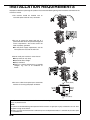


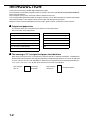
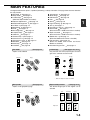

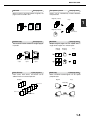

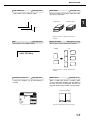

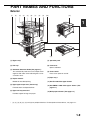
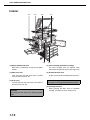
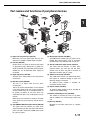
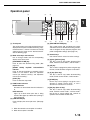
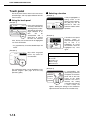
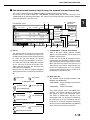
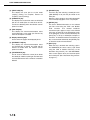
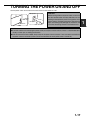
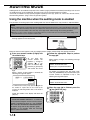

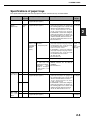
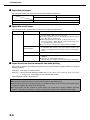


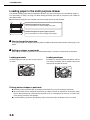
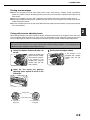
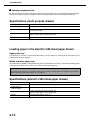
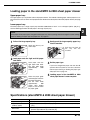
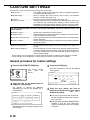
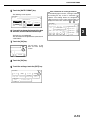
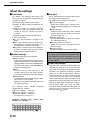
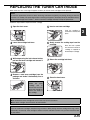
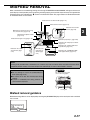

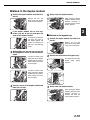
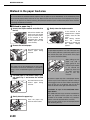
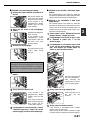


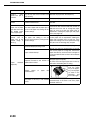




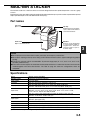

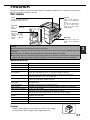
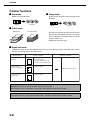
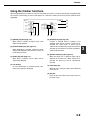


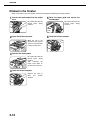
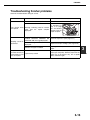

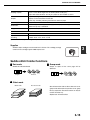
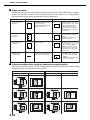


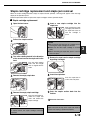

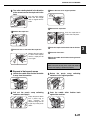
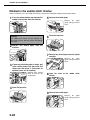
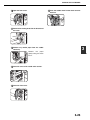
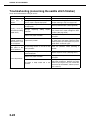




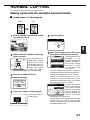
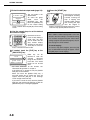


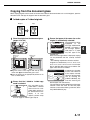
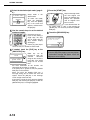
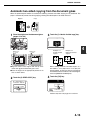
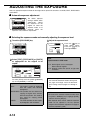

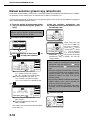
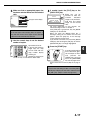


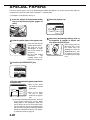
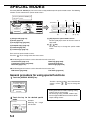
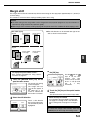
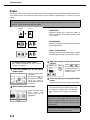


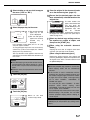

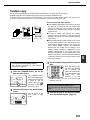

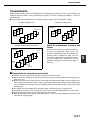
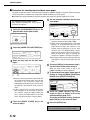


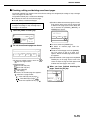

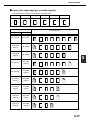

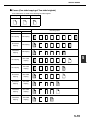
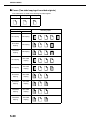
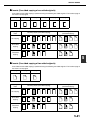
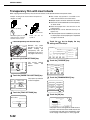
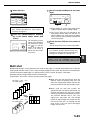


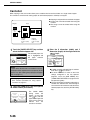

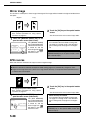


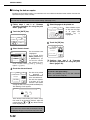

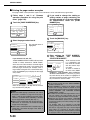
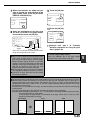

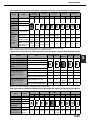

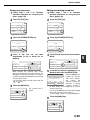

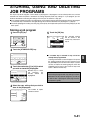


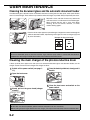

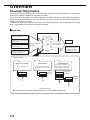
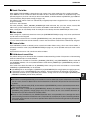

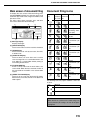
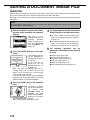
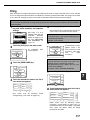
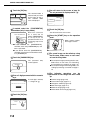
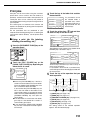

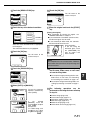


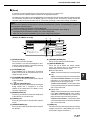
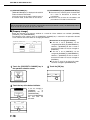

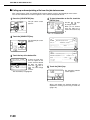

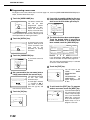
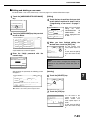
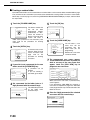

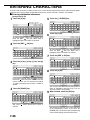
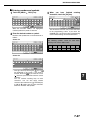

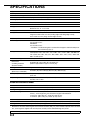
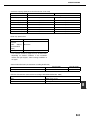
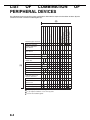





![2 Appuyez sur la touche [OK]](http://vs1.manualzilla.com/store/data/006366731_1-c689529ed678904fcc2906f61f952784-150x150.png)