1
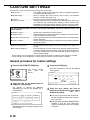
CUSTOM SETTINGS
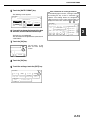
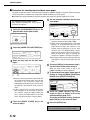
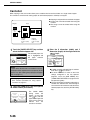
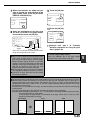
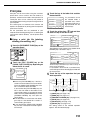
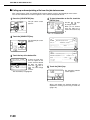
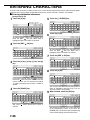
9 Touch the [OK] key.
exit, touch the [EXIT] key. To create
10 To
another folder, touch the [NEXT] key.
If you touched the [EXIT]
key, you will return to the
screen of step 3 on page
7-21. If you touched the
[NEXT] key, a new folder
screen
will
appear.
Repeat steps 1 to 10 to
OK
ADD NEW
JKLMN
OPQRST
EXIT
NEXT
1/1
SWORD
UVWXYZ
create a new folder.
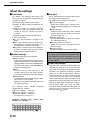
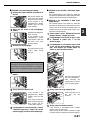
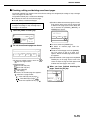
■ Editing/deleting a custom folder
To edit a previously created folder (change the folder name, initial, password, or user name), or to delete a folder,
follow steps 1 and 2 on page 7-21 and then follow the steps below.
When deleting a folder...
A folder that contains files cannot be deleted. Either move the files to a different folder or delete them before deleting the folder.
: [MOVE] (see page 7-19)
: [DELETE] (see page 7-19)
the [AMEND/DELETE
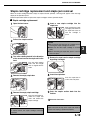
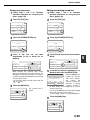
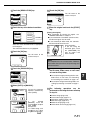
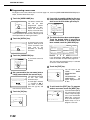
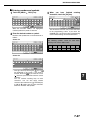
1 Touch
FOLDER] key.
CUSTOM
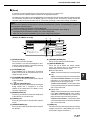
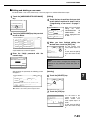
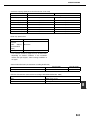
[Editing]
Touch the key of each item that you wish
to edit (edit as explained in steps 1 to 10 of
"Creating a custom folder" on page 7-24).
4
AMEND/DELETE USER NAME
DELETE
CUSTOM FOLDER / AMEND/DELETE
AMEND/DELETE CUSTOM FOLDER
EXIT
No.001 REGISTRATION IS COMPLETED.
USER FOLDER 1
FOLDER NAME
2
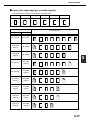
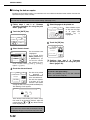
Touch the [FOLDER NAME] key that you
wish to edit or delete.
SELECT CUSTOM FOLDER TO AMEND/DELETE.
CUSTOM FOLDER 1
CUSTOM FOLDER 2
CUSTOM FOLDER 3
CUSTOM FOLDER 4
CUSTOM FOLDER 5
CUSTOM FOLDER 6
CUSTOM FOLDER 7
ALL FOLDERS
ABCD
1/2
CUSTOM FOLDER 8
EFGHI
JKLMN
OPQRST
UVWXYZ
If a password has been set for the folder, a
password entry screen will appear. Enter the
correct 5-digit password with the numeric keys.
USER NAME
Yamada
PASSWORD
you have finished editing the items,
5 When
touch the [EXIT] key.
To edit another folder, repeat steps 2 to 5.
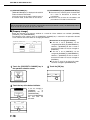
[Deleting]
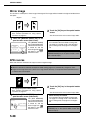
Touch the [DELETE] key.
6
3 Edit or delete the folder.
DELETE
CUSTOM FOLDER / AMEND/DELETE
USER1
After editing the items and returning to the screen of
step 3, "REGISTRATION IS COMPLETED." will be
highlighted to the right of "No.".
To stop using a password, touch the
[PASSWORD] key and then touch the [OK] key
without entering anything for the password. [-] will
appear and the password will be canceled.
EXIT
CUSTOM FOLDER / AMEND/DELETE
INITIAL
EXIT
No.001
DELETE
FOLDER NAME
EXIT
USER FOLDER 1
INITIAL
USER1
USER NAME
Yamada
PASSWORD
*****
●To edit the folder, perform steps 4 and 5.
●To delete the folder, perform steps 6 and 7.
●To exit, touch the [EXIT] key.
ORD
– – – – –
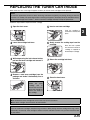
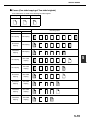
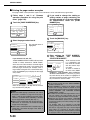
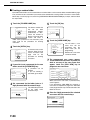
7 Touch the [YES] key.
DELETE THE FOLDER?
USER FOLDER 1
NO
YES
You will return to the
screen of step 2.
To delete another folder,
repeat steps 2, 6, and 7.
To exit, touch the [EXIT]
key in the screen of step
2.
7-25
7
































































![2 Appuyez sur la touche [OK]](http://vs1.manualzilla.com/store/data/006366731_1-c689529ed678904fcc2906f61f952784-150x150.png)