1
Administration Guide
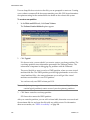
The Add Virtual Machine wizard guides you through the basic steps to create a virtual machine on your server. Any user who has an account on the server’s service console may log in to the wizard and create a virtual machine. If you are logged in as root, you might want to log out and log in again as a user authorized to manage the new virtual machine. NOTE
Check for any VMkernel ALERT messages in the warning log files before creating a new virtual machine.
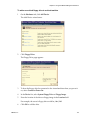
To create a new virtual machine
1
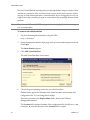
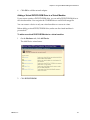
Log in to the management interface, using this URL:
http://<hostname>
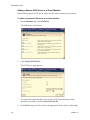
2
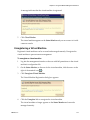
On the management interface login page, enter your user name and password and click Login.
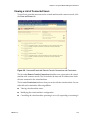
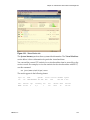
The Status Monitor appears.
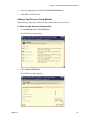
3
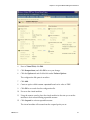
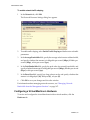
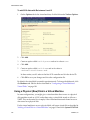
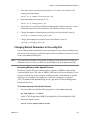
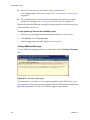
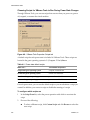
Click Add Virtual Machine. The Add Virtual Machine wizard starts.
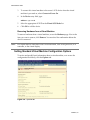
4
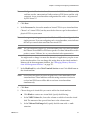
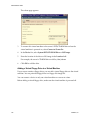
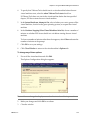
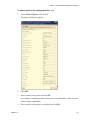
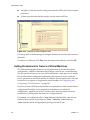
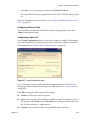
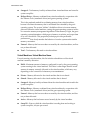
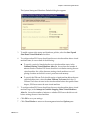
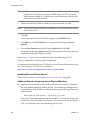
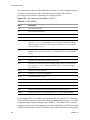
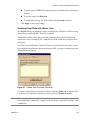
Choose the guest operating system for your virtual machine. Default entries appear for the name of the virtual machine and the name of its configuration file. You can change these settings.
The name you enter in the Display Name field is listed in the VMware Management Interface.
The Location field contains the name of the configuration file (this file has a .vmx extension). Be sure that the entry in the Location field is unique. 40
VMware, Inc.