1
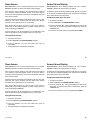
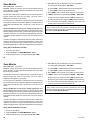
Deleting User Codes
1. Access the User Menu.
2. Press COMMAND until USER CODES? displays.
3. Press any SELECT key. The keypad displays ADD DEL CHG
BAT.
4. Press the SELECT key under DEL to delete a user code from the
system. You must have a user code level of 9 or have a custom
user code with that authority to be able to delete a user code.
Important: Each area must have at least one user with a level 9
authority in order to be able to add or delete user codes. Be careful not
to delete all level 9 users from an area.
5. At the USER NUMBER: - prompt, enter the user number you
want to delete and press COMMAND. The display changes to
USER # DELETED.
6. The display then changes back to USER NUMBER: - allowing
you to delete another user. Press the ARROW key twice to exit
the User Menu.
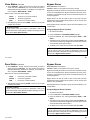
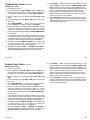
Changing User Codes
1. Access the User Menu.
2. Press the COMMAND key until USER CODES? displays.
3. Press any SELECT key. The keypad displays ADD DEL CHG
BAT.
4. Press the SELECT key under CHG to change a user code.
5. At the USER NUMBER:
- prompt, enter the user number to
change and press COMMAND.
Refer to the System Setup section for the number of user codes
available for your system.
6.The display changes to CODE NO: * * * * *. Press a SELECT key
and enter the new user code. Press COMMAND.
7. The display then shows the current user name. Press any top row
key to clear. See the Entering Custom Names Section in the
Appendix to enter new name.
Note: Changing a user code does not change the user number.
8. The display changes to AREAS: # # # # (# = area number). Add
or remove access to one or more areas by pressing the
corresponding number keys. Press COMMAND.
9. The display changes to LEVEL CUSTOM. Refer to Adding User
Codes on the previous page for a description of this prompt.
10. After entering the authority level, the keypad displays USER #
CHANGED for five seconds followed by USER NUMBER: -.
This display allows you to enter another user number to change.
Press the ARROW key twice to exit the User Menu.
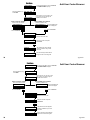
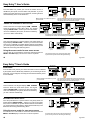
☞ Browser Feature
Refer to the Appendix at the back of this guide for a diagram showing
you how to use the Add, Delete or Change User Codes browser.
19
User Menu
Deleting User Codes
Changing User Codes
1. Access the User Menu.
1. Access the User Menu.
2. Press COMMAND until USER CODES? displays.
3. Press any SELECT key. The keypad displays ADD DEL CHG
BAT.
2. Press the COMMAND key until USER CODES? displays.
3. Press any SELECT key. The keypad displays ADD DEL CHG
BAT.
4. Press the SELECT key under DEL to delete a user code from the
system. You must have a user code level of 9 or have a custom
user code with that authority to be able to delete a user code.
4. Press the SELECT key under CHG to change a user code.
5. At the USER NUMBER:
- prompt, enter the user number to
change and press COMMAND.
Refer to the System Setup section for the number of user codes
available for your system.
Important: Each area must have at least one user with a level 9
authority in order to be able to add or delete user codes. Be careful not
to delete all level 9 users from an area.
5. At the USER NUMBER: - prompt, enter the user number you
want to delete and press COMMAND. The display changes to
USER # DELETED.
6. The display then changes back to USER NUMBER: - allowing
you to delete another user. Press the ARROW key twice to exit
the User Menu.
6. The display changes to CODE NO: * * * * *. Press a SELECT key
and enter the new user code. Press COMMAND.
7. The display then shows the current user name. Press any top row
key to clear. See the Entering Custom Names Section in the
Appendix to enter new name.
Note: Changing a user code does not change the user number.
8. The display changes to AREAS: # # # # (# = area number). Add
or remove access to one or more areas by pressing the
corresponding number keys. Press COMMAND.
9. The display changes to LEVEL CUSTOM. Refer to Adding User
Codes on the previous page for a description of this prompt.
10. After entering the authority level, the keypad displays USER #
CHANGED for five seconds followed by USER NUMBER: -.
This display allows you to enter another user number to
change. Press the ARROW key twice to exit the User Menu.
☞ Browser Feature
Refer to the Appendix at the back of this guide for a diagram showing
you how to use the Add, Delete or Change User Codes browser.
User Menu
19