1
General Operation
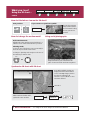
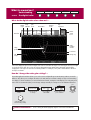
Using the controls
Card 2
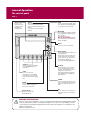
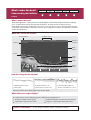
How do the controls work?
Buttons
PAGE
Access system functions or change what you see on-screen.
Within the text of this document they are written in bold capitals
e.g. WPTS/MOB.
ACTIVE
WPTS/
MOB
DATA
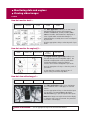
Press and hold to access short cuts - see individual buttons on
facing page.
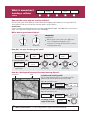
MENU
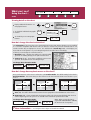
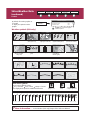
Example:
This example shows
the series of button
and soft key presses
required to change
the waypoint default
symbol or group.
Soft keys
They change depending on application or
function being performed.
WAYPOINT AT
CURSOR
WAYPOINT AT
VESSEL
WAYPOINT AT
LAT/LONG...
GO TO WAYPOINT
OPTIONS…
REVIEW AND EDIT
WAYPOINTS
ERASE WAYPOINT
SORT LIST
SET DEFAULT SYM
& GROUP...
WAYPOINT
GROUPS...
VIEW AND EDIT
DETAILS…
Press and hold MENU to display help
information for the currently displayed
soft keys.
Press the corresponding key (below the
screen) to select.
Further soft keys may be displayed.
If a key has several options, each press
will highlight the next option.
If a key displays a single value or a slider
above, use the rotary control to adjust.
SET UP DEFAULT
SYMB GROUP
EDIT DEFAULT
Within the text of this document they are
written in capitals e.g. SORT LIST.
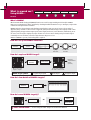
This process of pressing buttons and soft keys to navigate to the required function, is simplified within this
guide and represented by a strip e.g.
WPTS/
MOB
REVIEW AND EDIT
WAYPOINTS ...
SET DEFAULT SYM
& GROUP...
SET UP DEFAULT
SYMB GROUP
D7366-1
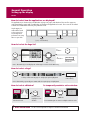
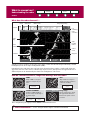
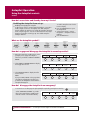
The Cursor
The Cursor appears on the screen
as a white cross.
To make it easier to locate on screen, the cursor
changes to a circle with a cross in it, when it is moved
after a 10 second period of inactivity.
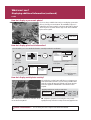
The cursor is context-sensitive. When it is placed over an object e.g. a waypoint or chart feature, it
changes color and a label or information associated with the object is displayed. When you place
WPT the cursor over certain items, the soft keys change to enable you to access related operations.
To practice using your Display without data from a GPS, scanner or fishfinder, switch on the simulator via the
System Setup menu.
D6762_4
Simulator: