1
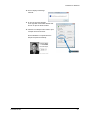
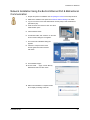
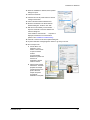
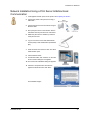
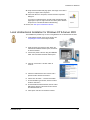
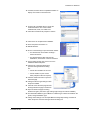
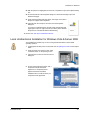
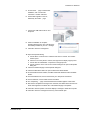
Acknowledgements
CandelaColor is a registered trademark of Pictographics International Corporation.
Citrix is a registered trademark of Citrix Systems. Inc.
The Common UNIX Printing System, CUPS, and the CUPS logo are the trademark property of Easy Software
Products.
Datacard is a registered trademark of DataCard Corporation in the United States and/or other countries. The
color blue with platinum flecks mark is a registered trademark of DataCard Corporation in the United States, the
European Union and/or other countries. UltraGrafix is a registered trademark of DataCard Corporation in the
United States, the European Union and/or other countries.
HP and Jetdirect are registered trademarks of Hewlett Packard Development Company.
Linux is a registered trademark of Linus Torvalds.
Microsoft, Windows, Windows NT, and Windows Vista are registered trademarks of Microsoft Corporation.
All other trademarks are the property of their respective owners.
Names and logos on sample cards are fictitious. Any similarity to actual names, trademarks, or trade names is
coincidental.
The design and information contained in these materials are protected by U.S. and international copyright law.
About websites in this manual
Any third party website addresses and/or links contained herein are provided for informational purposes only and
may change at any time without notice. We offer no warranties, express or implied, as to the quality of such third
party products or tools, or to the accuracy or completeness of the information contained on or related to such
websites.
ii
Contents
Introduction . . . . . . . . . . . . . . . . . . . . . . . . . . . . . . . . . . . . . . . . . . . . . . . . . . . . . . . . . . . . . . . . 1
Desktop Card Printers. . . . . . . . . . . . . . . . . . . . . . . . . . . . . . . . . . . . . . . . . . . . . . . . . . . . . . 1
About this Manual . . . . . . . . . . . . . . . . . . . . . . . . . . . . . . . . . . . . . . . . . . . . . . . . . . . . . . . . . 1
For More Information . . .. . . . . . . . . . . . . . . . . . . . . . . . . . . . . . . . . . . . . . . . . . . . . . . . . . . . 2
Driver Co-existence on Windows. . . . . . . . . . . . . . . . . . . . . . . . . . . . . . . . . . . . . . . . . . . . . . . 3
Should you install? . . . . . . . . . . . . . . . . . . . . . . . . . . . . . . . . . . . . . . . . . . . . . . . . . . . . . . . . 3
Driver Support for Printers . . . . . . . . . . . . . . . . . . . . . . . . . . . . . . . . . . . . . . . . . . . . . . . . . . 3
Older and Newer Drivers. . . . . . . . . . . . . . . . . . . . . . . . . . . . . . . . . . . . . . . . . . . . . . . . . . . . 4
Before You Install . . . . . . . . . . . . . . . . . . . . . . . . . . . . . . . . . . . . . . . . . . . . . . . . . . . . . . . . . . . 5
Installation Requirements . . . . . . . . . . . . . . . . . . . . . . . . . . . . . . . . . . . . . . . . . . . . . . . . . . . 5
Choosing Your Installation Method . . . . . . . . . . . . . . . . . . . . . . . . . . . . . . . . . . . . . . . . . . . . 8
Preparing the Printer . . . . . . . . . . . . . . . . . . . . . . . . . . . . . . . . . . . . . . . . . . . . . . . . . . . . . . 10
Installation on Windows . . . . . . . . . . . . . . . . . . . . . . . . . . . . . . . . . . . . . . . . . . . . . . . . . . . . . 17
Installing the Driver with Bidirectional Communication . . . . . . . . . . . . . . . . . . . . . . . . . . . . 18
Installing More than One Printer on a PC . . . . . . . . . . . . . . . . . . . . . . . . . . . . . . . . . . . . . . 30
Wireless Network Connection . . . . . . . . . . . . . . . . . . . . . . . . . . . . . . . . . . . . . . . . . . . . . . . 32
Printing Cards Using Bidirectional Communication. . . . . . . . . . . . . . . . . . . . . . . . . . . . . . . 38
Unidirectional Printing . . . . . . . . . . . . . . . . . . . . . . . . . . . . . . . . . . . . . . . . . . . . . . . . . . . . . 39
Installing the Unidirectional Driver. . . . . . . . . . . . . . . . . . . . . . . . . . . . . . . . . . . . . . . . . . . . 39
Printing Cards in the Windows Terminal Services Environment . . . . . . . . . . . . . . . . . . . . . 52
Installation Troubleshooting . . . . . . . . . . . . . . . . . . . . . . . . . . . . . . . . . . . . . . . . . . . . . . . . 54
Printer Pooling. . . . . . . . . . . . . . . . . . . . . . . . . . . . . . . . . . . . . . . . . . . . . . . . . . . . . . . . . . . . . 56
Requirements for a Printer Pool . . . . . . . . . . . . . . . . . . . . . . . . . . . . . . . . . . . . . . . . . . . . . 56
Set up Printer Pooling . . . . . . . . . . . . . . . . . . . . . . . . . . . . . . . . . . . . . . . . . . . . . . . . . . . . . 57
Printing Cards Using a Printer Pool . . . . . . . . . . . . . . . . . . . . . . . . . . . . . . . . . . . . . . . . . . 59
Shared Printers . . . . . . . . . . . . . . . . . . . . . . . . . . . . . . . . . . . . . . . . . . . . . . . . . . . . . . . . . . . . 62
Setting up Printer Sharing . . . . . . . . . . . . . . . . . . . . . . . . . . . . . . . . . . . . . . . . . . . . . . . . . . 63
Printing Cards Using a Shared Printer . . . . . . . . . . . . . . . . . . . . . . . . . . . . . . . . . . . . . . . . 69
Updating the Driver When Sharing Printers . . . . . . . . . . . . . . . . . . . . . . . . . . . . . . . . . . . . 71
Installation on Non-Windows Platforms . . . . . . . . . . . . . . . . . . . . . . . . . . . . . . . . . . . . . . . . 73
Open Platform Driver Installation . . . . . . . . . . . . . . . . . . . . . . . . . . . . . . . . . . . . . . . . . . . . 73
Open Card Installation . . . . . . . . . . . . . . . . . . . . . . . . . . . . . . . . . . . . . . . . . . . . . . . . . . . . 73
Updates, Upgrades, and More . . . . . . . . . . . . . . . . . . . . . . . . . . . . . . . . . . . . . . . . . . . . . . . . 75
Updates. . . . . . . . . . . . . . . . . . . . . . . . . . . . . . . . . . . . . . . . . . . . . . . . . . . . . . . . . . . . . . . . 75
Upgrades. . . . . . . . . . . . . . . . . . . . . . . . . . . . . . . . . . . . . . . . . . . . . . . . . . . . . . . . . . . . . . . 78
Deviations . . . . . . . . . . . . . . . . . . . . . . . . . . . . . . . . . . . . . . . . . . . . . . . . . . . . . . . . . . . . . . 79
Removing a Printer from a Windows PC. . . . . . . . . . . . . . . . . . . . . . . . . . . . . . . . . . . . . . . 79
Installation Guide
Page iii
The design and information contained in this manual is protected by U.S. and international copyright law.
Introduction
This manual describes all the methods available for installing desktop card printers. It
Desktop Card Printers
Desktop card printers apply personalization to plastic cards. Personalization includes printing,
encoding magnetic stripe data, and reading or programming smart cards. Some printers also
have one or two laminators, which apply a protective layer to cards.
A desktop card printer is a self-contained unit that receives data from a PC (or other computer),
personalizes the card using the data, and ejects the card. Desktop card printers have one or two
cards in them at a time, and are designed to issue cards where the user is, called on-demand
printing or instant issuance.
About this Manual
This manual applies to desktop card printers and describes:
•
Windows driver support, primarily the 4.x Card Printer Driver
•
Driver coexistence on Windows operating systems, focusing on the 4.x driver
•
Preparing the printer for installation
•
Windows installation
This manual is intended for anyone installing the desktop card printer. However, some
procedures require a higher level of technical knowledge or experience. The following icons
can guide you when choosing whether to perform a procedure yourself or asking for assistance.
1
Introduction
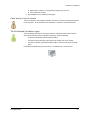
Operator: The green icon represents the Operator, who uses the printer to create
cards and works at the direction of others in the organization.
Administrator: The tan icon represents the Administrator, who has responsibility for
the system within the organization. The Administrator supervises the Operator in
most cases.
Service Provider: The blue icon represents the Service Provider, who has training
and experience to solve many problems and to perform advanced setup tasks.
For More Information . . .
The following information is available to help you use the desktop card printer:
Installation Guide
•
The Quick Install Guide is packaged in the carton with the printer. For the Kiosk Printer, a
Quick Reference Guide is packaged in the carton. For most printers, the Quick Install
Guide is posted on the Web site.
•
This manual, the Desktop Card Printers: Installation Guide (539808-001) is available
from the Web site. It provides detailed information for all installation choices.
•
For users of the Windows Card Printer Driver, InfoCentral is installed when the driver is
installed. You can open it using the shortcut in the Start > Programs menu. InfoCentral is
also available on the driver CD without installing the driver.
•
For users of the Open Platform Driver, the download package for the driver includes the
online Printer Guide (539643-001).
•
For users of the Open Card format, the Open Card Option CD-ROM (558868-001)
includes a Printer Guide (539398-001).
•
The printhead is user replaceable. Replacement printheads include instructions
(539295-001) for replacing the printhead.
•
A Firmware Update Program is available to use with the Windows Card Printer Driver
and a firmware file. The download for the Firmware Update Program includes
instructions (539745-001).
•
This Solutions Guide (539707-001) provides detailed information for integrators. The
Solutions Guide can be downloaded from the service Web site.
2
Driver Co-existence on Windows
This chapter provides information about installing more than one driver on a PC. It describes:
•
"Should you install?"
•
"Driver Support for Printers"
•
"Older and Newer Drivers" on the same PC
Should you install?
If a card printer is installed that uses a driver with a version of 7.7 or lower, remove the printer
and driver before installing the current printer on the PC. Follow instructions provided with that
driver to completely remove it. You can install the printer again with a current 4.x driver.
Only Card Printer Drivers with the same brand can be installed on the same PC. The brand
includes the manufacturer and product line.
The 2.x printer driver is compatible with drivers of the same brand with versions of 7.4, 7.5, 7.6,
7.7, and 1.0. (Not all brands have all versions of the printer driver.) Compatible drivers can be
installed on the same PC.
Driver Support for Printers
Printer serial numbers correspond with driver releases. Match the serial number of your printer
to the driver release that supports it.
Serial Number
Windows® 98,
Me, or NT 4.0#
SN above 90001
Windows 2000
Windows XP or
Server 2003
Windows Vista® or
Windows Server 2008
Not supported
Card Printer
Driver 2.x
Card Printer Driver 2.x
Card Printer Driver 4.x
Card Printer Driver 3.x
Card Printer Driver 4.x
SN from 70001 to
90000
Driver 7.4 to 7.7
Driver 7.4 to 7.7
Driver 7.4 to 7.7
Card Printer Driver 4.x
Card Printer Driver 3.x
Card Printer Driver 4.x
SN below 70000
Driver 7.4 to 7.7
Driver 7.4 to 7.7
Driver 7.4 to 7.7
Card Printer Driver 4.x
Card Printer Driver 3.x
Card Printer Driver 4.x
#. Windows NT® 4.0 is supported only for a network connection to the printer. Windows NT does not support USB
and so cannot support a local USB connection between the printer and PC.
3
Driver Co-existence on Windows
Older and Newer Drivers
Some drivers can be installed on the same PC along with other drivers. On Windows 2000,
Windows XP, or Windows Server 2003, the following pairs can be installed on the same PC.
•
Driver 7.4 and Card Printer Driver 2.0
•
Driver 7.5 and Card Printer Driver 2.1
•
Driver 7.6 and Card Printer Driver 2.2
•
Driver 7.7 and Card Printer Driver 2.3
If the printer is installed with a 7.x driver and you want to install a new printer that uses the 4.x
driver, do the following:
•
Delete the 7.x driver (in the printers window)
•
Run the Cleanup Utility to remove 7.x driver files
•
Remove any folder to which the 7.x files were extracted
•
Remove the 7.x driver CD from the PC
•
Install both printers with the 4.x driver
On Windows XP (32-bit) or Windows Server 2003, the following drivers must be updated to the
newer version:
•
Card Printer Driver 2.0 to Card Printer Driver 4.0
•
Driver 2.1 to Driver 4.1
•
Driver 2.2 to Driver 4.2
•
Driver 2.3 to Driver 4.3
On Windows Vista (32 bit) or Windows Server 2008, the following drivers must be updated to
the newer version:
•
Card Printer Driver 3.0 to Card Printer Driver 4.0
•
Driver 3.1 to Driver 4.1
•
Driver 3.2 to Driver 4.2
•
Driver 3.3 to Driver 4.3
Windows 2000 is not supported by the 4.x printer driver.
If the printer is installed with the 1.x driver, delete the driver and install the printer with the 4.x
driver. See "Shared Printers" for information about updating when using printer sharing.
During driver installation, the installation detects
the earlier version (1.0, 2.x, or 3.x) and prompts
you to update the existing driver before installing
the new version. After updating the existing driver,
start installation again to install the new printer with
the 4.x driver.
Installation Guide
4
Before You Install
This section describes:
•
Installation requirements
•
Choosing your installation method
•
Preparing the printer for installation
Installation Requirements
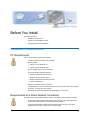
PC Requirements
Use a PC that meets or exceeds the following:
•
A 32-bit processor, running at 2 GHz or faster
•
Memory (RAM):
— 1GB or more for Windows XP
— 2GB or more for Windows Vista
•
At least 15GB free space on the hard drive
•
One of the following operating systems:
— Windows Vista® with Service Pack 1
— Windows XP with Service Pack 3
— Windows 2003 Server with Service Pack 1
— Windows 2008 Server
•
USB port or Ethernet network connection
If the printer does not have a built-in Ethernet port and you plan to use a direct network
connection, you also need a print server.
•
ID software to capture and organize the data to appear on each card.
Requirements for a Direct Network Connection
To install a printer using the Built-in Ethernet option, the following components are required:
•
An Ethernet network that uses the TCP/IP protocol and can run at 100 megabits per
second, also called 100base-T. Printers also support 10base-T.
•
A printer equipped with the Built-in Ethernet feature OR a print server. The HP®
Jetdirect® 175x, revision C, print server has been tested.
5
Before You Install
•
An Ethernet cable to connect the printer to the network. An Ethernet cable is not
supplied with the printer.
•
A PC that meets the requirements listed above, that is connected to and communicating
with the network.
•
You can connect up to 20 directly networked printers to one PC. If you need to install
more than 20 printers on one PC, contact your service provider for assistance.
Site Requirements
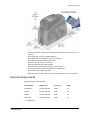
•
Installation Guide
Maintain the minimum clearance around the printer as shown in the following
illustrations.
6
Before You Install
•
Place the printer in an environment with temperatures ranging from 60° F to 95° F (15° C
to 35° C).
•
Use a single phase, 3-wire, grounded receptacle.
•
Keep all dust, dirt, food, and liquids away from the printer.
•
Keep paper and foreign materials off the printer.
•
Place the printer on a sturdy, level surface.
•
Place the printer away from direct sunlight.
•
Do not place printer near heat ducts, fans, or other air vents.
•
Do not use the printer for purposes other than the intended use.
•
Prevent debris from entering the printer.
•
Place the printer in a clean office environment, protected from any type of construction.
Electrical Requirements
The power supply is rated as follows:
Printer Model
Voltage, AC#
Cycle, Hz#
Amps
Manual Feed
100-120, 220-240
50-60
3.0
Simplex
100-120, 220-240
50-60
3.0
Duplex
100-120, 220-240
50-60
3.0
Laminating
100-120, 220-240
50-60
3.0
#.
Installation Guide
Self-adjusting
7
Before You Install
Choosing Your Installation Method
Your installation method depends on how many users will print to the card printer, the operating
system you will use to send card data, and other decisions in your environment.
Will you print from a PC running a Windows operating system?
If yes, continue with "Windows Installation Choices".
Will you print from a PC running a Linux operating system?
If yes, see "Open Platform Driver Installation".
Will you print monochrome cards using ASCII data and the Open Card
format?
If yes, see "Open Card Installation".
Windows Installation Choices
Do you have a CD for installation or will you use downloaded files?
The printer ships with a CD in the printer carton. In most cases, install the driver from the
CD. In the following situations, install the driver from a downloaded file:
— You do not have access to the CD.
— You are using the Windows Vista operating system on the PC and the CD does not
list Windows Vista as a supported operating system.
— You are using the Windows 2000 operating system on the PC and the CD does not
list Windows 2000 as a supported operating system. You can install the 7.x or 2.x
driver. See "Driver Co-existence on Windows" for details.
See "Installing from Downloaded Files" to install from downloaded files.
Will you use bidirectional (two-way) communication between the printer
and driver?
Bidirectional communication is the method the printer and driver are designed to use. It
is required to enable all the printer and driver features. Continue with these questions if
you plan to use bidirectional communication.
If you do not plan to use bidirectional communication, see "Unidirectional Printing" for
more information about installation choices and instructions.
Will you connect the printer to the PC using a USB cable?
Using a USB cable between a port on the PC and the USB port on the printer is called
local installation. To install the printer using a local USB connection, see "Local USB
Installation Using Bidirectional Communication".
Will you connect the printer and PC to the network, with a network cable
connecting the printer’s network port to your network?
Using the optional built-in Ethernet port on the printer and a network port is called a
direct network connection. To use a direct network connection, see "Network Installation
Using the Built-in Ethernet Port & Bidirectional Communication".
Installation Guide
8
Before You Install
Will you connect the printer to the network using a print server?
Printers with only a USB connection can be used over a network if the printer USB port
is connected to a print server and the print server is connected to the network. To use a
print server for networked printing, see "Network Installation Using a Print Server &
Bidirectional Communication".
Will you connect the printer to the PC using a wireless connection?
Printers can be wirelessly connected to a PC or to a network, using a wireless print
server. To use a wireless connection for the printer, see "Wireless Network Connection".
Will you install more than one printer on a PC?
Do you want to send cards from one PC to two or more printers? You can install several
printers on a PC, using a variety of connection methods.
To read suggestions for successfully using more than one printer from a PC, see
"Installing More than One Printer on a PC".
Will you install one printer on the network, and print to it from several PC?
You can connect one printer to several PCs on a network. There are no special concerns
when sending cards from several PCs.
Do you want to use a printer pool, where the PC distributes the cards to the
first available printer?
A printer pool collects all the card printers installed on one PC into a group and sends
cards to the next available printer. To set up and use a printer pool, see "Printer Pooling".
Do you want to install the printer on one PC, and use it from another PC on
the network (called printer sharing)?
Printer sharing is a Windows feature that permits using resources on a different PC,
when both PCs are installed on the same network. To install and use a shared printer,
see "Shared Printers".
Do you want to use a newer driver in place of the one currently installed?
See "Updates, Upgrades, and More" for information about updates.
Installation Guide
9
Before You Install
Preparing the Printer
This section describes:
•
"Installing Supplies and Powering on the Printer"
•
"Network Address Settings"
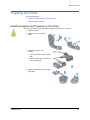
Installing Supplies and Powering on the Printer
This section provides the steps for installing supplies and powering on the printer.
1
Unpack the printer.
2
Install the continuous cleaning
sleeve.
3
Load the print ribbon on the
cartridge.
— Place the full spool near the slotted
disk.
— Place the empty spool with the cap
near the black gear.
4
Installation Guide
Install the loaded print ribbon cartridge
in the printer.
10
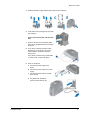
Before You Install
5
Install the laminator supply material (if the printer has a laminator).
6
Load cards in the input hopper (if the printer
has a hopper).
Do not connect the printer and PC at this
time.
7
Power on the PC or host computer. Make
sure it is fully operational before connecting
the printer.
8
For a printer connected using the built-in
Ethernet port on the printer, connect the
network cable to the printer and to the
network now.
For a printer connected using a USB cable
or a print server, continue with step 9.
9
Power on the printer.
a
Connect the power supply to the
printer.
b Connect the power cable to the power
supply.
c Connect the power cable to a facility
power source.
d For printers with laminators,
push the power switch to On.
Installation Guide
11
Before You Install
10 When the printer powers on, the
status light presents a series of
patterns. The location of the status
light depends on the printer model:
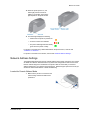
11 The status light displays the following:
— Amber when the printer is powered on.
— A series of colors as it initializes.
— The printer status light becomes steady
green when the printer is ready.
For printers connected using a USB cable between the printer and PC, continue with
"Installation on Windows".
For printers connected over a network, continue with "Network Address Settings".
Network Address Settings
The Address Mode determines how the network address of the printer is assigned. The choices
are DHCP and Static IP. DHCP stands for "Dynamic Host Configuration Protocol" and means
that the network assigns the IP Address to the printer. Static IP means that you set the IP
Address assigned by your network support personnel. Network support personnel can tell you
whether the network uses DHCP or static IP addressing.
Locate the Current Address Mode
1
Installation Guide
Make sure the printer is connected to the
network using an Ethernet cable and is
powered on.
12
Before You Install
2
Begin when the LCD panel shows
"Printer Ready" on Line 1 of the
display.
3
Press the Enter key to enter the
menu system.
4
Make sure "Status" appears on Line 2
and press the Enter key.
5
With "Status Menu" displayed on Line
1, press the Up or Down Arrow key to display
"Network" on Line 2.
6
Press the Enter key. "Address Mode" appears on
Line 2.
7
Press the Enter key to view the Address Mode.
The options are DHCP or Static IP.
— If the Address Mode is DHCP and that is the
choice you will use, continue with "Retrieve
DHCP Values".
— If the Address Mode Static IP and you plan to use DHCP, see "Change the Address
Mode to DHCP".
— If the Address Mode DHCP and you will use Static IP, see "Change the Address
Mode to Static IP".
— If the address mode is Static IP and that is the choice you will use, see "Change
Static IP Values".
8
Press the Enter key repeatedly to return to the Main Menu. "Exit" is displayed on Line 2.
Continue with the section chosen in step 7.
Change the Address Mode to DHCP
Installation Guide
1
With “Main Menu” displayed on line 1, press the
Up or Down Arrow key to display "Configuration."
2
Press the Enter key to enter the Configuration
menu.
13
Before You Install
3
With "Configuration" displayed on Line 1, press
the Up or Down Arrow key to display "DHCP/
Static IP" on Line 2.
4
Press the Enter key. The current Address Mode
value is displayed on Line 2.
5
Press the Up or Down Arrow key to display
DHCP.
6
Press the Enter key.
7
Apply/Restart" appears on Line 2. Press the Enter key to restart the printer.
8
Continue with "Retrieve DHCP Values".
Retrieve DHCP Values
Continue with the following steps after confirming the Address Mode or changing the Address
Mode to DHCP.
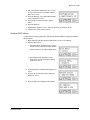
1
Begin when the LCD panel shows "Printer Ready" on Line 1 of the display.
2
Enter the Status menu.
— With “Main Menu” displayed on line 1, press
the Up or Down Arrow key to display "Status."
— Press the Enter key to enter the Status menu.
— With "Status Menu" displayed on Line 1,
press the Up or Down Arrow key to display
"Network" on Line 2.
Installation Guide
3
Press the Enter key. "Address Mode" appears on
Line 2.
4
Press the Up or Down Arrow key to display IP
Address on Line 2.
5
Press the Enter key to display the IP Address.
14
Before You Install
6
Write down the IP Address.
7
Press the Enter key to return to the Network
Status menu. "Subnet Mask" is displayed on Line
2. Press the Enter key to display the Subnet
Mask.
8
Press the Enter key to return to the Network
Status menu. "Gateway Addr" is displayed on
Line 2.
9
Press the Enter key to display the Gateway Address.
10 Press the Enter key to return to the Network Status menu. Press the Up or Down Arrow
key to display "Exit" on Line 2.
11 Press the Enter key repeatedly to return to the "Printer Ready" display.
Change the Address Mode to Static IP
Continue with the follow steps after determining the current Address Mode.
1
With “Main Menu” displayed on line 1, press the
Up or Down Arrow key to display "Configuration."
2
Press the Enter key to enter the Configuration
menu.
3
With "Configuration" displayed on Line 1, press
the Up or Down Arrow key to display "DHCP/
Static IP" on Line 2.
4
Press the Enter key. The current Address Mode
value is displayed on Line 2.
5
Press the Up or Down Arrow key to display Static
IP.
6
Press the Enter key. Continue with "Change Static IP Values".
Change Static IP Values
Continue with the follow steps after setting the Address Mode to Static IP or verifying that the
Address Mode is Static IP.
1
If needed, move to the Configuration
menu.
— With “Main Menu” displayed on
line 1, press the Up or Down
Arrow key to display
"Configuration."
— Press the Enter key to enter the
Configuration menu.
Installation Guide
15
Before You Install
2
With "Configuration" displayed on Line 1, press
the Up or Down Arrow key to display "IP
Address" on Line 2.
3
Press the Enter key to choose IP Address.
4
The printer shows the current IP Address and a
cursor appears under the first byte of the
address. (The address byte shows three digits
when it can be changed and the cursor appears
under the right-most digit.)
5
Press the Up or Down Arrow key to change the
numbers of the IP Address.
6
When the first byte is correct, press the Enter key
to move to the second byte.
7
Repeat for the third and fourth byte of the IP
Address. After entering the fourth byte of the
address and pressing the Enter key, "Subnet
Mask" appears on Line 2 of the LCD panel.
8
Press the Enter key. The current Subnet Mask
value appears with the cursor under the first byte.
Set the Subnet Mask using the same process as
the IP Address. After entering the fourth byte and
pressing the Enter key, "Gateway Addr" appears.
9
Press the Enter key. The current Gateway
Address value appears with the cursor under the
first byte. Set the Gateway Address using the
same process as the IP Address.
10 After entering the fourth byte of the Gateway
Address and pressing the Enter key, "Apply/
Restart" appears.
11 Press the Enter key to apply the values and
restart the printer.
Installation Guide
16
Installation on Windows
This section provides information about installing the printer and driver on a PC running a
Windows operating system. See "Windows Installation Choices" for installation choices.
This section describes how to install the printer on a PC with a Windows® operating system.
See the releasenotes.rtf file (delivered with the Card Printer Driver) for detailed information
about supported Windows operating systems.
Installing on a Windows Operating System
•
Bidirectional communication and downloaded files
— "Installing from Downloaded Files"
•
Bidirectional communication and driver CD
— "Local USB Installation Using Bidirectional Communication"
— "Network Installation Using the Built-in Ethernet Port & Bidirectional Communication"
— "Network Installation Using a Print Server & Bidirectional Communication"
— "Installing More than One Printer on a PC"
— "Wireless Network Connection"
•
‹
"Connection Types"
‹
"Wireless Network Installation Using an Existing Network"
‹
"Wireless Network Installation with a Peer (Ad Hoc) Network"
Unidirectional communication
— "Unidirectional Printing"
— "Removing the Existing Driver"
— "Installing the Unidirectional Driver"
•
"Printer Pooling"
•
"Shared Printers"
For troubleshooting, see "Installation Troubleshooting".
For information on updating an installed driver, see "Updates, Upgrades, and More".
17
Installation on Windows
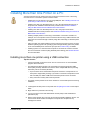
Installing the Driver with Bidirectional Communication
Installing from Downloaded Files
The printer ships with a CD-ROM in the printer carton. In most cases, install the driver from the
CD-ROM. In the following situations, install the driver from a downloaded file:
•
You do not have access to the CD-ROM.
•
You are using the Windows Vista operating system on the PC and the CD-ROM does
not list Vista as a supported operating system.
•
You are using the Windows 2000 operating system on the PC and the CD-ROM does
not list Windows 2000 as a supported operating system. See "Driver Support for
Printers" for details.
Install the driver on Windows Server 2003 or Windows Server 2008 following the same steps as
Windows XP and Vista (respectively).
Before installing the printer, do the following:
1
Prepare the printer. See "Preparing the Printer".
2
Obtain the download file, using a method such as the following:
— Browse to the Downloads
area of the Web site (or the
Products page for the printer)
and choose the driver for your
printer and operating system.
Click the link. If a License
Agreement appears, click “I
Agree” or “I Accept.” When
the File Download dialog
appears, click Save. Choose
a location on your PC, such
as C:\Temp and click Save.
— Receive the file on a portable
storage medium, such as CD-ROM or USB drive, and copy it to your hard drive.
— Receive the file by email and save it to your hard drive.
Tips for Success
Installation Guide
•
The download file will have a name similar to “2K-XP-2_0.exe” or “CP_Series_4_1.exe.”
•
You can download the file once (saving it to the hard drive) and use it to install the driver
on several PCs. The license agreement you accepted during download applies to all
installations of the driver.
18
Installation on Windows
Installing the Downloaded Driver using a USB Connection
1
Prepare the printer for installation. See "Preparing the Printer" for the steps to follow.
2
Log on to the PC as a user with Administrator access (Windows® Vista®) or
Administrator permissions (Windows XP).
3
Use Windows Explorer to locate the downloaded file.
4
Double-click on the downloaded file to start the card printer installation.
5
For Windows Vista, click “Continue” on the User Account Control dialog box if it appears.
6
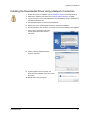
Click on the "I accept the terms of the
license agreement" button and then
click Next.
7
The installation begins. If the Microsoft
Visual C++ dialog appears, do not
cancel it. Allow it to go away on its own.
8
Choose "Local Printer Connection" and
click Next.
9
Verify that you have prepared the printer as
instructed on the “Connect . . . “ dialog box.
10 Connect the USB cable to the
printer.
The PC detects the printer.
Wait for installation to
complete.
11 The PC displays a message.
Click OK.
Installation Guide
19
Installation on Windows
12 An icon for the printer appears on the right
side of the toolbar. Double-click the icon to
open the Printer Toolbox.
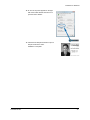
13 Click the Print Sample Card button to print a
sample card from the driver.
Installation is complete!
Installation Guide
20
Installation on Windows
Installing the Downloaded Driver using a Network Connection
1
Prepare the printer for installation. See "Preparing the Printer" for the steps to follow.
2
Obtain the IP Address of the printer. See "Network Address Settings" for details.
3
Log on to the PC as a user with Administrator access (Windows Vista) or Administrator
permissions (Windows XP).
4
Use Windows Explorer to locate the downloaded file.
5
Double-click on the downloaded file to start the card printer installation.
6
For Windows Vista, click “Continue” on the User Account Control dialog box if it appears.
7
Click on the "I accept the terms of the
license agreement" button and then
click “Next.”
8
Choose “Directly Networked Printer”
and then click “Next.”
9
A prompt appears when the printer and
driver have been installed. Click “OK” to close
the prompt.
10 Restart the PC only if prompted.
Installation Guide
21
Installation on Windows
11 The Properties dialog box opens at the end of
installation.
12 Choose the Ports tab.
13 Click the name of the printer and then click the
Configure Port button.
14 Click on the Enter Network Address box.
15 Enter the IP address in the Enter Network
Address dialog box, and then click “Test.”
16 Wait for the “Successfully communicated . . . “ response.
— If the “Unable to communicate . . . “ response is displayed, troubleshoot a
communication problem. See "Installation Troubleshooting".
— A “printer detected” message might appear. Allow it to go away on its own.
17 Print a sample card.
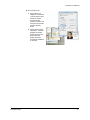
a
Choose Start > All
Programs > Card
Printer > Printer Name
to open the Printer
Toolbox.
If communication
between the printer and
the driver is suspended,
click the “Resume”
button.
b Click the Print Sample
Card button. The driver
prepares the sample
card and sends it to the
printer.
When the sample card prints successfully, installation is complete.
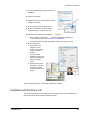
Installation with the Driver CD
The remaining instructions in this chapter use the Card Printer Driver CD for installation. For
best results, use the driver CD when installing the printer.
Installation Guide
22
Installation on Windows
Local USB Installation Using Bidirectional Communication
1
Log on to the PC as a user with Administrator access (Vista) or with Administrator
permissions (XP).
2
For Windows Vista, click “Continue” on the User Account Control dialog box if it appears.
3
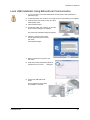
Insert the driver CD in the PC's drive. The driver
install window opens.
4
Click 'Install the Printer'.
5
For Windows Vista, click “Continue” on the User
Account Control dialog box if it appears.
The Card Printer Installation dialog box appears.
6
Click the "I accept the terms of the
license agreement" button and then
click “Next.”
The installation begins.
7
Select "Local Printer Connection" and
click “Next.”
8
Verify that you have prepared the printer as
instructed on the “Connect . . . “ dialog box.
9
Connect the USB cable to the
printer.
The PC detects the printer. Wait
for installation to complete.
Installation Guide
23
Installation on Windows
10 The PC displays a message.
Click OK.
11 An icon for the printer appears
on the right side of the toolbar. Double-click
the icon to open the Printer Toolbox.
12 Click the “Print Sample Card” button to print
a sample card from the driver.
Printer installation is complete when the
sample card prints successfully.
Installation Guide
24
Installation on Windows
Network Installation Using the Built-in Ethernet Port & Bidirectional
Communication
1
Prepare the printer for installation. See "Preparing the Printer" for the steps to follow.
2
Obtain the IP Address of the printer. See "Network Address Settings" for details.
3
Log on to the PC as a user with Administrator access (Vista) or with Administrator
permissions (XP).
4
Insert the driver CD in the PC's drive. The driver
install window opens.
5
Click 'Install the Printer.'
6
For Windows Vista, click “Continue” on the User
Account Control dialog box if it appears.
7
The Card Printer Installation dialog box
appears.
8
Click the "I accept the terms of the
license agreement" button and then
click “Next.”
9
The installation begins.
10 On the “Install . . .” page, choose "Directly
Networked Printer" and click “Next.”
11 Wait for the installation to complete and the
PC to display a message. Click OK.
Installation Guide
25
Installation on Windows
12 When the installation is finished, the Properties
dialog box opens.
13 Choose the Ports tab.
14 Click the name of the printer and then click the
Configure Port button.
15 Click on the Enter Network Address box.
16 Enter the IP address in the Enter Network
Address dialog box, and then click “Test.”
17 Wait for the “Successfully communicated . . . “
response. Click OK to save the address and
close the dialog box.
If the “Unable to communicate . . . “ response is
displayed, troubleshoot a communication
problem. See "Installation Troubleshooting".
18 Click OK or Close to close the Properties dialog box.
19 A “printer detected” message appears. Allow it to go away on its own.
20 Print a sample card.
a
Choose Start > All
Programs > Card
Printer > Printer Name
to open the Printer
Toolbox.
If communication
between the printer and
the driver is
suspended, click the
“Resume” button.
b Click the Print Sample
Card button. The driver
prepares the sample
card and send it to the
printer. When the
sample card prints
successfully,
installation is complete.
Installation Guide
26
Installation on Windows
Network Installation Using a Print Server & Bidirectional
Communication
1
Load supplies and then power on the printer. See "Preparing the Printer".
2
Connect the printer to the print server using a
USB cable.
3
Connect the print server to the network using an
Ethernet cable.
4
Set up the print server on the network. See the
information with the print server for instructions.
5
Obtain the print server IP address (or network
name) and record it.
6
Log on to the PC as a user with Administrator
access (Vista) or with Administrator permissions
(XP).
7
Insert the driver CD in the PC's drive. The driver
install window opens.
8
Click 'Install the Printer'
9
For Windows Vista, click “Continue” on the User
Account Control dialog box if it appears.
10 The Card Printer Installation dialog box appears.
11 Click the "I accept the terms of the license
agreement" button and then click “Next.”
The installation begins.
Installation Guide
27
Installation on Windows
12 On the “Install . . .” page, choose "Directly
Networked Printer" and click “Next.”
13 Wait for the installation to complete and the
PC to display a message. Click OK.
14 When the installation is finished, the Properties
dialog box opens.
15 Choose the Ports tab.
16 Click the name of the printer and then click the
Configure Port button.
17 Click on the Enter Network Address box.
18 Enter the IP address (or network name) in the
Enter Network Address dialog box, and then
click “Test.”
19 Wait for the “Successfully communicated . . . “
response. Click OK to save the address and
close the dialog box.
If the “Unable to communicate . . . “ response is
displayed, troubleshoot a communication
problem. See "Installation Troubleshooting".
20 Click OK or Close to close the Properties dialog
box.
21 A “printer detected” message appears. Allow it to go away on its own.
Installation Guide
28
Installation on Windows
22 Print a sample card.
a
Choose Start > All
Programs > Card Printer
> Printer Name to open
the Printer Toolbox.
If communication
between the printer and
the driver is suspended,
click the “Resume”
button.
b Click the Print Sample
Card button. The driver
prepares the sample
card and send it to the
printer. When the
sample card prints
successfully, installation
is complete.
Installation Guide
29
Installation on Windows
Installing More than One Printer on a PC
You have several choices for having more than one printer connected to a PC or for having
more than one PC connected to a printer. Choices include:
•
Installing two or more printers on one PC using USB ports. See "Installing more than one
printer using a USB connection" for details.
•
Installing more than one networked printer on a PC, using the built-in Ethernet port on
the printer. Each installation follows the same procedure. See "Network Installation
Using the Built-in Ethernet Port & Bidirectional Communication".
•
Installing more than one networked printer on a PC, using a print server. Each
installation follows the same procedure. See "Network Installation Using a Print Server &
Bidirectional Communication".
•
Installing multiple printers on a PC using a combination of connection methods. For
example, one or more printers can be connected to the PC using a USB connection and
others can be connected through a network (using direct networking or Windows printer
sharing).
•
Using more than one printer installed to a PC as a printer pool, when the PC is running a
Windows operating system.The operating system manages sending jobs to the printers
so the next available printer receives the print job. See "Printer Pooling" for details.
•
Installing a printer on a client PC when the printer is connected to a host PC and both
PCs are connected to a network (using Windows printer sharing). See "Shared Printers"
for more information.
Installing more than one printer using a USB connection
Tips for success
•
Connect and install one printer at a time. The PC cannot run two or more installation
programs at the same time.
•
The USB protocol allows devices to be connected to the PC through another USB
device (daisy-chained). USB also uses hubs to which multiple USB devices (including
other hubs) can be connected (cascaded).
— Up to five hubs can be used between the printer and the PC. Card printers do not
have ports to support daisy chaining. If you need to connect two card printers to a PC
with one USB port, obtain a USB hub to which both printers can be connected.
— Every other hub in a daisy chain must be powered.
Installation Guide
•
The printer must be powered on for the PC to detect it. It must remain powered on during
installation.
1
Load supplies and then power on the printer. See "Preparing the Printer" for the steps to
follow.
2
Begin with the PC powered on and running.
3
Log on to the PC as a user with Administrator access (Vista) or with Administrator
permissions (XP).
4
Exit the Printer Toolbox (if it is running) for each printer already installed on the PC. You
cannot exit the Printer Toolbox until all jobs to the printer are complete and any
messages are cleared.
30
Installation on Windows
a
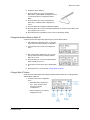
Locate the icon for the Printer Toolbox in the system tray,
usually the lower right corner of the desktop.
b Right-click the icon to display the popup menu.
c Choose Exit.
5
Prepare the printer and power it on. See "Preparing the Printer".
6
Attach the flat end of the USB
cable to the USB port on the
PC or on a device connected
to the PC.
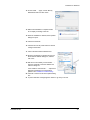
7
Attach the square end of the
USB cable to the printer.
8
The operating system detects
the new device. It might display a popup during
installation.
— If the operating system does not display a popup
within a few minutes, check the Printers window to
see if the icon for the new printer is displayed. At times, the software installs without
displaying the popup. If the Wizard does not appear and the icon is not present, see
"Installation Troubleshooting" for more information.
9
The operating system usually displays a
message when the printer has been
successfully installed.
10 The operating system usually uses the
existing driver files to install the driver for
this printer. Insert the driver CD only if
you are prompted for it.
Using more than one printer on a PC
When using more than one printer on a PC, keep the following in mind:
Installation Guide
•
Select the printer to use in the ID software or other application. Card jobs will be sent to
the selected printer even if more than one card printer is attached to the PC.
•
When messages are displayed, the title bar of the message box displays the name of
the printer causing the message. Keep track of which printer has which name.
•
Each printer has its own icon in the Printers window, and each printer has separate
Properties and Printer Preferences dialog boxes. Settings are not shared among
printers.
•
The PC has a Printer Toolbox for each printer installed. Open each Printer Toolbox by
choosing Start > Programs > Card Printer > Printer name. When the Printer Toolbox is
open, the printer name appears in the title bar.
31
Installation on Windows
Wireless Network Connection
To install the printer using a wireless network connection, you must have:
•
Equipment, including cables, for the wireless connection method you have chosen.
•
Knowledge of wireless communication.
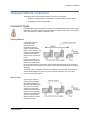
Connection Types
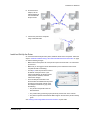
For wireless printing, the card printer is connected to a bidirectional wireless print server using a
USB cable. The wireless print server receives data from another wireless device. The sending
device can be part of a network or attached to a PC.
Existing Network
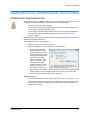
A networked connection
includes the typical
components of an
organization's existing
network, including servers,
cables, routers, and PCs. The
network must be enabled for
wireless communication
through one or more access
points.
PCs on the network must
install the driver for the card
printer to send cards to the
printer. PCs send data over the network, which transmits the data through an access point to
the wireless print server and printer. The printer returns status information to the PC using the
same path.
The printer location is limited by the range and availability of access points. This method can
also be called infrastructure mode. See "Wireless Network Installation Using an Existing
Network" for the steps to follow.
Peer to Peer
A peer to peer network is
made up of PCs equipped
with wireless adapters and
the printer with wireless print
server. The PCs have the
driver for the card printer
installed, and transmit print
data from the PCs wireless
adapter to the wireless print
server. The printer returns
status information to the PC
using the same path.
Installation Guide
32
Installation on Windows
A peer-to-peer network can also be called a local network or an ad hoc network. See "Wireless
Network Installation with a Peer (Ad Hoc) Network" for the steps to follow.
Wireless Network Installation Using an Existing Network
•
Make sure you have the following:
— A bidirectional wireless print server with cables and documentation.
— A wireless network with one or more access points available to the printer.
— A PC with a wireless adapter that uses the same wireless protocol (such as 802.11g)
as the print server.
— For a wired or wireless infrastructure (existing network) connection, the PC must be
connected to and working on an Ethernet network.
A bidirectional wireless network connection was tested using the HP® Jetdirect®
380x, revision A, bidirectional wireless print server. The print server was connected
to the printer using a USB cable.
•
Network support personnel can tell you whether the network uses DHCP or static IP
addressing.
— If it uses static IP addressing, obtain the IP address, subnet mask, and gateway
address from network support personnel. You will assign these values to the print
server.
— If the network uses DHCP, you will obtain these values from the print server
configuration utility and use them when setting up the PCs that send jobs to the
printer.
•
Most networks use encryption to protect data transmitted using the access points.
Network support personnel can provide the information you need to set up encryption on
the wireless print server.
Install and Set Up the Wireless Print Server
Installation Guide
1
Log on to the PC as a user with Administrator access (Vista) or with Administrator
permissions (XP).
2
Prepare the printer for installation. See "Preparing the Printer" for the steps to follow.
3
Install the wireless network adapter,
including the adapter’s driver files, to a
nearby PC. Follow the instructions provided
with the adapter to install it.
4
Change settings in the utility for the wireless
network adapter (if needed) to match the
default settings for the wireless print server.
Find the settings in the print server
information.
33
Installation on Windows
5
Power on the wireless print server. The
power light on the print server will be on.
— For best results, try to set up the print
server without connecting the printer.
If the wireless network adapter utility
does not find the print server, you
might need to connect the print server
to the printer.
6
Insert the wireless print server CD in the
PC with the wireless network adapter.
Follow the instructions provided with the
print server to set it up.
Record the values you use so you can
repeat the setup for other devices and to
finish configuring the connection to the
printer.
7
Network support personnel can
provide the network settings to use.
Set up the print server so it
communicates with the network
through the access point.
8
Connect the print server and printer
using a USB data cable (if it is not already
connected).
You can remove the wireless adapter from the
PC. Future communication will occur over the
network.
Installation Guide
34
Installation on Windows
Install and Set Up the Driver
On each PC that will send jobs to the printer, install the driver for the card printer. Follow the
steps in "Network Installation Using a Print Server & Bidirectional Communication" on page
27 with the following changes:
•
Make sure that each printer has a unique name (such as Card Printer 1 or Card Printer
2) on the PC.
•
Make sure you are logged in as the Administrator. (Users and Power Users cannot
complete this task successfully.)
•
For step 16, enter the print server name or IP address of the
print server. If your network uses DHCP, use the print server
name (not the IP address, which the network can change).
•
The Print Sample Card button in the Printer Toolbox is enabled
when the printer and driver communicate normally. If the Print
Sample Card button is gray, check the following:
— The printer is suspended. Click the Resume button.
— The printer is busy processing a print job sent by another user on the network.
— The printer is paused. Check that the Status Light on the front of the printer is steady
green.
See "Printing Cards Using Bidirectional Communication" to print cards.
Installation Guide
35
Installation on Windows
Wireless Network Installation with a Peer (Ad Hoc) Network
•
Make sure you have the following:
— A bidirectional wireless print server with cables and documentation.
— For each PC that will print, a wireless adapter that uses the same wireless protocol
(such as 802.11g) as the print server.
— A wireless network connection was tested using the HP® Jetdirect® 380x, revision A,
bidirectional wireless print server. The print server was connected to the printer by a
USB cable.
•
Obtain information about setting up encryption if the peer-to-peer network will use it.
Install and Set Up the Wireless Print Server
1
Prepare the printer for installation. See "Preparing the Printer" for the steps to follow.
2
Install the wireless network adapter,
including the driver files, to a nearby PC.
Follow the instructions provided with the
adapter to install it.
3
Change settings in the utility for the
wireless network adapter (if needed) to
match the default settings for the wireless
print server. Find the settings in the print
server information.
4
Power on the wireless print server. Do
not connect the print server to the printer
at this time (this sequence might be
different from the one the print server
recommends). The power light on the
print server will be on.
5
Insert the wireless print server CD in the
PC with the wireless network adapter.
Follow the instructions provided with the
print server to set it up.
Record the values you use so you can
repeat the setup for other PCs.
Installation Guide
36
Installation on Windows
6
On each PC that
will print, set the
wireless adapter to
communicate with
the print server.
7
Connect the print server and printer
using a USB data cable.
Install and Set Up the Driver
On each PC that will send jobs to the printer, install the driver for the card printer. Follow the
steps in "Network Installation Using a Print Server & Bidirectional Communication" on page
27 with the following changes:
•
Make sure that each printer has a unique name (such as Card Printer 1 or Card Printer
2) on the PC.
•
Make sure you are logged in as the Administrator. (Users and Power Users cannot
complete this task successfully.)
•
For step 16, enter the print server name or
IP address of the print server. If your
network uses DHCP, use the print server
name (not the IP address, which the
network can change).
•
The Print Sample Card button in the
Printer Toolbox is enabled when the printer
and driver communicate normally. If the
Print Sample Card button is gray, check
the following:
— The printer is suspended. Click the
Resume button.
— The printer is busy processing a print job sent by another user on the network.
— The printer is paused. Check that the Status Light on the front of the printer is steady
green.
See "Printing Cards Using Bidirectional Communication" to print cards.
Installation Guide
37
Installation on Windows
Printing Cards Using Bidirectional Communication
In the Windows environment, the typical printer installation uses bidirectional
communication. See "Installation on Windows" for details about installing the printer. When
bidirectional communication between the printer and driver are active, the following occurs:
•
The driver “reads” the type of printer connected and its options (such as duplex or
magnetic stripe), and then enables the settings (in the Printer Toolbox and Printing
Preferences) for the features available.
•
The driver “reads” the type of ribbon in the printer (or, for manual-feed printers, whether
it is set for rewritable cards) and enables settings that correspond to the capabilities of
the print media.
•
The driver monitors the printer, and reads any errors the printer issues. The driver
displays a message when it reads an error. You must correct the problem with the printer
to continue.
•
When you choose some settings, such as edge-to-edge printing, the driver sends
settings to the printer.
•
When you choose some buttons such as “Clean Printer” the driver sends a command to
the printer and the printer implements the process.
•
When the user sends a card to print, the driver renders the data so it can be used by the
printer. The driver also polls the printer to determine when it is ready to print, and then
sends the card data to the printer. The printer receives the card data, and prints the card.
The printer issues status and other information. The driver can read whether the printer
is busy, is ready to print cards, or has an error. The driver reacts to the printer
information as already described.
•
When the driver communicates with a network printer, it waits until the printer is
“available” before sending card data. The time between sending a card and the start of
printing is not predictable when printer over a network.
The Printer Toolbox and the Printing Preferences dialog box provide the user with
information about the printer features and status. See InfoCentral > Features > Printer
Toolbox to learn about the Printer Toolbox. See InfoCentral > Advanced > Printing
Preferences to learn about using Printing Preferences. See InfoCentral > Features to learn
about features the printer might have and how to choose settings for the features.
Installation Guide
38
Installation on Windows
Unidirectional Printing
"Unidirectional" means that the driver sends data to the printer, but does not receive any data
back from the printer—the communication is in one direction only. A unidirectional driver can be
installed on PCs running a Windows operating system. A unidirectional driver is included on the
driver CD-ROM or in the driver download files.
To use the printer with Windows Terminal Services, and in environments such as Citrix®
Presentation Server that require Terminal Services, you must install the unidirectional driver.
Many features of the driver depend on bidirectional communication, including when to send
data to the printer. See "Printing Cards in the Windows Terminal Services Environment" for
information about how to operate the printer in a unidirectional environment. Consider sharing
this information with operators.
Your success might depend on the amount of data per card and number of cards sent. For best
results, use simple card layouts and send individual cards, or send batches with a small number
of cards to print at one time.
Installing the Unidirectional Driver
This section includes:
•
"Removing the Existing Driver"
•
"Network Unidirectional Installation for Windows XP & Server 2003"
•
"Network Unidirectional Installation for Windows Vista & Server 2008"
•
"Network Unidirectional Installation for Windows XP & Server 2003"
•
"Local Unidirectional Installation for Windows Vista & Server 2008"
Do not rename the unidirectional printer
The printer name, (brand) UniDir, must be used for the unidirectional driver. Do not
change this part of the printer name. If you have more than one unidirectional driver
installed, you can change the (copy n) at the end of the printer name if needed. For
example, one PC could have two printers, with names Datacard UniDir and Datacard
UniDir Net, that use the unidirectional driver. The brand of your printer might be different.
Removing the Existing Driver
Before you install the unidirectional driver with Terminal Services, remove any existing
drivers for the card printer.
To remove existing Card Printer Drivers:
1
Disconnect the card printer from the PC. If more than one card printer is installed on the
PC, disconnect all of them.
2
Log on to the PC as a user with Administrator access (Vista) or with Administrator
permissions (XP).
3
Do one of the following to open the Printers window:
— For Windows XP, choose Start > Settings > Printers and Faxes.
— For Windows Server 2003 and some XP installations, choose Start > Printers and
Faxes.
Installation Guide
39
Installation on Windows
— For Windows Vista and
Windows Server 2008,
choose Choose Start >
Control Panel >
Hardware and Sound >
Printers.
4
Click once on the icon for
the printer to select it.
5
Press the Delete key.
6
Reply Yes or OK to
prompts asking if you want
to delete the driver.
7
Repeat steps 4, 5, and 6
for each card printer
installed.
8
If you delete the default printer, Windows displays a message. Click Close or OK to
close the message.
9
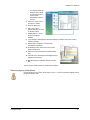
Choose Start > Programs > Card Printers >
Uninstall Driver Software.
10 On Windows Vista, click Continue on the User
Account Control box.
11 Click Yes on the Uninstall driver software dialog
box.
12 Click OK on the message box that displays “Driver
software was removed.”
13 Restart Windows to complete removal of locked
files.
You are ready to install a printer for unidirectional operation.
Removing legacy printer drivers
If the printer driver has a version in the range of 5.0 to 7.7, see the information shipped with the
printer to delete the driver.
Installation Guide
40
Installation on Windows
Network Unidirectional Installation for Windows XP & Server 2003
Before you begin:
•
This installation is possible only on PCs running Windows XP or Windows Server 2003.
•
Use the files on the driver CD-ROM. The driver CD-ROM contains files to install the
Network Port Monitor, which is required to install the unidirectional driver on a network.
•
Obtain information from your network support personnel.
— You need:
‹
Address Mode, either DHCP or Static IP
‹
IP Address for Static IP address mode
‹
Network name if using a print server
— You might also need:
‹
Gateway Address
‹
Subnet Mask
— Your network personnel might ask you for the network name (if using a print server),
the printer’s current IP address if using DHCP, or the MAC Address of the device.
1
Load supplies and then power on the printer. See "Preparing the Printer" for the steps to
follow.
2
Power on the print server, if used. Record the default print server name, usually
provided on the device label, or set the print server to use the IP address from network
support personnel. See the information with the print server for instructions.
3
Obtain or set the IP Address of the printer if you are not using a print server. See
"Network Address Settings" for details.
4
Log on to the PC as a user with Administrator permissions.
5
Insert the driver CD in the PC’s drive. When the Card Printer Installation window opens,
click "Exit" to close the window.
6
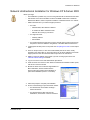
Browse the driver CD to locate the Support\Net Port
Mon Install folder, and then double-click the
setup.exe file in that folder to start installation of
ports named CRDNETx (where x is a number).
7
Follow the prompts to complete port installation.
8
Do one of the following to open the Printers window:
— For Windows XP, choose Start > Settings >
Printers and Faxes.
— For Windows Server 2003 and some XP
installations, choose Start > Printers and Faxes.
Installation Guide
41
Installation on Windows
9
Double-click "Add Printer" to start the installation.
10 Choose "Local Printer." Make sure the choice to automatically
detect and install the printer is NOT checked, and click "Next."
11 In the Use the Following Port list, choose "CRDNETx" (where x
is a number) and then click "Next."
12 On the page that lists manufacturers and printers, click "Have
Disk" and browse to the location of the driver files (such as the
driver CD).
13 Choose the CardPrinter.inf file and click "Open" and "OK"
as needed to continue.
14 From the list of available drivers, choose the
unidirectional driver. The name will include Unidir (or
a similar word).
15 Click "Next" and follow the prompts to continue.
16 If prompted to keep the existing driver, choose "Keep
Existing Driver."
17 For some drivers, the Windows Logo testing dialog
box appears. Click "Continue Anyway" to install the
driver.
18 Follow the prompts to continue.
19 Click "Finish" to complete driver installation.
20 Power the printer off and then on.
21 Restart Windows.
22 Do one of the following to open the Printers window:
— For Windows XP, choose Start > Settings >
Printers and Faxes.
— For Windows Server 2003 and some XP
installations, choose Start > Printers and Faxes.
23 Click on the icon for the installed printer.
24 Choose File > Printing Preferences to open the Printing Preferences dialog box.
25 Click the "Advanced" button to open the Advanced page.
26 Change the Printer Type setting to match the model shown on the front of the printer.
Click OK on the Advanced page and the Printing Preferences page to close them.
27 Open the Advanced page of Printing Preferences again. (The Printer Type setting might
change the choices available.)
28 The default Print Ribbon Type is YMCKT. If a different type of ribbon is installed in the
printer, change the Ribbon Type.
29 Change other settings, such as Duplex Method or Mag stripe settings, if needed to
match the printer. Close the Printing Preferences dialog box.
Installation Guide
42
Installation on Windows
30 With the printer icon highlighted, choose File > Properties to open the Properties dialog
box.
31 Choose the Ports tab, click once
on the port for the printer, and
then click the Configure Port
button.
32 Click on the Enter Network
Address box.
33 Enter the name or IP address of
the printer or print server.
For best results with a print
server and DHCP, use the print
server name (not the IP address,
which the network can change).
34 Click the Test button. Wait to see
the “Successfully communicate . .
“ message and then click OK to close the message. If the PC does not communicate
with the printer, see "Installation Troubleshooting".
35 Click OK to close the Enter Network Address dialog box.
36 On the General tab of the Properties dialog box, click "Print Test Page" to print the
Windows test page.
37 Verify that the Windows test page prints. The image on the card is
likely to be cropped; this is expected.
38 Click OK when the card prints, and then close the Properties
dialog box.
If you have not restarted the PC and the printer, the Windows test
page might not print or might cause an error at the printer. Restart
the printer: Do not follow Windows troubleshooting.
To continue, see "Set up the Unidirectional Printer".
Installation Guide
43
Installation on Windows
Network Unidirectional Installation for Windows Vista & Server
2008
Before you begin:
•
This installation is possible only on PCs running the Windows Vista or Server 2008
operating systems.
•
Use the files on the driver CD-ROM. The driver CD-ROM contains files to install the
Network Port Monitor, which is required to install the unidirectional driver on a network.
•
Obtain information from your network support personnel.
— You need:
‹
Address Mode, either DHCP or Static IP
‹
IP Address for Static IP address mode
‹
Network name if using a print server
— You might also need:
‹
Gateway Address
‹
Subnet Mask
— Your network personnel might ask you for the network name (if using a print server),
the printer current IP address if using DHCP, or the MAC Address of the device.
1
Load supplies and then power on the printer. See "Preparing the Printer" for the steps to
follow.
2
Power on the print server, if used. Record the default print server name, usually
provided on the device label, or set the print server to use the IP address from network
support personnel. See the information with the print server for instructions.
3
Obtain or set the IP Address of the printer if you are not using a print server. See
"Network Address Settings" for details.
4
Log on to the PC as a user with Administrator access.
5
Insert the driver CD in the PC’s drive. When the
Card Printer Installation window opens, click
“Install the Printer.”
6
Click Continue on the User Account Control
dialog box.
7
On the License Agreement page, click “I
accept the terms of the license
agreement.“ to accept the license
agreement and then click “Next.”
Installation will not continue unless you
accept the license agreement.
If the Visual C++ dialog appears, allow it
to continue and close by itself. Do not
Cancel it!
Installation Guide
44
Installation on Windows
8
On the Install . . . page of the Card Printer
Installation, click “Directly Networked
Printer” and then click “Next.”
9
“Please Wait” appears on the PC, followed
by the “The Card Printer is successfully installed
on your PC.” message.
10 Click OK to close the message box.
11 Close the Properties dialog box for the printer if
it appears.
12 Open the Properties dialog box as an Administrator:
a
Choose Start > Control Panel > Hardware and Sound > Printer. The Printers window
opens.
b Click the icon for the printer to select it, then right-click to display a popup menu.
c Choose Run as Administrator > Properties on the popup menu.
d Choose “Continue” on the User Account Control dialog box to open the Properties
dialog box.
13 Choose the Advanced page of the Properties dialog box.
14 Choose the New Driver button to open the Add Printer Driver Wizard.
15 On the Add Printer wizard, click Next. Wait while Windows locates available drivers.
16 In the Manufacturer list, scroll to the brand of your card printer and select it.
17 In the Printers list, choose (brand) UniDir and then click Next.
18 The “Completing . . “ page of the Add Printer Driver Wizard appears. Click Finish.
19 After the PC completes the change to the new driver, the Wizard closes and the new
driver name appears in the Driver box of the Advanced page of Properties.
20 Click OK to close Properties. The driver displays a message to restart the computer.
Click OK to close the message and close any other windows open.
21 Restart Windows Vista.
a
From the Start menu, choose
the right-most button.
b Choose Restart from the
menu.
22 Power the printer off and then
on.
Installation Guide
45
Installation on Windows
23 Choose Start > Control Panel > Hardware and Sound > Printers. The Printers window
opens.
24 Open the Properties dialog box for the printer as an Administrator:
a Click the icon for the printer to select it, then right-click to display a popup menu.
b Choose Run as Administrator > Properties on the popup menu.
c Choose “Continue” on the User Account Control dialog box to open the Properties
dialog box.
25 Choose the Ports tab, click once on the port for
the printer, and then click the Configure Port
button.
26 Click once in the Enter Network Address box to
activate it.
27 Enter the name of the network adapter (if used)
or IP address of the printer.
28 Click the Test button. Wait to see the
“Successfully communicated . . .” message and
then click OK to close the message. If the PC
does not communicate with the printer, see
"Installation Troubleshooting".
29 Click OK to close the Enter Network Address
dialog box. Close Properties.
30 Choose File > Printing Preferences to
open the Printing Preferences dialog
box.
— Choose the orientation for the card.
— Choose whether to print on both
sides (a duplex module is required).
31 Click the "Advanced" button to open the
Advanced page.
32 Change the Printer Type setting to match
the printer installed.
33 Click OK on the Advanced page and the
Printing Preferences page to close them.
34 Open the Advanced page of Printing
Preferences again. (The Printer Type setting might change the choices available.)
35 The default Print Ribbon Type is YMCKT. If a different type of ribbon is installed in the
printer, change the Ribbon Type.
36 Change other settings, such as Duplex Method or Mag stripe settings, if needed to
match the printer. Close the Printing Preferences dialog box.
37 Open the Properties dialog again:
a Click the icon for the printer to select it, then right-click to display a popup menu.
b Choose Properties on the popup menu. (Do not choose “Run as administrator” this
time.)
38 On the General tab of the Properties dialog box, click Print Test Page to print the
Windows test page.
Installation Guide
46
Installation on Windows
39 Verify that the Windows test page prints. The image on the card is
likely to be cropped; this is expected.
40 Click Close when the card prints, and then close the Properties
dialog box.
If you have not restarted the PC and the printer, the Windows test
page might not print or might cause an error at the printer. Restart
the printer: Do not follow Windows troubleshooting.
To continue, see "Set up the Unidirectional Printer".
Local Unidirectional Installation for Windows XP & Server 2003
This installation is possible only on PCs running Windows XP or Windows Server 2003.
Installation Guide
1
Load supplies and then power on the printer. See
"Preparing the Printer" for the steps to follow.
2
Insert the driver CD in the PC's drive. When the
Card Printer Installation window opens, click "Exit"
to close the window.
3
Connect the printer to the PC using the USB data
cable. The Found New Hardware wizard opens.
4
Click "No, not this time." and then "Next" to
continue.
5
Choose to install the driver from a list or from a
specific location and then click "Next."
6
Choose "Do not search..." and then click "Next."
7
On the Hardware Type window, choose "Printers"
and then click "Next."
8
On the Add Printer Wizard window, click the "Have
Disk" button. Browse to the driver CD and choose
the CardPrinter.INF file.
9
Click "Open" and "OK" as needed to continue.
47
Installation on Windows
10 If needed, de-select "Show compatible hardware" to
display more entries in the Printers list.
11 From the list of available drivers, choose the
unidirectional driver. The name includes
Unidirectional, Unidir, or a similar word.
12 Click "Next" and follow the prompts to continue.
13 Click "Finish" to complete driver installation.
14 Power the printer off and then on.
15 Restart Windows.
16 Do one of the following to open the Printers window:
— For Windows XP, choose Start > Settings >
Printers and Faxes.
— For Windows Server 2003 and some XP
installations, choose Start > Printers and Faxes.
17 In the Printers window, click on the icon for the
installed unidirectional printer.
18 Choose File > Printing Preferences to
open the Printing Preferences dialog
box.
— Choose the orientation for the card.
— Choose whether to print on both
sides (a duplex module is required).
19 Click the "Advanced" button to open the
Advanced page.
20 Change the Printer Type setting to match
the printer installed.
21 Click OK on the Advanced page and the
Printing Preferences page to close them.
22 Open the Advanced page of Printing
Preferences again. (The Printer Type setting might change the choices available.)
23 The default Print Ribbon Type is YMCKT. If a different type of ribbon is installed in the
printer, change the Ribbon Type.
24 Change other settings, such as Duplex Method or Mag stripe settings, if needed to
match the printer. Close the Printing Preferences dialog box.
Installation Guide
48
Installation on Windows
25 With the printer icon highlighted, choose File > Properties to open the Properties dialog
box.
26 On the General tab of the Properties dialog box, click Print Test Page to print the
Windows test page.
27 Verify that the Windows test page prints. The image on the card is
likely to be cropped; this is expected.
28 Click OK when the card prints, and then close the Properties
dialog box.
If you have not restarted the PC and the printer, the Windows test
page might not print or might cause an error at the printer. Restart
the printer: Do not follow Windows troubleshooting.
To continue, see "Set up the Unidirectional Printer".
Local Unidirectional Installation for Windows Vista & Server 2008
This installation is possible only on PCs running the Windows Vista or Server 2008
operating systems.
1
Load supplies and then power on the printer. See "Preparing the Printer" for the steps to
follow.
2
Insert the driver CD in the PC's drive. Click
“Install the Printer” on the opening screen.
3
Click Continue on the User Account Control
dialog box.
4
On the License Agreement page, click “I
accept the terms of the license
agreement.“ to accept the license
agreement and then click Next.
Installation will not continue unless you
accept the license agreement.
Installation Guide
49
Installation on Windows
5
On the Install . . . page of Card Printer
Installation, click “Local Printer
Connection” and then click Next.
6
“Please Wait” appears on the PC,
followed by the Install . . page.
7
Connect the USB cable to the PC and
the printer.
8
“Wait for Installation to complete”
appears, followed by the “The Card Printer is
successfully installed on your PC.” message.
9
Click OK to close the message box.
10 Open the Properties dialog:
a
Choose Start > Control Panel > Hardware and Sound > Printers. The Printers
window opens.
b Click the icon for the printer to select it, then right-click to display a popup menu.
c Choose Run as Administrator > Properties on the popup menu.
d Choose Continue on the User Account Control dialog box to open the Properties
dialog box.
11 Choose the Advanced page of the Properties dialog box.
12 Choose the New Driver button to open the Add Printer Driver Wizard.
13 On the Add Printer Driver Wizard, click Next. Wait while Windows locates available
drivers.
14 In the Manufacturer list, scroll to the brand of your card printer and select it.
15 In the Printers list, choose UniDir and then click Next.
16 The “Completing . . “ page of the Add Printer Driver Wizard appears. Click Finish.
17 After the PC completes the change to the new driver, the Wizard closes and the new
driver name appears in the Driver box of the Advanced page of Properties.
18 Click OK to close Properties. The driver displays a message to restart the computer.
19 Click OK to close the message and close any other windows open.
Installation Guide
50
Installation on Windows
20 Restart Windows Vista.
a
From the Start menu,
choose the right-most
button.
b Choose Restart from the
menu.
21 Power the printer off and then on.
22 After Windows restarts, choose Start > Control Panel > Hardware and Sound > Printers.
The Printers window opens.
23 Click the icon for the printer to select it, then right-click to display a popup menu.
24 After Windows restarts, choose File >
Printing Preferences to open the Printing
Preferences dialog box.
— Choose the orientation for the card.
— Choose whether to print on both
sides (a duplex module is required).
25 Click the "Advanced" button to open the
Advanced page.
26 Change the Printer Type setting to match
the printer installed.
27 Click OK on the Advanced page and the
Printing Preferences page to close them.
28 Open the Advanced page of Printing Preferences again. (The Printer Type setting might
change the choices available.)
29 The default Print Ribbon Type is YMCKT. If a different type of ribbon is installed in the
printer, change the Ribbon Type.
30 Change other settings, such as Duplex Method or Mag stripe settings, if needed to
match the printer.
31 Click OK and Close as needed to close the Printing Preferences dialog box.
32 Open the Properties dialog again:
a In the Printers window, click the icon for the printer to select it.
a Right-click to display a popup menu.
b Choose Properties on the popup menu. (Do not choose “Run as administrator” this
time.)
Installation Guide
51
Installation on Windows
33 On the General tab, click the Print Test Page button.
34 Verify that the Windows test page prints. The image on the card is
likely to be cropped; this is expected.
35 Click OK when the card prints, and then close the Properties
dialog box.
If you have not restarted the PC and the printer, the Windows test
page might not print or might cause an error at the printer. Restart
the printer: Do not follow Windows troubleshooting.
To continue, see "Set up the Unidirectional Printer".
Set up the Unidirectional Printer
Before using the printer, verify or change printer settings at the server PC. See InfoCentral for
information about settings. The setting you choose affects all clients that send print jobs to this
printer:
1
Set the Printer Type to match the name plate on the printer.
2
Set the Ribbon Type to match the ribbon installed in the printer.
3
Set the Print on Both Sides setting, which controls whether the printer prints one side or
two sides. Also set the Duplex method, which controls how two-sided printing occurs.
(Manual duplex is not supported.)
4
For printing two-sided (duplex) cards and some ribbon types, set whether to print color
on both sides.
5
Set print and topcoat blocking, if needed. For manual-feed printers, set rewrite blocking
if needed.
6
If the printer includes a magnetic stripe option and you will be printing magnetic stripe
cards, set mag stripe encoding values.
7
Set whether to apply Laminator material to one or both sides of the card (available only
on laminating printers).
8
Set card design features, such as portrait or landscape orientation.
Features provided by the Printer Toolbox, including color settings, supplies information, edgeto-edge settings, and printhead power, are not available using a unidirectional driver.
Diagnostics for Card Printers does not run with a unidirectional driver. The Firmware Update
program does not run with a unidirectional driver. See "Firmware Updates" for information about
updating firmware.
See "Printing Cards in the Windows Terminal Services Environment".
Printing Cards in the Windows Terminal Services
Environment
In controlled network environments, Windows Terminal Services makes resources on the
server available to client PCs on the network. These resources can include applications,
data, and printers. The unidirectional driver can be installed in the Windows Terminal
Services environment, as described in "Installing the Unidirectional Driver".
Installation Guide
52
Installation on Windows
Features
Many driver features are not available when using the unidirectional driver. If you need one
or more of these features on a regular basis, and the printer does not include an LCD panel,
consider whether to install the bidirectional driver to another PC, and change the printer
connection from the server to the PC for short periods of time. You cannot have a
unidirectional driver and a bidirectional driver installed on the same PC.
The following features are not available using the unidirectional driver but there are
alternative methods for the feature:
•
The Printer Toolbox for the unidirectional driver does not open, which has the following
impacts:
— The Start > Programs > Card Printers > Card Printer entry has no effect when it is
chosen.
— Messages are not displayed on the PC when the printer has an error. If the printer
has an LCD panel, messages are displayed on the panel and can be cleared using
the keys on the LCD panel.
If the printer does not have an LCD panel, you cannot receive information about the
cause of the error. Investigate the likely causes, such a being out of cards, out of
ribbon, or having a jammed card.
— The Retry button and the message box are not displayed. The card in process must
be sent from the PC to print again.
— Card counts are not available. If the printer has an LCD panel, view card counts on
the LCD panel. If the printer does not have an LCD panel, you can connect the
printer to another PC using bidirectional communication. The driver will obtain the
values when you open the Printing Preferences dialog box or the Printer Toolbox
(depending on the printer driver version).
— The Sample Card and Magnetic Stripe Sample Card buttons on the Printer Toolbox
are not available (because the Printer Toolbox does not open). The printer can be
connected to another PC using bidirectional communication to use these buttons.
— The Clean Printer and Clean Laminator buttons on the Printer Toolbox are not
available (because the Printer Toolbox does not open). If the printer has an LCD
panel, use it to run the printer cleaning cards. If needed, the printer can be
connected to another PC using bidirectional communication to use these buttons.
— Edge-to-edge settings on the Printer Toolbox are not available (because the Printer
Toolbox does not open). Usually, this setting is changed only when installing a new
printhead cartridge. The printer can be connected to another PC using bidirectional
communication to change edge to edge settings, which will be saved in the printer.
Installation Guide
•
The PC cannot automatically detect the type of printer or printer features, such as a
duplex module. Open Printing Preferences and set the printer type to match the printer.
Close Printing Preferences and open again to make changes based on the printer type,
such as print ribbons available.
•
.The PC cannot automatically detect the type of print ribbon. Open Printing Preferences
and set the ribbon type to match the ribbon installed in the printer.
•
The unidirectional printer cannot be selected in Diagnostics for Card Printers. The printer
can be connected to another PC using bidirectional communication to use Diagnostics.
•
The Firmware Update Program does not open. The printer can be connected to another
PC using bidirectional communication to use the Firmware Update Program.
53
Installation on Windows
The following features are not available and an alternative is not available:
•
The Color Settings Tab on the Printer Toolbox cannot be used and there is no method for
changing color settings in the driver.
•
Manual duplex (for simplex printers) is not available.
•
Printing multiple copies of the same card design, using the “Copies” setting in Printing
Preferences, is not supported.
•
Security features are not available.
•
Interactive mode, including processing smart cards and reading magnetic stripe data, is
not available.
Installation Troubleshooting
The card printer does not install when the USB cable is connected
If the printer is not recognized correctly by the PC, or if installation interrupted, the Device
Manager might have an entry for the printer that needs to be removed before the printer can be
installed. The following instructions apply to Windows XP.
1
Disconnect the printer from the PC.
2
If the printer was installed, make sure it is deleted. See "Removing the Existing Driver".
3
Choose Start > Settings > Control Panel. The Control Panel window opens.
4
On the Control Panel, choose System to open the System Properties dialog box.
5
Choose the Hardware page, and then click the Device
Manager button. The Device Manager window opens.
6
In the View menu, make sure "View devices by type" is
selected.
7
Locate the device to delete. The device might be called
"Unknown device" or it might be located under the Printers
folder. The device might be marked with a yellow question
mark or exclamation mark.
8
Click on the device name to select it, and then right-click to
display a pop-up menu.
9
Choose Remove from the pop-up menu.
10 Click Yes or OK to confirm removal of the device.
11 Close the Device Manager. Close any other windows.
12 Return to the procedure you were performing.
See InfoCentral > Troubleshooting > Installation for the steps for the Windows Vista operating
system.
A message appears when installing a second or subsequent printer on one PC
If the Printer Toolbox for an installed printer is active when an additional printer is installed, the
additional printer does not install correctly. Follow these steps:
Installation Guide
1
Follow the steps in "The card printer does not install when the USB cable is connected"
to remove the additional printer from the PC.
2
Exit the Printer Toolbox for all installed printers:
54
Installation on Windows
3
a Right-click the printer icon in the task bar to display a pop-up menu.
b Choose Exit from the menu.
Start installation for the additional printer again.
Cards sent by a user do not print
The PC can appear to have problems when the user does not have the necessary permissions
to use the printer. To set permissions, see InfoCentral > Advanced > Printer Permissions.
The Print Sample Card button is gray
The Print Sample Card button in the Printer Toolbox is enabled when the printer and driver
communicate normally. If the Print Sample Card is gray, check the following:
•
The printer is suspended. Click the Resume button.
•
The printer is busy processing a print job sent by another user on the network.
•
The printer is paused. Check that the Status Light on the front of the printer is steady
green.
For additional troubleshooting, see InfoCentral > Troubleshooting > Communication.
Installation Guide
55
Printer Pooling
Printer pooling is a feature of the WIndows XP and Windows Vista operating systems. A printer
pool treats a group of printers as one printer and distributes print jobs among the available
printers.
Requirements for a Printer Pool
To create a printer pool for card printers:
•
Install the printers to the same PC. You can use one or more of the following methods to
install the printers:
— Install the printer locally using a USB port
— Install the printer using a direct network connection
•
Use the Windows XP or Windows Vista operating system on the PC.
•
All printers must be the same brand and have the same features to be part of the pool.
For best results, use printers with the same brand, model, and configuration. Printers
can be installed before or after the printer pool is set up and will be included in the pool.
By default, all directly connected card printers are included in the pool, so all printers
must support and use the same card features. If you need to exclude an installed card
printer from the pool, see the Solutions Guide or your service provider.
•
Use the method described in this section to set up printer pooling, not the Enable Printer
Pooling check box on the Properties dialog box for the printer. Windows permits
checking this box but does not permit displaying a message if the printer does not
support it.
•
Do not use special features that require interactive mode, including reading a magnetic
stripe. These features and programming smart cards do not work with printer pooling.
(The PC must communicate directly with the printer about a specific job, and this
information is not available to the PC.)
•
At least one actual printer must be installed before a printer pool can be installed.
•
Do not use shared printers, which cannot be part of a printer pool.
56
Printer Pooling
Set up Printer Pooling
Setting up a printer pool has two
components:
•
"Installing Each Printer"
•
"Installing the Printer Pool Driver"
Installing Each Printer
First, install the physical printers. To install each printer:
1
Install the same type of supplies in each printer. See "Installing Supplies and Powering
on the Printer" for the steps to follow.
You must install the same ribbon type in each printer for the card data to be processed
(rendered) correctly by the driver and for each printer to accept any card sent.
2
Install each printer and its driver on the PC. See "Installation on Windows" for the steps
to install a local (USB) or network printer.
3
Set up each printer with the same settings, especially print on both sides, magnetic
stripe settings, and laminate "apply material."
The print ribbon type is set based on the print ribbon actually installed in the printer and
cannot be changed.
4
Verify the operation of each printer on its own.
Installing the Printer Pool Driver
After each printer is installed and working correctly. install the printer pool driver. This is a
“logical” printer to which the application sends jobs.
1
Install the printer pool driver. Start the driver installation program by doing one of the
following:
— Insert the driver CD in the PC’s drive. When
the dialog box appears, click "Install the
Printer".
— If you downloaded the installation file from the
Web site, double-click the file to start the
installation program.
2
Installation Guide
For Windows Vista, click “Continue” on the User
Account Control dialog box if it appears.
57
Printer Pooling
3
The Card Printer Installation dialog box
appears.
4
Click the "I accept the terms of the
license agreement" button and then
click “Next.”
5
The installation begins.
6
Choose "Driver Printer Pool" from the list and
click Next.
7
The installation program runs to install the
printer pool.
8
Restart Windows.
9
After Windows restarts, do one of the following
to open the Printer’s window:
— For some Windows XP installations, choose
Start > Settings > Printers and Faxes.
— For Windows Server 2003 and some XP installations, choose Start > Printers and
Faxes.
— For Windows Vista and Windows Server 2008, choose Choose Start > Control Panel
> Hardware and Sound > Printers.
10 Right-click on the printer icon for the pool and
choose Printing Preferences from the pop-up
menu.
— Set “Print on both Sides” if enabled, to “None”
for cards printed on one side, or “Flip on Long
Edge” for two-sided cards.
— Set the orientation for cards.
Installation Guide
58
Printer Pooling
11 Click the Advanced button.
12 In the Advanced Options window,
choose or verify the following:
— Set the Printer Type to be the
same as the printers in the
pool.
— Set the Print Ribbon to the type
of ribbon installed in all printers.
— Set the duplex method to None
for cards printed on one side or
Automatic for two-sided cards.
(Manual is not supported.)
— Choose other settings to use
the same values as each
printer uses.
13 Click OK to close the Advanced
Options and Printing Preferences
dialog boxes.
14 Verify the operation of the printer pool.
15 In the application you use, choose the printer pool as the printer.
If you have a card printer that you want to remove from the pool, see the Solutions Guide or
your service provider.
See "Printing Cards Using a Printer Pool" for information about printing to a printer pool.
Printing Cards Using a Printer Pool
Printer pooling is a feature of the Windows Vista and WIndows XP operating systems. A
printer pool treats a group of printers as one printer and distributes print jobs among the
available printers.
Begin with the PC powered on and the driver and printer pool installed.
Tips for Success
•
To use the printer pool effectively, each card must be sent from the application as a
separate job. Some applications, such as ID software, send each card in a batch as a
separate job, while others send the batch as one job. Test the application you use to
determine the best way to send multiple cards to the printer pool.
•
The printer pool determines whether printers are available:
— If you do not want one or more printers to print cards as part of the pool, suspend the
printer in Print Manager. Check this each time you power on the PC.
Installation Guide
‹
Choose Start > Settings > Printers and Faxes to display the Printers windows.
For Windows Vista, choose Start > Control Panel > Hardware and Sound >
Printer.
‹
Click once on the printer to select it.
‹
Right-click the printer to display the popup menu.
‹
Choose Pause Printing from the popup menu.
59
Printer Pooling
— The printer pool will identify a USB-connected printer as “available” even when the
printer status is Suspended or Not Responding if the printer is powered on. Power off
a USB-connected printer to remove it from the pool or suspend printing using Print
Manager.
— A network printer will not be identified as “not responding” until one card is sent and
not accepted by the printer. Suspend the printer in Print Manager.
— If the Printer Toolbox for a printer is in Advanced Setup, the printer is not available.
— If you need to use a printer separately from the printer pool, install it on another PC
or contact your service provider for assistance in removing it from the pool.
•
Some applications track card completion status, and this data is available for cards sent
to the printer pool. The application can query the printer pool and obtain status for all
cards processed through the pool. Card completion status does not indicate which
printer actually printed the job.
•
In the Printing Preferences dialog box for the printer pool, select the printer type, the
ribbon type, the Apply material setting for laminating printers, and other settings that
apply to all cards.
•
For magnetic stripe encoding, use the same coercivity and magnetic stripe format values
for all printers and the printer pool. (If you select "Use printer settings," make sure the
settings in the printers are the same; use Diagnostics for Card Printers to view magnetic
stripe values if needed.)
Using a Printer Pool
To use a printer pool:
1
Make sure that all printers you want to receive card data and print cards have the same
type of supplies loaded and the same settings.
2
Make sure that the printer pool settings match the printer settings.
— For example, if you print color and encode magnetic stripe, load YMCKT ribbon in
the printers and use high-coercivity magnetic stripe cards. Each printer identifies the
ribbon type as YMCKT, but the pool cannot identify the Print Ribbon Type so you
must set the Print Ribbon Type.
3
Make sure the printers are powered on and ready.
4
In the application used to print cards, select the name assigned to the printer pool when
it was installed, such as Card Printer Pool.
5
Select Print in the application. The application sends the cards to the printer pool, which
randomly distributes the card jobs among the available card printers. When all printers
are busy, the printer pool keeps the card jobs in a queue until the next printer is not busy.
It will send the next card job as soon as any printer in the pool is available.
A printer is available if:
— The number of jobs active in the printer is less than the number of jobs supported for
that printer type.
— No jobs are pending in the Windows spooler for that printer.
— The printer is not paused in Windows Print Manager.
— The printer is not set to "work offline" in Windows Print Manager
— The printer status displayed in Windows Print Manager is not "User Intervention
Required."
— The Printer Toolbox is not in Advanced Setup mode.
Installation Guide
60
Printer Pooling
6
After a card is sent by the printer pool to a specific printer, it cannot be removed from that
printer and assigned to another printer.
— When a printer issues a message, the message appears on the PC with the name of
the printer in the title bar of the message box. The printer will be unavailable to print
cards until the situation causing the message is corrected. Other printers in the pool
will continue to receive card jobs and print cards.
Installation Guide
61
Shared Printers
This section provides information about printing over a network using Microsoft File and Printer
Sharing. A printer is connected to a PC (host) that has the printer driver installed. After you
share the printer, users at other PCs (Clients) on the network can print to it. Up to 10 Client PCs
can share the printer at one time. Users at Client PCs do not have the same level of access to
the printer driver as a user at the Host PC.
The following operating system configurations are supported:
•
Both the Client and Host PCs run Windows XP. See "Printer Sharing for Windows XP or
Windows Server 2003".
•
Both the Client and Host PCs run Windows Vista. See "Printer Sharing for Windows
Vista Client PCs".
•
The Host PC runs Windows Server 2003 and the Client PCs run Windows XP or
Windows Vista.
•
The Host PC runs Windows Server 2008 and the Client PCs run Windows XP or
Windows Vista.
See "Printing Cards Using a Shared Printer" to use and manage the printer.
See "Updating the Driver When Sharing Printers" if you need to update the driver when sharing
printers.
Components
This section describes the components you need to use the card printer with printer sharing.
Network: A TCP/IP compatible network must be set up and working before you begin.
Host PC: The PC with the printer attached is called the Host PC. The Host PC must be
connected to the network, and have permissions for users set.
Port connection: The printer can be connected to the Host PC through a USB port or a
direct network connection.
Client PC: The Client PC is connected to the Host PC over the network.
62
Shared Printers
Setting up Printer Sharing
Requirements for Printer Sharing
The requirements depend on the operating system of the Host PC.
Requirements for Printer Sharing on a Windows Server 2003 or 2008 Host PC
Before sharing a printer attached to a Windows Server Host PC over the network, meet the
following requirements:
•
Each PC that uses the printer must have a working network connection. Verify the
network connection is working properly.
•
Each PC that uses the printer must have a supported Windows operating system
installed and have service packs required by the Host PC operating system.
•
The printer at the Host PC must be enabled for sharing. See Windows help for
information on enabling printer sharing.
•
The PC with the printer attached (Host PC) must remain on, and the Windows operating
system must be running. A user with Print, Manage Printers, and Manage Documents
permissions to the printer must be logged on at the Host PC so that other users can
print, and so the printer can be installed on the Client PC.
•
If more than one printer is connected to a PC (including a shared printer) the printers
must have different names.
•
Set permissions for users at the Client PC and permissions for users at the Host PC.
See InfoCentral > Advanced > Printer Permissions for the steps to follow.
•
If a Client PC will have more than one shared printer installed, install one printer on the
Host PC, then install the printer on the Client PC. Complete the work of installing the
printer on both Host and Client PCs, then begin installation of the additional printer on
the Host PC and the Client PC.
•
A printer pool cannot be shared.
Requirements for Printer Sharing on a Windows XP Host PC
Before sharing a printer attached to a Windows XP Host PC over the network, meet the
following requirements:
Installation Guide
•
Each PC that uses the printer must have the same Windows operating system and
service packs installed.
•
The printer at the Host PC must be enabled for sharing. See Windows help for
information on enabling printer sharing.
•
The PC with the printer attached (Host PC) must remain on, and the Windows operating
system must be running. A user with Print, Manage Printers, and Manage Documents
permissions to the printer must be logged on at the Host PC so that other users can print
(and so the printer can be installed on the Client PC.)
63
Shared Printers
•
If more than one printer is connected to a PC (including a shared printer) the printers
must have different names.
•
Set permissions for users at the Client PC and permissions for users at the Host PC.
See InfoCentral > Advanced > Printer Permissions for the steps to follow.
•
If a Client PC will have more than one shared printer installed, install one printer on the
Host PC, then install the printer on the Client PC. Complete the work of installing the
printer on both Host and Client PCs, then begin installation of the additional printer on
the Host PC and the Client PC.
•
A printer pool cannot be shared.
Requirements for Printer Sharing with a Windows Vista Host PC
Before sharing a printer attached to a Windows Vista Host PC over the network, meet the
following requirements:
•
Each PC that uses the printer must have a working network connection.
•
Each PC that uses the printer must have the same Windows Vista® operating system
and service packs installed.
•
The printer at the Host PC must be enabled for sharing.
•
The PC with the printer attached (Host PC) must remain powered on and the Windows
Vista® operating system must be running. A user with Print, Manage Printers, and
Manage Documents permissions must be logged on at the Host PC so that other users
can print, and so the printer can be installed on the Client PC.
•
If more than one printer is connected to a PC (including a shared printer), the printers
must have different names.
•
The first user who installs the printer on the Client PC must have Administrator
permission on that PC.
•
On the Client PC, the user who prints must be the same as the user who installed the
printer.
•
Each user must install the printer separately to be able to print.
•
If a Client PC will have more than one printer installed, complete installation and setup
(at both Client and Host PCs) for one printer before beginning installation of any
subsequent printers.
•
A printer pool cannot be shared.
Requirements for Printer Sharing with a Windows XP Client PC
Before sharing a printer over the network to a Windows XP Client PC, meet the following
requirements:
Installation Guide
•
Each PC that uses the printer must have a working network connection. Verify that the
network connection is working properly.
•
The Windows XP Client PC can connect to a Host PC running the Windows XP,
Windows Server 2003, or Windows Server 2008 operating system.
•
If more than one printer is connected to a PC (including a shared printer), the printers
must have different names.
•
A printer pool cannot be shared.
64
Shared Printers
Requirements for Printer Sharing with a Windows Vista Client PC
Before sharing a printer over the network to a Windows Vista Client PC, meet the following
requirements:
•
Each PC that uses the printer must have a working network connection. Verify the
network connection is working properly.
•
The Windows Vista Client PC can connect to a Host PC running the Windows Vista,
Windows Server 2003, or Windows Server 2008 operating system.
•
If more than one printer is connected to a PC (including a shared printer), the printers
must have different names.
•
The first user who installs the printer on the Client PC must have Administrator
permission on that PC.
•
On the Client PC, the user who prints must be the same as the user who installed the
printer.
•
Each user must install the printer separately to be able to print.
•
A printer pool cannot be shared.
Printer Sharing for Windows XP or Windows Server 2003
Setting up the Host PC for Windows XP and Windows Server 2003
To set up the Host PC for printer sharing, do the following:
1
Install the printer driver on the Host PC. See "Installing the Driver with Bidirectional
Communication" for more information.
2
With the printer power on, change settings to reflect your card design, including printer
features such as ribbon type and magnetic stripe settings. Record the settings so you
can also make those settings on the Client PC.
3
Change the printer name to meet the following requirements:
— The name of a shared printer is the name you assign plus the server name (which is
added by Windows). The server name is the network name of the Host PC.
— The printer name cannot contain spaces or special characters. Search for “rename
printer” in Windows help for more information.
— For best results, use a name with 8 or fewer characters.
— The printer name, including the server name, must be fewer than 31 characters.
— See Windows help for "printer name" or "computer name" for allowed characters and
naming guidelines.
4
Restart Windows on the Host PC.
5
Enable the printer for sharing:
a
From the Windows Start menu, choose Settings > Printers and Faxes to open the
Printers window.
b Click the printer icon to select it, and then right-click to display the popup menu.
c Choose Sharing from the popup menu to open the Sharing page of the Properties
dialog box for the printer.
d Click the “Share this printer” checkbox and the first 8 characters of the printer name
automatically appears in the Share name box.
e Complete the printer name.
Installation Guide
65
Shared Printers
f
6
Click Apply and then OK. Notice that the icon for the shared printer now includes a
shared symbol.
Set up an account for each user at the Host PC.
— Set up accounts for users who log onto the Host PC and for users who log onto the
Client PC(s).
7
Grant users' permission to the printer from the Host PC, including:
— Client PC users who have Print permission to the printer.
— Host PC users who also have Print, Manage Printers, and Manage Documents
permissions to the printer.
— Host PC users (if any) who are denied permission to the printer.
— See InfoCentral > Advanced > Permissions for the steps to follow.
8
Make sure Client PC users can access the Host PC from the network.
Setting up the Windows XP Client PC
1
Set up an account for each user of the Client PC.
You need at least one user with administrator access to both Client and Host PCs to
install the driver.
2
Make sure Client PC users can access the Host PC from the network.
Installing the Printer Driver on the Client PC for Windows XP
Tips for Success
•
If another card printer is installed on the PC, see "Driver Co-existence on Windows" for
information on compatibility.
•
A PC can have a locally connected (USB) card printer attached, a directly networked
card printer attached, and be connected to a shared printer as a Client PC.
•
If you use more than one connection method on a PC, install the locally and/or directlynetworked printer(s), and then follow the steps in this section to install the shared printer
last. The shared printer must have a different name from the other printers.
•
See Windows help for “printer name” for rules about names for printers, including shared
printers.
•
If you update the printer driver on the Host PC, you need to remove the driver from the
Client PC and install it again. See "Removing a Printer from a Windows PC" for more
information.
Follow the steps in this section and then restart Windows before printing from the Client PC.
Installation Guide
1
Make sure that the printer and driver on the Host PC are working properly before
beginning this task.
2
Start Windows at the Client PC, logging in as an administrator, and log onto the network.
3
Use Windows Explorer, Network Neighborhood, My Network Places, or My Computer to
locate the Host PC on the network.
4
When you locate the Host PC, log into it using the user name and password defined on
the Host PC. Keep the window open during printer driver installation.
5
Click Start > Settings > Printers and Faxes to open the Printers and Faxes window.
6
Choose File > Add Printer from Printers window menu bar. The Add Printer wizard starts.
7
In the Add Printer wizard, select the following choices:
66
Shared Printers
— Choose the "Network printer" or “Network printer, or a printer attached to another
computer”, not "My Computer" or "Local printer."
— Choose to browse for the printer. An expandable list of network servers, PCs, and/or
printers appears.
— If needed, double-click a server or PC name to see the names of printers attached.
— Choose the printer to which the user will print. The printer name appears in the
Printer box.
— The printer name includes the name of the Host PC. Make sure the name of this
printer is different from the names of any other printers attached to this PC.
— Continue to follow the prompts on the Add Printer wizard.
— Choose "Replace existing driver" if you are prompted.
— Click No if you are prompted to print a test page. You must set values in the Printing
Preferences dialog box before printing.
— If you are prompted to restart Windows, continue with this procedure and do not
restart the computer.
8
In the Printers and Faxes window, click the icon for the printer, and then choose File >
Printing Preferences to open the Printing Preferences dialog box.
9
Change settings on the Client PC to match those on the Host PC and your card design.
Some settings are read from the Host PC and can not be changed.
— The Client PC obtains the Printer Type and Ribbon Type from the Host PC. If it
cannot obtain the values from the Host PC, the Client PC will use the default values
or the last set of values obtained from the Host PC.
— Change settings that apply to the printer, such as magnetic stripe, so they are the
same as those on Host PC and printer features.
— Change settings to reflect your card design, such as portrait or landscape
orientation. These settings can be different from the settings on the Host PC.
10 On the General tab of the Properties dialog box, click "Print Test Page" to print the
Windows test page.
11 Verify that the Windows test page prints. The image on the card is
likely to be cropped; this is expected.
12 Click OK when the card prints, and then close the Properties
dialog box. Do not follow Windows troubleshooting.
13 Restart the Client PC.
14 Assign Print permission to the printer for Client PC users who will
use the printer.
See "Printing Cards Using a Shared Printer" to use and manage the
printer.
Installation Guide
67
Shared Printers
Printer Sharing for Windows Vista Client PCs
The 4.x Card Printer Driver supports printer sharing on Windows Vista Client PCs, using the
procedures described in this section.
Set Up the Host PC for Printer Sharing on Windows Vista
1
Log in to the Host PC as a user with Administrator permissions.
2
Install the printer driver on the Host PC. See "Installing the Driver with Bidirectional
Communication" for more information.
3
Rename the printer on the Host PC to use a short name with no spaces.
— For best results, use a name with 8 or fewer characters.
— See Windows help for "printer name" or "computer name" for allowed characters and
naming guidelines.
4
Restart Windows on the Host PC and log in as a user with Administrator permissions.
5
Choose Control Panel > Hardware and Sound > Printers to open the Printers window.
6
Click the printer to select it and then right click and choose Sharing from the pop-up
menu. The Properties dialog box opens to the Sharing tab.
7
Click the "Change Sharing Options" button.
8
Click "Continue" on the User Account Control warning.
9
Choose "Share this printer." The name assigned in step 3 appears in the Share Name
box. Do not change this name.
10 Clear the "Render Print Jobs on Client Computers" checkbox.
11 Click "Apply" and then "OK" to save the settings and close the box.
When you share a printer, users at other PCs on the network can see the printer.
Install the Driver on the Client PC
Use this process at the Client PC to install the printer. If more than one Client PC will share the
printer, repeat the procedure at each Client PC.
1
Log in to the Client PC as a user with Administrator permission. For best results, the
username and password should also be defined on the Host PC.
2
Choose Start > Network and expand the Network selection to display the available
networks and computers. If needed, click "Name" in the right-hand pane of the window
to sort names alphabetically.
3
Choose the Host PC and expand the selection to display the printer.
4
If you are prompted, log in to the Host PC with a username and password defined at the
Host PC.
5
Install the printer using Windows File and Printer Sharing.
a
Right-click the printer and choose "Connect" from the pop-up menu. A Windows
Printer Installation dialog box is displayed and is automatically replaced by a Printers
dialog box.
b If prompted, click "Install driver" on the Printers dialog box.
c If prompted, click "Continue" on the User Account Control dialog box.
d A Windows Printer Installation dialog box is displayed while the printer in installed. It
closes when printer installation is complete.
Installation Guide
68
Shared Printers
6
At the Client PC, only the user who was logged in during installation of the printer can
print to the shared printer.
Tips for Success
•
If the user who logs in at step 1 is not defined at the Host PC, they must enter a
username and password defined on the Host PC at step 5.
•
When the user restarts Windows on the Client PC, the user might need to connect to the
Host PC and log in. This depends on your network setup and is more likely with
Windows Vista and Windows Server 2008 operating systems.
•
To install the printer for additional users, repeat the procedure. For step 1, a user with
Print permission to the printer can install the driver after it has been installed by an
Administrator.
•
If a Connect to Printer dialog appears with a message similar
to the one shown, restart Windows and repeat the procedure.
•
The Start menu at the Client PC contains entries for the printer. The user who installed
the printer can use them to open the Printer Toolbox and InfoCentral.
Printing Cards Using a Shared Printer
Microsoft File and Printer Sharing enables a user at one PC to print to a printer attached to
another PC.
A printer is connected to a PC (Host) and has the printer driver installed. After you share the
printer, users at other PCs (Clients) on the network can print to it. Up to 10 Client PCs can share
the printer at one time. The driver is installed on the Host PC and then on each Client PC.
Using the Printer from the Client PC
Users at the Client PC can perform several actions, including:
Installation Guide
•
Print a card. At the Client PC, send cards to print from an application by selecting the
printer in the application and then choosing Print.
•
Print a card using an application and magnetic stripe fonts. When printing from an
application such as Microsoft Word, text for magnetic stripe encoding can be formatted
using the magnetic stripe fonts provided by the printer driver. See InfoCentral >
Advanced > Magnetic Stripe > Fonts for more information.
69
Shared Printers
•
Change card design settings. Selecting a landscape or portrait card orientation is one of
the settings that can be changed from the Client PC. Many settings are read from the
Host PC and cannot be changed from the Client PC. Those settings are disabled
(grayed out) at the Client PC.
•
Pause or delete print jobs submitted from Print Manager. Client PC print jobs can be
paused or deleted from the Print Manager. The card job remains in the print queue until
it is sent to the printer (or deleted). See Windows help for information on using Print
Manager.
•
View the status of the Client PC. The Printer Toolbox is available on the Client PC. It
displays the client status and a reminder that the Host PC provides messages and
additional status information.
•
Use the Color Settings tab of the Printer Toolbox. The color settings can be used to finetune the appearance of cards sent from the Client PC running Windows XP. For a Client
PC running Windows Vista, the Color Settings at the Host PC are used for cards from
the Client PC.
•
View the Print Manager. The Status column in the Print Manager dialog box can be
expanded to see messages from the Host PC.
Management Tasks at the Host PC
The user at the Host PC has more control over the printer and more information about the
printer. This section describes some tasks performed at the Host PC.
Installation Guide
•
Print a card. At the Host PC, send cards to print from an application by selecting the
printer in the application.
•
Manage all jobs in the print queue. Use the Print Manager to view all jobs in the print
queue and to pause or delete any jobs in the print queue, no matter who submitted the
job. The job remains in the print queue until it has been sent to the printer (or deleted).
See Windows help for information on using Print Manager.
•
See and respond to messages. If the printer is not able to process and print a card, the
driver displays a message on the Host PC, not the Client PC. The Host PC can see the
message and view help, which provides information to resolve the situation. The title bar
of the message contains the printer name. Printing for all users is suspended until the
situation is resolved.
•
Set values in the Printing Preferences dialog box. Values set at the Host PC apply to all
users (unless changed at the Client PC). Several values can be changed at Client PCs,
but those values apply only to the print jobs sent from the Client PC.
•
View printer status. The Host PC runs the Printer Toolbox and all status functions. The
Printer Toolbox is closed by default. To open the Printer Toolbox, choose the printer from
the Windows Start menu.
•
Use all features of the Printer Toolbox. The Printer Toolbox on the Host PC provides
access to settings, including edge to edge settings and color controls.
70
Shared Printers
Updating the Driver When Sharing Printers
For best results, follow the guidelines in this section when updating the driver for shared
printers.
The 4.x Card Printer Driver now supports automatic updating from the Host PC
to the Client PC. Do not delete the driver at the Client PC unless instructed to do
so in this section.
If you are currently using a legacy driver
If you are currently using a legacy driver, such a version 7.x, do the following:
1
Record settings at the Host PC and at the Client PC so you can use them with the new
driver.
2
Delete the printer and driver from the Client PC, and run the cleanup utility.
3
Delete the printer and driver from the Host PC, and run the cleanup utility.
4
Install the printer using the 4.x driver at the Host PC.
5
Set up the host for printer sharing. See "Setting up the Host PC for Windows XP and
Windows Server 2003" or "Set Up the Host PC for Printer Sharing on Windows Vista".
6
Install the printer at the client PC. See "Setting up the Windows XP Client PC" or "Install
the Driver on the Client PC".
If you are currently using a 1.0 or 2.x driver on Windows XP
If you are currently using a 1.0 or 2.x driver on Windows XP, do the following:
1
Record settings at the client PC and at the Host PC so you can use them with the new
driver.
2
Make sure all cards sent to the printer have printed or been cancelled. Do not send
cards to print from Client PCs or the Host PC during this procedure.
3
Log onto the Host PC as a user with Administrator permissions.
4
Insert the driver CD in the Host PC drive.
5
Choose “Install the Printer” from the CD menu.
The driver will update at the host PC.
6
At the client PC, the driver will update automatically. The time required to update
depends on network speed, activity at the Host and Client PCs, and other factors.
7
To verify that the driver at the Client PC has been updated, open the Printer Toolbox and
look at the driver version.
— Choose Start > Programs > Card Printer > Card Printer to open the Printer Toolbox.
— View the version of the driver.
Installation Guide
71
Shared Printers
If you are currently using a 3.x driver on Windows Vista
If you are currently using a 3.x driver on Windows Vista, do the following:
1
Record settings at the client PC and at the Host PC so you can use them with the new
driver.
2
Make sure all cards sent to the printer have printed or been cancelled. Do not send
cards to print from Client PCs or the Host PC during this procedure.
3
Insert the driver CD in the Host PC drive.
4
Choose “Install the Printer” from the CD menu.
The driver will update at the host PC.
5
At the Client PC, log on as an Administrator:
6
Open the Printers window.
a
7
Choose Start > Control Panel > Hardware and Sound > Printer. The Printers window
opens.
b Click the name or icon for the printer to select it.
c Click the
Update Driver
button.
d Click “Install
Driver” on the
Printers dialog
that is
displayed.
e The User
Account
control dialog
box appears. If
you have not logged on to the PC as an Administrator, you are prompted for a user
ID and password with Administrator access.
f Choose “Continue” on the User Account Control dialog box. The driver is updated.
To verify that the driver at the Client PC has been updated, open the Printer Toolbox and
look at the driver version.
— Choose Start > Programs > Card Printer > Card Printer to open the Printer Toolbox.
— View the version of the driver.
Installation Guide
72
Installation on Non-Windows Platforms
This section provides information about installing the printer
•
"Open Platform Driver Installation"
•
"Open Card Installation"
Open Platform Driver Installation
To install the printer with the Open Platform Driver, see the Open Platform Driver Guide,
which is available at: www.datacard.com/openplatformdriver. You can download the
complete driver which includes the guide, or you can download the information. For both
downloads, you must click through and accept the license agreement.
Open Card Installation
Printers with the Built-in Ethernet and Open Card option include an LCD panel, which
provides access to status information and configuration settings. Printers with the Open
Card option can print cards using the Open Card data format (when the Data Format is set
to Open Card). The option includes a CD-ROM which contains utilities, samples, and the
Data Formatting Guide (in PDF format).
Plan for the following installation and setup steps:
1
Define the requirements for the card to guide you in the installation and setup. See the
Data Formatting Guide for details about card features supported.
2
If you need to change settings, such as K power, install the printer and driver on a
Windows PC. You might also want to install Diagnostics for Card Printers if you will set
up a custom magnetic stripe format. The Data Format must be “Printer Driver” to use the
driver and Diagnostics for setup. See "Installation on Windows" for the steps to install
the Card Printer Driver for Windows.
3
Connect the printer to a PC with Telnet to define card layouts in the printer. See Data
Formatting Guide > Getting Started > Connecting the Printer. The Data Format must be
“Open Card” to use the Telnet menus in the printer. Plan to print sample cards to verify
that cards meet the requirements.
4
Connect the printer to the production system and configure the system to communicate
with the printer. The Data Format must be “Open Card” to receive data from the host and
use it to print cards.
73
Installation on Non-Windows Platforms
Set the Data Format
Before you send any data to the printer, set the data format so the printer can receive the
data you send.
1
Press the Enter key to enter the menu system.
2
Press the Up or Down Arrow key to scroll to “Configuration” and press the Enter key.
3
Press the Up or Down Arrow key to scroll to “Data Format” and press the Enter key.
4
Press the Up or Down Arrow key to display the data format you want on the second line
of the display and press the Enter key.
5
The “Apply/Restart” prompt appears on the second line of the display. Press the Enter
key to confirm the data format choice and restart the printer.
After restarting, the printer is ready to accept data in the format you have chosen.
Installation Guide
74
Updates, Upgrades, and More
This section describes:
•
"Updates"
•
"Upgrades"
•
"Deviations"
•
"Removing a Printer from a Windows PC"
Updates
An update replaces part of the product you have–usually software–with a newer release. Driver
updates and firmware updates are the most common types of update.
Driver Updates
Driver updates are available from the website or from your service provider. See InfoCentral >
Contact Us for the Web address. Read the information about supported printer types and
operating systems before installing a driver update to make sure that your printer and operating
system are supported by the new driver.
If you have a printer installed and you attempt to install a new printer that uses the same driver
(but a different release), you must update the driver for the existing printer before you can install
the new printer (If the printers use different drivers, you will not be prompted to update.)
You can update only the same type of driver and only within the same brand.
Existing Driver
Operating
System
New Driver
Update?
1.x
Windows® 2000
2.x
Yes
1.x or 2.x
Windows XP
4.x
No--remove and install
the new driver
1x or 2.x
Windows Server
2003
4.x
No--remove and install
the new driver
2.x
Windows 2000
None
None
3.x
Windows Vista®
4.x
Yes
75
Updates, Upgrades, and More
Existing Driver
Operating
System
New Driver
Update?
None
Windows Server
2008
4.x
No
7.x
Windows 2000
None
None
7.x
Windows Server
2003
4.x
No--remove and install
the new driver
7.x
Windows XP
4.x
No--remove and install
the new drier
You can update a driver using a newer driver CD or using files downloaded from the Web site.
Updating a Driver Using Downloaded Files
Installation Guide
1
Prepare the printer for installation. See "Preparing the Printer" for the steps to follow.
2
Log on to the PC as a user with Administrator access (Windows Vista) or Administrator
permissions (Windows XP).
3
Use Windows Explorer to locate the downloaded file. See "Installing from Downloaded
Files" if you need to download the driver.
4
Double-click the downloaded files on the PC.
5
Click “Continue” on the User Account Control dialog box if it appears.
6
The License Agreement window appears. Click the “I accept . . .” choice and then click
the “Next” button.
7
The Update Confirmation dialog box appears. Click “Yes” to
continue.
8
The installation displays a “Please wait” message.
9
When the update is complete, one or two “Update
successful” dialog boxes appear. Click ”OK” as
needed to continue.
76
Updates, Upgrades, and More
10 Restart the PC:
a
From the Start
menu, choose the
right-most button.
b Choose Restart
from the popup
menu.
Updating a Driver Using a Driver CD
Installation Guide
1
Log on to the PC as a user with Administrator access (Windows Vista) or Administrator
permissions (Windows XP).
2
Insert the driver CD in the PC’s drive. The Card Printer Driver Installation window opens.
3
Click the “Install the Printer” button.
4
On Windows Vista, the User Account Control dialog box might appear. If it does, click
“Continue.”
5
The License Agreement window appears. Click the “I accept . . .” choice and then click
the “Next” button.
6
The Update Confirmation dialog box
appears. Click “Yes” to continue.
7
The installation displays a “Please wait”
message.
8
When the update is complete, one or two
“Update successful” dialog boxes appear.
Click ”OK” as needed to continue.
9
Remove the CD from the PC.
77
Updates, Upgrades, and More
10 Restart the PC:
a
From the Start
menu, choose the
right-most button.
b Choose “Restart”
from the popup
menu.
Firmware Updates
Firmware updates are sometimes available from the service Web site or the printer Web site.
Firmware is usually updated using a program and a separate firmware update file. The program
guides you through the update process. In most cases, you should update firmware when your
service provider recommends it.
Be careful to choose a firmware file that exactly matches your printer type.
Upgrades
An upgrade adds functionality to your printer. Most often, upgrades are physical changes to
the printer, performed by the service provider. Depending on the printer, the following types
of upgrades might be available:
— Magnetic stripe module
— Smart card module
— High-capacity input hopper
— High-capacity output hopper
Field upgrades come with installation instructions designed for trained service providers.
Instructions for using the new functionality are included in InfoCentral > Features.
Installation Guide
78
Updates, Upgrades, and More
Deviations
Deviations are specially adapted products, created as a special-order. Most often, the driver or
the firmware is deviated; sometimes the hardware (printer) is also changed. If you have a
deviated driver, firmware or printer, be very careful about updating the driver or firmware. A
deviated driver or firmware will have a version number with “d” near the end, similar to the
following:
Firmware Version: 12.11.d1
Driver Version: 4.3.d2
Always check with your service provider to determine whether to install the update. Do not
update until you are sure that the update supports the special features of your product.
Deviations might be called by a different name in your organization. Other names might include
RPQ, custom, or special. RPQ stands for Request for Price Quotation, which is one of the first
steps in developing an agreement to create the deviated product.
Installing a Deviated 3.x Driver on Windows Vista
If you have the released 3.x driver installed on a PC running the Windows Vista operating
system, and need to install a 3.x driver deviation on the PC, use the following steps:
1
Remove the existing driver. See "Removing a Printer from a Windows PC" for the steps
to follow. Be sure to run “Uninstall Driver Software.”
2
Restart the printer.
3
Install the deviated driver.
— For a bidirectional driver, see "Installing from Downloaded Files" for the steps to
follow.
— If the deviated driver is a unidirectional driver, see "Installing the Unidirectional
Driver".
4
Change driver settings as needed for your card design.
Removing a Printer from a Windows PC
If you need to use an earlier version of the Windows Card Printer Driver, remove the printer
and all driver files from the PC. You might also want to remove the printer and all driver files
when you use the PC for another purpose or for another reason. Windows keeps an archive
of drivers installed and will use those files when installing hardware that was previously
installed. Removing the printer deletes those archives.
If you need to install an earlier version of the printer driver, follow these steps before
beginning that installation:
1
Log on to the PC as a user with Administrator access (Windows Vista) or Administrator
permissions (Windows XP).
2
Do one of the following to open the Printers window:
— For Windows XP, choose Start > Settings > Printers and Faxes.
— For Windows Server 2003 and some XP installations, choose Start > Printers and
Faxes.
Installation Guide
79
Updates, Upgrades, and More
— For Windows Vista and Windows Server 2008, choose Choose Start > Control Panel
> Hardware and Sound > Printers.
3
Make sure all cards sent to the printer have printed. You cannot delete a printer that has
jobs in the print queue.
a Double-click the printer to open the Print Manager window for the printer.
b If any jobs appear, do the following:
‹ If the job is paused and you want it to
print, click the job and then choose
Document > Resume. Wait for the
jobs to complete.
‹
If you want to delete a job in the
queue, click the job and then choose Document > Cancel. Click “Yes” to confirm.
‹
If the printer is paused or offline, the title bar for the window will include that
status. Choose Printer and clear the appropriate choice to enable printing.
‹
To cancel all jobs, choose Printer > Cancel All Documents. Click “Yes” to confirm.
c
4
If jobs remain in the printer queue, see the Solutions Guide or your service provider
for more information.
Power off the printer.
5
Disconnect the USB or network data cable from the printer.
6
Close any Windows applications that are running.
7
In the Printers window, click
once on the printer icon to
select it.
8
Right-click to display the
popup menu.
9
Choose “Delete” in the
popup menu to remove the
printer.
10 Click “Yes” to confirm
deletion.
11 If needed, click “Close” on
the message box informing
you that the default printer
has been deleted.
Repeat steps 2 through 10 for each card printer installed on the PC.
12 From the Windows task bar, choose Start > (All)
Programs > Card Printers > Uninstall Driver
Software.
13 For Windows Vista, click “Continue” on the User
Account Control dialog box.
The utility looks for installed card printers. If it finds
them, it displays a prompt to delete all installed card
printers before running the uninstall utility. Return to
step 2 to remove additional Card Printer Drivers.
14 When all Card Printer Drivers have been deleted,
the utility displays a prompt to click Yes to delete all
driver files. Click “Yes.”
Installation Guide
80
Updates, Upgrades, and More
The utility deletes files and then displays a prompt.
15 Close all applications and then click “OK.” On Windows XP and Server 2003, Windows
restarts.
Other Printer Drivers
Printers using a driver version in the range of 7.4 to 7.7 used a Cleanup Utility to remove
driver files, but did not delete the Windows archive. The cleanup utility, and instructions for
running it, were available on the driver CD. They are also available from the Web Site.
Installation Guide
81