1
Batch Builder
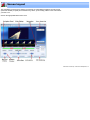
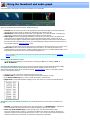
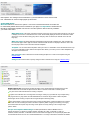
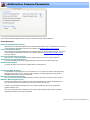
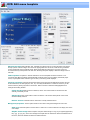
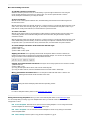
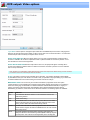
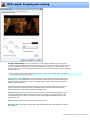
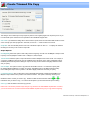
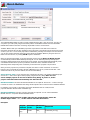
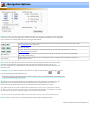
The VideoReDo Batch Builder is used to process multiple edit project files (*.VPrj) at one time. This way you
can perform your edits quickly using the interactive portions of VideoReDo and then have the VideoReDo
Batch Builder handle the more time consuming output tasks at a more convenient time.
The Batch Builder relies upon VideoReDo project files. Project files are short files which contain the
information needed to edit your files. Information such as the name of the input file and the start and end points
of each of your cuts. You can create project files in VideoReDo by selecting "Save Project" from the File menu.
You can also create an automatic project and queue directly into the Batch Builder by using the "Queue To
Batch" from the File menu, or pressing Ctrl+B anytime in VideoReDo.
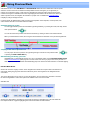
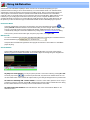
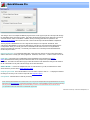
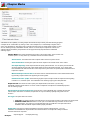
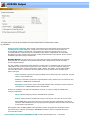
When you start the batch builder, any projects previously queued using the Queue To Batch (Ctrl+B)
are automatically loaded into Batch Builder processing list. You can also load previously saved projects
manually by selecting them into the Source Project / File: window. The batch builder will automatically create
a destination filename based upon the input filename, destination folder, destination modifier and
Elementary Stream Output Flag. Click on Add Entry to add it to the list of projects to be processed.
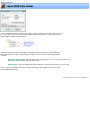
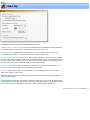
When your list of projects to be processed is complete, click either on "Save Commands" or "Save and
Execute". Save Commands will create a windows .CMD file that you can run yourself at a later time. Save
and Execute will not only save the .CMD file, but execute it immediately.
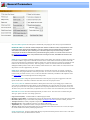
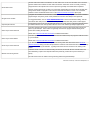
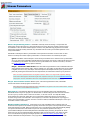
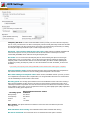
Source Project / File: You may enter the name, including the file folder, of an existing VideoReDo project.
Click on the "..." button to the right to select project(s) using the file entry dialog. Note: You can
select multiple projects at one time in the file entry dialog. If you do so, all the
projects selected will be entered directly into the batch list.
Destination Folder: This field is the default destination for the output file. Click on the ".." button to the right
to browse for a folder. The destination folder along with the input file name is used to form the destination filename.
For example: Your input file is c:\source\fb1.mpg and the destination folder is: d:\edits, then the
proposed destination filename will be d:\edits\fb1.mpg
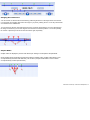
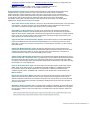
Destination Modifier: This string, if present, precedes the output file. You can use the Destination
Modifier alone or in conjunction with the Destination Folder.
Special note: The destination modifier will prefix the actual filename unless the
modifier begins with a '-' or '_' in this which it will suffix the filename.
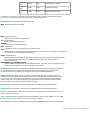
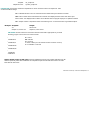
Examples:
Original
Filename
Destination Destination
Output File
Folder
Modifier
c:\temp\fb1.
d:\edits
mpg
VRD_
d:\edits\VRD_fb1.mpg