1
PRINTING A SAVED FILE
You can retrieve a file stored by document filing and print or transmit the file.
This section explains how to retrieve and print a file stored in the main folder.
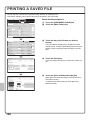
Select the file and print it.
DOCUMENT
FILING
IMAGE SEND
COPY
(1)
File Retrieve
Scan to HDD
HDD Status
(1) Touch the [DOCUMENT FILING] key.
Ex Data Access
Main Folder
User 1
(2) Touch the [Main Folder] key.
Search
Folder Select
Quick File Folder
(2)
2
User 3
User 4
User 5
User 6
User 7
User 8
User 10
User 9
All Folders
File Retrieve
1
User 2
ABCD
EFGHI
Scan to HDD
JKLMN
OPQRST
HDD Status
UVWXYZ
Ex Data Access
Search
Main Folder
File Name
User Name
Back
Date
1
file-01
Name 1
04/04/2010
Name 2
04/04/2010
file-03
Name 3
04/04/2010
file-04
Name 4
04/04/2010
file-05
Name 5
04/04/2010
(3)
file-02
Switch Display
2
(3) Touch the key of the file that you wish to
retrieve.
Touch the [Switch Display] key to display the switch
display screen. Touch the [Thumbnail] key in the switch
display screen to display thumbnail images in the file
keys.
Multi-File Print
All Files
(4) Touch the [Print] key.
Cancel
Job Settings
file-01
Name 1
A4
F. Colour
Select the job.
Print
Send
(4)
Move
Delete
Property
Change
Touch the [Image Check] key to check the content of a
file.
Image Check
Detail
(5) Touch the [Print and Save the Data] key.
Cancel
Job Settings / Print
file-01
Name 1
A4
F. Colour
Paper Select
Auto
Number of Prints
1
(1~999)
Output
(5)
2-Sided
Special Modes
102
B/W Print
Print and Delete the Data
Print and Save the Data
When [Print and Save the Data] is selected, the file is
saved after printing.
To delete the file after printing it, select [Print and
Delete the Data].