1
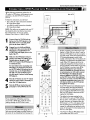
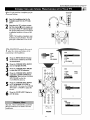
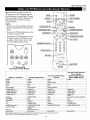
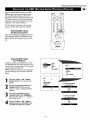
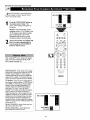
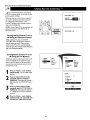
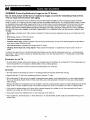
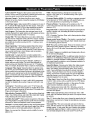
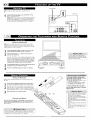
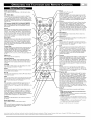
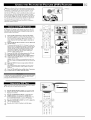
VCR control buttons
Press to pause, rewind, stop, play, or fast forward a videotape.
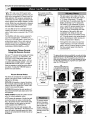
Press to turn tile TV on or oft:
TM
TV oVCR • ACC
(Mode buttons) Press to send remote signals to either the
TV, VCR, or other accessory devices such as cable TV conveners, satellite receivers, DVDs, or laser disc players. (You
may need to progrmn the remote to work accessory devices.
See pages 18-23 in tile Directionsjbr Use manual thal came
with your TV.)
Measures and corrects all incoming signals to provide the
best picture-quality settings. (See page 56 in tile Directions
jbr Use manual.) Press to turn Active Contror TM on or off.
When Active Control TM is on, it automatically and continuously conlrols Sharpness and Noise Reduction settings.
Press to select an AutoPicture TM control. Choose from four
factory-set controls Movies, Sports, Weak Signal, and
Multimedia--and a PERSONAL control thai you set
according to your own preferences through the on-screen
Picture menu. (See page 26 in the Directionsjbr Use manual.) The four factory-set controls will enhance tile TV picture
according to tile particular type of program you are watching. It may also be used to enhance pictures with weak signals.
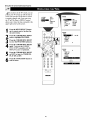
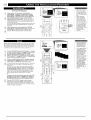
PIP buttons: SWAP, PIP CH DN/UP, FREEZE
Press to operate the Picture-in-Picture (PIP) features. See
page 7 in this publication for more information on using
these buttons.
Sound
Press to select an AutoSound TM control. (See page 25 in the
Directionsjbr Use manual.) Choose from three factory-set
controls Voice, Music, and Theatre and a Personal con_ol that you ,setaccording to your own preferences through
tile on-screen Sound menu. The three factory-set controls
will tailor tile TV sound so as to enhance the type of program you are watching.
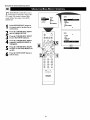
Press to display the on-screen menu. Press to return to a
higher menu level.
Status/Exit
Pressing tile button once shows the current channel number,
name (if set), time (if set), Sleep Timer setting, and sound
,setting(stereo, mono, SAP, or mute). Pressing the button
twice shows the current AutoLock TM settings. Pressing the
button once when an on-screen display is showing removes
tile on-screen display.
Cursor Ring
Up/Down: allows you to ,select tile next or previous item in
tile menu. Left/Right: allows you to access the submenus
and adjust the settings. When no on-screen displays or
menus are present, use the Cursor Ring Left/Right to select
a picture format for a video source connected to the
ANTENNA, AV 1, CVI, AV2, or AV3 (side panel inputs) on
tile TV.
Volume +/Pressto adjust tile TV sound level.
Number Buttons
Press to select TV channels. When selecting single-digit
channels, press the number of the desired channel. The TV
will pause for a few seconds and then tune to the selected
channel.
Press to select channels in ascending
cycle through the signal inputs.
Press to select previously entered channels. With tile TV's
AutoSurf TM control, you can place up to 10 favorite channels or sources in memory. Then by pressing the Surf button, you can quickly view the selected channels. (See page
27 in the Directionsjbr
Use manual thal came with the TV
to learn how to select a series of your favorite channels
using the Surf button.)
®@@
@@@
@
,@
I
I
I
Press to select a picture-format
mode for a video source connected to the ANTENNA, AV 1, CVI, AV2, or AV3 (side
panel) inputs. Each press of the button selects a different
mode_:3,
EXPAND 4:3, PANORAMA,
WIDE SCREEN,
or AUTO. Control the picture format of a video source connected to the HD inputs (AV4 or AV5) with the HD set-top
box or progressive-scan-capable
DVD player providing the
video source.
TVNCR
Press while in VCR mode to view tile playback of a videotape. Press again to return to TV mode.
Sleep
Press to set the TV to automatically turn itself offafter a
period of time. Choose 15, 30, 45, 60, 90, 120, 180, or 240
minutes before the TV will automatically turn off. (See page
29 in the Directionsjbr Use manual.)
A/CH
Press to alternate between the currently viewed channel and
tile previously viewed channel.
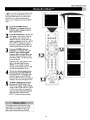
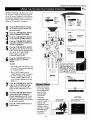
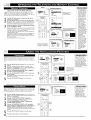
List
Press to display a list of channel numbers and their nmnes.
(See the "Tuner Mode," "Auto Pmgrmn," "Channel Edit,"
and "Nmne" sections on pages 4-6 in this guide for setup.)
Each channel will appear as a selectable menu item. The
current channel will be highlighted as default. Five channels
will be listed on screen at one time. Press the Cursor Ring
up or down to ,scrollthe list and and highlight a channel.
Press the Cursor Ring right to tune to the highlighted channel. Channels marked "Skipped" in the Channel Edit control
will not appear in tile list. Each channel that is being
blocked by AutoLock TM will appear with a padlock icon to
indicate that tile channel is not viewable. (See page 28 in the
Directions jbr Use manual.)
Rec •
Press this button simultaneoualy with tile _- button when in
VCR mode to record.
SAP
Press to select between main sound and SAP (Second Audio
Pmgrmn) when you tune to a pmgrmn offering SAR (See
page 37 in the Directionsjbr Use manual.)
AV
Press repeatedly to select the different signal ,sources connected to the TV: TV, AVI, CVI, AV2, AV3 (side jack
panel), AV4 and AV5. (See page 24 in tile Directions.ibr Use
manual.)
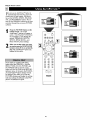
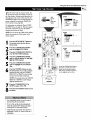
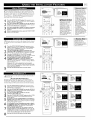
Clock
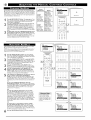
Press to access the on-screen Timer menu, where you can
,setthe time for tile TV's clock or set the TV's Timer features, such as channel switchover, power on set, and power
off set. (See page 6 in this publication for setting the time
manually. See pages 3943 in tile Directionsjbr Use manual
for information on using the TV's Timer feature.)
DolbyV
Press to select various factory surround sound listening
modes.
Dolby* Virtual
Back Light button
Press to light tile buttons on tile remote control.
*Manufactured
under license from Dolby Laboratories.
AutoSurl, and Incredible Surround are trademarks of Philips Consumer
Dolby Surround)
(with Virtual
(See page 35 in the DirectionsJor Use manual
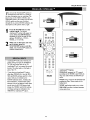
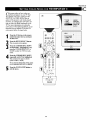
PIP
Press to turn PIP (picture-in-picture) on or offor control tile
size of the PIP window. (See page 7 in this publication for
more information on PIR)
AutoPicmre, AutoSound,
(Virtual
Dolby Surroundsignals)
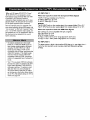
Dolby Virtual uses two speakers to simulatethe surround effect
produced by a multichannel system.
Incrediblegul_und TM
• In Stereo sound mode--when incredible SurroundTM is turned
ono--it seems as though the loudspeakers are spread farther apart
from each another.
• In Mono sound mode----whenIncredible SurrotmdTM is turned
on--enables you to hear a spatial sound eft?c).
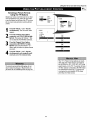
Position
Press to move tile PIP picture to any of the four comers of
tile screen.
Active Control, AutoChron,
order or
Press to turn tile TV sound oft: To restore the sound to its
previous level, press the button again. (See pages 17 and 53
in tile Directionsjbr Use manual.)
®i
I
or descending
Electronics North America. Copyright © 2003 Philips Consumer
"Dolby" and the double-D symbol are trademarks of Dolby Laboratories.
Electronics.