1
10.5.
Active Tool Unzoom All
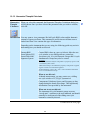
Unzoom All This tool will not stay active when it is clicked. Using this tool will restore the
active Chart to its original zoom state (as it was when the chart was inserted or the
document was opened).
If you want to unzoom just your last zoom action, use the Unzoom Tool.
10.6.
Active Tool Expand/Contract
Expand /
Contract
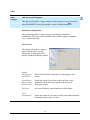
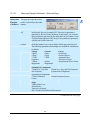
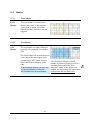
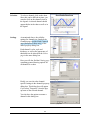
When this tool is active, its icon on the Chart Toolbar and in the Tools > Active
Tool menu will look like this:
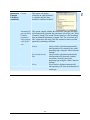
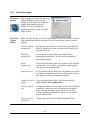
. When this tool is active and the cursor is
positioned above a Chart, the cursor will look like this:
. To zoom in on an area,
left-click on a point in the Chart while dragging the pointer up or right to zoom in
or down or left to zoom out. Release the pointer button when done. While dragging,
you will see what the chart will look like if you release the pointer button. Release
the button when you are satisfied with the pan. Zooming will affect all axes except
if the Chart is in stacked mode, in which case only one Y-Axis will be affected.
97
Dran-View 6 User Guide