1
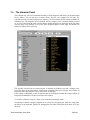
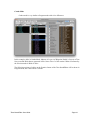
Sequence Templates provide a way to copy and paste sequences from other Programs into the
current Program, and load/save sequence files on your computer.
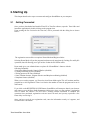
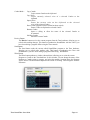
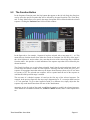
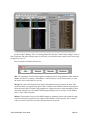
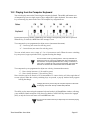
The operation of the Sequence Template function is managed with the three buttons at the top of the
Sequence Template window:
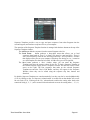
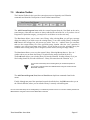
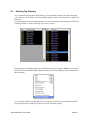
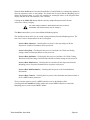
The Add button adds the sequence from the current Program to the list.
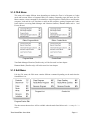
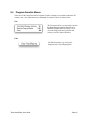
The Load From...
button produces a drop-down menu that allows you to load
sequences from banks A, B or C, or from a File saved to your hard drive.. There is
also a selection here to clear the list. Selecting Load From... A File produces a window
that displays all the files on your computer. Only those files having an ‘.m_s’ extension
are valid template files that can be loaded - all other file types will be ignored.
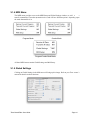
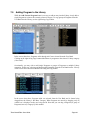
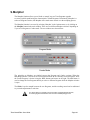
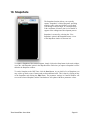
The Save button produces a ‘Save’ window where you can name the Sequence
Template and select the storage volume for the file. To load a Sequence Template to
the current Program, simply select a Sequence from the list and click on the ‘Send‘
arrow on the right. The four sequences that make up the selected Sequence
Template are sent to the Tetra’s Edit Buffer, and they also appear in the Sequence
Window, where they can be edited using the sequence step bars, buttons and
functions.
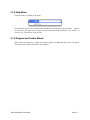
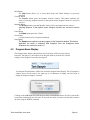
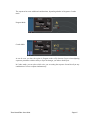
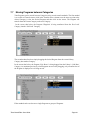
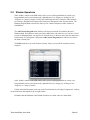
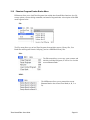
By default, Sequence Templates are sorted numerically, but they can also be sorted alphabetically
(A–Z) by clicking on the ‘4 x Sequence’ column header. A second click on that header will reverse
the sort order (Z–A). Clicking on the ‘No.’ column header switches the sorting order back to the
numerical listing (1, 2, 3...), and a second click on that header reverses the sorting order (... 3, 2, 1).
Tetra SoundEditor User Guide
Page 26