1
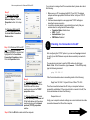
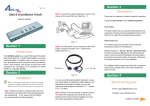
Note: snap shots are for Windows 2000 and XP
Step 2
For Windows 98 and ME,
Select “TCP/IP -> Your
Ethernet Adapter”, Click the
Properties button. Go to step
4
If you choose to manage the AP via a wireless client, please also check
the following:
1. Make sure your PC is equipped with 802.11g or 802.11b wireless
adapter and has appropriate WLAN card driver / utility and TCP/IP
installed.
2. Set the wireless adapter to use appropriate TCP/IP settings as
described in previous section
3. Launch the wireless adapter’s provided utility and verify that your
wireless client is configured with these settings:
• Operation Mode: Infrastructure
• SSID: 11g AP
• Authentication: Open
• WEP Mode: Disabled
For Windows 2000 and XP,
click the Properties button in
the Local Area Connection
Status window.
3
Step 3 For Windows 2000 and XP
only, Make sure the Internet
Protocol (TCP/IP) is checked and
highlighted in the Local Area
Connection Properties window.
Click the Properties button.
Checking the Connection to the AP
After configuring the TCP/IP protocol, you can use the ping command
to verify if your LAN/Wireless computer has successfully connected to
the AP.
To execute ping command, open the DOS window by clicking on
Start -> Run. In the Run window, type Command. At the DOS prompt,
type the following command:
ping 192.168.1.1
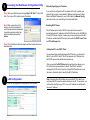
Step 4
For Windows 98 and ME, select
Specify an IP adress and fill the
fields below with the values
mentioned above in the TCP/IP
properties window.
For Window 2000 and XP, select
Use the following IP address and
fill the fields below with the values
mentioned above in the Internet
protocol (TCP/IP) properties
window.
Step 5 Click the OK button and restart the computer.
If the Command window returns something similar to the following:
Reply from 192.168.1.1 bytes=32 time=100ms TTL=253
Then the connection between the AP and your computer has been
successfully established. If the computer fails to connect to the AP, the
Command window will return the following:
Request time out
Veryfy your computer's network settings are correct and check the cable
connection between the AP and the computer.
Continue on back...