1
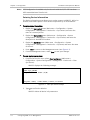
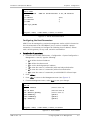
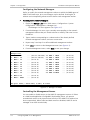
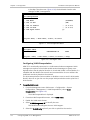
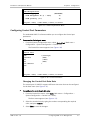
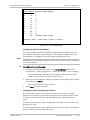
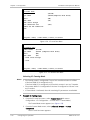
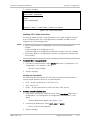
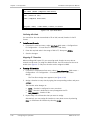
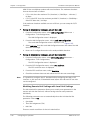
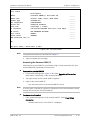
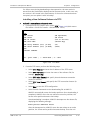
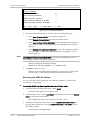
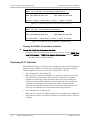
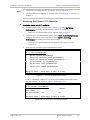
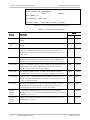
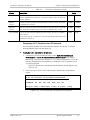
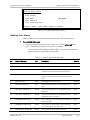
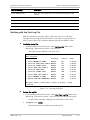
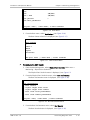
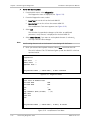
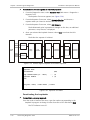
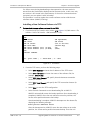
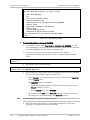
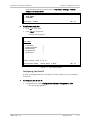
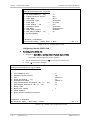
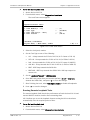
Installation and Operation Manual Chapter 6 Software Upgrade If a failure occurs during downloading or decompression, the new version is erased from the flash and the backup version becomes active. In this case, only one version is left stored in the flash memory. If the active software becomes corrupted, you can replace it with its backup. This procedure is used to replace the current software version with the new software release (ASMI52_2.8x.img). Installing a New Software Release via TFTP ³ To download the new software release file via TFTP: 1. From the SW & File Transfer menu, select TFTP (Figure 6-4) (Main menu > File Utilities > SW & File Transfer > SW Download > TFTP). ASMi-52 TFTP TFTP status (No operation) TFTP error (No error) TFTP IP server (172.17.160.103) TFTP file name (201e24.img) TFTP retry timeout (sec) [0-300] (15) TFTP total timeout (sec) [0-4000] (1200) Save Transfer command > ESC - prev. menu ; ! – main menu ; & – exit Figure 6-4. TFTP Menu 2. From the TFTP menu, perform the following steps: Select TFTP IP Server and enter the IP address of the TFTP server Select TFTP File Name and enter the name of the software file (for example, 201e24.img). Select TFTP Retry Timeout and specify intervals between connection retries (in seconds). Select TFTP Total Timeout and specify the TFTP connection timeout (in seconds). Select Save to save the TFTP configuration. Select Transfer Command to start downloading file to ASMi-52. ASMi-52 automatically erases the backup partition. Once downloading is completed, ASMi-52 saves the new release as an active partition, the former active partition becomes the backup. Once downloading is complete, ASMi-52 decompresses the release file, displaying the following message: Final process download. Reset After the decompression, ASMi-52 saves the new release as an active partition, the former active partition becomes backup. Then the unit ASMi-52 Ver. 2.8 Upgrading ASMi-52 Software via the File Utilities Menu 6-5