1
NAVIGATION TIPS
USING YOUR IRIS X
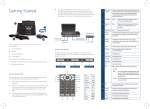
• The IRIS X has an intuitive, but powerful touch screen navigation with four desktop screens. To change
from screen to screen, swipe the main screen to the left or right; or press to switch screens.
Making a Call
Ending a Call
There are several ways to make a call with your IRIS X:
• Menu
provides access to all available apps, widgets and functions.
By Phone
Simply hang up the handset or press End if using
the speaker phone
• Phone
displays the dial pad for voice and video calls as well as related options.
• Press
from the Home screen (or pick up
the handset)
• Widgets are applications that can be added, moved or deleted from the desktop.
• To modify the widget, touch the widget until Close/Setting options are visible.
• Additional widgets can be added to the desktop by touching and dragging from the bottom menu to
the desktop.
• To view additional widgets, press
to expand the Widget Bar.
• D
ial the number and press Audio Call or
Video Call
By Call History
• Press
• Select Call History
• The Status Bar provides a quick view of your phone’s status. If you press the status bar, a number of
options become available: Volume, Wi-Fi™ off/on, Network off/on (Ethernet), Do Not Disturb (DND) and
Camera off/on.
• Press
• Select from All, Received, Dialed and Missed
from the Home screen
Call Waiting
• While on a call, a tone and an on-screen display
will alert you of an incoming call. You can accept
or reject the call
• Select the contact you wish to dial
• Press
1
to call the selected number
CALL FUNCTION OPTIONS
2
4
5
3
Missed Call
• A missed call message will show up on the
Home screen. Users can press View to access the
details of the missed call
• Select Contacts
PHONE SCREEN
Incoming Call
to call the selected number
By Contacts
• Press
The screen will display the name and the number of
the person calling. There are several ways to answer
a call with your IRIS X:
• Select Accept Audio, Accept Video (if available)
or Reject
from the Home screen
• The Home button, located on the bottom center of the phone (below the screen), allows you to easily
jump to the Home screen from any screen.
Answering a Call
6
1. Call/Line – The ACN IRIS X can support up to three concurrent calls
2. Audio Output – Speaker, Handset or Headphone Selection
3. Volume Controls
4. Message – Not Functional
5. Voice Mail – Used to access your Voice Mail messages
6. Once numbers have been dialed, press Audio Call or Video Call
While a call is in progress, several options are available. Press
to access all the call functions.
Note: While on a video call, the
menu may disappear. Press anywhere on the screen to reveal
the menu.
Three menu choices will display:
Option Menu
Function
Description
Dial Pad
Select to enter touch tone responses or to dial another number
Hold
Mute/Unmute
Video off/on
Press to hold the call. To take the call off hold, press Unhold
Press to mute or unmute the call
Press to switch between Video off and Video on
Once you have placed another call using another line, press
Conference to establish a 3-way audio conference call
Conference
Speaker/Headset/
Headphone
Volume
PIP
Snapshot
Press one of the three options to change audio output
Press to increase or decrease volume
Press to switch videos between the callers and display full screen
Press to take a snapshot of the current video
The snapshot will be automatically saved to the folder
“screenshot” in Tools>File Manager