1
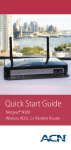
Quick Start Guide
Netcomm Wireless NB16WV
ADSL2+ VoIP Modem Router
Welcome to ACN
What’s Inside?
Congratulations on your selection of the Netcomm Wireless
Welcome to ACN
2
Customer Service
2
What’s Inside?
3
NB16WV ADSL2+ VoIP Wireless N Modem Router.
Your Netcomm Wireless Modem Router incorporates numerous
technologies into one stylish device which is ideal for professional and
personal use. It can act as the central connection point for all of your
online and calling activities. The Netcomm Wireless device provides
Wireless-N speeds for simultaneous downloads, voice and music, online
gaming, and will allow users to make calls over the Internet using ACN’s
Digital Phone Service (DPS).
Once you are online check our website at acnpacific.com.au
for further information and technical support if required.
acnpacific.com.au/myaccount
MyAccount is your Online Customer Portal. It enables you to check your
monthly broadband usage, change your broadband plan, purchase extra
broadband data, download your invoices, and pay your ACN account.
With ACN Broadband you get free access to WebTools powered by
Google. A suite of applications are included: Calendar, Talk, and up to five
Email accounts, each with their own myacn.net.au email.
Customer Service
Our dedicated Customer Service team is available 6 days a week
Hours of Operation
9:00am - 6:00pm (AEST) Monday to Friday
10:00am - 6:00pm (AEST) Saturday
Contact Details
Email Enquiries: [email protected]
Online Chat: acnpacific.com.au/contact-us
Customer Service: 1300 881 778
Netcomm Wireless NB16WV Set-up Guide
4
Front Panel
4
Back Panel
4
Getting to Know your Device
5
Logins and Passwords
6
Equipment Set-up
8
Set-up Wi-Fi™ Connections (optional)
11
Troubleshooting12
How to Set-up your Digital Phone Service (DPS)
13
How to Set-up your DPS Voicemail Service
14
DPS Troubleshooting
14
DECT Handsets
15
Mobile Broadband (MBB)
16
Netcomm Wireless Wizard
17
How to manually reconfigure your ADSL Broadband and DPS
via the Netcomm Wireless Wizard
17
Entering your Broadband Service Settings
18
Entering your DPS Settings
19
ACN Email Set-up Guide 19
MyAccount20
How To Access MyAccount
20
Add a Data Top Up for ADSL Broadband
22
Dead-On-Arrival (DOA) and Early Life Failure (ELF)
22
Warranty23
Conditions23
Warranty Claims
24
Standard Form of Agreement 25
Further Information 26
For further information about pricing, other services available from ACN, the
ACN Opportunity or becoming an ACN Independent Business Owner (IBO),
please visit acnpacific.com.au.
2
3
Netcomm Wireless
NB16WV Set-up Guide
Getting to Know your Device
The table below describes the LED lights on the front panel of your Netcomm
Wireless device and their functions.
Icon
LED Activity
Description
Power
Off
The modem is powered off.
Blue
The modem is powered on and operating normally.
Blue Flashing
The modem is starting up.
Off
No ADSL configuration is present.
Blue
The modem is connected to the Internet via an ADSL service.
Blue Flashing
The modem is attempting to connect to a ADSL service.
Off
No 3G configuration present (or there isn’t a 3G USB modem
plugged in).
Front Panel
Red
3G USB - SIM Error.
Red Flashing
3G connection failed - retrying.
The front panel consists of 11 LED lights.
Blue
The modem is connected to the Internet via a 3G service.
Blue Flashing
The modem is attempting to connect to the 3G service.
Off
No Internet configuration is present.
Red
The modem is connected via a 3G service.
Red Flashing
Data is being sent or received via the 3G service.
Blue
The modem is connected via an ADSL service.
Blue Flashing
Data is being sent or received via an ADSL service.
Purple
The modem is connected via an Ethernet WAN service.
Purple
Flashing
Data is being sent or received via the Ethernet WAN service.
Off
No device is connected to the Ethernet LAN port.
Blue
A device is connected to the Ethernet LAN port.
The Netcomm Wireless NB16WV ADSL2+ VoIP Wireless Modem Router has
been set up to plug and play.
We recommend Microsoft® Windows 7, XP, Vista, or MAC OS as the minimum
Operating System requirements. Ideally, your computer should be less than five
years old and of a reasonable specification to get the most out of the Internet.
It is important to ensure your computer is up to date with the latest operating
system and any relevant anti-virus and firewall / Internet protection software.
ADSL
3G
www
Power
Supply
ADSL
Light
3G
Light
Ethernet
www
WAN Wi-Fi™ VoIP
Light LAN Ports 1-4
LAN 1-4
Back Panel
The back panel consists of port connections and also the Power (on/off) button.
Blue Flashing
Data is being sent or received via the Ethernet LAN port.
WAN
Off
No device is connected to the Ethernet WAN port.
Blue
A device is connected to the Ethernet WAN port.
Wi-Fi™
Off
Wi-Fi™ is disabled on the modem.
Blue
Wi-Fi™ is enabled.
Blue Flashing
The modem is waiting for a WPS connection.
Off
No VoIP service is configured.
Blue
VoIP service is configured on this modem.
Blue Flashing
The modem is attempting to connect to the configured
VoIP service.
VoIP
Power Power USB WPS
Supply (on/off)
4
Ethernet LAN
WAN ADSL VoIP
5
Logins and Passwords
Use
Username
Password
What is it used for? Example
The table below outlines the required username and password format for
your Internet connection and Online Tools.
Digital
Phone
Service
(DPS)
Your DPS
username is an
8 digit number
which you will
receive by email
from ACN.
Your DPS
password is a
4 digit number
that you
nominated at
sign-up.
Your DPS
username and
password is your
unique log-in for
your DPS Service.
Username:
12345678
Password: 1234
Digital
No username
Phone
is applicable.
Service
Voicemail
Is the voicemail
password you
nominated
during online
sign-up.
When you
are activating
your voicemail
service you
will be given
the option to
change this.
Your voicemail
password or PIN is
the unique 4 digit
number required
to set-up your
voicemail service
in MyAccount.
Password:
1234
ACN
No username
mobile
is applicable.
Broadband
stick and
Wi-Fi™
devices
(MBB)
This password
is generic.
If you are
Password or SP
connecting an
code:
MBB Stick or Wi-Fi™ broadband
device to the
Modem Router you
will be asked for
the password or
SP code.
Use
Username
Password
What is it used for? Example
Internet
This is your main
and Email email address
you requested
at sign-up. This
can also be
found on the
confirmation
email sent to
you when you
completed
sign-up.
This is the
password you
nominated
during online
sign-up. This
can also be
found on the
confirmation
email sent to
you when you
completed
sign-up.
Your Internet
username and
password is a
unique login for
your ADSL or
Naked DSL Service.
Modem
Wi-Fi™
Your Wi-Fi™
username
is your SSID
provided on the
wireless security
card, found in
the Netcomm
Wireless box.
Your Wi-Fi™
password is
your Wireless
Security Key
provided on the
wireless security
card, found in
the Netcomm
Wireless box.
Your Modem
Wi-Fi™ username
and password is
required when you
connect a device
wirelessly to your
modem.
MyAccount Your MyAccount
Username is
your 9 digit
Customer ID
Number which
can be found
on your first
invoice.
Your MyAccount
Password was
created during
the sign-up
process.
Your my Account
username and
password enables
you to log into
MyAccount to
manage your
account.
Username:
100000000
NetcoMM admin
Wizard
admin
The Netcomm
Wireless Wizard
enables you to
access & customise
your settings -
The username and
password is generic:
This is also used to
access your email
from acnpacific.
com.au.
Internet login:
Username:
smith@myacn.
net.au
Password:
Abcdef123
For email login:
Username:
smith
Password:
Abcdef123
Username:
Wireless network
name (SSID)
Netcomm
Wireless xxxx
Password:
Wireless security
key
(WPA-PSK):
Vcxddhjreh
e.g.: change your
Wi-Fi™ password.
6
Password:
MagicBeans
Username:
admin
Password:
admin
7
Equipment Set-up
Step 4 - Connect Your Home
Step 1 - Your Equipment
You will receive an email notification from ACN that your ADSL or
Naked DSL service is active, please take the following equipment out
of the box:
Telephone (not required for
Naked DSL)
Connect your telephone to the
phone port on the splitter.
Step 5 - Connect Computer
Connect the supplied yellow
Ethernet cable from the Modem
Router’s yellow LAN1 port to your
computer’s Ethernet port.
6
Netcomm Wireless NB16WV Modem Router
Phone Cable
Ethernet Cable ADSL Splitter
6 Wireless Security Card
Step 2 - Connect Splitter
(not required for Naked DSL)
Connect the supplied splitter directly
to the telephone wall socket.
Step 3 - Connect Router
Connect the supplied grey
telephone cable from the splitter’s
ADSL port to the grey ADSL port on
the Netcomm Wireless device.
8
Power Adaptor
Step 6 - Connect Power
Connect the power adapter to the
router then plug it into an electrical
outlet. Ensure the electrical outlet is
powered on. Press the black power
button at the back of the router to
turn on the device.
Step 7 - Connect Your DPS
DECT handset (only required
for DPS Customers)
If you have signed up for DPS
connect your DECT Handset to
the Telephone Port indicated
by
.
9
Step 8 - Check Installation
Set-up Wi-Fi™ Connections (optional)
By default, Wi-Fi™ is turned on and is secured using Wi-Fi™ Protected Access
(WPA2-PSK).
1.
Once the Modem Router is connected to a power supply, the power
LED will light up.
2.
Once the telephone cable and splitter are connected, the ADSL LED
will flash.
3.
When the Ethernet cable is connected correctly, the corresponding
LAN LED will light up.
4.
The connection will establish in approximately one minute, the
ADSL LED will cease flashing and after a few seconds turn solid blue.
5.
Now open your web browser (e.g. Internet Explorer, Google
Chrome, Firefox or Safari) and go to your favourite website.
6.
You are now connected to the Internet. You can connect another 3
devices which have Ethernet ports such as gaming consoles, set-top
boxes or home theatre systems, to LANs 2-4 using Ethernet cables.
Congratulations, you are now connected to the Internet.
Please take note of your Wi-Fi™ Network Name (SSID also known as your
Wi-Fi™ username) and Network Key (password) which are printed on the
Wireless Security Card. You will need this information to connect wireless
devices to your network. If you have forgotten your Wi-Fi™ password you are
able to change this via the Netcomm Wireless Wizard - this is available on
page 17. We recommend you store your Wi-Fi™ Network name and password
in a secure location for future reference.
To connect Wi-Fi™ enabled devices (such as your laptop, mobile phone,
tablet or gaming device) to the Internet ensure Wi-Fi™ on both devices is
switched on. Scan for wireless networks in your area and connect to the
network name that matches the Wireless Network Name on the Wireless
Security Card.
When prompted for your wireless security key (password) enter the wireless
security key on the card.
10
11
Wait approximately 30 seconds for the connection to establish.
Repeat for each device. Your Netcomm Wireless device can connect up to 4
devices simultaneously.
Your Wi-Fi™ devices should now be connected and you will be able to access
the Internet via Wi-Fi™.
Troubleshooting
How to Set-up your Digital
Phone Service (DPS)
Please refer to the email we sent you upon activation of your DPS service.
This can also be found at acnpacific.com.au in the user guides section. If
you require additional help, please contact Customer Service.
Quick tips
The following network phone features are configurable for your DPS via
ACN MyAccount.
If you are unable to connect to the Internet try these quick tips:
•
Find me (Simultaneous Ring or Hunt Me) – Enables you to
connect up to 3 phone services in a circuit. You can select to have all
3 phone numbers ring at the same time or your incoming call will call
one number after another until the call is answered or terminated.
Please note that call forwarding charges are applicable for this feature.
•
Call Forwarding – Allows you to forward calls to another phone
number when you are busy, unable to answer your phone or your
service is unavailable. Alternatively an unconditional call forward can
be set-up to forward your calls to a telephone number you nominate.
Please note that call forwarding charges are applicable for this feature.
•
DND (Do Not Disturb) Mode – All your calls will be forwarded to
your voicemail. A white list can also be created to enable calls from
telephone numbers you nominate to connect.
•
Voicemail – Every DPS is enabled with its own voicemail service. To
set up voicemail please follow ‘How to Set Up my DPS Voicemail
Service’ on page 14. MyAccount enables you to manage the
following features – Retrieve voicemail messages, delete messages,
enable email notification whenever a new voicemail message is left in
your inbox, and change your voicemail password.
Restart the Modem Router. Turn off the power, leave for 5 minutes and
then turn the power and the Modem Router back on. Once the lights are on
(refer to page 5), open your browser and attempt to connect to the Internet.
•
•
Connect your Netcomm Wireless device directly to your computer via
an Ethernet cable. Once the connection has established, log on to the
Netcomm Wireless Smart Wizard at http://192.168.1.1. Click on ADSL
and ensure your ADSL username and password have been entered
correctly. Save your changes and let the Modem Router re-boot. This
will take approximately one minute. The connection should now be
established and authenticate. If you are still unsuccessful in establishing
an ADSL connection please attempt step 2.
Isolate the Netcomm Wireless device. Remove all equipment
connected to the line (including your splitter, telephone and any other
equipment) except your Modem Router. Restart the Modem Router
and connect it to your computer via an Ethernet cable. Once the lights
are on, try to connect to the Internet. If you are still unable to connect
to the Internet remove your Ethernet cable and attempt to connect
wirelessly through Wi-Fi™. (If you have a successful Wi-Fi™ connection
you may have a malfunctioning Ethernet cable. In this case contact
ACN Technical Support for further assistance.)
If you have attempted all of the above, have rebooted your computer and are
still unable to connect to the Internet, please contact ACN Technical Support
on 1300 881 778.
12
13
How to Set-up your DPS
Voicemail Service
To set-up your voicemail service simply dial * 0 (star zero) from your DPS
DECT handset, which will direct you to the voicemail server. Enter your
4 digit PIN number followed by the # key. Once you have entered the
voicemail server the first step is to create a new PIN number. Once this has
been completed continue to follow the prompts to complete the set-up of
your mailbox. To be notified when a voicemail message has been left ACN
recommends enabling email notification via MyAccount. Once your mailbox
is set up, you can dial * 0 (star zero) to retrieve your voicemail messages.
DPS Troubleshooting
3.
If not, try factory resetting the Modem Router and re-enter your ADSL
broadband, DPS Account and SIP Settings. Please refer to
‘How to manually reconfigure your ADSL and DPS via
Netcomm Wireless Wizard’ on page 17.
4.
If you have exhausted these troubleshooting steps and your DPS is still
not allowing you to make calls please contact ACN Customer Service
on 1300 881 778.
DECT Handsets
The Netcomm Wireless device supports any DECT handset which has
been approved and carries the A-tick standard. The DECT handset must be
connected to the modem via a standard telephone cable.
If your Internet is working but you are unable to make calls please turn
the Netcomm Wireless device off for 30 seconds and then turn the device
back on. Once the LED lights on the device are stable and you are able to
browse the Internet, check to ensure that the telephone LED on the front
panel is solid blue. If the telephone light is flashing blue this means the
Modem Router is attempting to connect to the configured DPS service. If
the telephone light does not turn solid blue, ensure the DECT handset is
powered on, and try these quick tips:
14
1.
If you are unable to make a call check your DPS status in the Netcomm
Wireless Wizard and ensure that it is active and registered to your DECT
handset. In order for you to check the status of your DPS you will need
to log into the Netcomm Wireless Wizard (see page 17), and select the
‘Status’ tab and check the VoIP status. If the service is registered on
your modem you should see ‘Registered’. If the status of your DPS
service is registered and still not functioning try setting up a different
DECT handset.
2.
If the DPS is not registered select ‘Switch to VoIP/NAS View’ hover
over ‘SIP Domain’ and click on ‘Service Domain’. Check your DPS
settings against ‘Entering your Digital Phone Settings’ on page 19.
Ensure the correct username and password for your DPS has been
entered and check that SIP Settings have been entered. Save any
changes you have made to your device (some setting changes may
cause your device to reboot and this can take 65 seconds). If your
device reboots, wait for the LED lights on the device to stabilise and
you are able to browse the Internet. Now try making a call to see if this
has resolved your issue.
15
Mobile Broadband (MBB)
Netcomm Wireless Wizard
The Netcomm Wireless NB16WV Modem Router has a built in USB port
compatible with connecting a 3G mobile broadband connection. This can
be used as back up if your ADSL broadband service is not responding, if you
have a line fault, or if you want to utilise your mobile broadband connection
over Wi-Fi™.
The Netcomm Wireless Wizard is a web based configuration tool for your
Netcomm Wireless NB16WV Modem Router.
To configure your 3G mobile broadband, log into the Netcomm Wireless
Wizard and select Mobile Broadband from the main screen. This will
display the mobile broadband configuration page.
How to connect to an ACN mobile broadband service
1.
Select Australia from the Country drop down menu
2.
Select ‘Other’ from the Service Provider List
3.
When prompted for the ACN ‘APN’ enter connect
4.
Save your changes
For a list of supported mobile broadband devices please refer to Australian
ADSL and Naked DSL FAQs available at acnpacific.com.au/help-support.
To access the Netcomm Wireless Wizard you need to have your computer
connected directly to the Modem Router via an Ethernet cable. The
Netcomm Wireless Wizard allows you to change the configuration settings of
your ADSL broadband and DPS. ACN does not recommend changing any of
your pre-provisioned settings if you are a novice user except for the following
settings that will keep your ADSL broadband connection secure and block
unauthorised access to your network:
•
Enable/Disable Wireless access
•
Enable/Disable SSID broadcast
•
Change your Wi-Fi™ username and password
For other settings please refer to the Full Netcomm Wireless Userguide
available on our website at acnpacific.com.au/user-guides. ACN
recommends that all other settings remain unchanged.
How to manually reconfigure your
ADSL Broadband and DPS via the
Netcomm Wireless Wizard
If you have factory reset your Netcomm Wireless device you will need to reenter your ADSL broadband and DPS settings:
16
1.
Connect your computer to your Modem Router via an Ethernet cable
2.
Open an Internet browser (e.g. Internet Explorer, Firefox or Google
Chrome) and type in the following http://192.168.1.1 to the address
bar followed by enter.
3.
Enter the default username and password which is admin and
admin respectively.
17
Entering your Broadband
Service Settings
After you have factory reset your device you will see the First-Time Set-up
Wizard page. Click on ‘Yes, lets get started’ to start off the 5-step process.
Step 1: Select your Internet Connection Type
Please enter or select the following settings.
WAN Interface
ADSL
WAN Type
PPPoE
VPI
8
VCI
35
Username
Your MyACN email address you nominated during online sign-up
Password
Your MyACN email password you nominated during online sign-up
Click ‘Next’ for Step 2.
This step requires you to review the information you have entered
from Steps 1-4. If you are happy with your settings click ‘Finish’.
Your Modem Router will reboot and save your ADSL broadband settings.
Once your Modem Router has rebooted, your Internet service should be up
and running.
Entering your DPS Settings
To manually configure your DPS log in to the Netcomm Wireless Wizard.
Select ‘Switch to VoIP/NAS View’. Hover over ‘SIP Settings’ and select
‘Service Domain’.
Your SIP settings and service domain can be found at the ACN User Guides
and Manuals section on our website: acnpacific.com.au/user-guides.
Dial a number from your DPS DECT handset to check if the service settings
are working. Your VoIP settings are now provisioned.
Step 2: Configure your Wireless settings
Once your DPS is provisioned you can now log into MyAccount to edit your
required DPS phone features.
If you would like to connect devices wirelessly on your network you need to
enable SSID Broadcast.
ACN Email Set-up Guide
Enter your preferred Wi-Fi™ network name (this will be the name that is
displayed when you search for Wireless networks on your computer or other
Wi-Fi™ enabled devices). Then click ‘Next’ for Step 3.
Your primary email address will be the email address you requested during
sign-up, e.g. [email protected]. This can be found in the confirmation
email we sent you after sign-up.
Step 3: Change your Wi-Fi™ Password
To access your email:
To change your Wi-Fi™ password - ACN recommends you select
WPA-PSK / WPA2-PSK as your Security Key type. Enter your preferred
Security Key (password) for your Wireless connection. This will be the
password used to connect Wireless devices to your network. This will replace
the password key on your Wireless security card. If you want to keep the
default password leave the ‘desired password’ and ‘retype password’ fields
blank and click on ‘Next’ to proceed to Step 4.
1.
Open your browser and go to mail.myacn.net.au. It is helpful to
bookmark this website for future reference.
2.
At the login screen enter your username and password. If your
username is [email protected], you will only be required to
enter “smith”.
Step 4: Modem Router Security
This step enables you to change the username and password you use to
access the Netcomm Wireless Wizard. If you wish to change your username
and password we recommend you store this information in a safe location for
future reference. If you do not wish to change this proceed by clicking ‘Next’
to Step 5.
18
Step 5: Router Installation is Complete
This will take you to your email account where you will be able to send and
receive emails from your ACN email address.
If you wish to set-up your ACN email in Outlook please refer to our website:
acnpacific.com.au/user-guides.
For all other email clients please refer to GoogleMail Documents for
assistance: mail.google.com/support.
19
MyAccount
2.
Select Australia, from here you will be redirected to the following page:
3.
Enter the username and password that you selected when you set-up
‘MyAccount’, (or if this is your first time please select ‘Not Registered’
and follow the prompts to set up your account).
4.
Once you have logged in the following page will be displayed.
5.
Click on either Broadband or Digital Phone Service.
ACN provides you with the ability to view and manage your account online
through MyAccount. You can:
•
Change your ADSL broadband rate plan
•
Relocate your ADSL broadband/DPS service to another address
•
View any equipment orders you have placed
•
View your ADSL broadband usage - this will show you how much of
your Peak and Off-Peak data you have consumed in this billing cycle
up until 30 minutes previously. (ACN also sends out courtesy email
notifications at various intervals so you are aware of your usage and can
manage accordingly.)
•
Purchase ADSL broadband Top Up data
•
Manage the available DPS Phone Settings
•
Manage your DPS voicemail (retrieve voicemail messages, delete
voicemail messages, enable email notification and change your
voicemail password)
How To Access MyAccount
1.
20
Visit acnpacific.com.au and click on MyAccount link at the top of
the webpage.
21
Add a Data Top Up for ADSL Broadband
If you have exhausted your Peak data allowance, you can purchase a Data
Top Up.
To purchase a Data Top Up you will need to:
•
Log into MyAccount and select Broadband, you will be redirected to
the ‘Manage My Broadband Services’ page
•
Click on View Usage and select ‘Add Top Up’
•
Select the Data Top Up bundle you would like and select ‘Yes’ when
prompted “do you wish to proceed”
•
This will appear on your next statement and you will have 60 days to
use the additional data, if you exhaust your Data Top Up you are able to
purchase additional Data Top Ups by repeating these steps
Dead-On-Arrival (DOA) and Early Life
Failure (ELF)
We will arrange to replace your Netcomm Wireless NB16WV ADSL2+ VoIP
Modem Router (“Product”) if it fails within 30 days from the date of purchase.
This period is called Dead on Arrival/Early Life Failure (“DOA/ELF”). Please
refer to the Warranty Claims section to learn how to make a claim in these
circumstances. If the device fails outside the DOA/ELF period, this is also
covered in the Warranty section of this guide on pages 23-24.
Warranty
Subject to the conditions of this limited warranty (“Warranty”), ACN warrants
your Netcomm Wireless NB16WV ADSL2+ VoIP Modem Router (“Product”)
to be free from defects in design, materials and workmanship at the time of
its original purchase by you. The Warranty is valid for a period of 24 months
(“Warranty Period”) from the original date of purchase of the Product.
If during the Warranty Period, this Product fails to operate under normal use
and service, due to defects in design, materials or workmanship, ACN will
either repair or replace, at our option, the Product in accordance with the
conditions stipulated herein.
ACN reserves the right to charge a handling fee if a returned Product is found
to not be under Warranty according to the conditions below.
Conditions
This Warranty does not cover mechanical damage caused by misuse, abuse,
impact or accident or damage caused to the Product or damage caused
by liquids, lightning, power surges (ACN recommends you obtain surge
protection for your electricity supply), theft, or heat damage sustained from
the stacking of electrical equipment on or in close proximity to the Product.
This Warranty does not cover you changing your mind about purchasing
the Product. The Warranty is not transferable and does not cover any ACN
services nor does the Warranty Period recommence upon receipt of any
replacement unit sent to you by ACN. If you hack the firmware or software
installed with the Product or if you tamper with security seals or remove any
service covers on the equipment ACN will consider this Warranty voided. The
Warranty does not cover any computer viruses obtained from your use of the
Product or any ACN services. This Warranty does not cover Product failures
which have been caused by use of accessories or other peripheral devices
which are not ACN branded original accessories intended for use with
this Product.
Equipment models may change over the course of this Warranty. It may
be necessary for the replacement unit to be a refurbished unit, a different
model, and/or from a different manufacturer. Goods presented for repair
may be replaced by refurbished goods of the same type rather than being
repaired. Refurbished parts may be used to repair the goods. ACN confirms
that any replacement Product sent to you will be of merchantable quality
and functionally similar to the original Product supplied.
22
23
Warranty Claims
Should your Product fail within the DOA/ELF Period or the Warranty Period
you will need to contact ACN’s Customer Service Team on 1300 881 778 to
describe the defect. ACN will then issue you with a prepaid return courier
satchel for you to return the device for testing purposes. ACN will not be
liable for any expenses you incur in relation to any DOA/ELF or
Warranty Claim.
The return satchel is pre-labelled with our return address which is:
ACN Product Returns
Locked Bag 2145
NORTH SYDNEY NSW 2059
guarantee, condition or warranty, our respective liabilities for such breach
shall be limited to, at our option: (a) the replacement of the Product or the
supply of an equivalent Product or payment of the cost of replacing the
Product or acquiring an equivalent Product; or (b) the repair of the Product or
payment of the cost of having the Product repaired.
Standard Form of Agreement
Important Customer Information: Your Rights and Obligations.
For the complete terms and conditions which apply to the supply of the
Product and ACN services, and which set out your rights and obligations,
please refer to ACN’s Standard Form of Agreement (SFOA), available on our
website acnpacific.com.au.
Please note that some of your personal settings, content and other
information and stored data may be lost when the Product is repaired or
replaced. Due to applicable law, other regulation or technical restrictions,
ACN will not make a back-up copy of your information.
ACN does not take responsibility for any lost information of any kind and will
not reimburse you for such loss. You should always make back-up copies of
all the information stored on the Product before handing it in for repair
or replacement.
You will need to comply with any other return procedures stipulated by
ACN as published or explained at the time of the claim. If a defect exists and
a valid claim under the Warranty is received by ACN after the first 14 days
following the expiry of the Warranty Period, ACN is entitled to charge for any
reasonable shipping and handling costs made in connection with the repair
or replacement of the Product.
ACN respects your rights as a consumer. Our goods come with guarantees
that cannot be excluded under the Australian Consumer Law. You are entitled
to a replacement or refund for a major failure and for compensation for any
other reasonably foreseeable loss or damage. You are also entitled to have
the goods repaired or replaced if the goods fail to be of acceptable quality
and the failure does not amount to a major failure. Nothing contained in
this Warranty shall be read or applied so as to exclude, restrict or modify the
application of applicable provisions of Australian Consumer Law, including
Consumer entitlements described in the Competition and Consumer Act (as
amended), or any relevant State or Territory statute which by law cannot be
excluded, restricted or modified.
To the extent that any such statute permits ACN to limit our liabilities to
compensate or indemnify you or any other person for breach of an implied
24
25
Further Information
For the latest rate plans, products and services visit acnpacific.com.au.
For further information about pricing, other services available from ACN, the
ACN Opportunity or becoming an ACN Independent Business Owner (IBO),
please visit acnpacific.com.au.
26
27
Contact Us
Email: [email protected]
acnpacific.com.au
Customer Service:1300 881 778
ACN Pacific Pty Ltd
28
ABN 85 108 535 708
600610
28.05.2012 . MKT-1015