1
Recording Clips
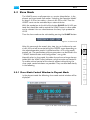
4.2 The Video Overlay
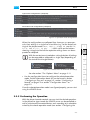
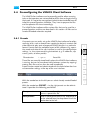
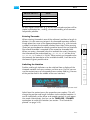
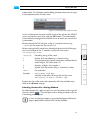
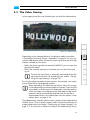
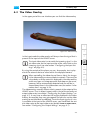
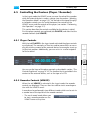
In the upper part of the user interface you can find the video overlay.
1
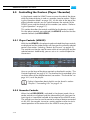
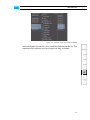
Figure 4-7: Video overlay
2
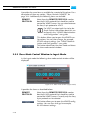
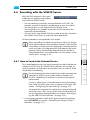
In the ingest mode the video overlay will always show the signal that is
present at the input of the VENICE server.
3
The input video raster has to match the incoming signal, i.e. the
set video raster for the input must be of the same raster as the
incoming signal (see also section “Configuring the Input Settings” on page 4-2).
4
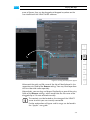
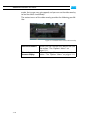
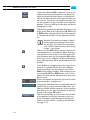
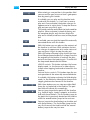
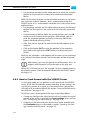
By using the controls of the player you can, for example, start a playout of the external device or move within the displayed content.
When controlling the video channel from a client, the images
in the video overlay are transmitted via network. There may be
a time delay until the material is displayed in the video overlay
and it may seem as if drops occurred. Real drops on the server,
however, will be automatically detected and you will be informed about them in the information area (see section “Information Area” on page 3-13).
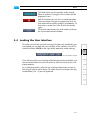
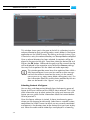
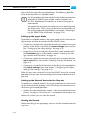
The video overlay normally reflects what is present at the output of the
VENICE server. Thus its layout (aspect ratio) is that of the currently set
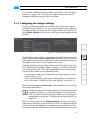
output video raster (see section “Configuring the Output Settings” on
page 3-7). It may have an effect on the images displayed in the video
overlay, for example, they may get cropped, and you can use the video
overlay to see the effects immediately. To see the input signal as it is truly available at the input of the VENICE server, you should lock the output video raster to the input video raster (button LOCK TO VIDEO INPUT,
see section “Configuring the Output Settings” on page 3-7).
4-9
5
6
A
I