1
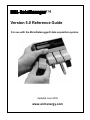
MDL-DataManager™ Reference Guide
Architectural Energy Corporation
3.0 MDL-DataManager™ Software
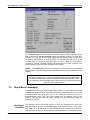
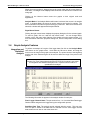
MDL-DataManager software operates in the Windows operating system. Software
installation instructions can be found in Section 2. When MDL-DataManager software
is accessed, a title screen is shown, followed by a blank screen with the following
menu commands shown across the top tool bar:
File
Logger
Graph
View
Preferences
Help
Each of the six main menu commands are discussed in detail.
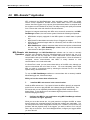
AEC has recently enhanced the MicroDataLogger system (MDL) by adding remote
access capabilities. The new MDL-Remote system utilizes the MDL unit with a
specially equipped modem and associated hardware equipment and software to easily
retrieve the data via phone line from a customer's location.
The new remote system integrates MDL-DataManager software with a companion
package, called MDL-DataRetriever software. For configuration instructions, see MDL
Remote Software topic.
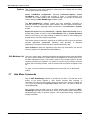
3.1 File Menu Commands
The File Menu Commands control all communications with the MicroDataLogger unit.
The commands available are:
Configure MDL, Real Time Readings, Retrieve Data.
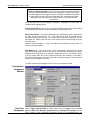
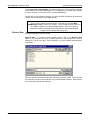
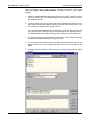
Use Existing You can use a previously saved configuration file to configure the MicroDataLogger
Config unit. When File–Use Existing Config is chosen, a file dialog box will open and show
previously saved configuration files. Select a configuration file and click on OK. This
will open the Configuration Window and fill in the appropriate fields with information
from the configuration file. For related information, see Configuration Window.
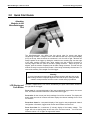
Delete This menu item (File–Delete) opens the dialog box Delete an Existing File. Select
Configuration (.cfg), Data (.log). or Graph (.grf) setup files to be deleted. Click OK to
delete the file.
Warning:
Any files deleted are no longer available; this function should be used with care.
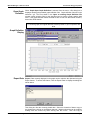
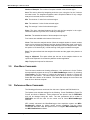
Export (to ASCII The command File–Export (to ASCII File) creates an ASCII text file from a
File) MicroDataLogger binary data file. The ASCII file can be loaded into other programs
such as spreadsheets or text editors. This menu item opens a file dialog box that can
be used to select the MicroDataLogger file to be exported to ASCII format. View the
topic example ASCII file to see the format of a tab delimited ASCII file.
Note:
Select desired format (Preferences–Options, Export File Format) BEFORE
choosing File–Export (to ASCII File). Default is set for Tab-Delimited.
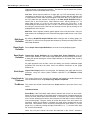
The default export format is Tab Delimited, which imports into Excel very easily. There
are two formats for the ASCII export file:
(1) Tab Delimited
(2) Comma Separated Values.
Section 3.0 MDL-DataManager™ Software
Page 8