1
Windows NT 4.x
RFC 1577 Classical Internet Protocol over ATM
1. At the desktop, double click My Computer, double click Control Panel, double
click Network and then select the Adapters tab and click Add.
2. In the Select Network Adapter window click Have Disk.
3. Insert the driver CD.
4. The Insert Disk appears. Enter the drive letter and path to your CD ROM. It
should look like this: D:\1577NT4 and click OK.
5. The Select OEM Option window will find the ADSL PCI NIC. Click OK.
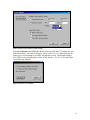
6. When the Service Option window appears, click Advanced.
7. The Service Options window now displays the Connection Address and Select
ADSL Mode sections.
In the Network Protocol and PVC Setting section, select Classical IP over ATM
and then enter the VPI and VCI values provided by your ISP. Make sure the
Framing is set to LLC/SNAP.
In the Select ADSL Mode section, select the modes recommended by your ADSL
service provider. Click on the Mode required and then click OK.
8. The previous Service Option window will appear, click Next.
9. Then the Network window will appear, click Close.
10. The Microsoft TCP/IP Properties window will appear and prompt you for
information. In the Adapters section, be sure to select the ADSL PCI NIC. When
not connecting to a DHCP server.
11. Enter the IP address provided by the ADSL service provider.
12. Enter the Subnet Mask provided by your ADSL service provider.
13. Enter the Default Gateway address.
14. Select the DNS Configuration tab and enter the Host Name.
15. The enter the Domain Name.
16. Click OK to update the changes.
17. Restart your computer for the changes to take effect. Click Yes to restart.
24