1
QuadroE1/T1 Manual-I: Installation Guide
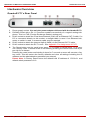
Hardware Overview
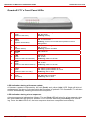
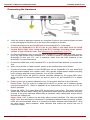
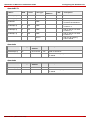
QuadroE1/T1’s Front Panel LEDs
BUSY
green
(Status of the CPU)
on: device is booting
off: No power
blinking: activity
2
INFO
yellow
(System information)
on: device is booting
off: no information
blinking: event occurred that was specified in Event
Mangement
3
FAULT
red
(System status)
on device is booting/ error
off: no error
blinking: system unusable
4
SPARE
green
off:undefined
5
LAN
green
(Status of the LAN interface)
on: link ok
off: no link
flickering: traffic on the link
6
WAN
green
(Status of the WAN interface)
7
Line1
green
(Status of the E1/T1 link)
on: frame synchronization is ok
off: frame synchronization is not ok
flickering: link is down
8
Line2
green
(not used)
on: no RED alarm indication
off: RED alarm indication
flickering: link is down
1
on: link ok
off: no link
flickering: traffic on the link
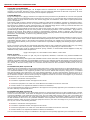
LEDs numbering on the Quadro is defined from left to right.
LED Indication during a firmware update
A firmware update is indicated by the red (Fault) and yellow (Info) LED. Both will blink simultaneously for about 5 minutes while the firmware is updated. The QuadroE1/T1 will then
re-boot automatically showing the boot LED sequence.
LED Indication during a boot sequence
A boot sequence is indicated as follows: The red Fault LED will glow for a few seconds, then
the yellow Info LED will glow for another 4 or 5 minutes while the green Busy LED is blinking. Once the Info LED is off, the boot sequence has been completed successfully.
QuadroE1/T1; (SW Version 2.4.x)
7