1
iR6570_CMB_Upgrade_ENG_Post_Final.book Page 3 Tuesday, May 24, 2005 12:12 PM
NOTE
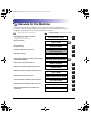
Various Coping Features
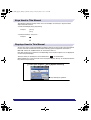
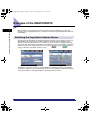
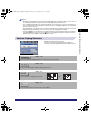
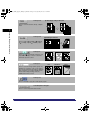
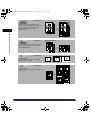
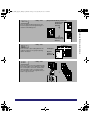
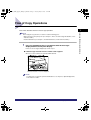
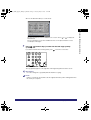
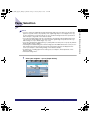
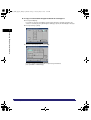
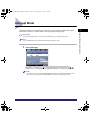
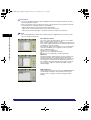
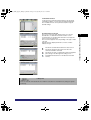
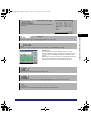
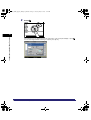
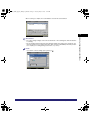
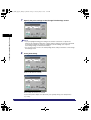
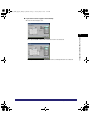
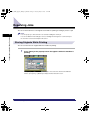
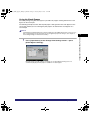
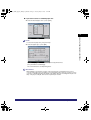
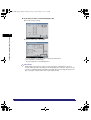
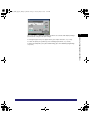
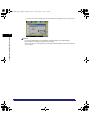
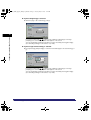
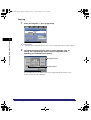
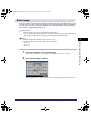
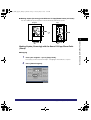
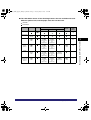
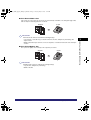
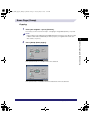
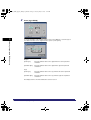
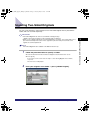
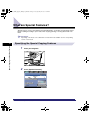
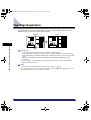
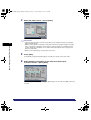
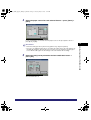
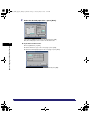
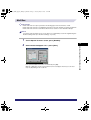
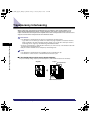
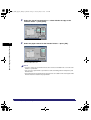
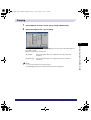
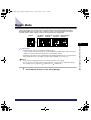
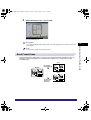
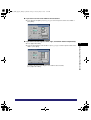
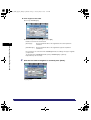
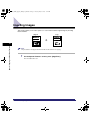
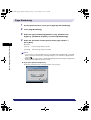
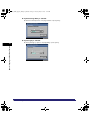
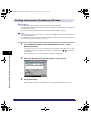
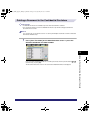
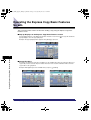
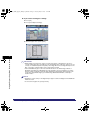
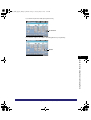
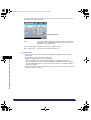
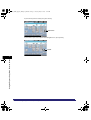
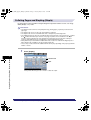
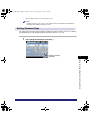
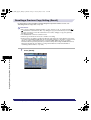
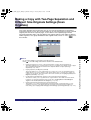
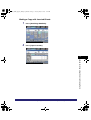
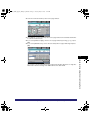
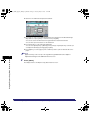
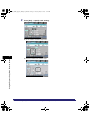
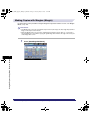
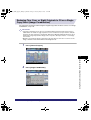
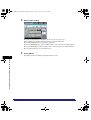
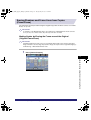
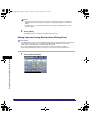
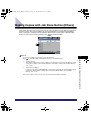
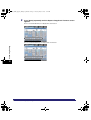
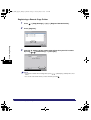
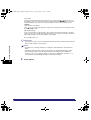
Regular Copy Basic Features Screen
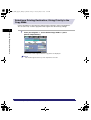
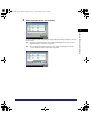
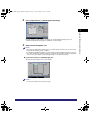
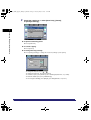
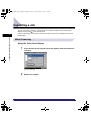
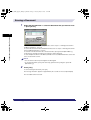
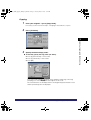
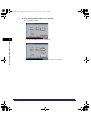
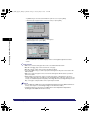
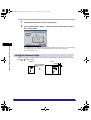
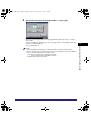
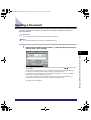
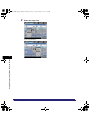
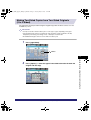
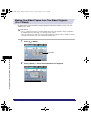
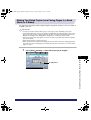
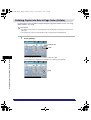
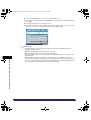
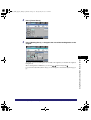
The screen on the left, which appears when [Copy] is
selected, is called the Regular Copy Basic Features screen.
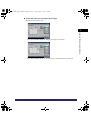
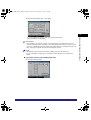
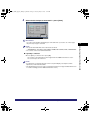
➞ See p. 1-19
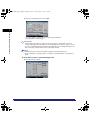
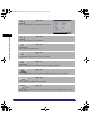
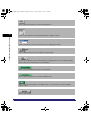
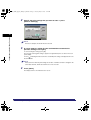
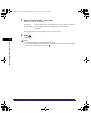
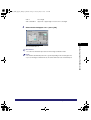
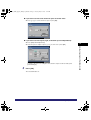
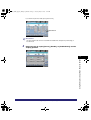
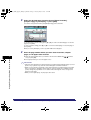
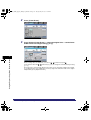
Press to select the printing destination for remote and cascade copying.
➞ See p. 1-29
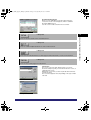
Press to select the paper size/type and the paper source.
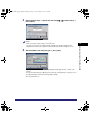
➞ See p. 3-9
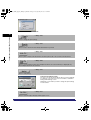
Press to reduce or enlarge the copy size.
➞ See p. 3-9
Press to make copies in the same size as your original.
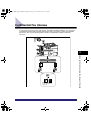
Overview of the iR6570/iR5570
1-3
1
Introduction to the Copy Functions
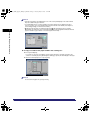
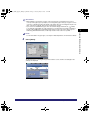
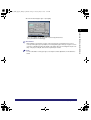
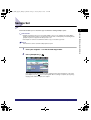
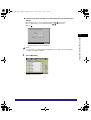
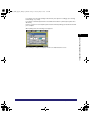
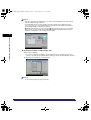
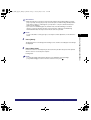
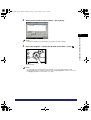
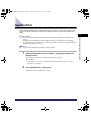
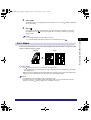
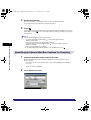
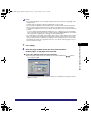
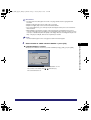
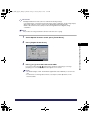
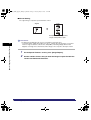
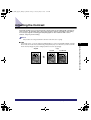
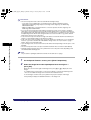
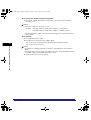
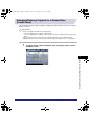
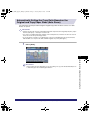
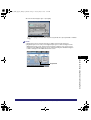
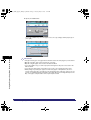
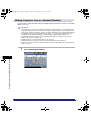
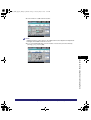
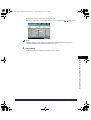
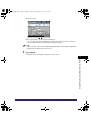
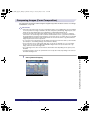
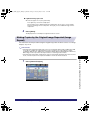
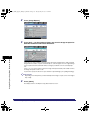
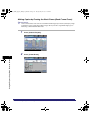
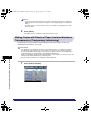
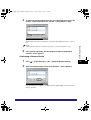
• By default, only the Regular Copy function key is displayed on the Copy Basic Features screen. You can
set to display the Express Copy function key from the Additional Functions screen.
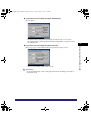
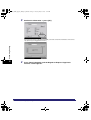
• You can display the Regular Copy function key, Express Copy function key, or both. For Information on
how to set the display for the Copy Basic Features Screen, see "Setting the Display for the Copy Basic
Features Screen," on p. 8-6.
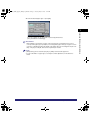
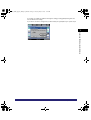
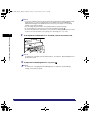
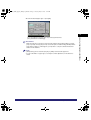
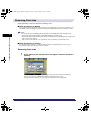
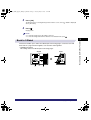
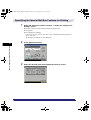
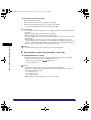
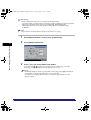
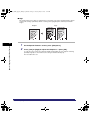
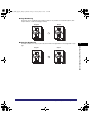
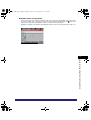
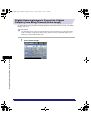
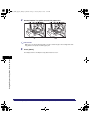
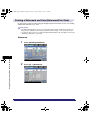
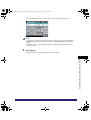
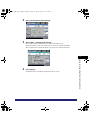
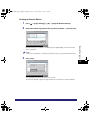
• After changing the copy settings, even if you switch to the Express Copy Basic Features screen from the
Regular Copy Basic Features screen, or vice versa, the copy settings will be retained.
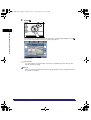
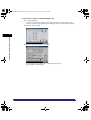
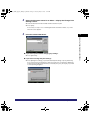
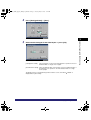
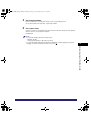
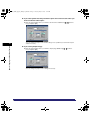
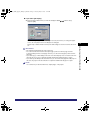
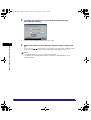
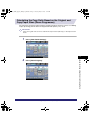
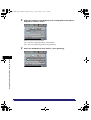
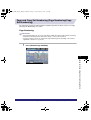
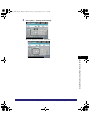
• If you press (Reset) on the Express Copy Basic Features screen, the display returns to the Express
Copy Basic Features screen. If you press (Reset) on the Regular Copy Basic Features screen, the
display returns to the Regular Copy Basic Features screen.