1
ASMi-52 Installation and Operation Manual
Appendix B IR-IP Interface Module
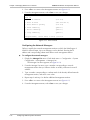
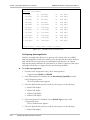
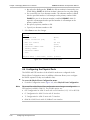
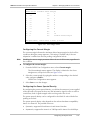
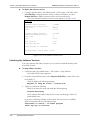
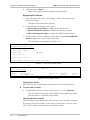
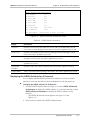
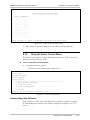
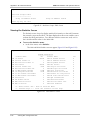
The New Software Download menu is used to specify the software downloading
parameters.
To download new software:
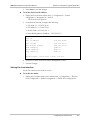
1. From the Device Control submenu, type 1.
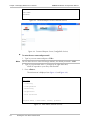
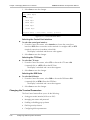
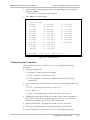
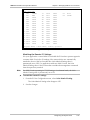
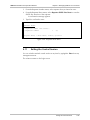
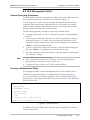
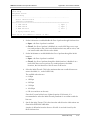
New Software Download menu appears (Figure B-16).
IR_IP
<IR-IP>
S/W Ver. 1.21 (date)
Quick Setup
Management Access
Advanced Setup
Device Control
.....................................................................
New Software Download
=====================================================================
1. Server IP Address
:...............
2. File Name
:...................
3. Total Timeout (sec)
:..
4. Start operation
:>>>
Press one of the numbers to select or ESC:
Figure B-16. New Software Download Menu
2. Define the Server IP Address of the TFTP server.
3. Enter the File Name and path of the file to be transferred from the TFTP
server.
4. Enter the Total Timeout time the IP router should wait for an
acknowledgment from the TFTP server, for example 60 seconds.
5. After defining all the necessary parameters, select Start Operation on the New
Software Download screen and then press <Enter> to start the downloading.
You can follow the progress of the downloading process (indicated by arrows).
Upon completion of the download process, the unit performs a reset. The Telnet
connection is lost and must be restarted if required.
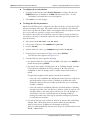
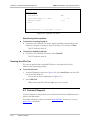
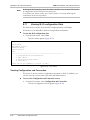
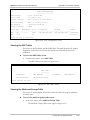
Viewing the Error Log
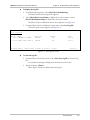
This item of the Device Control submenu is used to view the error log file. This file
logs errors detected in IR-IP for debug and technical support purposes.
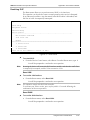
Erasing Configuration
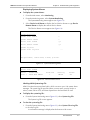
Selecting Erase Configuration allows you to reset all the configuration parameters
to their default values.
Note
B-22
• Do this only if you need to reconfigure the module anew (all the parameters).
• After erase confirmation all connections with the IR-IP module will be lost. For
instructions on further configuration, refer to Performing Preliminary
Configuration on page B-7.
Using the Device Control Menu