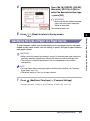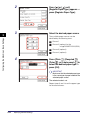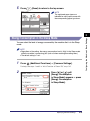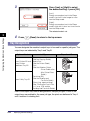
1
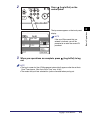
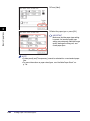
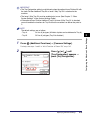
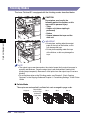
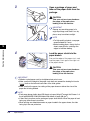
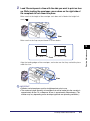
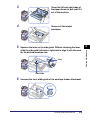
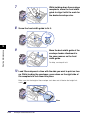
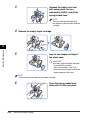
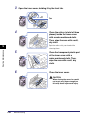
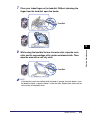
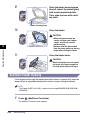
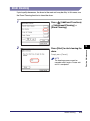
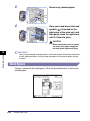
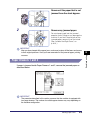
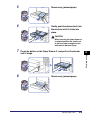
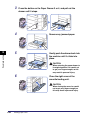
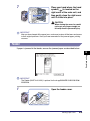
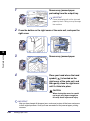
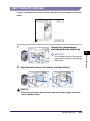
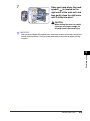
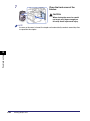
• After clearing all paper jams, remove your hands from the machine immediately.
Even if the machine is not in operation, your hands, hair, or clothing may get
caught in the feed rollers, which could result in personal injury or damage if the
machine suddenly starts printing.
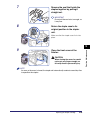
IMPORTANT
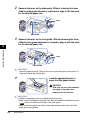
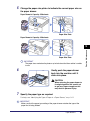
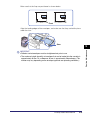
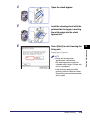
After you have cleared all the paper jams, make sure to return all the levers and covers
to their original positions. Once you have removed all of the jammed paper, printing
resumes.
NOTE
When all the paper jams are cleared, the machine automatically recalculates the
number of copies or prints to make. You do not need to re-enter the number of copies
or prints, even if you are printing multiple sets.
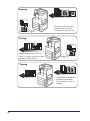
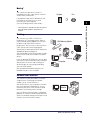
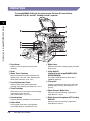
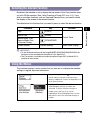
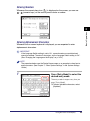
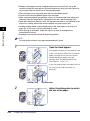
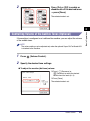
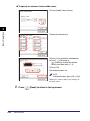
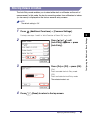
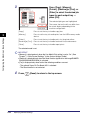
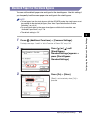
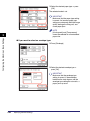
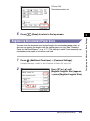
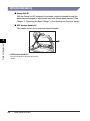
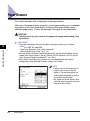
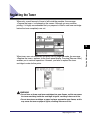
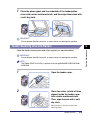
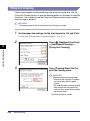
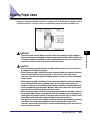
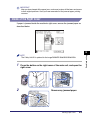
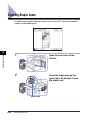
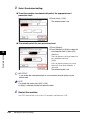
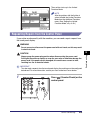
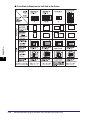
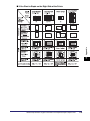
Locating Paper Jams
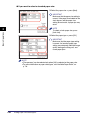
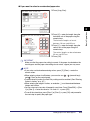
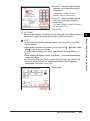
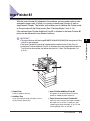
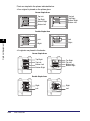
When paper is jammed inside the machine, the machine detects the jammed paper
and displays where you can find it. Approximate locations of the jammed paper are
indicated with dots on the machine’s image. Check for all paper jam locations on
the touch panel display and see the appropriate pages below for instructions on
how to remove jammed paper.
Troubleshooting
6
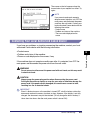
IMPORTANT
Do not turn the machine OFF before clearing all paper jams. If the machine is turned
OFF with the jammed paper left inside, the machine may not detect the jammed paper
after the machine is turned back ON.
NOTE
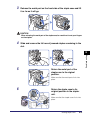
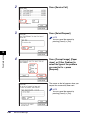
Jammed paper may not actually be found in the indicated areas. In this case, check
other locations and then close all the open covers.
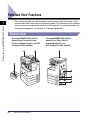
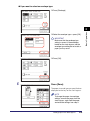
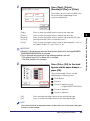
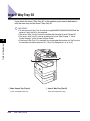
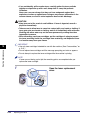
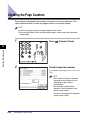
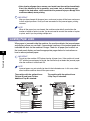
The machine with the optional Inner
Finisher-B1 and Inner Finisher
Additional Tray-B1 attached:
6-28
Clearing Paper Jams
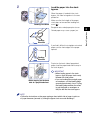
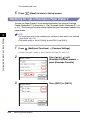
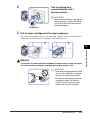
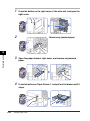
The machine with the optional Inner
2 Way Tray-G1 attached: