1
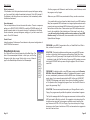
Remote File Load - Load Images
Loading Files Into the EPS/ASR memory via MIDI commands
This enables you to remotely load a file off a disk connected to or part of the EPS/
ASR into the RAM contents
of the EPS/ASR. For the
option to work, it temporarily
turns the MIDI-IN Mode to
Multi, and the Program Change option to ON. It will turn the parameters back to
what they were (if they were different) when the dialog box closes.
The one thing to remember is that Tools is “blind” to what is going on in the RAM
of the EPS/ASR. You must watch the EPS/ASR 22-character display to make
sure the File numbers match up with what is going on in the screen.
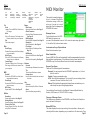
Also, please note the In directory and Out Directory buttons, and the Load and
System-MIDI buttons. These simulate the actual buttons on the EPS/ASR, and
will help you navigate your way through the directories.
Loading a file off of the EPS/ASR is also dependent on what you have the MULTIOUT’s selected to. On the Original EPS’s, they are consecutive numbers after
the Base Channel; but on the 16-Plus and the ASR-10 they can be changed.
Cluck on the MULTI-IN button to changes these.
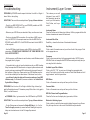
Loading from File Images
Not only are you able to locate
Instruments by reading the
EPS/ASR memory using the
READ commands, you can
also load sounds into MIDI-Disk
Tools from File Images.
During the READ procedure,
Tools reads the parameters
from the EPS/ASR and stores
them to a Disk File. Using this
function enables you to load Disk Files from disk without having to read them
again from the EPS/ASR.
Page 16
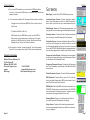
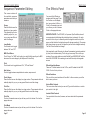
Setup Screen
Performance
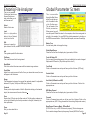
This is the number that can speed up or slow down the READ operation if need
be. We have optimized it at 0 - to slow it down, set at higher number (up to 10,
say), to speed it up, try -1 to -10. 0 should be right for most computers.
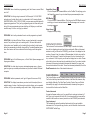
Time Out Length
This determines the amount of the time for the program times out, waiting for
a response from the EPS/ASR. a higher number for this is better. Default is 5
seconds.
Default Instrument Name
This will automatically name your New Instruments with this personal Name
when you create an instrument, and set the Auto-name function in the Naming
Wizard.
Default Layer Name
This will automatically name your New Layers with this personal Name when
you create a layer, and set the Auto-name function in the Naming Wizard.
Default WaveSample Name
This will automatically Name your New WaveSamples with this personal Name
when you create a wavesample, and set the Auto-name function in the Naming Wizard.
Auto Name
This turns on the Personal names section
Confirmation
This puts Confirmations on most of the important edits you do
Read Only Selected Instruments
This will prompt a screen asking you which wavesample you want to read.
Display Error Messages
This enables prompting of MIDI communication errors when then come in. If
you need to troubleshoot something this will be of value; otherwise, since the
program relies on the “errors” to give it proper information on the Ensoniq, it
will hinder operation.
Error Protection
Always keep this selected - this enables all the error handles within the program to be activated. If it is not selected, any error will crash the program.
Read from File
Enables reading from a Disk File during a READ operation.
Page 34