1
CHAPTER 5: Operation
5.17 Testing Link Cables in a Cascaded Duo/Quadro System with Grouped
Links
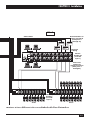
As described in Section 3.4.3, multiple ServSwitch Duos/Quadros can be cascaded
together. Up to four layers of Duos and Quadros can be hooked together in a
cascade, using up to two or four cable links between Duos or Quadros as desired.
Normally we recommend using the on-screen menu to switch between
computers in such a system, as described in Section 5.11. But if you’ve run two or
more link cables between each of your Duos/Quadros and one of them gets
broken or goes bad somewhere, hotkey-command switching will be a better tool for
finding the problem than menu-based switching will. This is because group
numbers are normally used in the menu system’s CPU addresses (see
Section 4.6.2), and when you switch to a CPU with a group number in its address,
it’s impossible to tell which of the cables in a group the link is being routed
through.
To do trial-and-error testing of a grouped pair of link cables, send a hotkey
command that switches to a CPU (see Section 5.5) through one of them, then send
another command that switches to that CPU through the other. For example, if
you have a subsidiary Duo attached by a pair of cables to CPU ports 5 and 6 of a
master Duo, and you have a CPU attached to CPU port 14 of the subsidiary Duo,
check the cable pair this way (assuming that the hotkeys are the default [Ctrl] and
[Alt], and using leading zeros for the single-digit port numbers):
First press and hold [Ctrl] and [Alt], press and release [0] (zero), press and
release [5], press and release [1], press and release [4], and release [Ctrl] and
[Alt]. If that command goes through, video looks OK, and keyboard and mouse
control works, port 5’s cable is probably OK, so check port 6’s cable by repeating
the command sequence with [6] instead of [5].
75