1
4-7
Maintaining the printer
9
Print a card to verify the quality of printing. You can print a Windows test page or a
card using your card creation application.
♦
Cleaning the printhead
The printhead can have contamination stuck to it. You might notice it as unprinted
lines on printed cards. Clean the printhead only when needed, such as:
•
The printhead has been accidently touched, such as when changing supplies or
cleaning a card jam
•
•
You have replaced the printhead
Your observe problems with card appearance, as described in “Troubleshooting”
on page 6-1.
! Do not touch the printhead with your fingers. The oils on your fingers can damage
the printhead.
Use isopropyl alcohol and a lint-free cloth to clean the printhead. Do not use a cotton
swab. The fibers from the cotton can stick to the printhead.
Clean the printhead
1
Power off the printer, and disconnect it from the power source.
2
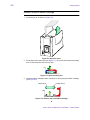
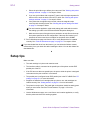
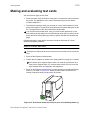
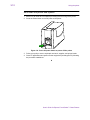
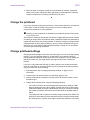
Press down on the swing arm. The push latch will release the swing arm. Lift the
swing arm until it is fully open.
3
Moisten the lint-free cloth with isopropyl alcohol.
4
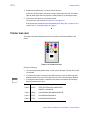
Using gentle pressure, move the cleaning cloth back and forth along the full length
of the printhead edge. Be sure to clean the rounded edge of the printhead
completely.
5
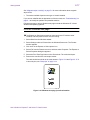
Close the swing arm, pressing it down until the push latch clicks into place.
6
Connect the power cable to the power source and power on the printer.
7
Print a card to verify the quality of printing. You can print a Windows test page or a
card using your card creation application. If card quality is still inadequate, see
“Troubleshooting” on page 6-1.
♦
Replacing the printhead cartridge
The Express or Select printer uses an operator-replaceable printhead cartridge. For
more information about printhead cartridges, see “Supplies and cards” on page B-1.
User’s Guide for Express™ and Select™ Class Printers