1
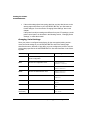
This chapter explains automatic jam recovery, discusses how to prevent media jams,
and then provides detailed information on how to find and remove media jams.
$-?
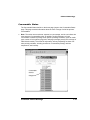
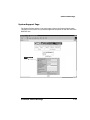
The QMS magicolor 2+ Print System provides automatic jam recovery (when enabled
through the Administration/Engine/Page Recovery menu). After you remove any
jammed media, printing automatically resumes from the page the printer stopped at
when the jam occurred.
»
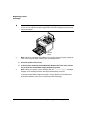
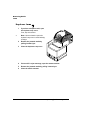
Note: For automatic jam recovery to work, it is necessary to leave the printer turned
on when you remove the jammed media. After the jam is cleared, open and close the
top door before printing. Printing will not resume until you do this.
#
$
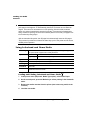
There are several things you can do to reduce the occurrence of media jams.
Use media that matches the printer specifications.
Make sure the media is not folded, wrinkled, or excessively curled.
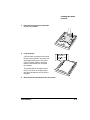
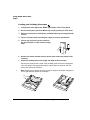
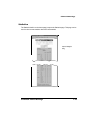
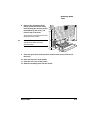
Do not overfill the media cassette. The cassette has a fill-limit mark on the inside
left side.
Note: Ensure that the media in the cassette is flat, especially on the leading edge.
»
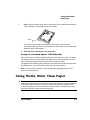
Note: Do not fan transparencies since this causes static.
»
If you have problems with double feeding, remove the media from the cassette
and fan the sheets. They may be sticking together.
Remove transparencies from the output tray immediately to avoid static buildup.