1
9210IG.book Page 1 Monday, April 2, 2001 11:13 AM
R
INSTALLATION
GUIDE
ADAPTEC FIBRE CARD 9210LP
2 GIGABIT FIBRE CHANNEL HOST BUS ADAPTER
9210IG.book Page 1 Monday, April 2, 2001 11:13 AM
INTRODUCTION
The Adaptec Fibre Card 9210LP provides a 2 gigabit interface
between a server and a Fibre Channel storage system and installs
into a standard PCI slot. The Adaptec Fibre Card 9210LP optical
and Adaptec Fibre Card 9210LPC copper adapters supports a
high-performance 64-bit and 66 MHz PCI bus (backward
compatible to 32-bit and 33 MHz). The PCI bus provides a highspeed (up to 528 MBps) path between the system board and the
Fibre Channel adapter. The Adaptec Fibre Card 9210LP is a PCI
Bus Master device and requires a PCI Bus Mastering slot that
conforms to the PCI Local Bus Specifications, version 2.2 or
previous versions.
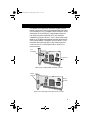
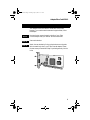
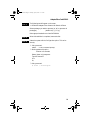
SFP
Receptacle
Tachyon XL2
ASIC
Adaptec Fibre Card 9210LP With Optical SFP Connector
HSSDC
Connector
Tachyon
XL2 ASIC
Adaptec Fibre Card 9210LPC With Copper HSSDC Connector
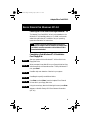
1
9210IG.book Page 2 Monday, April 2, 2001 11:13 AM
Installation Guide
This installation guide explains how to:
• Install the Adaptec Fibre Card 9210LP/9210LPC
• Change brackets on the Adaptec Fibre Card 9210LP/9210LPC
• Install the Small Form Factor Pluggable (SFP) (on the
Adaptec Fibre Card 9210LP only)
• Connect Fibre Channel cables
• Verify the adapter and cable installation
• Install Adaptec Fibre Card 9210LP/9210LPC device drivers
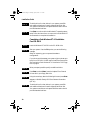
INSTALLING THE ADAPTEC F IBRE CARD 9210LP
STEP 1
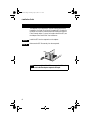
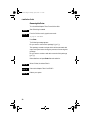
Discharge any static electricity build-up before handling the
Adaptec Fibre Card 9210LP by touching a grounded metal object
(such as the exposed metal parts on the back of your computer).
WARNING Turn OFF power to the computer and disconnect
the power cord.
STEP 2
2
After you turn OFF your computer and unplug the power cord,
remove the cover from the computer.
9210IG.book Page 3 Monday, April 2, 2001 11:13 AM
Adaptec Fibre Card 9210LP
STEP 3
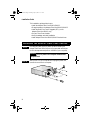
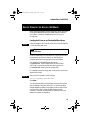
Locate an unused 64-bit PCI expansion slot and remove the
expansion slot cover. If the computer does not have a 64-bit slot,
you can install the card in a 32-bit PCI slot.
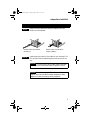
Select a PCI expansion slot. Save the slot cover screw for use in
Step 4.
Slot Cover
Screw
Expansion
Slot Cover
64-bit PCI Slot
32-bit PCI Slot
Computers may have vertical or horizontal expansion slots.
Refer to your computer manual to locate the PCI slots. If your
computer is a tower model, place it on its side to make it easier to
install the Adaptec Fibre Card 9210LP.
WARNING Be careful when inserting the Adaptec Fibre Card
9210LP into a PCI slot. Some older 32-bit slots do not
accommodate 64-bit cards, and the card or slot may break if
you use force.
3
9210IG.book Page 4 Monday, April 2, 2001 11:13 AM
Installation Guide
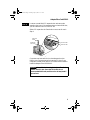
Vertical Installation
STEP 4
4
Horizontal Installation
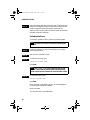
Insert the Adaptec Fibre Card 9210LP into the PCI expansion
slot. Press down firmly until the card clicks into place; then
replace the slot cover screw. When installed properly, the card
should appear level with the expansion slot, as shown below.
9210IG.book Page 5 Monday, April 2, 2001 11:13 AM
Adaptec Fibre Card 9210LP
CHANGING
THE
BRACKET
ON
YOUR ADAPTER
Your Adaptec Fibre Card 9210LP comes with a low profile
bracket. If you need to attach a standard height bracket, follow
these steps:
STEP 1
STEP 2
STEP 3
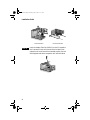
Unscrew the two screws located on the face of your Fibre
Channel adapter near your bracket. Set the screws aside.
Remove the bracket.
Attach the new bracket by lining up the bracket mounting tabs
with the matching holes in your Fibre Channel adapter. Fasten
the two screws you set aside in Step 1 by twisting securely into the
holes.
5
9210IG.book Page 6 Monday, April 2, 2001 11:13 AM
Installation Guide
INSTALLING
THE
SFP
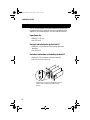
The Adaptec Fibre Card 9210LP optical interface requires the
installation of a Small Form Factor Pluggable (SFP) module for
the external connector interface before connecting the external
Fibre Channel cables. For more information about the SFP, see
the Adaptec Fibre Card 9210LP User’s Reference.
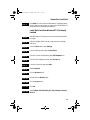
STEP 1
STEP 2
Install the SFP into the receptacle on the adapter.
Make sure the SFP fits securely into the receptacle.
NOTE You can only install the SFP one way, as the SFP and
guide rails inside the adapter receptacle are keyed.
6
9210IG.book Page 7 Monday, April 2, 2001 11:13 AM
Adaptec Fibre Card 9210LP
CONNECTING CABLES
STEP 1
Select the correct cable that matches the Adaptec Fibre Card
9210LP you have installed.
Adaptec Fibre Card 9210LP
Optical (LC)
STEP 2
Adaptec Fibre Card 9210LPC
Copper (HSSDC)
Install the end connectors of your cable into your computer. The
SFP and Fibre Channel cable are keyed, so they can only fit one
way.
CAUTION For optical Fibre Channel cables, support the cable
so that you do not have a bend radius of less than 3 inches.
CAUTION For optical and copper Fibre Channel cables,
support and route the cable to prevent damage from sharp
edges or from being crushed by nearby equipment.
7
9210IG.book Page 8 Monday, April 2, 2001 11:13 AM
Installation Guide
VERIFYING
THE
ADAPTER
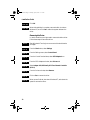
You can verify the adapter and cable installation by powering up
the system and looking at the two LEDs on the bulkhead of the
adapter. Under normal operation, the LEDs operate as follows:
Upon Power-Up
• PWR/ACT LED is on
• LNK LED is off
During Card Initialization by the Host OS
• PWR/ACT LED will flash as Fibre Channel devices are
identified
• LNK LED is off
PWR/ACT
LNK
Once the Card has been Initialized by the Host OS
• PWR/ACT LED will flash at one second intervals
• LNK LED is on if the link is up
Adaptec Fibre Card 9210LP and Adaptec Fibre Card
9210LPC With Low Profile and Standard Height
Brackets
8
9210IG.book Page 9 Monday, April 2, 2001 11:13 AM
Adaptec Fibre Card 9210LP
INSTALLING THE ADAPTEC FIBRE CARD 9210LP
DEVICE DRIVER FOR WINDOWS NT 4.0
Installing the Driver When Installing Windows NT 4.0
The Adaptec Fibre Card 9210LP driver is not embedded on the
Windows NT 4.0 installation disks (or CD-ROM) and must be
added during Windows NT installation. See your operating
system documentation for instructions.
NOTE In order to boot the operating system from a drive
attached to the Adaptec Fibre Card 9210LP, the Adaptec Fibre
Card 9210LP must be connected to a drive without a Fibre
Channel switch attached.
Completing a Fresh Windows NT 4.0 Installation
From Floppy Disk
STEP 1
STEP 2
STEP 3
STEP 4
STEP 5
STEP 6
Start your system with the Windows NT 4.0 Boot Disk in the
floppy disk drive.
When prompted, insert disk #2 into your floppy disk drive. After
a few moments you will see a blue screen. To set up Windows NT
now, press Enter.
Press S to skip auto-detection of devices in your system.
Press S again to specify an additional device.
Press Enter to select Others; insert the Adaptec Fibre Channel
Drivers disk in your floppy disk drive.
Using the arrow keys, select the following driver and press Enter:
Adaptec 1Gb/2Gb Family PCI Fibre Channel Controller
(NT 4.0)
9
9210IG.book Page 10 Monday, April 2, 2001 11:13 AM
Installation Guide
STEP 7
STEP 8
To add the driver for other devices in your system, press S for
each additional device and insert the appropriate driver disk.
Your system manufacturer and respective device vendor should
provide these device drivers.
Press Enter to continue with the Windows NT operating system
setup. Follow the instructions on-screen and in the Windows NT
documentation to complete the installation.
Completing a Fresh Windows NT 4.0 Installation
From CD-ROM
STEP 1
STEP 2
Insert the Windows NT 4.0 CD into the CD-ROM drive.
Start your system. Press the F6 key when you see the following
message:
Setup in inspecting your computer’s hardware
configuration...
If you do not see this message, your system might not be set up to
boot from a CD-ROM. You will need to install from floppy disks.
See Completing a Fresh Windows NT 4.0 Installation From Floppy
Disk on page 9.
STEP 3
STEP 4
STEP 5
When prompted, press S to specify an additional device.
Press Enter to select Others; insert the Adaptec Fibre Channel
Drivers disk in your floppy disk drive.
Using the arrow keys, select the following driver and press Enter:
Adaptec 1Gb/2Gb Family PCI Fibre Channel Controller
(NT 4.0)
STEP 6
10
To add the driver for other devices in your system, press S for
each additional device and insert the appropriate driver disk.
Your system manufacturer and respective device vendor should
provide these device drivers.
9210IG.book Page 11 Monday, April 2, 2001 11:13 AM
Adaptec Fibre Card 9210LP
STEP 7
Press Enter to continue with the Windows NT operating system
setup. Follow the instructions on-screen and in the Windows NT
documentation to complete the installation.
Install the Driver When Windows NT 4.0 is Already
Installed
STEP 1
Start Windows NT and log into an account with administrative
privileges.
STEP 2
Insert the Adaptec Fibre Channel Drivers disk into the floppy
disk drive.
STEP 3
STEP 4
STEP 5
STEP 6
STEP 7
STEP 8
STEP 9
STEP 10
STEP 11
STEP 12
STEP 13
From the Start button, select Settings.
From the Settings menu, select Control Panel.
From the Control Panel window, select SCSI Adapters icon.
From the SCSI Adapters window, select Drivers tab.
From the Drivers window, select Add.
Select Have Disk.
Click the Browse button.
Double-click the Winnt4 folder.
Click the Open button.
Click OK.
Select Adaptec 1Gb/2Gb Family PCI Fibre Channel Controller
(NT4.0).
11
9210IG.book Page 12 Monday, April 2, 2001 11:13 AM
Installation Guide
STEP 14
STEP 15
Click OK.
When the installation is complete, remove the disk, shut down
Windows NT, and Click Yes to reboot the system and start the
driver.
Removing the Driver
In certain situations you might need to remove the device driver.
Follow these steps to remove the driver:
STEP 1
STEP 2
STEP 3
STEP 4
STEP 5
STEP 6
STEP 7
STEP 8
STEP 9
12
Start Windows NT and log into an account with administrative
privileges.
From the Start button, select Settings.
From the Settings menu, select Control Panel.
From the Control Panel window, select SCSI Adapters icon.
From the SCSI Adapters window, select Drivers tab.
Select Adaptec 1Gb/2Gb Family PCI Fibre Channel Controller
(NT4.0).
From the Drivers window, select Remove.
Click on Yes to remove the driver.
When you are finished, shut down Windows NT, and reboot the
system to remove the driver.
9210IG.book Page 13 Monday, April 2, 2001 11:13 AM
Adaptec Fibre Card 9210LP
Additional Notes
WARNING The following registry files will change your systems registry information. Improper changes can cause the
system to become unbootable. Use the options that pertain to
your configuration. All the following changes require you to
log into Windows NT 4.0 with administrative privileges.
• RAID Storage Arrays:
If you are using RAID Storage arrays that are continually timing out on complex operations, you should increase the disk
operation timeouts from a default of 10 to 60 seconds. The
following registry file will change the TimeOutValue to 60
seconds to avoid NT timeouts (Event ID 9s on Windows NT’s
System EventLog).
To increase the timeout value:
1. Go to the Start button and select Run...
2. Type a:\winnt4\timeout.reg
3. Select OK for the pop up window.
•
4. You need to reboot in order for the registry setting to take
place.
N-port support:
If the switch is configured as an F_port, the adapter should be
configured as an N_port. When the adapter is configured as
an N_port:
To enable or disable N_Port:
1. Go to the Start button and select Run...
2. Type a:\winnt4\nport_on.reg
Replace nport_on.reg with nport_off.reg if you
would like to disable N_port support.
3. Select OK for the pop up window.
4. You need to reboot in order for the registry setting to take
place.
13
9210IG.book Page 14 Monday, April 2, 2001 11:13 AM
Installation Guide
• Large I/O request performance enhancement:
Performance enhancement for a large size I/O request could
be done by increasing the maximum number of scattergather lists or NumberOfPhysicalBreaks used by the SCSIPORT driver. This is only needed if you are running a special
application that takes advantage of large I/O.
The default when not specified in the Registry is 17 elements
or a maximum transfer size of 64K. The Registry file provided
will change the value to 65 elements or a maximum transfer
size of 256K.
To enable large I/O support:
1. Go to the Start button and select Run...
2. Type a:\winnt4\largesg.reg
3. Select OK for the pop up window.
•
4. You need to reboot in order for the registry setting to take
place.
EMC Symmetrix Storage array:
For Windows NT 4.0, there are some registry adjustments
needed for supporting the EMC Symmetrix Storage array.
Adaptec has provided a registry file to adjust some parameters to EMC recommendations.
To enable EMC Symmetrix support:
1. Go to the Start button and select Run...
2. Type a:\winnt4\emc.reg.
3. Select OK from the pop up window.
•
4. You need to reboot in order for the registry setting to take
place.
Windows NT 4.0 conflict of Agilent and Adaptec drivers:
Windows NT 4.0 cannot distinguish the difference between
Agilent Fibre Channel controllers and the Adaptec controller
when installed in the same system. If both controllers are
installed in the same system, either Adaptec’s or Agilent’s
driver will load for all the controllers. To avoid this conflict,
avoid using both controllers in the same system.
14
9210IG.book Page 15 Monday, April 2, 2001 11:13 AM
Adaptec Fibre Card 9210LP
INSTALLING THE ADAPTEC FIBRE CARD 9210LP
DEVICE DRIVER FOR WINDOWS 2000
Installing the Driver When Installing Windows 2000
The Adaptec Fibre Card 9210LP driver is not embedded on the
Windows 2000 installation disks (or CD-ROM) and must be
added during Windows 2000 installation. See your operating
system documentation for instructions.
NOTE In order to boot the operating system from a drive
attached to the Adaptec Fibre Card 9210LP, the Adaptec Fibre
Card 9210LP must be connected to a drive without a Fibre
Channel switch attached.
Completing a Fresh Windows 2000 Installation From
CD-ROM or Floppy Disk
STEP 1
Start your system with the Windows 2000 CD-ROM in the
CD-ROM drive. (If you are installing from floppy disk, insert the
Windows Boot Disk into the floppy disk drive instead of the
Windows 2000 CD-ROM.)
NOTE When using a CD-ROM drive to install Windows 2000
from a bootable CD-ROM, make sure Bootable CD-ROM
support is enabled in either the system or SCSI BIOS setup
utility. If these options are not available, use the Windows
2000 floppy disks to boot from.
STEP 2
You might see a message:
Press any key to boot from CD.
You will have five seconds to press a key to boot off the CD.
STEP 3
Press F6 when this message is displayed:
Press F6 if you need to install a third party SCSI or RAID
driver...
15
9210IG.book Page 16 Monday, April 2, 2001 11:13 AM
Installation Guide
STEP 4
A message will appear after a short time, prompting you to install
your driver. Press S to specify a driver.
STEP 5
Insert the Adaptec Fibre Channel Driver disk into the floppy disk
drive and press Enter.
STEP 6
You will be presented with a selection of driver choices. Using the
arrow keys, select the following driver and press Enter:
Adaptec 1Gb/2Gb Family PCI Fibre Channel Controller
(Windows 2000)
STEP 7
If you have no other controllers to add, press Enter to continue
with the Windows 2000 installation.
Install the Driver When Windows 2000 is Already
Installed
Before installing the Adaptec Fibre Card 9210LP driver, Windows
2000 should be installed.
Turn ON the system after installing the Adaptec Fibre Card
9210LP.
STEP 1
Start Windows 2000 and log into an account with administrative
privileges.
Windows 2000 will automatically discover the new hardware and
start a Found New Hardware Wizard to guide you through the
device driver installation.
STEP 2
STEP 3
At the Welcome to the Found New Hardware Wizard window,
select Next.
The window should say:
This Wizard will complete the installation for this device:
Fibre Channel Controller
16
9210IG.book Page 17 Monday, April 2, 2001 11:13 AM
Adaptec Fibre Card 9210LP
It will ask,
What do you want the wizard to do?
Select Search for a suitable driver for my device (recommended),
then select Next.
STEP 4
For optional search locations, deselect Floppy disk drives and
CD-ROM drives. Select Specify a location, then select Next.
STEP 5
Insert the Adaptec Fibre Channel Driver disk into the floppy disk
drive.
STEP 6
Below the window requesting, Copy manufacturer’s files from:
type: A:\WIN2000
Select OK.
STEP 7
STEP 8
At the Driver Files Search Results window, select Next.
The next window may ask,
Do you want to continue the installation?
Select Yes.
STEP 9
At the Completing the Found New Hardware Wizard window,
select Finish.
The device driver has been installed and loaded. The system does
not require rebooting.
17
9210IG.book Page 18 Monday, April 2, 2001 11:13 AM
Installation Guide
Removing the Driver
To uninstall the Adaptec Fibre Card 9210LP, follow these steps:
STEP 1
Turn OFF your system and remove the Adaptec Fibre Card
9210LP from your computer.
STEP 2
Once you reboot the system, Windows 2000 will recognize that
the Adaptec Fibre Card 9210LP has been removed.
Additional Notes
WARNING The following registry files will change your systems registry information. Improper changes can cause the
system to become unbootable. Use the options that pertain to
your configuration. All the following changes require you to
log into Windows 2000 with administrative privileges.
• RAID Storage Arrays:
If you are using RAID Storage arrays that are continually timing out on complex operations, you should increase the disk
operation timeouts from a default of 10 to 60 seconds. The
following registry file will change the TimeOutValue to 60
seconds to avoid Windows 2000 timeouts (Event ID 9s on
Windows 2000 System EventLog).
To increase the timeout value:
1. Go to the Start button and select Run...
2. Type a:\win2000\timeout.reg
3. Select OK for the pop up window.
4. You need to reboot in order for the registry setting to take
place.
18
9210IG.book Page 19 Monday, April 2, 2001 11:13 AM
Adaptec Fibre Card 9210LP
• N-port support:
If the switch is configured as an F_port, the adapter should be
configured as an N_port. When the adapter is configured as
an N_port:
To enable or disable N_Port:
1. Go to the Start button and select Run...
2. Type a:\win2000\nport_on.reg
Replace nport_on.reg with nport_off.reg if you
would like to disable N_port support.
3. Select OK for the pop up window.
•
4. You need to reboot in order for the registry setting to take
place.
Large I/O request performance enhancement:
Performance enhancement for a large size I/O request could
be done by increasing the maximum number of scattergather lists or NumberOfPhysicalBreaks used by the SCSIPORT driver. This is only needed if you are running a special
application that takes advantage of large I/O.
The default when not specified in the Registry is 17 elements
or a maximum transfer size of 64K. The Registry file provided
will change the value to 65 elements or a maximum transfer
size of 256K.
To enable large I/O support:
1. Go to the Start button and select Run...
2. Type a:\win2000\largesg.reg
3. Select OK for the pop up window.
4. You need to reboot in order for the registry setting to take
place.
19
9210IG.book Page 20 Monday, April 2, 2001 11:13 AM
Installation Guide
INSTALLING THE ADAPTEC FIBRE CARD 9210LP
DEVICE DRIVER FOR SUN SOLARIS
Before installing the Adaptec Fibre Card 9210LP driver, Solaris
should be installed.
NOTE You cannot install the operating system to a drive
attached to the Adaptec Fibre Card 9210LP.
STEP 1
STEP 2
Login as root.
Turn off volume manager by typing:
#/etc/init.d/volmgt stop
Press Enter. Insert the Adaptec Fibre Channel Drivers disk in
your floppy disk drive.
STEP 3
Type:
# mount -r -F pcfs /dev/fd0a /mnt
# cp /mnt/AFC9XXX_tar.Z /tmp
Press Enter.
STEP 4
Type:
# uncompress /tmp/AFC9XXX_tar.Z
Press Enter.
STEP 5
Type:
# tar xvf /tmp/AFC9XXX_tar
Press Enter.
STEP 6
Type:
# pkgadd -d /tmp/i386/diskette/.
Press Enter.
20
9210IG.book Page 21 Monday, April 2, 2001 11:13 AM
Adaptec Fibre Card 9210LP
STEP 7
The following text will appear on the screen:
1. AFC9XXX Adaptec Fibre Channel for Solaris 8 Driver
Select package you wish to process (or ‘all’ to process all
packages).
(default: all) [?,??,q] :
Make appropriate selections to install AFC9XXX.
STEP 8
STEP 9
When the installation is completed, remove the disk.
Reboot the system with the Configuration option. This can be
done by:
1. Using command:
reboot
-- -rv at a command prompt,
2. Booting system with option:
timeout in 5 seconds
Select (b)oot or (i)nterpreter:
Type the command:
b -rv
Or,
3. Using command:
# touch /.reconfigure
21
9210IG.book Page 22 Monday, April 2, 2001 11:13 AM
Installation Guide
Removing the Driver
To uninstall the Adaptec Fibre Channel driver disk:
STEP 1
STEP 2
Start Solaris login as root.
From the Solaris console, type the command:
# pkgrm AFC9XXX
Press Enter.
The following message appears:
Do you want to remove this package? [y,n,?] y
This package contains scripts which will be executed with
super-user permission during the process of removing this
package.
Do you want to continue with this removal of this package
[y,n,?] y
Make selections and press Enter after each selection.
STEP 3
STEP 4
STEP 5
22
When finished, shutdown Solaris.
Remove the Adaptec Fibre Card 9210LP.
Reboot your system.
9210IG.book Page 23 Monday, April 2, 2001 11:13 AM
Adaptec Fibre Card 9210LP
INSTALLING THE ADAPTEC FIBRE CARD 9210LP
DEVICE DRIVER FOR NOVELL NETWARE
Before loading the Adaptec Fibre Card 9210LP driver, verify that
the programs NWPA.NLM and SCSIHD.CDM are loaded on
your system. In addition, NetWare should be running in a
normal state.
Loading the Driver on an Existing NetWare Server
STEP 1
Insert the Adaptec Fibre Channel driver disk for Novell NetWare
5.1 into the floppy disk drive.
NOTE The driver can either be installed from the hard drive or
floppy disk drive.
For driver installation from the hard drive, copy the driver files to
the server boot up directory under DOS, and specify the
complete device path when typing the instruction below.
(For example: If the NetWare server directory is
C:\NWSERVER, load C:\NWSERVER\AFC9XXX.HAM
<RETURN> once the driver files have been copied to the
C:\NWSERVER directory from the floppy disk.)
For installation from the floppy disk, continue with instructions
as specified in Step 2.
STEP 2
Switch to the Command Console and type:
LOAD A:\NETWARE\AFC9XXX.HAM
Press Enter.
The driver starts loading and the display shows the slot number
that the Adaptec Fibre Card 9210LP is in. If there are multiple
Adaptec adapters installed in the system, the driver will prompt
you with a list of slot numbers to select the appropriate
controller. The driver must be loaded for each controller card
added to the system configuration.
23
9210IG.book Page 24 Monday, April 2, 2001 11:13 AM
Installation Guide
STEP 3
Remove the floppy disk after the driver loads. The drives are now
ready to be configured using the normal network administrator
access to create volumes and/or partition the drives. The
startup.ncf file can be modified to load the driver automatically
whenever the server is rebooted.
Unloading the Driver
To remove or update the driver, perform the following steps:
NOTE The old driver must be removed before installing the
new one.
STEP 1
STEP 2
STEP 3
Confirm that there is no Fibre Channel activity occurring by
dismounting the drive.
Switch to the Command Console.
To dismount the drive, type:
DISMOUNT VOLUME_NAME
Press Enter.
NOTE The volume_name is the volume that the user has
created. If more than one volume needs to be dismounted,
perform the Dismount command for each individual volume.
STEP 4
To remove the driver, type:
UNLOAD AFC9XXX.HAM
Press Enter.
When the driver is successfully removed, an acknowledgement
from the system displays the message:
driver unloaded
The controller card is now deactivated.
24
9210IG.book Page 25 Monday, April 2, 2001 11:13 AM
Adaptec Fibre Card 9210LP
Updating the Driver
To update the driver:
STEP 1
Perform the Unload procedure and make a backup of the old
driver. See Unloading the Driver on page 24.
STEP 2
Perform the Load procedure. See Loading the Driver on an
Existing NetWare Server on page 23.
Additional Notes
• During initial OS installation, do not install the OS on a
•
•
•
•
•
device attached to the Adaptec Fibre Card 9210LP. Currently,
AFC9XXX.HAM does not support booting off a Fibre Channel drive, but the SYS Volume may be installed to a Fibre
Channel device.
Do not use SGSCSI.CDM from the redbox CDM. Use
SCSIHD.CDM for all drives.
The AFC9XXX.HAM will support up to 124 FC-AL devices
under Novell NetWare.
When using CP4100 Mux from CrossRoads with the ADIC
Tape library use firmware revision (9816D) or later on the
CP4100.
By default the HBA port is initialized as an NL port when
connected to the fabric switch. To initialize the HBA port as
an N_port when connecting to the fabric switch load the
HAM driver using the following switch option: load
AFC9XXX.HAM initasnport=1.
Description of TIMEOUT parameter:
Timeout parameter is provided to timeout the requests to a
desired value in seconds between [10,90] seconds. If you
don't specify it the default value of 45 seconds will be used
while loading driver. One can specify this parameter as:
LOAD AFC9XXX TIMEOUT=XX <RETURN>
Where XX is a value between 10 and 90.
25
9210IG.book Page 26 Monday, April 2, 2001 11:13 AM
Installation Guide
If you try to use a value less than 10 Sec OR greater than 90
Sec, driver will display the warning shown below and will
load with default value of 45 Seconds.
AFC9XXX: Invalid timeout parameter
AFC9XXX: Default timeout value of 45 Sec will be used
• LUN Support Description:
Maximum luns in PERIPHERAL_DEVICE_ADDRESSING
mode our driver supports are 255(0...254) and For EMC in
volume set addressing mode it supports 256(0...255).
INSTALLING THE ADAPTEC FIBRE CARD 9210LP
DEVICE DRIVER FOR UNIXWARE
Installing the Driver When Installing UnixWare
To Install the Adaptec Fibre Channel driver at the same time you
install UnixWare, follow these instructions:
STEP 1
Either insert the installation floppy disk of the UnixWare package
into the boot floppy disk drive or insert the installation CD into a
bootable CD-ROM. Reboot your computer.
Wait for the first UnixWare installation screen and prompt to
appear, then follow the on-screen instructions.
STEP 2
STEP 3
When prompted to either Install Host Bus Adapter Drivers or
Continue Installation, first, remove the Install disk if you are
using an installation boot disk, then select Install Host Bus
Adapter Driver.
Insert the Adaptec Fibre Channel driver disk for UnixWare 7.1.x
into the primary floppy disk drive and press Enter (you cannot
load drivers from a secondary floppy disk drive).
As the driver loads, a message identifying the installed host
adapter briefly appears on screen.
26
9210IG.book Page 27 Monday, April 2, 2001 11:13 AM
Adaptec Fibre Card 9210LP
STEP 4
If you have additional HBA disks, insert the next HBA disk, select
Install Another HBA Disk, and press Enter.
If all of your HBA disks have been installed, remove the last HBA
disk, select Continue Installation, and press Enter.
STEP 5
STEP 6
STEP 7
If necessary, enter the Device Configuration Utility (DCU) to
view/change the UnixWare device configuration data.
Follow the on-screen instructions to continue with installation.
Refer to the UnixWare documentation and on-screen help files
for help in selecting options.
If your installation fails, go to the h screen to check for any error
messages printed.
Type Alt PrintScreen at the same time then type h.
You should see something similar to the following if the Adaptec
Fibre Channel driver has been loaded.
0:0, 0, 0: HBA
0, 2, 0: DISK
0, 3, 0: DISK
: (afc9xxx, 1) Adaptec AFC9xxx
: SEAGATE ST318304FC 0001
: IBM DDYS-T18350
0002
Read printed messages if any. If your installation has failed, these
messages will help you to determine why it failed. Follow the
instructions in the UnixWare documentation and in this
Installation Guide to retry the installation.
Installing the Driver When UnixWare is Already
Installed
To update or install the Adaptec Fibre Channel driver on a system
where UnixWare is already installed, follow the instructions in
this section.
CAUTION Improper or corrupt driver updates might destroy
your existing UnixWare file system. Back up all important
files before proceeding. Consult your UnixWare
documentation for proper backup procedures.
27
9210IG.book Page 28 Monday, April 2, 2001 11:13 AM
Installation Guide
STEP 1
STEP 2
Back Up the Computer: Back up the old UnixWare kernel and
any other important files.
Load the package by typing:
# pkgadd -d diskette1
This message is displayed:
Insert diskette into Floppy Drive 1
Type [go] when ready
or [q] to quit:
(default: go)
Press Enter.
This message will appear:
Installation in progress. Do not remove the diskette.
The following packages are available:
1 afc9xxx
Adaptec AFC9XXX Driver for UnixWare 7.1.x
(i386) d1.00
Select packages(s) you wish to process (or ‘all’ to process
all packages). (default: all) [?, ??, quit] :
Type 1
Press Enter.
Upon completion this message will appear:
Installation of Adaptec AFC9xxx Driver for UnixWare 7.1.x
(afc9xxx) was successful.
Insert diskette into Floppy Drive 1
Type [go] when ready
or [q] to quit: (default: go)
Type q
Press Enter to quit.
28
9210IG.book Page 29 Monday, April 2, 2001 11:13 AM
Adaptec Fibre Card 9210LP
STEP 3
When the installation is completed, remove the disk and rebuild
the kernel by typing the command:
# /etc/conf/bin/idbuild -B
Press Enter.
STEP 4
Verify the correct driver is installed by typing the command:
# pkginfo -1 afc9xxx
STEP 5
Reboot the system to make sure the system boots correctly. Type
the command:
# init 6
The following sequences will happen after the init 6
command is issued:
• Terminates running services.
• Save your /stand/unix to /stand/unix.old then
• copy the new kernel from /etc/conf/cf.d/unix to /stand/unix.
• reboot system.
NOTE Remember that UnixWare commands are case sensitive.
Enter the commands exactly as shown.
Removing the Driver
To uninstall the Adaptec Fibre Channel driver:
STEP 1
STEP 2
Start UnixWare and login as root.
From the UnixWare console, type this command:
# pkgrm afc9xxx
Press Enter.
This message will appear:
Do you want to remove this package [yes,no,?,quit]?
Type Yes
Press Enter.
29
9210IG.book Page 30 Monday, April 2, 2001 11:13 AM
Installation Guide
STEP 3
When the uninstallation is completed, rebuild the kernel by
typing the command:
# /etc/conf/bin/idbuild -B
Press Enter.
STEP 4
Reboot the system to make sure the system boots correctly. Type
the command:
# init 6
The following sequences will happen after the init 6
command is issued:
• Terminates running services.
• Save your /stand/unix to /stand/unix.old then
• copy the new kernel from /etc/conf/cf.d/unix to /stand/unix.
• reboot system.
If System Crashes after Installing or Removing the
Driver in a Running UnixWare System
You may have to boot from the backup kernel created earlier and
then perform the driver update/removal procedure again. To
boot from the old kernel, follow these steps:
STEP 1
STEP 2
30
Reboot the computer.
At the Booting UNIX System... prompt or loading UnixWare
graphics, press the Spacebar. This will take you into a boot
prompt.
9210IG.book Page 31 Monday, April 2, 2001 11:13 AM
Adaptec Fibre Card 9210LP
STEP 3
From the boot prompt,
Type dir to list all files in /stand directory; unix.old is one of
the files the system has saved for you before the last reboot.
Type the following to boot with the old kernel:
BOOTPROG=unix.old
Press Enter.
Type go then press Enter.
STEP 4
STEP 5
Your computer should now boot from the backup kernel created
earlier.
Save the backup kernel to names other than unix.old. Doing so
would prevent system from overwriting your working kernel on
the next build. Type:
cp /stand/unix.old /stand/unix.works
Press Enter.
STEP 6
Check log files for help in determining why the system crashed:
/usr/adm/log/osmlog
/usr/adm/log/osmlog.old
31
9210IG.book Page 32 Monday, April 2, 2001 11:13 AM
Installation Guide
TROUBLESHOOTING
If you have any problems while installing the Adaptec Fibre Card
9210LP, check the following items first:
• Is the card seated evenly all the way into the PCI slot?
• Is bus mastering support provided and enabled for the PCI
slot containing the Adaptec Fibre Card 9210LP?
• Is the SFP seated correctly into the adapter?
• Is the cable inserted all the way into the SFP?
• Is the cable inserted all the way into the HSSDC?
• Are all peripherals connected correctly throughout the loop?
• Have the LED lights indicated that:
• PWR/ACT is on at power up?
• PWR/ACT flashes after card is initialized?
• LNK LED is on when link is up?
• When using cascading hubs, used the same hub vendors?
• Verified that at least one device in the loop is powered up if
•
•
•
•
32
you are not using a hub or a switch? Hubs or switches detect
devices that are not powered up and automatically do a port
bypass.
Checked that a switch is not attached to the channel port with
the intended Boot device? If a switch is present and attached,
the BIOS will not Boot.
Checked the troubleshooting section of your operating system user manual?
Checked the Windows NT and Windows 2000 Event Log if
you encounter problems loading the drivers?
For the Sun Solaris system, run the dmesg utility and
syslogd facility to view messages and logging information?
See the system man pages to determine how to configure and
use these commands.
9210IG.book Page 33 Monday, April 2, 2001 11:13 AM
Adaptec Fibre Card 9210LP
NOTE A possible cause of driver or device failure could be that
the loop is not completed. In other words, the devices are not
connected in a series to form a loop. This does not apply if
you are using a hub or a switch.
If you are still unable to resolve a problem, see the Adaptec Fibre
Card 9210LP User’s Reference, the Adaptec Web site at
http://www.adaptec.com, or the Adaptec Support
Knowledgebase at http://ask.adaptec.com for additional
troubleshooting information.
33
9210IG.book Page 35 Monday, April 2, 2001 11:13 AM
Copyright
© 2001 Adaptec, Inc. All rights reserved. No part of this publication may be reproduced,
stored, in a retrieval system, or transmitted in any form or by any means, electronic,
mechanical, photocopying, recording or otherwise, without the prior written consent of
Adaptec, Inc., 691 South Milpitas Blvd., Milpitas, CA 95035.
Trademarks
Adaptec and the Adaptec logo are trademarks of Adaptec, Inc., which may be registered
in some jurisdictions. Windows NT and Windows 2000 are trademarks of Microsoft
Corporation in the U.S. and other countries, used under license.
All other trademarks are the property of their respective owners.
Changes
The material in this document is for information only and is subject to change without
notice. While reasonable efforts have been made in the preparation of this document to
assure its accuracy, Adaptec, Inc. assumes no liability resulting from errors or omissions
in this document, or from the use of the information contained herein.
Adaptec reserves the right to make changes in the product design without reservation
and without notification to its users.
Disclaimer
IF THIS PRODUCT DIRECTS YOU TO COPY MATERIALS, YOU MUST HAVE PERMISSION FROM THE COPYRIGHT OWNER OF THE MATERIALS TO AVOID
VIOLATING THE LAW WHICH COULD RESULT IN DAMAGES OR OTHER
REMEDIES.
Regulatory Compliance Statements
Federal Communications Commission Radio Frequency Interference Statement
WARNING: Changes or modifications to this unit not expressly approved by the party responsible for
compliance could void the user’s authority to operate the equipment.
This equipment has been tested and found to comply with the limits for a Class B digital device,
pursuant to Part 15 of the FCC rules. These limits are designed to provide reasonable protection
against harmful interference in a residential installation. This equipment generates, uses, and can
radiate radio frequency energy, and if not installed and used in accordance with the instruction
manual, may cause harmful interference to radio communications. However, there is no guarantee
that interference will not occur in a particular installation. However, if this equipment does cause
interference to radio or television equipment reception, which can be determined by turning the
equipment off and on, the user is encouraged to try to correct the interference by one or more of the
following measures:
• Reorient or relocate the receiving antenna.
• Increase the separation between equipment and receiver.
• Connect the equipment to an outlet on a circuit different from that to which the receiver is connected.
• Consult the dealer or an experienced radio/television technician for help.
• Use a shielded and properly grounded I/O cable and power cable to ensure compliance of this unit to the specified limits of the rules.
9210IG.book Page 36 Monday, April 2, 2001 11:13 AM
This device complies with part 15 of the FCC rules. Operation is subject to the following two
conditions: (1) this device may not cause harmful interference and (2) this device must accept any
interference received, including interference that may cause undesired operation.
Adaptec, Inc.
AFC-9210LP
AFC-9210LPC
Tested to Comply
With FCC Standards
FOR HOME OR OFFICE USE
European Union Compliance Statement
This Information Technology Equipment has been tested and found to comply with the
following European directives:
EMC Directive 89/336/EEC, as amended by 92/31/EEC and 93/68/EEC
EN 50081-1 (1992)
EN55022 (1994) Class B
EN 50082-1 (1992)
EN61000-4-2 (1998)
EN61000-4-3 (1998)
EN61000-4-4 (1995)
EN61000-4-5 (1995) Surges
EN61000-4-6 (1996) Conducted immunity
EN61000-4-11 (1994) Supply dips of variation
Australian/New Zealand Compliance Statement
This device has been tested and found to comply with the limits for a Class B digital device,
pursuant to the Australian/New Zealand standard AS/NZS 3548 set out by the Spectrum
Management Agency.
Canadian Compliance Statement
This Class B digital apparatus meets all requirements of the Canadian Interference-Causing
Equipment Regulations.
Cet appareil numérique de la classe B respecte toutes les exigences du Règlement sur le
matérial brouilleur du Canada.
Japanese Compliance (Voluntary Control Council Initiative)
9210IG.book Page 38 Monday, April 2, 2001 11:13 AM
© 2001 Adaptec, Inc. All rights reserved.
SOURCE NUMBER: 512777-00, Ver. AB
JG 04/2001