1
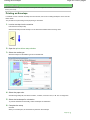
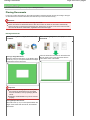
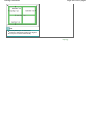
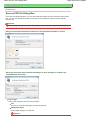
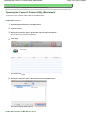
Printing Documents (Macintosh)
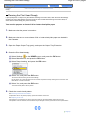
6.
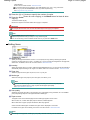
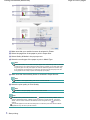
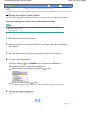
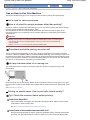
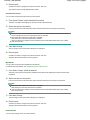
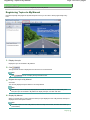
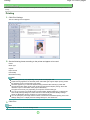
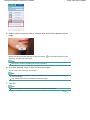
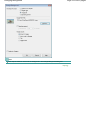
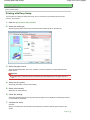
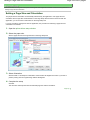
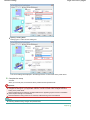
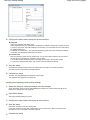
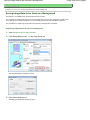
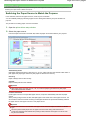
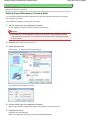
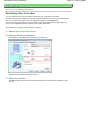
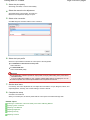
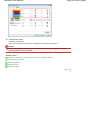
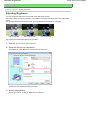
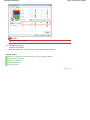
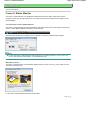
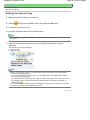
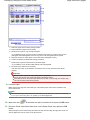
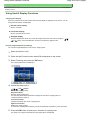
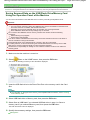
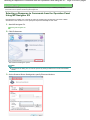
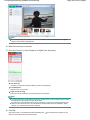
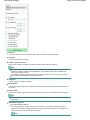
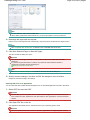
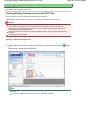
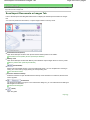
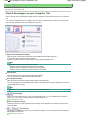
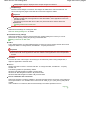
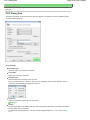
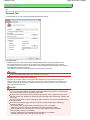
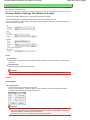
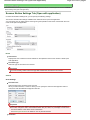
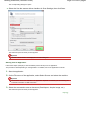
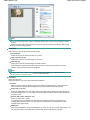
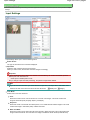
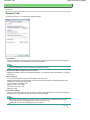
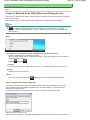
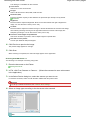
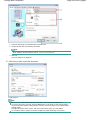
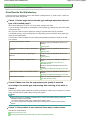
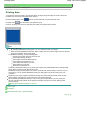
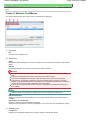
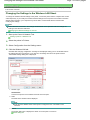
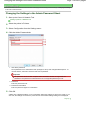
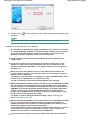
Specify the required print settings.
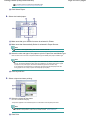
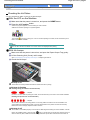
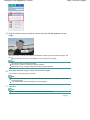
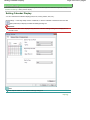
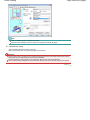
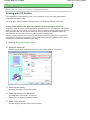
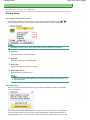
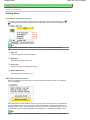
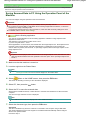
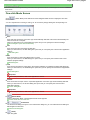
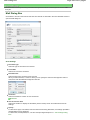
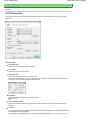
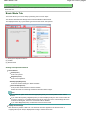
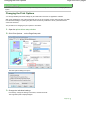
(1) Select Print on the File menu in your software application.
The Print dialog box appears.
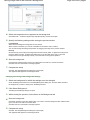
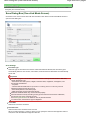
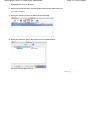
(2) Make sure that your machine's name is selected in Printer.
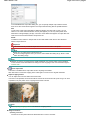
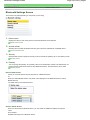
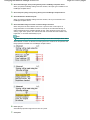
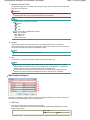
(3) Select Quality & Media in the pop-up menu.
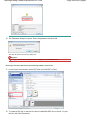
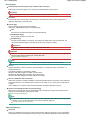
(4) Select the media type of the paper to print in Media Type.
Note
If you select A4, B5, A5, or Letter-sized plain paper when Automatically Select is selected
in Paper Source, the machine feeds the paper from the Cassette. If you select other sizes
or types of paper such as photo paper, the machine feeds the paper from the Rear Tray.
If you select the wrong page size or media type, the machine may feed paper from the
wrong paper source or may not print with the proper print quality.
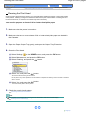
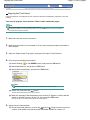
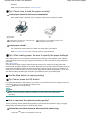
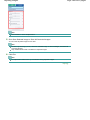
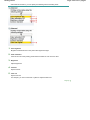
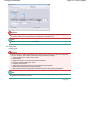
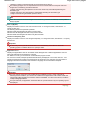
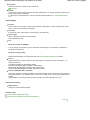
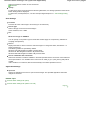
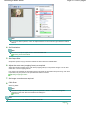
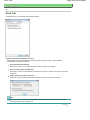
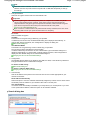
(5) Make sure that Automatically Select is selected in Paper Source.
Note
For details on other paper feeding, refer to the on-screen manual: Advanced Guide.
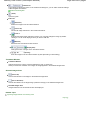
(6) Select the print quality in Print Quality.
Note
For details on the print quality, refer to the on-screen manual: Advanced Guide.
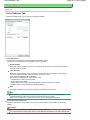
Note
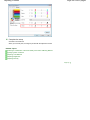
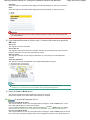
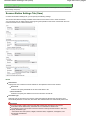
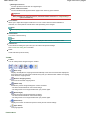
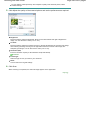
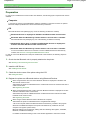
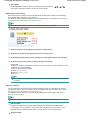
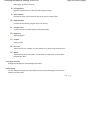
(Question) on the Quality & Media, Color
For details on the printer driver functions, click
Options, Special Effects, Borderless Printing, or Margin screen to view the on-screen manual:
Advanced Guide. If the on-screen manual is not installed, it does not appear even if
(Question) is clicked.
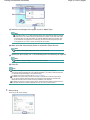
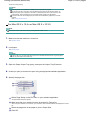
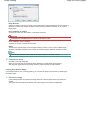
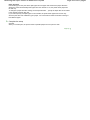
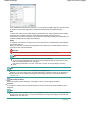
To display the preview to confirm the print result, click Preview. Some software applications
may not have a preview function.
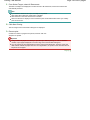
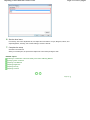
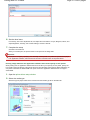
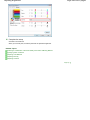
7.
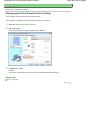
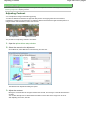
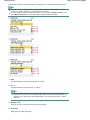
Start printing.
Click Print to start printing.
Note
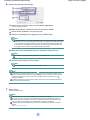
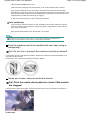
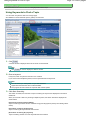
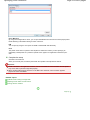
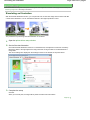
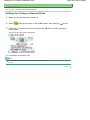
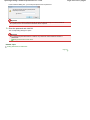
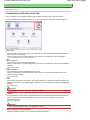
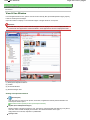
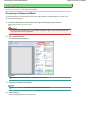
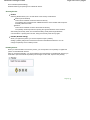
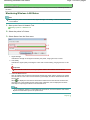
Click the printer icon in the Dock to display the list of print jobs in progress.
To cancel a print job in progress, select the desired job in the Name list and click Delete. To
temporarily stop a job in progress, click Hold. To temporarily stop all the jobs in the list, click
Stop Jobs. After canceling the print job, blank sheets of paper may be ejected.
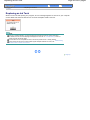
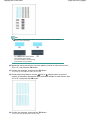
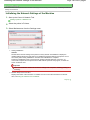
If printed ruled lines are misaligned or print results are unsatisfactory, adjust the print head
position.
See Aligning the Print Head.
Page 52 of 815 pages