1
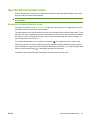
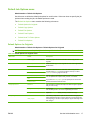
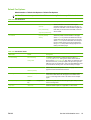
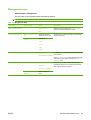
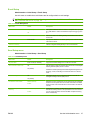
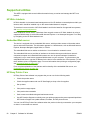
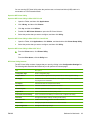
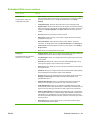
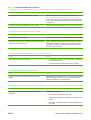
Device Behavior menu
Administration > Device Behavior
NOTE: Values shown with "(default)" are the factory-default values. Some menu items have no default.
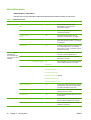
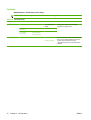
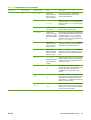
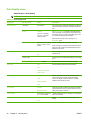
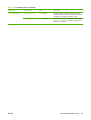
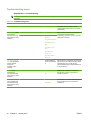
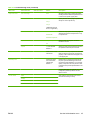
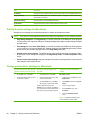
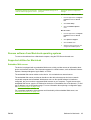
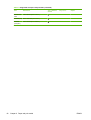
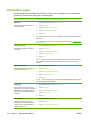
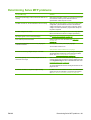
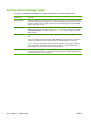
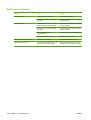
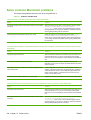
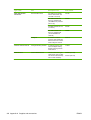
Table 2-14 Device Behavior menu
Menu item
Sub-menu item
Sub-menu item
Values
Description
Language
Select the language
from the list.
Use this feature to select a different language
for control-panel messages. When you select
a new language, the keyboard layout might
also change.
Key Press Sound
On (default)
Use this feature to specify whether you hear
a sound when you touch the screen or press
buttons on the control panel.
Off
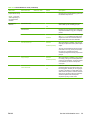
Inactivity Timeout
Warning/Error
Behavior
Clearable Warnings
Type a value
between 10 and 300
seconds. The factory
default is 60
seconds.
Use this feature to specify the amount of time
that elapses between any activity on the
control panel and the device resetting to the
default settings.
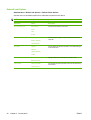
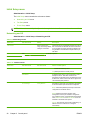
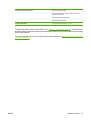
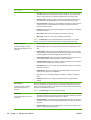
On
Use this feature to set the amount of time that
a clearable warning appears on the control
panel.
Job (default)
Continuable Events
Auto continue (10
seconds) (default)
Use this option to configure the device
behavior when the device encounters certain
errors.
Press OK to continue
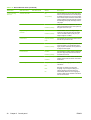
Jam Recovery
Auto (default)
Use this feature to configure how the device
handles pages that are lost during a jam.
On
Off
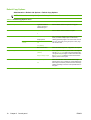
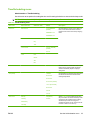
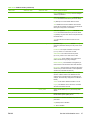
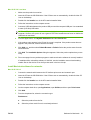
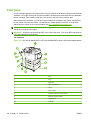
Tray Behavior
Use Requested Tray
Exclusively (default)
First
Manually Feed
Prompt
Always (default)
Unless Loaded
PS Defer Media
Enabled (default)
Use this feature to control how the device
handles jobs that have specified a specific
input tray.
Use this feature to indicate whether a prompt
should appear when the type or size for a job
does not match the specified tray and the
device pulls from the multipurpose tray
instead.
Use this feature to choose either the
postscript (PS) or HP paper-handling model.
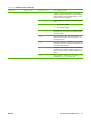
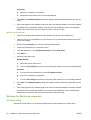
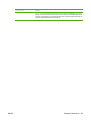
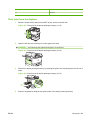
Disabled
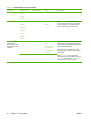
Use Another Tray
Enabled (default)
Disabled
Size/Type Prompt
Display
Do not display
(default)
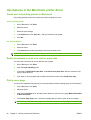
Duplex Blank Pages
Auto (default)
Use this feature to turn on or off the controlpanel prompt to select another tray when the
specified tray is empty.
Use this feature to control whether the tray
configuration message appears whenever a
tray is opened or closed.
Use this feature to control how the device
handles two-sided jobs (duplexing).
Yes
38
Chapter 2 Control panel
ENWW