1
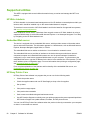
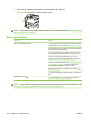
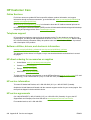
Use the Send E-mail screen
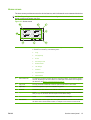
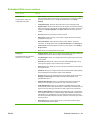
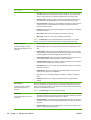
Use the touchscreen to navigate through the options on the Send E-mail screen.
1
Send E-mail button
Touching this button scans the document and sends an e-mail file to the provided e-mail
addresses.
2
Home button
Touching this button opens the Home screen.
3
From: field
Touch this field to open the keyboard, and then type your e-mail address. If the system
administrator has configured the device to do so, this field might automatically insert a default
address.
4
To: field
Touch this field to open the keyboard, and then type the e-mail addresses of those whom you
want to receive the scanned document.
5
Subject: field
Touch this field to open the keyboard, and then type a subject title.
6
More Options button
Touch this button to change certain e-mail settings for the current scan job.
7
Scroll bar
Use the scroll bar to view and set up the CC:, BCC:, Message, and File Name fields. Touch any
of those fields to open the keyboard and add the necessary information.
8
Address book buttons
Touch these buttons to use the address book to populate the To:, CC:, or BCC: fields. For more
information, see Use the address book on page 139.
9
Help button
Touch this button for control-panel help. For more information, see Use the control panel
on page 12.
10
Error/warning button
This button appears only when there is an error or warning in the status line area. Touch it to open
a pop-up screen that will help you resolve the error or warning.
136 Chapter 9 Scan and send to e-mail
ENWW