1
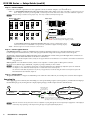
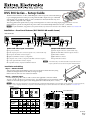
Front Panel Overview
DVS 304
1
2
3
4
MENU
VIDEO AND RGB SCALER
ADJUST
NEXT
IR
2
1
4
3
6
5
7
a Input selection buttons — Select/switch inputs and indicate which input is active (button LED lights green). A blinking LED
indicates an audio breakaway input (audio models only).
Button 1 selects input 1 - composite video.
Button 2 selects input 2 - composite video, S-video, or component video.
Button 3 selects input 3 - S-video.
Button 4 selects input 4 - RGB scaled (RGBHV, RGBS, RGsB), RGB pass-through, RGBcvS, YUVi, YUVp/HDTV, S-video or
composite video.
N RGB pass-through mode (inputs pass at their native rate without additional processing) is available on analog outputs only. The DVI
output is disabled in RGB pass-through mode.
b Menu button — This button allows navigation through the DVS's system menu (top level).
c Next button — This button allows navigation through the submenus and to start selected functions, such as Auto-Image
d LCD display — This 12x2 screen displays device status, settings, and menu configuration information.
e Infrared (IR) sensor — This sensor is used to receive IR signals from the IR 902 remote control.
™
.
N For detailed information on the IR 902 remote, refer to the DVS 304 Series User's Manual, available online at www.extron.com.
f and g Adjust knobs — These are used with the menu navigation buttons to adjust device settings and picture control.
Setting the front panel lock (Executive mode)
The DVS has a front panel security lock feature that limits the operation of the unit from the front panel.
Executive mode 0 (disabled) — The front panel is fully unlocked. This is the default setting.
Executive mode 1 (enabled) — The front panel is locked except for input switching.
Enabling or disabling Executive mode 1 from the front panel
Press and hold the Menu and Next buttons until the LCD display indicates the Executive mode is either enabled or disabled.
N If the DVS is in Executive mode 0 (unlocked), this procedure selects mode 1 (locked).
If it is in Executive mode 1, this procedure selects mode 0 (unlocked).
When Executive mode is enabled and a front panel action is attempted (other than input switching), the LCD displays the status for
2 seconds. Executive mode 1 can also be enabled or disabled by SIS commands.
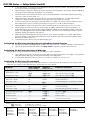
Configuring the DVS using the front panel system menus
The DVS has eight or nine front panel configuration menus:
Start Auto Image, Input Configuration, Picture Control, Output Configuration, Audio Configuration (only seen on audio models),
Memory Presets, IP Configuration, Advanced Configuration, and the Exit Menu.
N For detailed information on the menus, refer to the DVS 304 Series User's Manual, available online at www.extron.com.
To use a menu, press the Menu button to access the Main menu, then repeatedly press the Menu button to cycle through the list to
the desired menu. Press Next to enter the desired submenu, and follow the steps on page 4.
N Press Menu at any time to exit a submenu and return to the main menu.
Default Display Cycle
INPUT 4
RGB PASS
2
sec.
OUTPUT
[email protected]
Menu
START AUTO
IMAGE ON INx
Menu
INPUT
CONFIG
Menu
PICTURE
CONTROL
Menu
(Audio models only)
2 sec.
AUDIO
CONFIG
Menu
OUTPUT
CONFIG
Menu
MEMORY
PRESETS
Menu
IP
CONFIG
ADVANCED
CONFIG
Menu
Menu
Menu
Next
TO EXIT MENU
PRESS NEXT
DVS 304 Series • Setup Guide
3