1
4. Press and hold the Command-Option-P-R keys. Important: You must press this key combination before the gray screen appears.
5. Hold the keys down until the computer restarts and you hear the startup sound for the second time.
6. Release the keys.
Resetting NVRAM may change some system settings and preferences. Use System Preferences to restore your settings.
Starting Up in Safe Mode
A Safe Boot is a special way to start Mac OS X when troubleshooting. To start up into Safe Mode (Safe Boot):
1. Make sure the computer is shut down.
2. Press the power button.
3. Immediately after you hear the startup tone, press and hold the Shift key. Note: The Shift key should be held as soon as possible after the startup
tone but not before.
4. Release the Shift key when you see the screen with the gray Apple and progress indicator (looks like a spinning gear). During startup, ”Safe Boot”
appears on the Mac OS X startup screen.
To leave Safe Mode, restart the computer normally, without holding down any keys during startup.
Recovery HD
A bootable Mac OS X Utilities volume is installed on a hidden partition (Recovery HD) of the internal drive, and may be used to perform the following
tasks:
Repair the internal drive using Disk Utility
Erase or Partition the internal drive using Disk Utility
Restore information on the internal drive using a Time Machine Backup
Restore or Reinstall Mac OS X and Apple applications on the internal drive from the internet
To boot from Recovery HD:
1. Restart the computer while holding down the Command (Cmd) and R keys. Important: If the Mac OS X Utilities application doesn’t appear after
restarting, restart the computer while holding down the Command (Cmd) Option (alt) and R keys, to access and load the Mac OS X Utilities
software from the Internet. The computer must be connected to a network that has access to the Internet.
2. The Mac OS X Utilities window will appear.
If Recovery HD and Internet access is not available, an external recovery disk may be used. Refer to Apple support article
HT4848.
Some utilities may require an access to the Internet and the Mac App Store.
Serial Numbers
2D Barcodes
This computer includes 2D barcodes that require service providers to have updated barcode scanners. It is important to upgrade
scanners to read 2D barcodes in order to enter part serial numbers in GSX. More information can be found in Apple Support article
OP53: Motorola Symbol DS6707 Scanner Information and Configurations.
System Serial Number
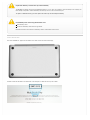
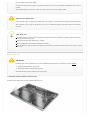
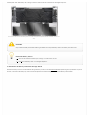
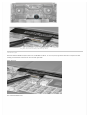
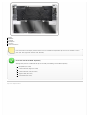
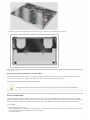
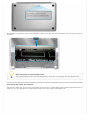
The system serial number is located in two places. Turn over the computer to see the system serial number etched on the bottom case near the hinge.