1
Software and Firmware Updates
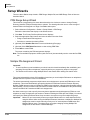
IP Telephone, MIPU, GIPU, LIPU and BIPU Firmware Update Procedures
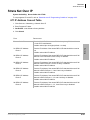
IP Telephone Update
Important!
Complete all “Prerequisites” on page B-3 before you do the following.
CAUTION!
Be sure that you are loading the update firmware to the correct device. Incorrect
firmware can cause the device to be inoperable. For example, BIPU firmware loaded
onto an LIPU will cause the LIPU card to stop functioning. This caution also applies to
IPTs. For example, loading IPT2000 firmware to an IPT2008 will cause the IPT2008 to
stop functioning. Restoration can only be done at a Toshiba TSD repair facility.
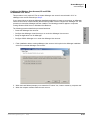
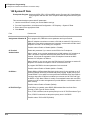
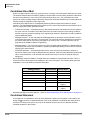
From the eManager PC or External SM/SD read\write device
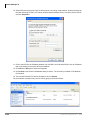
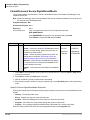
1. Store the update files on the SM/SD card.
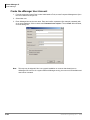
2. “Force format” a SM/SD card using eManager.
3. Copy the DIPXXXX update file under the SM/SD card PROGRAM folder (XXXX is the IP Telephone
firmware version level).
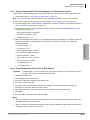
From the eManager PC perform the update
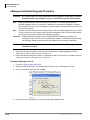
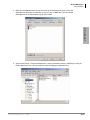
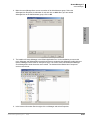
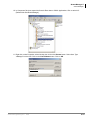
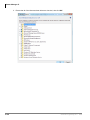
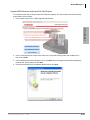
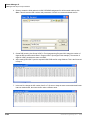
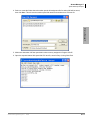
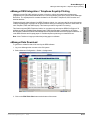
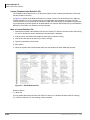
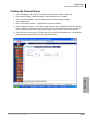
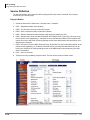
1. Select Utilities > Operations > SM/SD Card. Check that the DIPXXXX file is stored on the SM/SD
card under the PROGRAM directory.
Important!
The LIPUs and IP telephones will automatically be disabled while Update takes place and
return to the idle state when Update is complete (if they were in the idle state when the
Update was started).
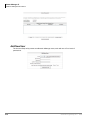
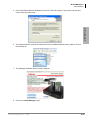
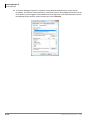
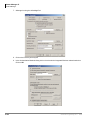
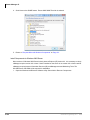
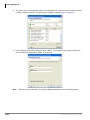
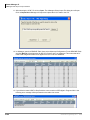
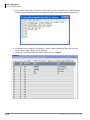
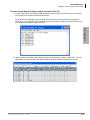
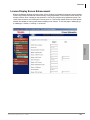
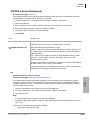
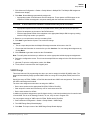
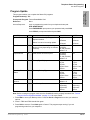
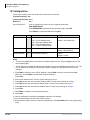
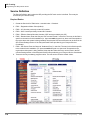
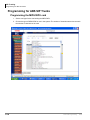
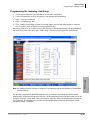
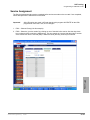
2. Select Advanced Configuration > IP-Telephony > IPT_L Prog Update. Select the IP telephone PDN
to be updated. Refer to the Cautions on Page B-1.
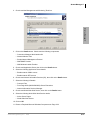
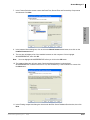
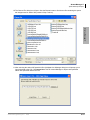
3. Select CIX Internal (SM/SD) radio button.
4. An ftp Name and Password is inserted automatically.
5. The IP address of the CIX processor (SM/SD card) is inserted automatically.
6. Data Directory box will be: PROGRAM
7. From File Name drop down box select: DIPXXXX
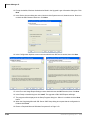
8. Click Start and observe the update status: Getting Updated file\Updating\Finished
Updating\Resetting\idle.
Notes
•
It can take from 30 seconds up to two minutes to update the IP telephones.
•
If an error occurs, recheck file names, locations, etc., then try again.
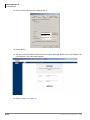
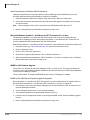
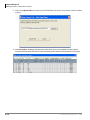
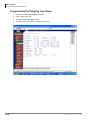
9. Select IP telephone > Station Data, check the IP telephone version number to verify that all IP
telephones have been updated properly.
To check the IP telephone firmware version directly from an IP telephone
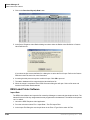
1. Simultaneously press 369Hold buttons on the IP Telephone.
2. At the SELECT = prompt, press 1 then press Hold.
3. At the Select function key prompt, press FB01, the IP telephone will be displayed.
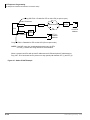
Note The eManager PC cannot be connected directly to the CIX processor network jack - all connections
must be through the network.
B-6
Strata CIX Programming 05/08