1
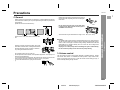
Precautions SD-EX220 4" (10 cm) 4" (10 cm) 4" (10 cm) 4" (10 cm) z Do not remove the outer cover, as this may result in electric shock. Refer internal service to your local SHARP service facility. z This unit should only be used within the range of 41°F - 95°F (5°C - 35°C). z Use the unit on a firm, level surface free from vibration. Warning: z Keep the unit away from direct sunlight, strong magnetic fields, excessive dust, humidity and electronic/ electrical equipment (home computers, facsimiles, etc.) which generate electrical noise. z Do not place anything on top of the unit. z Do not expose the unit to moisture, to temperatures higher than 140°F (60°C) or to extremely low temperatures. z If your system does not work properly, disconnect the AC power cord from the AC outlet. Plug the AC power cord back in, and then turn on your system. z In case of an electrical storm, unplug the unit for safety. z The voltage used must be the same as that specified on this unit. Using this product with a higher voltage other than that which is specified is dangerous and may result in a fire or other type of accident causing damage. SHARP will not be held responsible for any damage resulting from use of this unit with a voltage other than that which is specified. z CD players use a laser pickup which can damage the eyes if viewed directly. Do not look at the pickup, and do not touch the pickup directly. Volume control The sound level at a given volume setting depends on speaker efficiency, location and various other factors. It is advisable to avoid exposure to high volume levels, which occurs while turning the unit on with the volume control setting up high, or while continually listening at high volumes. - Precautions - z Please ensure that the equipment is positioned in a well-ventilated area and ensure that there is at least 4" (10 cm) of free space along the sides, top and back of the equipment. (Unless the unit is to be wall mounted.) 1 z Hold the AC power plug by the head when removing it from the AC outlet, as pulling the cord can damage internal wires. General Information General 7 03/6/19 SD-EX220(U).fm TINSE0560AWZZ